> ## Documentation Index
> Fetch the complete documentation index at: https://developer.box.com/llms.txt
> Use this file to discover all available pages before exploring further.

# Get started with AI studio

export const MultiRelatedLinks = ({sections = []}) => {
  if (!sections || sections.length === 0) {
    return null;
  }
  return <div className="space-y-8">
      {sections.map((section, index) => <RelatedLinks key={index} title={section.title} items={section.items} />)}
    </div>;
};

export const RelatedLinks = ({title, items = []}) => {
  const getBadgeClass = badge => {
    if (!badge) return "badge-default";
    const badgeType = badge.toLowerCase().replace(/\s+/g, "-");
    return `badge-${badge === "ガイド" ? "guide" : badgeType}`;
  };
  if (!items || items.length === 0) {
    return null;
  }
  return <div className="my-8">
      {}
      <h3 className="text-sm font-bold uppercase tracking-wider mb-4">{title}</h3>

      {}
      <div className="flex flex-col gap-3">
        {items.map((item, index) => <a key={index} href={item.href} className="py-2 px-3 rounded related_link hover:bg-[#f2f2f2] dark:hover:bg-[#111827] flex items-center gap-3 group no-underline hover:no-underline border-b-0">
            {}
            <span className={`px-2 py-1 rounded-full text-xs font-semibold uppercase tracking-wide flex-shrink-0 ${getBadgeClass(item.badge)}`}>
              {item.badge}
            </span>

            {}
            <span className="text-base">{item.label}</span>
          </a>)}
      </div>
    </div>;
};

export const Link = ({href, children, className, ...props}) => {
  const localizedHref = href;
  return <a href={localizedHref} className={className} {...props}>
      {children}
    </a>;
};

<Warning>
  Box AI Studio is available only for Enterprise Advanced accounts.
</Warning>

To start creating custom AI agents with AI studio you need a platform
application with enabled Box AI scope and a developer token to
authenticate your calls.

## Create a platform application

First you need to create a platform application you will use to make calls. To
create an application, follow the guide on <Link href="/guides/applications/platform-apps">creating platform apps</Link>.

## Enable Box AI studio

To use Box AI studio, make sure it is enabled by a Box admin in the Admin
Console.
If you are a Box Admin, you will find the necessary information in
[Enabling Box AI Studio and Managing Agents][enable].

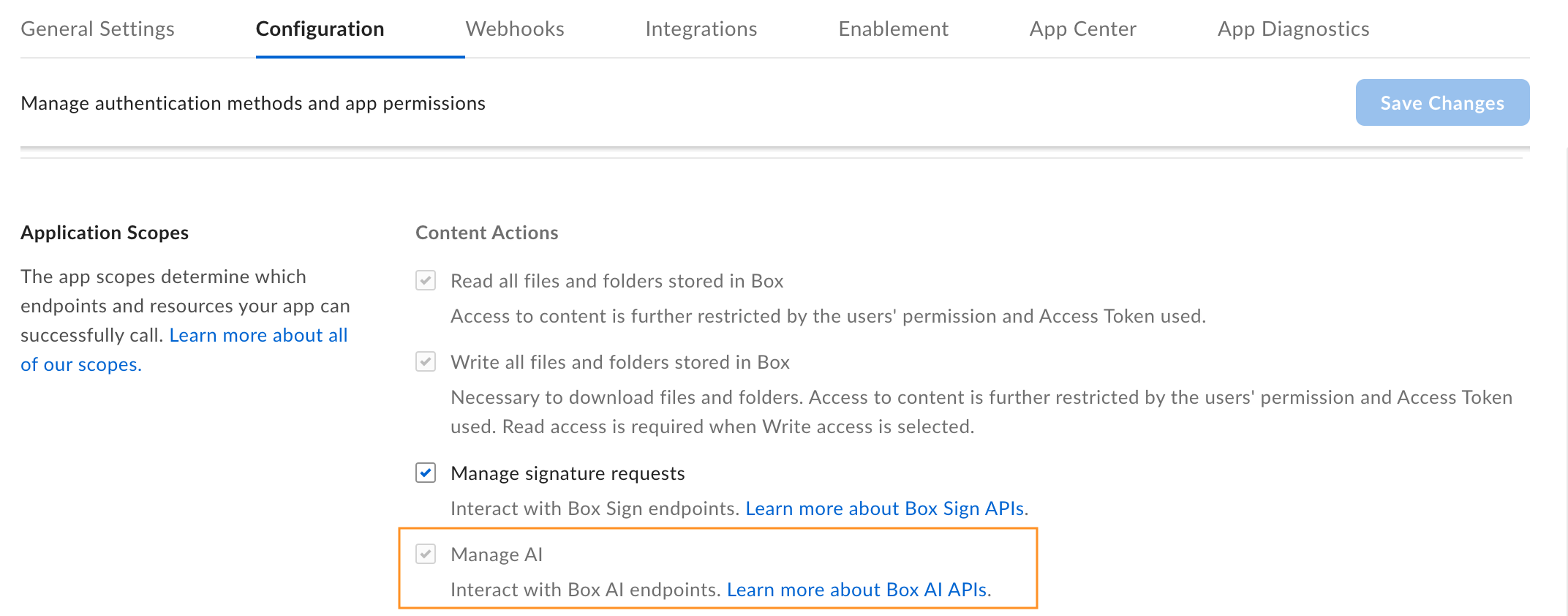
To interact with Box AI API, you need the `ai.readwrite` <Link href="/guides/api-calls/permissions-and-errors/scopes">scope</Link>
added for your application. Before you add the scope, make sure that the Box
Admin has granted you the access to Box AI API. If you can't see the
**Manage AI** option in your app configuration settings, contact your admin.

To add a scope:

1. Open your application in Developer Console.

2. Go to **Configuration** > **Required Access Scopes** > **Content Actions**

3. Select the **Manage AI** scope. Box Platform will automatically include the scope when making the call. If you are added as an collaborator for a given app, but do not have Box AI API access, you will see the **Manage AI** scope checked and grayed out. This means the app owner has the AI scope enabled but you cannot change this setting.

   <Frame>
     <img src="https://mintcdn.com/box/Z1XcLZTI-opBQvuM/images/guides/ai-studio/box-ai-app-scopes.png?fit=max&auto=format&n=Z1XcLZTI-opBQvuM&q=85&s=3a247bbcee4adfdaeb6e1d793dd927af" alt="box ai scopes" width="2144" height="842" data-path="images/guides/ai-studio/box-ai-app-scopes.png" />
   </Frame>

4. Submit your app for <Link href="/guides/authorization">authorization or enablement</Link>. If you want to enable Box AI API for an existing application, you must <Link href="/guides/authorization/platform-app-approval#re-authorization-on-changes">re-authorize</Link> it.

## Generate a developer token

You need a developer token
to authenticate your app when sending requests.

To generate a token:

1. Go to **Developer Console** > **My Platform Apps**.
2. Click the **Options menu** button (…) on the right.
3. Select **Generate Developer Token**. The token will be automatically generated and saved to clipboard.

You can also open your app, go to
**Configuration** > **Developer Token**
and generate the token.

<Note>
  A developer token is only valid for one hour.
</Note>

For additional details, see <Link href="/guides/authentication/tokens/developer-tokens">developer token</Link>.
After you generate the token, you can use it in cURL
or other clients, such as <Link href="/guides/tooling/postman">Postman</Link>, to make
calls.

[enable]: https://support.box.com/hc/en-us/articles/37228079461267-Enabling-Box-AI-Studio-and-Managing-Agents/#h_01JH9HAMP43YYN6VWM51QCK413
<RelatedLinks
  title="RELATED GUIDES"
  items={[
{ label: translate("Developer Tokens"), href: "/guides/authentication/tokens/developer-tokens", badge: "GUIDE" },
{ label: translate("Ask questions to Box AI"), href: "/guides/box-ai/ai-tutorials/ask-questions", badge: "GUIDE" },
{ label: translate("Override AI model configuration"), href: "/guides/box-ai/ai-tutorials/default-agent-overrides", badge: "GUIDE" },
{ label: translate("Generate text with Box AI"), href: "/guides/box-ai/ai-tutorials/generate-text", badge: "GUIDE" },
{ label: translate("Extract metadata from file (structured)"), href: "/guides/box-ai/ai-tutorials/extract-metadata-structured", badge: "GUIDE" },
{ label: translate("Extract metadata from file (freeform)"), href: "/guides/box-ai/ai-tutorials/extract-metadata", badge: "GUIDE" }
]}
/>
