> ## Documentation Index
> Fetch the complete documentation index at: https://developer.box.com/llms.txt
> Use this file to discover all available pages before exploring further.
# Setup with App Token Auth
export const MultiRelatedLinks = ({sections = []}) => {
if (!sections || sections.length === 0) {
return null;
}
return
;
};
export const Link = ({href, children, className, ...props}) => {
const localizedHref = localizeLink(href);
return
{children}
;
};
## Prerequisites
To set up a Platform App using server-side authentication, you will need to ensure
you have access the [Developer Console][devconsole] from your Box enterprise
account. Alternatively, you may sign up for a [developer account][devaccount].
## App creation steps
### 1. Log in to the Developer Console
Log into Box and navigate to the [Developer Console][devconsole].
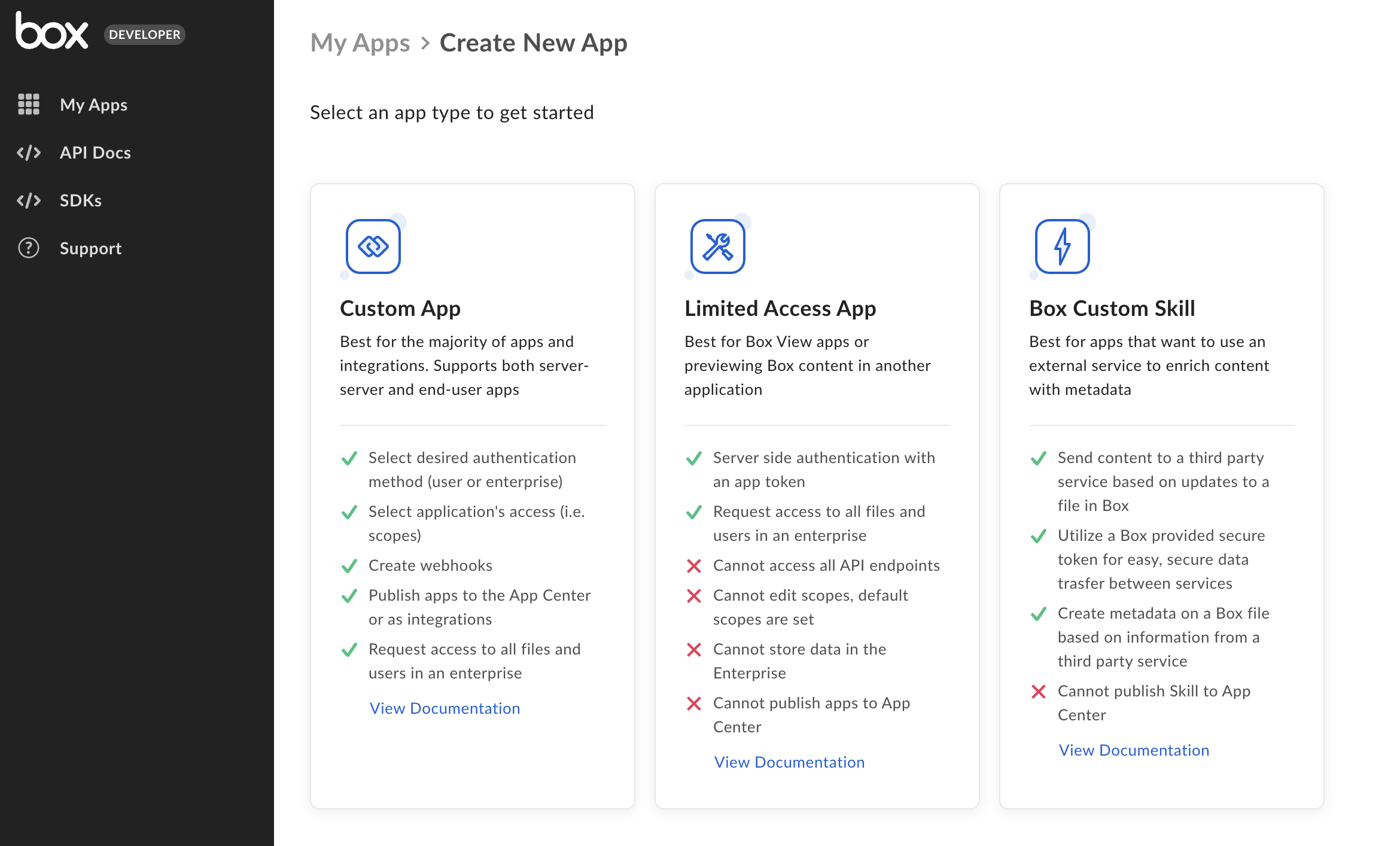
### 2. Create a Platform App
Select **Platform App** from the list of application types.
A modal will appear to prompt the next step.
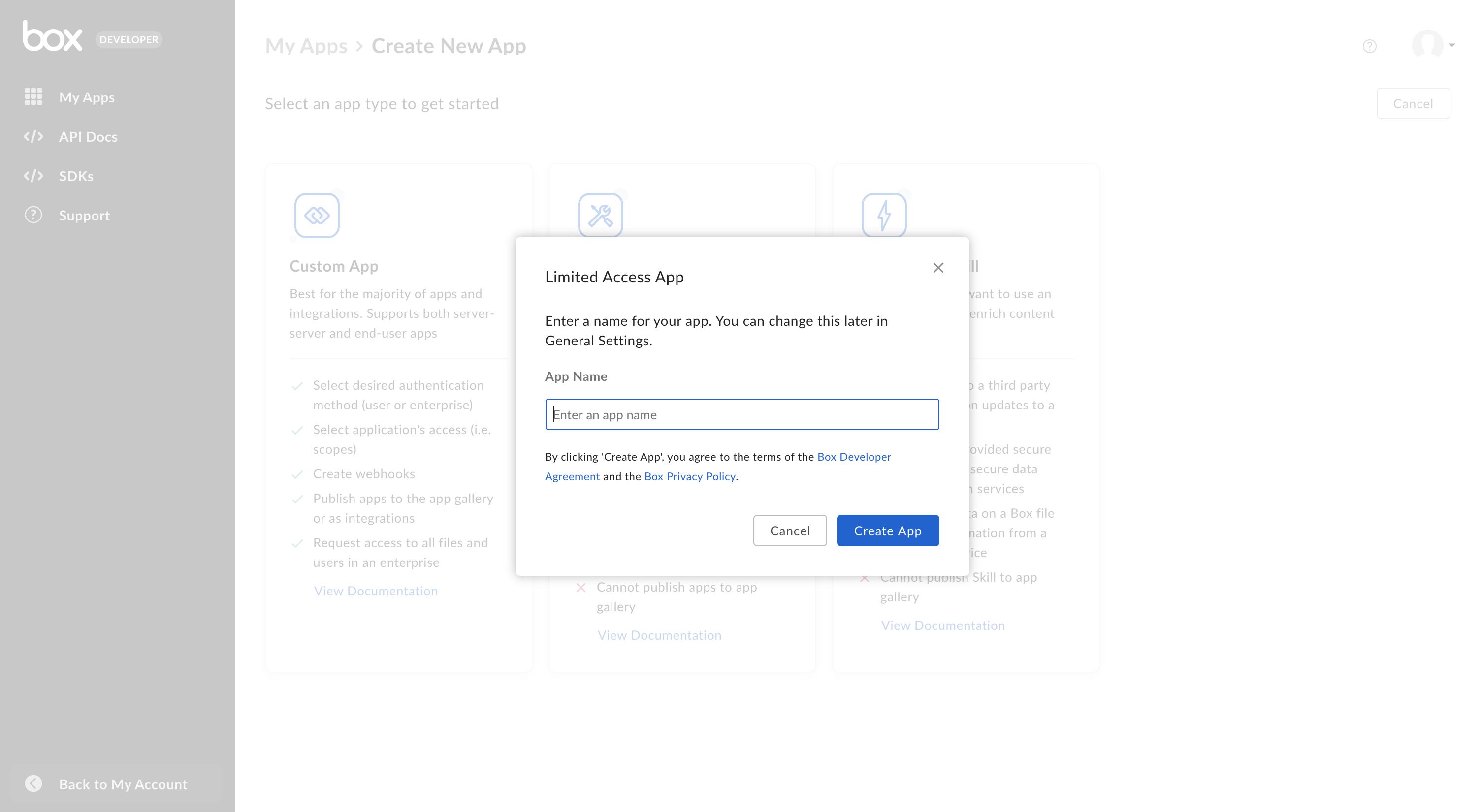
### 3. Select an app name
Finally, select a unique name for your application and click **Create App**.
## App Authorization
Once a keypair is successfully added to your application your Box enterprise
Admin needs to authorize the application within the Box Admin Console.
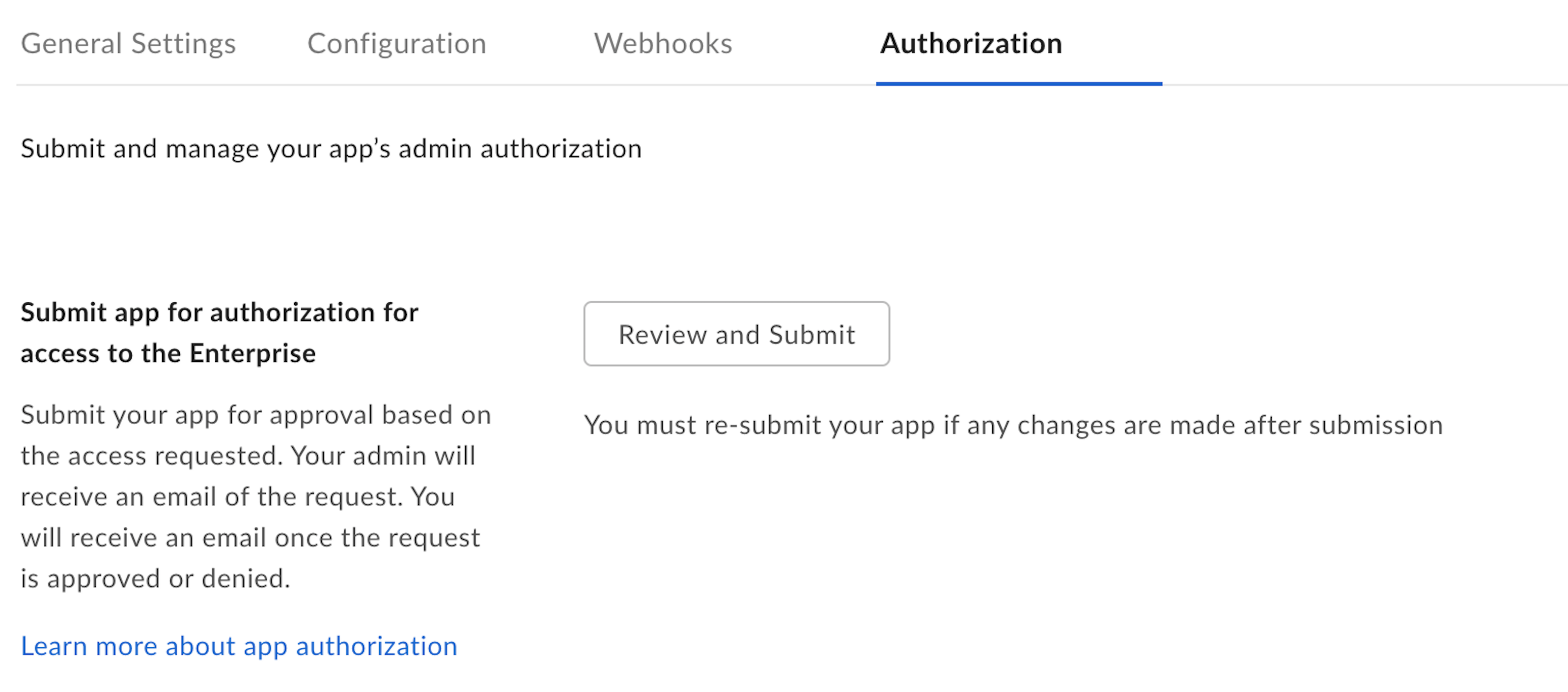
Navigate to the **General Settings** tab for your application within the
[Developer Console][devconsole] and scroll down to the **App Authorization**
section.
Click **Submit and Review** to send an email to your Box enterprise Admin for
approval. More information on this process is available in our
authorization guide.
## Basic configuration
Before the application can be used, some basic additional configuration might be
required.
### Primary and Secondary App Tokens
Authentication with Platform Apps is done through preconfigured App
Tokens. To configure an app token, navigate to the **Configuration**
tab for your application within the [Developer Console][devconsole].
Scroll down to the **Primary Access Token** section and click the
**Generate Key** button.
App tokens can be configured to automatically expire or be valid indefinitely.
After creation, the key can be used to make API calls.
**App authorization**
App Tokens can not be generated until the application is successfully
authorized within the Box Admin Console.
### CORS Domains
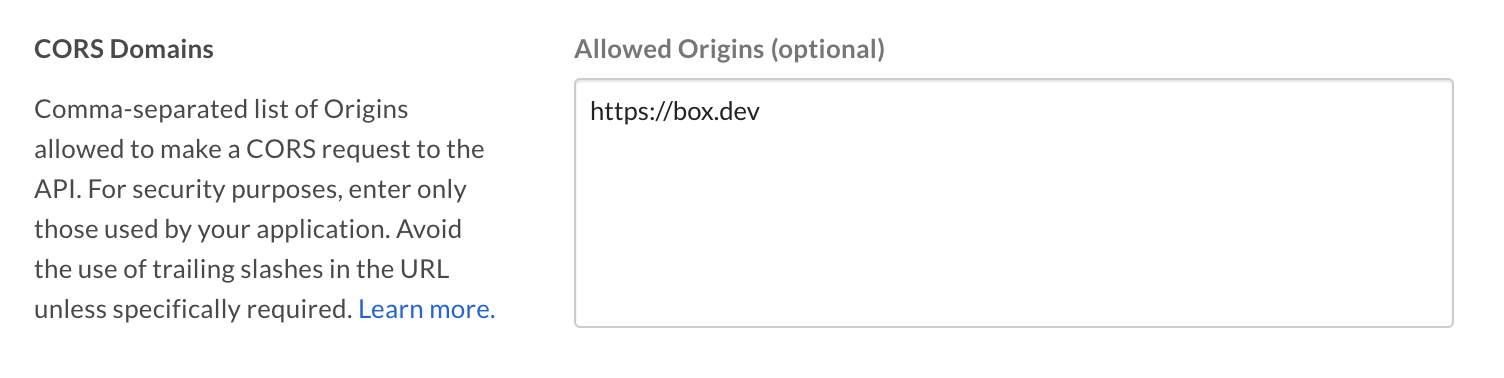
If your application makes API calls from front-end browser code in
Javascript, the domain that these calls are made from will need to be
added to an allow-list due to [Cross Origin Resource Sharing][cors],
also known as CORS. If all requests will be made from server-side code,
you may skip this section.
To add the full URI(s) to the allow-list, navigate to the **CORS Domain**
section at the bottom of the **Configuration** tab in the
[Developer Console][devconsole].
[devconsole]: https://app.box.com/developers/console
[devaccount]: https://account.box.com/signup/n/developer
[devtoken]: /guides/authentication/tokens/developer-tokens
[scopes]: /guides/api-calls/permissions-and-errors/scopes
[cors]: https://en.wikipedia.org/wiki/Cross-origin_resource_sharing
 ### 3. Select an app name
Finally, select a unique name for your application and click **Create App**.
### 3. Select an app name
Finally, select a unique name for your application and click **Create App**.
 ## App Authorization
Once a keypair is successfully added to your application your Box enterprise
Admin needs to authorize the application within the Box Admin Console.
Navigate to the **General Settings** tab for your application within the
[Developer Console][devconsole] and scroll down to the **App Authorization**
section.
## App Authorization
Once a keypair is successfully added to your application your Box enterprise
Admin needs to authorize the application within the Box Admin Console.
Navigate to the **General Settings** tab for your application within the
[Developer Console][devconsole] and scroll down to the **App Authorization**
section.
 Click **Submit and Review** to send an email to your Box enterprise Admin for
approval. More information on this process is available in our
authorization guide.
## Basic configuration
Before the application can be used, some basic additional configuration might be
required.
### Primary and Secondary App Tokens
Authentication with Platform Apps is done through preconfigured App
Tokens. To configure an app token, navigate to the **Configuration**
tab for your application within the [Developer Console][devconsole].
Scroll down to the **Primary Access Token** section and click the
**Generate Key** button.
Click **Submit and Review** to send an email to your Box enterprise Admin for
approval. More information on this process is available in our
authorization guide.
## Basic configuration
Before the application can be used, some basic additional configuration might be
required.
### Primary and Secondary App Tokens
Authentication with Platform Apps is done through preconfigured App
Tokens. To configure an app token, navigate to the **Configuration**
tab for your application within the [Developer Console][devconsole].
Scroll down to the **Primary Access Token** section and click the
**Generate Key** button.
 App tokens can be configured to automatically expire or be valid indefinitely.
After creation, the key can be used to make API calls.
App tokens can be configured to automatically expire or be valid indefinitely.
After creation, the key can be used to make API calls.
 [devconsole]: https://app.box.com/developers/console
[devaccount]: https://account.box.com/signup/n/developer
[devtoken]: /guides/authentication/tokens/developer-tokens
[scopes]: /guides/api-calls/permissions-and-errors/scopes
[cors]: https://en.wikipedia.org/wiki/Cross-origin_resource_sharing
[devconsole]: https://app.box.com/developers/console
[devaccount]: https://account.box.com/signup/n/developer
[devtoken]: /guides/authentication/tokens/developer-tokens
[scopes]: /guides/api-calls/permissions-and-errors/scopes
[cors]: https://en.wikipedia.org/wiki/Cross-origin_resource_sharing