> ## Documentation Index
> Fetch the complete documentation index at: https://developer.box.com/llms.txt
> Use this file to discover all available pages before exploring further.
# Limited Access App Approval
export const Link = ({href, children, className, ...props}) => {
const localizedHref = localizeLink(href);
return
{children}
;
};
Limited Access Integrations are automatically authorized for use in an enterprise upon
creation.
However, if the enterprise setting to
**Require manual Admin authorization for Limited Access Apps** is enabled,
an Admin must preform additional steps.
## Approval Notifications
A semi-automated process to submit an app approval is available in the Developer
Console.
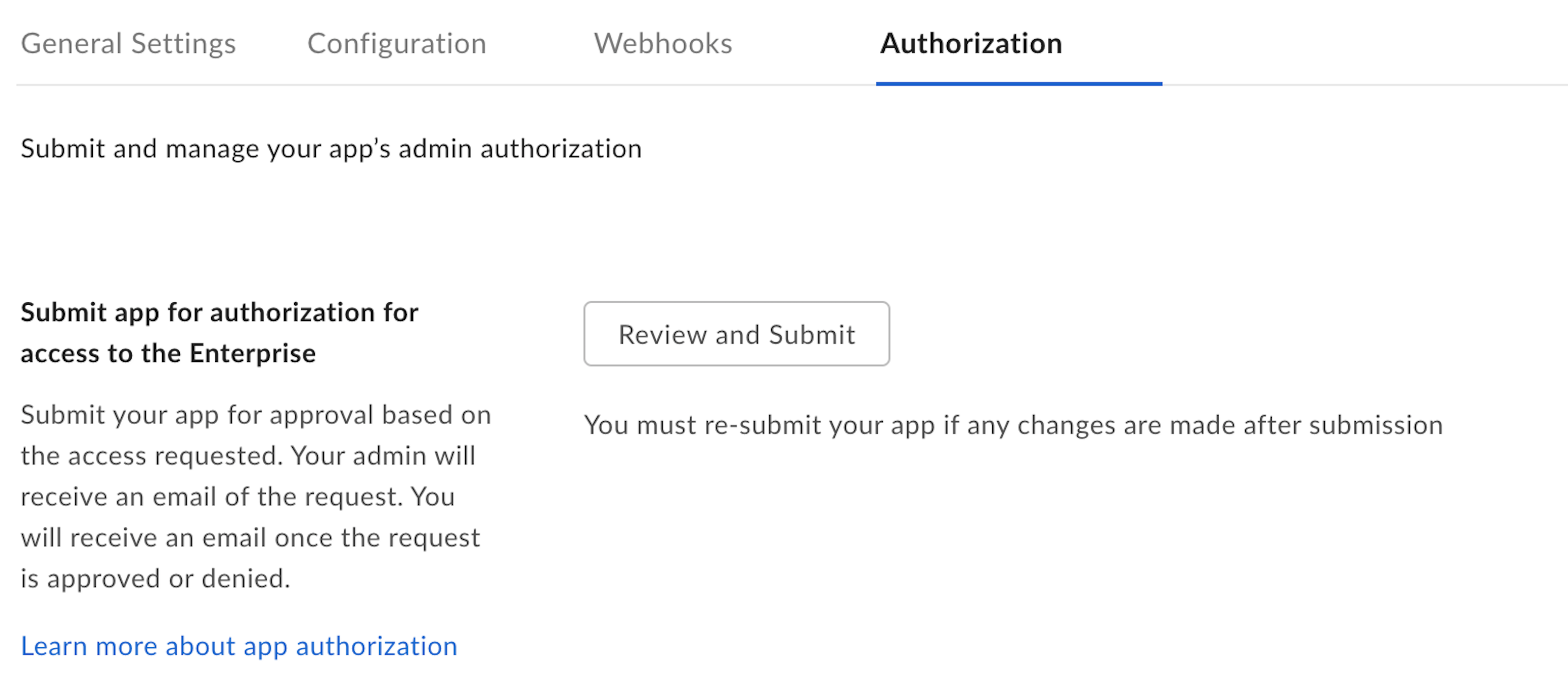
Navigate to the **Authorization** tab for your application in the
[Developer Console][devconsole].
Submitting the application for approval will send an email to your
enterprise's Primary Admin to approve the application. More information on this
process is available in our [support article on app authorization][app-auth].
## Manual Approval
The following steps provide instructions on how to manually approve the
application.
### As a developer
1. Navigate to the **Configuration** tab for your application in the [Developer Console][devconsole].
2. Scroll down to the OAuth 2.0 Credentials section and copy the **Client ID** value to provide to a Box Admin.
Alternatively, hover over the application in the
My Platform Apps view to look up the **ClientID** and then
copy it using the `copy` button.
**Finding a Box Admin**
If you don't know your enterprise Admin, go to your Box [Account
Settings][settings] page and scroll to the bottom. If an admin contact is set
you should see their contact information under **Admin Contact**.
### As an Admin
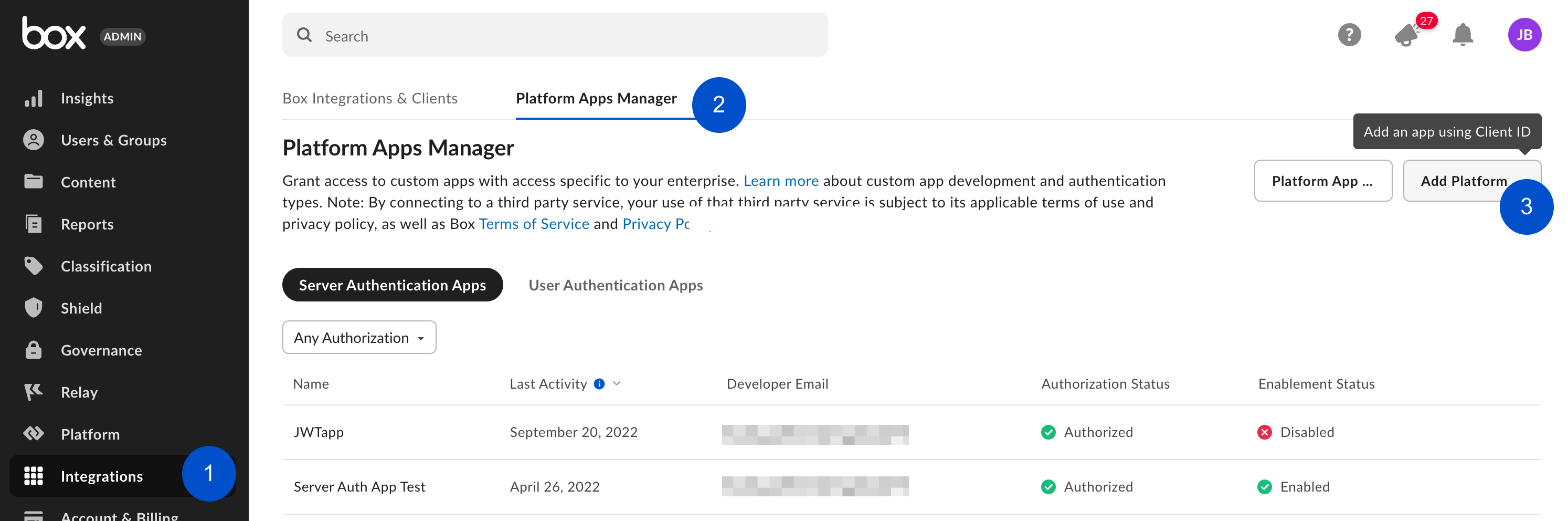
As a Box Admin, navigate to the [Admin Console][adminconsole] and
select the **Integrations** > **Platform Apps Manager** > **Add Platform App**
In the popup that appears, enter the Client ID for the application that the
developer collected from the **Configuration** tab of the Developer Console.
## Re-authorization on changes
When the application's scopes or access level change the application needs to be
re-authorized. Repeat the process above and request a new Access Token for the
new changes to take effect.
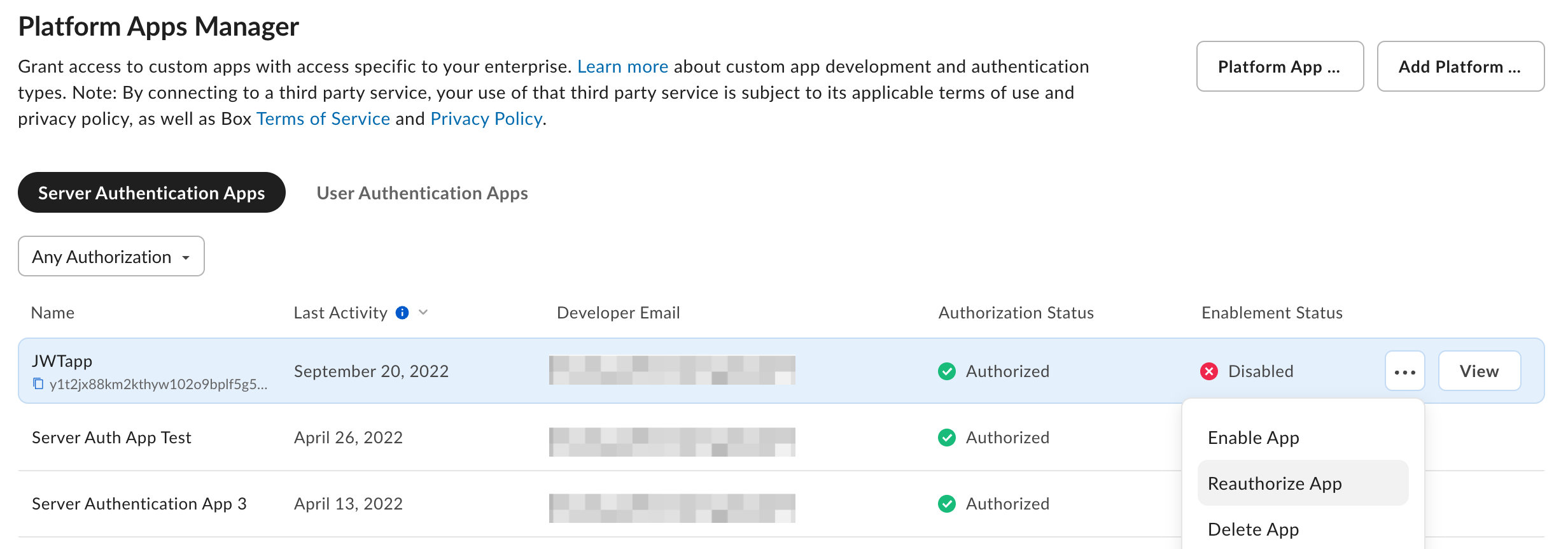
In the same section where the application was initially authorized, an Admin
can re-authorize the application by clicking on the ellipses to the right
of the application name to **Reauthorize App**.
[devconsole]: https://app.box.com/developers/console
[ccg]: /guides/authentication/client-credentials
[settings]: https://app.box.com/account
[adminconsole]: https://app.box.com/master/settings/custom
[jwt]: /guides/authentication/jwt
[app-token]: /guides/authentication/app-token
[app-auth]: https://support.box.com/hc/en-us/articles/360043697014-Authorizing-Apps-in-the-Box-App-Approval-Process
 Submitting the application for approval will send an email to your
enterprise's Primary Admin to approve the application. More information on this
process is available in our [support article on app authorization][app-auth].
## Manual Approval
The following steps provide instructions on how to manually approve the
application.
### As a developer
1. Navigate to the **Configuration** tab for your application in the [Developer Console][devconsole].
2. Scroll down to the OAuth 2.0 Credentials section and copy the **Client ID** value to provide to a Box Admin.
Alternatively, hover over the application in the
My Platform Apps view to look up the **ClientID** and then
copy it using the `copy` button.
Submitting the application for approval will send an email to your
enterprise's Primary Admin to approve the application. More information on this
process is available in our [support article on app authorization][app-auth].
## Manual Approval
The following steps provide instructions on how to manually approve the
application.
### As a developer
1. Navigate to the **Configuration** tab for your application in the [Developer Console][devconsole].
2. Scroll down to the OAuth 2.0 Credentials section and copy the **Client ID** value to provide to a Box Admin.
Alternatively, hover over the application in the
My Platform Apps view to look up the **ClientID** and then
copy it using the `copy` button.
 In the popup that appears, enter the Client ID for the application that the
developer collected from the **Configuration** tab of the Developer Console.
## Re-authorization on changes
When the application's scopes or access level change the application needs to be
re-authorized. Repeat the process above and request a new Access Token for the
new changes to take effect.
In the same section where the application was initially authorized, an Admin
can re-authorize the application by clicking on the ellipses to the right
of the application name to **Reauthorize App**.
In the popup that appears, enter the Client ID for the application that the
developer collected from the **Configuration** tab of the Developer Console.
## Re-authorization on changes
When the application's scopes or access level change the application needs to be
re-authorized. Repeat the process above and request a new Access Token for the
new changes to take effect.
In the same section where the application was initially authorized, an Admin
can re-authorize the application by clicking on the ellipses to the right
of the application name to **Reauthorize App**.
 [devconsole]: https://app.box.com/developers/console
[ccg]: /guides/authentication/client-credentials
[settings]: https://app.box.com/account
[adminconsole]: https://app.box.com/master/settings/custom
[jwt]: /guides/authentication/jwt
[app-token]: /guides/authentication/app-token
[app-auth]: https://support.box.com/hc/en-us/articles/360043697014-Authorizing-Apps-in-the-Box-App-Approval-Process
[devconsole]: https://app.box.com/developers/console
[ccg]: /guides/authentication/client-credentials
[settings]: https://app.box.com/account
[adminconsole]: https://app.box.com/master/settings/custom
[jwt]: /guides/authentication/jwt
[app-token]: /guides/authentication/app-token
[app-auth]: https://support.box.com/hc/en-us/articles/360043697014-Authorizing-Apps-in-the-Box-App-Approval-Process