> ## Documentation Index
> Fetch the complete documentation index at: https://developer.box.com/llms.txt
> Use this file to discover all available pages before exploring further.
# Set up the MCP server
Use these steps to enable Box’s hosted MCP endpoint (`https://mcp.box.com`) and connect your client or agent platform.
## Access and manage predefined Box MCP servers
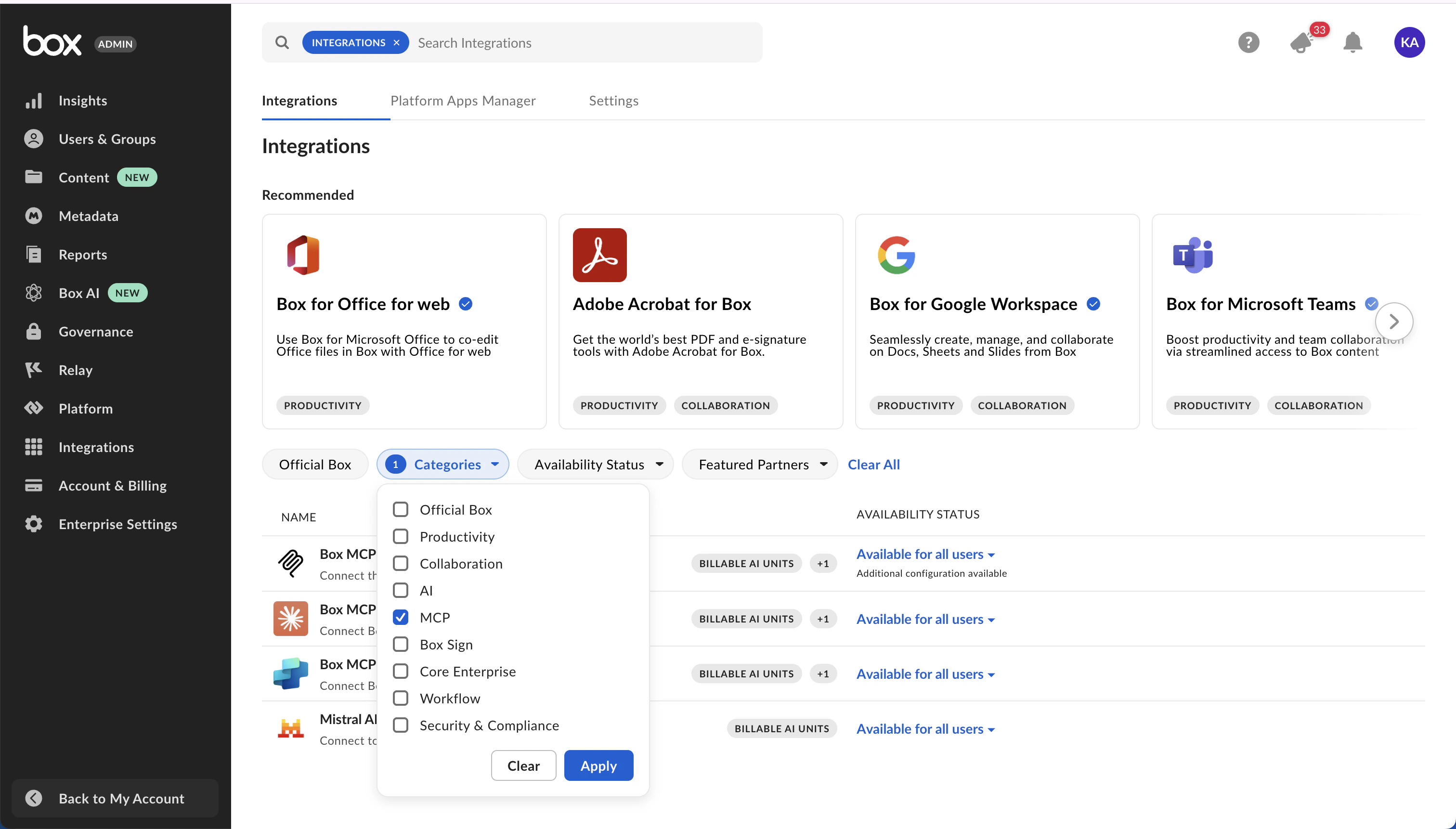
1. Click **Integrations** in the sidebar of Box Admin Console.
2. Use *Categories* filter and choose MCP or search for a predefined Box MCP server in the search field search at the top of the window.
3. Beside the selected MCP server, click the state, then select the state you want to enable.
 ## Create an unlisted Box MCP server
1. Click **Integrations** in the sidebar of Box Admin Console.
2. Search for **Box MCP server** in the search field search at the top of the window.
3. Hover on the **Box MCP server** application, then click **Configure**.
4. In the **Additional Configuration** section, click on **+ Add Integration Credentials**.
5. Enter integration name and click **Save**.
6. Expand details of the newly created entry.
7. Copy the generated **Client ID** and **Client Secret**.
8. Enter the **Redirect URI** provided by the external MCP client.
9. Select desired **Access Scopes**.
* **Scopes** define the maximum set of actions. Users can only access content they already have permission to view or edit in Box.
## Add Box MCP server on the client side
Exact steps for adding Box MCP server may vary depending on the AI platform. Refer to your platform’s documentation for client-side setup instructions. Check this sample code for reference:
To connect to Box from the AI Agent platform, you need to:
* Add endpoint URL: `https://mcp.box.com`
* Pass client ID and client secret. Box generates these in the Integration Credentials section of your Admin Console when configuring the Box MCP server, above.
* Pass an MCP name: `box-remote-mcp`
* Provide an `authorization_token`
Sometimes, the client may request the authorization URL, token exchange URL, and scopes. For the Box MCP server, use the following values:
* Authorization URL: `https://account.box.com/api/oauth2/authorize`
* Token Exchange URL: `https://api.box.com/oauth2/token`
* Scopes: `root_readwrite`, `ai.readwrite`, and `docgen.readwrite`. The `docgen.readwrite` scope requires an Enterprise Advanced license.
```python theme={null}
response = await client.beta.messages.create(
model="claude-3-opus-20240229", # Or your preferred model
max_tokens=4096,
messages=conversation_history,
mcp_servers=[
{
"type": "url",
"url": "https://mcp.box.com",
"name": "box-remote-mcp",
"authorization_token": BEARER_TOKEN,
}
],
betas=["mcp-client-2025-04-04"]
)
```
## Using Box AI features with the MCP server
When you use Box AI in third-party applications, you can achieve the best experience and highest quality results by accessing the applications through the Box MCP server. This ensures full functionality, improved performance, and a seamless user experience.
For the tools agents can call after setup, see [Available tools](/guides/box-mcp/tools).
## Create an unlisted Box MCP server
1. Click **Integrations** in the sidebar of Box Admin Console.
2. Search for **Box MCP server** in the search field search at the top of the window.
3. Hover on the **Box MCP server** application, then click **Configure**.
4. In the **Additional Configuration** section, click on **+ Add Integration Credentials**.
5. Enter integration name and click **Save**.
6. Expand details of the newly created entry.
7. Copy the generated **Client ID** and **Client Secret**.
8. Enter the **Redirect URI** provided by the external MCP client.
9. Select desired **Access Scopes**.
* **Scopes** define the maximum set of actions. Users can only access content they already have permission to view or edit in Box.
## Add Box MCP server on the client side
Exact steps for adding Box MCP server may vary depending on the AI platform. Refer to your platform’s documentation for client-side setup instructions. Check this sample code for reference:
To connect to Box from the AI Agent platform, you need to:
* Add endpoint URL: `https://mcp.box.com`
* Pass client ID and client secret. Box generates these in the Integration Credentials section of your Admin Console when configuring the Box MCP server, above.
* Pass an MCP name: `box-remote-mcp`
* Provide an `authorization_token`
Sometimes, the client may request the authorization URL, token exchange URL, and scopes. For the Box MCP server, use the following values:
* Authorization URL: `https://account.box.com/api/oauth2/authorize`
* Token Exchange URL: `https://api.box.com/oauth2/token`
* Scopes: `root_readwrite`, `ai.readwrite`, and `docgen.readwrite`. The `docgen.readwrite` scope requires an Enterprise Advanced license.
```python theme={null}
response = await client.beta.messages.create(
model="claude-3-opus-20240229", # Or your preferred model
max_tokens=4096,
messages=conversation_history,
mcp_servers=[
{
"type": "url",
"url": "https://mcp.box.com",
"name": "box-remote-mcp",
"authorization_token": BEARER_TOKEN,
}
],
betas=["mcp-client-2025-04-04"]
)
```
## Using Box AI features with the MCP server
When you use Box AI in third-party applications, you can achieve the best experience and highest quality results by accessing the applications through the Box MCP server. This ensures full functionality, improved performance, and a seamless user experience.
For the tools agents can call after setup, see [Available tools](/guides/box-mcp/tools).