> ## Documentation Index
> Fetch the complete documentation index at: https://developer.box.com/llms.txt
> Use this file to discover all available pages before exploring further.
# Quick start
> Send your first Box Sign request with a file, destination folder, and signer email.
This walkthrough creates a basic request. For every creation option, see
[Create a Box Sign request](/guides/box-sign/create-sign-request).
Imagine that you have a document stored in Box and you want to send it to a
customer for signature. At a minimum your app needs to know what document
to sign, where to store the signed document, and the signer email.
## Creating a signature request
Use the [Box Sign API](/reference/post-sign-requests) or one of the available [SDKs](/guides/tooling/sdks) to create a
signature request. See the example:
```sh cURL theme={null}
curl --location 'https://api.box.com/2.0/sign_requests' \
--header 'Content-Type: application/json' \
--header 'Authorization: Bearer ' \
--data-raw '{
"is_document_preparation_needed": true,
"parent_folder": {
"id": "234102987614",
"type": "folder"
},
"source_files": [
{
"id": "1355143830404",
"type": "file"
}
],
"signers": [
{
"email": "signer@example.com",
"role": "signer"
}
]
}'
```
```python Python v10 theme={null}
sign_request = client.sign_requests.create_sign_request(
[SignRequestCreateSigner(email=signer_email)],
source_files=[FileBase(id=document_id)],
parent_folder=FolderMini(id=destination_folder_id),
is_document_preparation_needed=True,
)
if sign_request.prepare_url is not None:
print(sign_request.prepare_url)
```
This results in a signature request with a prepare document URL
(simplified):
```json cURL theme={null}
{
"is_document_preparation_needed": true,
"signers": [
{
"email": "requester@example.com",
"role": "final_copy_reader",
},
{
"email": "signer@example.com",
"role": "signer",
}
],
"id": "348decab-48a8-4f2c-9436-8967afebf7bb",
"prepare_url": "https://app.box.com/sign/document/xyz-abc-123/.../prepare_doc/",
"source_files": [
{
"id": "1355143830404",
"type": "file",
}
],
"parent_folder": {
"id": "234102987614",
"type": "folder",
},
"name": "Simple-PDF.pdf",
"type": "sign-request",
"status": "converting",
"sign_files": {
"files": [
{
"id": "1381301154812",
"type": "file",
}
],
"is_ready_for_download": true
},
"template_id": null
}
```
```yaml theme={null}
Simple sign request with prep: xyz-abc-123
Status: converting
Signers: signer@example.com
Prepare url: https://app.box.com/sign/document/xyz-abc-123/.../prepare_doc/
```
## Check the status of the signature request
Creating the signature request is an asynchronous process, and can generate
errors. Your application needs to check the status of the request before
proceeding, and handle any errors.
A signature request can have the following statuses:
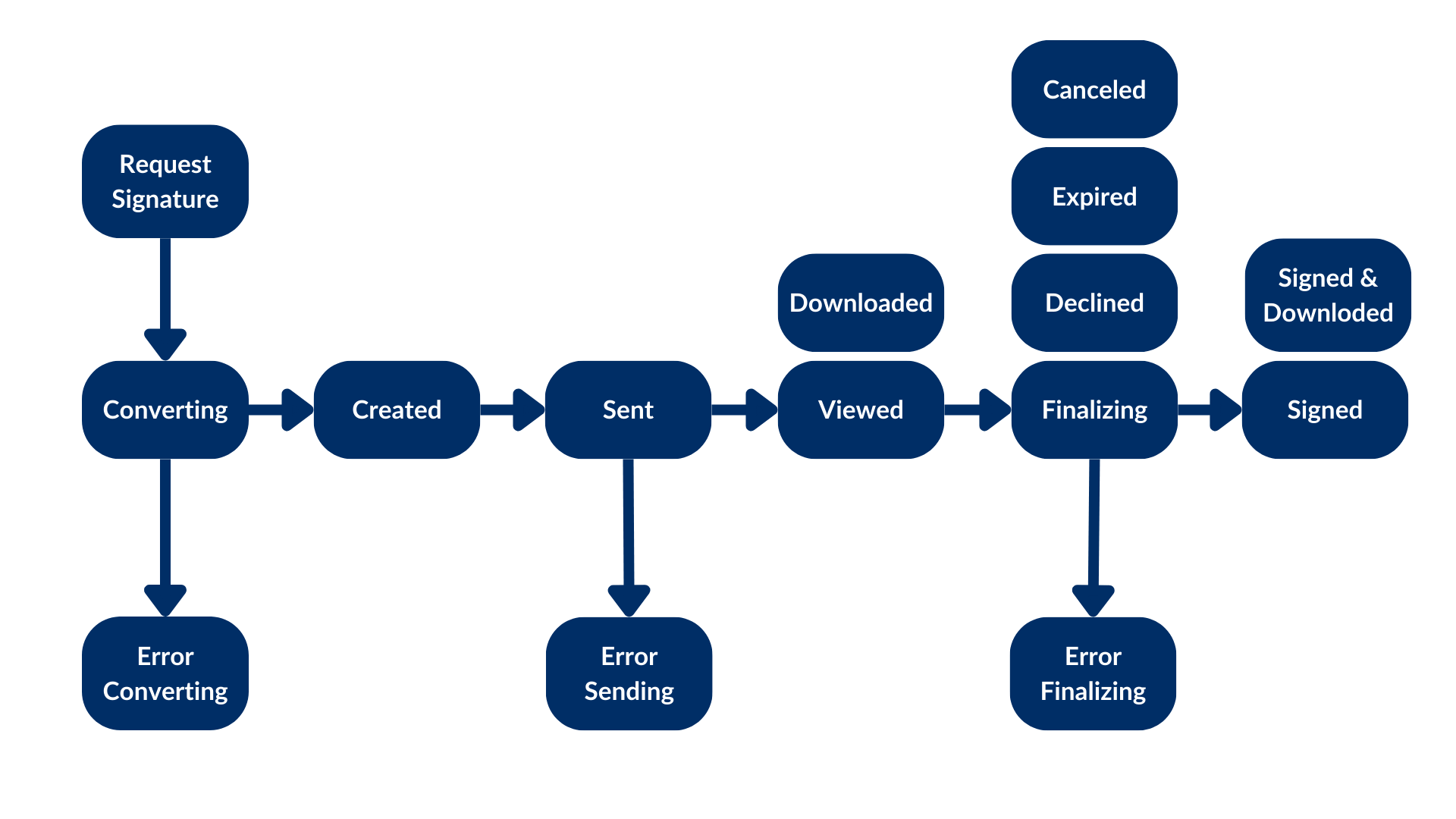 For the full status list, see
[Box Sign request status](/guides/box-sign/request-status).
## Preparing the document
In this example, we are signing a PDF, and the Box Sign engine has no
idea where to place the signature pad field or any other inputs. This is why we
used the `is_document_preparation_needed` flag.
If a prepare URL is present, your application opens the prepare
URL in a browser, where the requester can add the signature pad field and any
other inputs needed for the signer to complete the document.
Once the document is prepared, the requester can send the signature request to
the signer.
This preparation step is not always necessary. Take a look at
[document types][technical-use-cases] for more information.
## Completing the signature request
The signer then receives an email from Box with a link to the signature
request. The signer can select the link and sign the document.
When the process is completed, both a signature log containing metadata and
the signed document are stored in the destination folder.
Congratulations! You have successfully created your first signature request.
This is the basic Box Sign create flow. For every creation option, see
[Create a Box Sign request](/guides/box-sign/create-sign-request).
For document types and other scenarios, see
[Document types](/guides/box-sign/document-types).
[technical-use-cases]: /guides/box-sign/document-types
For the full status list, see
[Box Sign request status](/guides/box-sign/request-status).
## Preparing the document
In this example, we are signing a PDF, and the Box Sign engine has no
idea where to place the signature pad field or any other inputs. This is why we
used the `is_document_preparation_needed` flag.
If a prepare URL is present, your application opens the prepare
URL in a browser, where the requester can add the signature pad field and any
other inputs needed for the signer to complete the document.
Once the document is prepared, the requester can send the signature request to
the signer.
This preparation step is not always necessary. Take a look at
[document types][technical-use-cases] for more information.
## Completing the signature request
The signer then receives an email from Box with a link to the signature
request. The signer can select the link and sign the document.
When the process is completed, both a signature log containing metadata and
the signed document are stored in the destination folder.
Congratulations! You have successfully created your first signature request.
This is the basic Box Sign create flow. For every creation option, see
[Create a Box Sign request](/guides/box-sign/create-sign-request).
For document types and other scenarios, see
[Document types](/guides/box-sign/document-types).
[technical-use-cases]: /guides/box-sign/document-types