> ## Documentation Index
> Fetch the complete documentation index at: https://developer.box.com/llms.txt
> Use this file to discover all available pages before exploring further.
# Using PowerShell Scripts with the Box CLI
export const Link = ({href, children, className, ...props}) => {
const localizedHref = localizeLink(href);
return
{children}
;
};
You can automate repetitive administrative workflows by combining the Box CLI with PowerShell scripts. We created an example
[scripts][scripts] folder within our CLI GitHub repository to help
jump-start your development.
To show you how CLI scripts work, we are going to use the
provision and create users [script][script-1]
template.
This script uses the Box CLI to build and create a
personal folder structure, create managed users in bulk,
and provision new users by adding them to the newly created
folder structure as collaborators with viewer or uploader roles.
This guide is for service accounts
and users with administrative privileges only.
Skip this step if you are not a Box administrator
or you do not use a service account.
## Use case
To automatically create users and folder structure, the script
performs the following steps:
1. Uses a `.csv` file to load employee data in bulk.
2. Defines folder structure using a JSON file or uploads the structure from the user's local directory.
3. Creates a predetermined personal folder structure for each new managed user.
## Prerequisites
### Windows
Install the latest version of [.NET core](https://dotnet.microsoft.com/download).
### macOS & Linux
Install [PowerShell][pwsh].
### Box CLI
To use the script, you need the Box CLI
installed and configured. If you haven't done so yet, see our quick start guide.
### Create a personal folder parent folder
This script works by creating a folder structure for each user that is
created. To do this, create a parent
folder for all of the personal folders to live in. By default all folders are created in the root folder of the account used by the CLI. You can name
and place the folder wherever you wish, but the user you set up the CLI with
must have access to the folder.
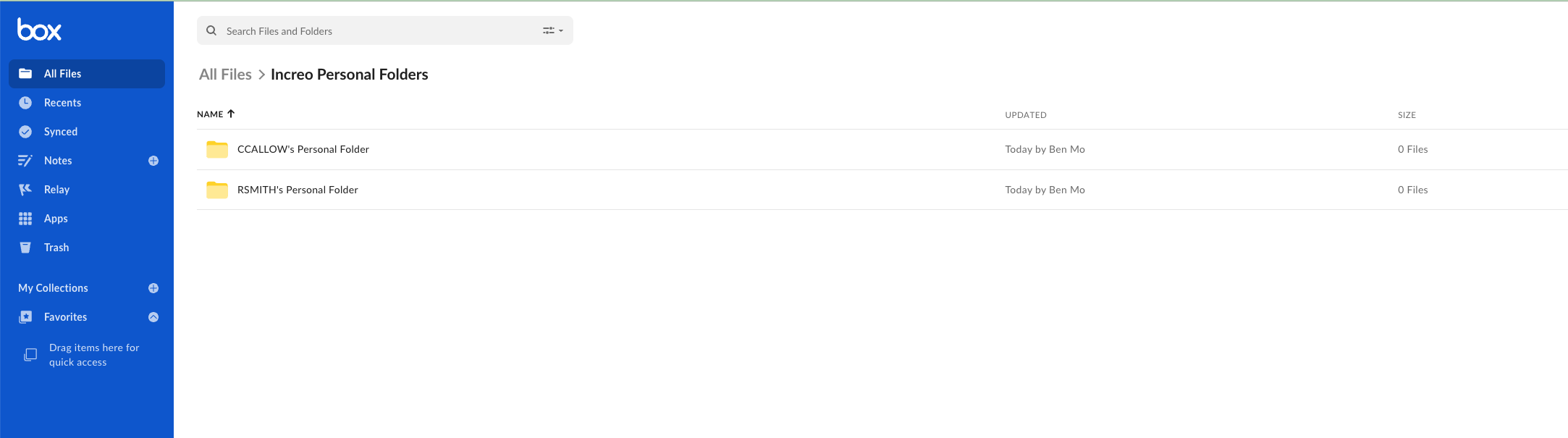
Here is an example of what the structure looks like after
running the script.
## Download the script
Clone the script to a directory of your choice
and navigate to that directory.
```bash theme={null}
git clone https://github.com/box/boxcli.git box-cli
cd box-cli/examples/User\ Creation\ \&\ Provisioning/
```
## Configure the script settings
Adapt the script to run in your own environment.
In this example, we use the sample data provided
with the script.
### Provide the parameters
There are a few parameters you need to supply before running the script:
* `EmployeeList`: Path to `Employee List` CSV.
* `PersonalFolderParentID`: Destination folder ID for all personal folders to be created in, either when using JSON file as input to create folder structure, or uploading local structure. This folder should be made prior to running the script the first time. It is not advised to make this value `0`, as this creates individual personal folders in the root of the account you set up the CLI with.
* `FolderStructureJSONPath`: Your own folder structure JSON path.
* `PersonalFolderSlug`: Ending name of the folder created as a parent for personal folders. It's set to `Personal Folder` by default, but you can set it to your needs. The username is linked with this value to create each user's personal folder name. For example - `rsmith2's Personal Folder`.
* `LocalUploadPath`: Local directory to upload folder structure directly.
Specify **either** a local upload path or a JSON file with the folder
structure, but not both.
### Update the user list
You can use the following sample files to load users:
`Employees_1.csv`, `Employees_5.csv`, and `Employees_10.csv`.
Each file creates 1, 5, or 10 new users.
Customize these files for a test run. For example, update the
`Employees_1.csv` with the following data:
```bash theme={null}
firstName,lastName,email,username
Isaac,Newton,abc@abc.local,INewton23
```
With the `EmployeeList` parameter, specify which `.csv` file you would like
to load data from.
Emails must be unique across all of Box, and usernames must be unique across
your specific Box instance. Otherwise, an error will be thrown when running
the script.
### Create folder structure
You can either create a folder structure from a JSON
file or upload it from your local drive.
#### Use a JSON file
The `Folder_Structure.json` file contains the folder structure you want to create.
As an example, you will create a `Market Research` and a `Sales Plays`
folder, each with a subfolder `Statistics` and `Big Pharma` respectively.
The script will place this folder structure
under the `Personal Folder` folder for that user inside the parent folder
you designate.
With the `FolderStructureJSONPath` parameter, provide the location of the
`Folder_Structure.json` file.
#### Upload file from local drive
You can also upload a folder structure directly
from the local file system. With the `LocalUploadPath` parameter, provide the
path to your local folder you want to upload. The uploaded folder structure is created in Box using the same naming structure as the JSON method.
### Update the parameters
You can provide parameters in three ways:
* Use static values in the script
Remember to update all required parameters in the script before running.
```bash theme={null}
# Set Employee List CSV Path
# firstname, lastname, email, username
$EmployeeList = ""
# Personal Folder Structure: Set either path build off JSON or directly upload
# a local folder
$FolderStructureJSONPath = ""
$LocalUploadPath = ""
# Ending slug of folder that will be used in creating personal folders for new
# users. Value will get concatenated with username
# If username is RSMITH, the personal folder name would be
# RSMITH's Personal Folder
$PersonalFolderSlug = ""
# ID of parent folder for created personal folders to be created in
# This folder should be created before running the script the first time.
# It is not advised to make this value 0, as this will create individual
# Personal folders in root of the account you set up the cli with
$PersonalFolderParentID = ""
```
* Run the script with parameters
You can specify parameters while running the script, for example:
```bash theme={null}
PS > ./Users_Create_Provision.ps1 -EmployeeList ./Employees_1.csv `
-LocalUploadPath ./PersonalLocalUpload `
-PersonalFolderSlug "Personal Folder" `
-PersonalFolderParentID 123456789
Starting User Creation & Provisioning script...
```
* Provide the parameters when prompted
If some parameters are still missing at runtime, the script will prompt you to provide them:
```bash theme={null}
PS > ./Users_Create_Provision.ps1
Please enter the path to the employee list CSV file:
./Employees_1.csv
Please enter the path to the folder structure JSON file or the local upload path:
Folder_Structure.json
Folder structure JSON path set to: Folder_Structure.json
Please enter the ID of the folder where you would like to create the personal folders:
0
Starting User Creation & Provisioning script...
```
## Run the script
1. Change the directory to the folder containing the script. In this example, it is the `User Creation & Provisioning` folder.
```bash theme={null}
pwsh
```
2. Run the script:
```bash theme={null}
PS /home/rvb/box-cli/examples/User Creation & Provisioning> ./Users_Create_Provision.ps1
```
The response will be similar to the following:
```bash theme={null}
Starting User Creation & Provisioning script...
firstName lastName email
--------- -------- -----
Isaac Newton abc@abc.local
Extracting folder structure
Found current User ID: 18622116055
Created a user owned Onboarding folder with id: 164734146745
Created subfolder Market Research under Onboarding folder with id: 164735375585
Created subfolder under Statistics folder with id: 164734956242
Created subfolder Sales Plays under Onboarding folder with id: 164735683001
Created subfolder under Big Pharma folder with id: 164736160637
Creating employee Managed User account with first name:
Isaac, last name: Newton, email: abc@abc.local, and
Created Managed user with id: 19605663027
Type: collaboration
ID: '37250833128'
Created By:
Type: user
ID: '18622116055'
Name: Rui Barbosa
Login: barduinor@gmail.com
Created At: '2022-06-07T13:58:05-07:00'
Modified At: '2022-06-07T13:58:05-07:00'
Expires At: null
Status: accepted
Accessible By:
Type: user
ID: '19605663027'
Name: Isaac Newton
Login: abc@abc.local
Invite Email: null
Role: viewer uploader
Acknowledged At: '2022-06-07T13:58:05-07:00'
Item:
Type: folder
ID: '164734146745'
Sequence ID: '0'
ETag: '0'
Name: Onboarding
Collaborated Managed User Isaac Newton to current users
Onboarding folder for provisioning
```
## Running the script again for new users
It is common to run this script regularly as your company hires new employees.
You can simply edit the `.csv` file, removing the previous rows of users and
adding the information for the new users. Then run the script again.
## Summary
You explored automation using a PowerShell script with the
Box CLI to provision users
and create an initial folder structure.
Make sure to explore our other sample scripts for more use cases.
[scripts]: https://github.com/box/boxcli/tree/main/examples
[script-1]: https://github.com/box/boxcli/tree/main/examples/User%20Creation%20&%20Provisioning
[jwt-cli]: /guides/cli/cli-with-jwt-authentication/jwt-cli
[pwsh]: https://docs.microsoft.com/en-us/powershell/scripting/install/installing-powershell?view=powershell-7.2
[console]: https://app.box.com/developers/console
 ## Download the script
Clone the script to a directory of your choice
and navigate to that directory.
```bash theme={null}
git clone https://github.com/box/boxcli.git box-cli
cd box-cli/examples/User\ Creation\ \&\ Provisioning/
```
## Configure the script settings
Adapt the script to run in your own environment.
In this example, we use the sample data provided
with the script.
### Provide the parameters
There are a few parameters you need to supply before running the script:
* `EmployeeList`: Path to `Employee List` CSV.
* `PersonalFolderParentID`: Destination folder ID for all personal folders to be created in, either when using JSON file as input to create folder structure, or uploading local structure. This folder should be made prior to running the script the first time. It is not advised to make this value `0`, as this creates individual personal folders in the root of the account you set up the CLI with.
* `FolderStructureJSONPath`: Your own folder structure JSON path.
* `PersonalFolderSlug`: Ending name of the folder created as a parent for personal folders. It's set to `Personal Folder` by default, but you can set it to your needs. The username is linked with this value to create each user's personal folder name. For example - `rsmith2's Personal Folder`.
* `LocalUploadPath`: Local directory to upload folder structure directly.
## Download the script
Clone the script to a directory of your choice
and navigate to that directory.
```bash theme={null}
git clone https://github.com/box/boxcli.git box-cli
cd box-cli/examples/User\ Creation\ \&\ Provisioning/
```
## Configure the script settings
Adapt the script to run in your own environment.
In this example, we use the sample data provided
with the script.
### Provide the parameters
There are a few parameters you need to supply before running the script:
* `EmployeeList`: Path to `Employee List` CSV.
* `PersonalFolderParentID`: Destination folder ID for all personal folders to be created in, either when using JSON file as input to create folder structure, or uploading local structure. This folder should be made prior to running the script the first time. It is not advised to make this value `0`, as this creates individual personal folders in the root of the account you set up the CLI with.
* `FolderStructureJSONPath`: Your own folder structure JSON path.
* `PersonalFolderSlug`: Ending name of the folder created as a parent for personal folders. It's set to `Personal Folder` by default, but you can set it to your needs. The username is linked with this value to create each user's personal folder name. For example - `rsmith2's Personal Folder`.
* `LocalUploadPath`: Local directory to upload folder structure directly.