> ## Documentation Index
> Fetch the complete documentation index at: https://developer.box.com/llms.txt
> Use this file to discover all available pages before exploring further.
# Box Embed
export const Link = ({href, children, className, ...props}) => {
const localizedHref = localizeLink(href);
return
{children}
;
};
Box Embed is a HTML-based framework that allows embedding the entire
Box Web App experience in a custom-made application. Box Embed provides the ability to upload, search, comment, share, tag, and edit files using Box Edit. You can also embed Box Hubs AI Chat for a focused chatbot experience.
## Before you start
To create a widget, you need to:
* Set an embeddable element, such as a folder, file, hub, note, or app for sharing.
* Have at least **Viewer** [permissions][5].
## Using web app
To fetch the Box Embed widget code from the Box web app, perform the following steps.
### Files and folders
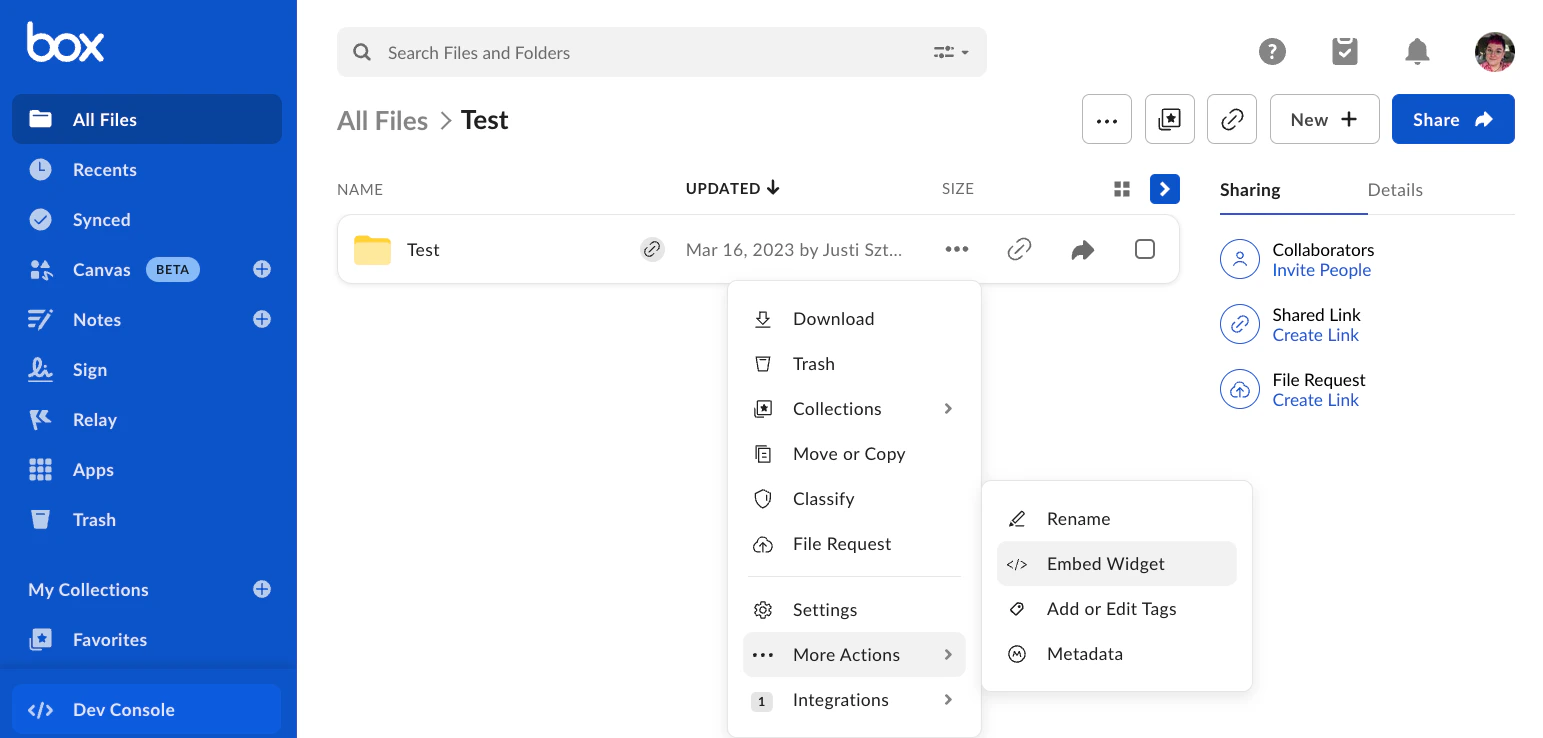
1. Navigate to the chosen file or folder.
2. Click on the ellipsis next to the folder.
3. Go to **More Actions** > **Embed Widget**.
### Hubs
1. Navigate to the chosen hub.
2. Click on the ellipsis menu in the upper-right corner.
3. Click **Embed Hub**.
You can also embed only the AI chat interface from a hub. Users can ask questions and get AI-powered answers based on the hub's files, without accessing navigation or file browsing features. For more information, see the Box Hubs AI Chat embedding section.
### Notes
1. Navigate to the chosen note.
2. Click on the ellipsis menu.
3. Click **Embed Box Note**.
### Apps
1. Navigate to the chosen app or Box App View.
2. Click on the ellipsis menu.
3. Click **Embed**.
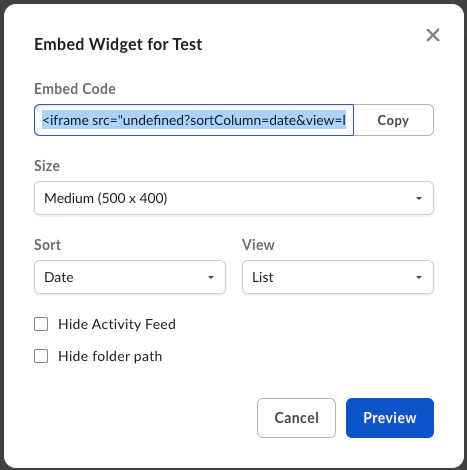
In the next step, configure the parameters of an embeddable element.
| Element Type | Configuration Options |
| ------------ | ----------------------------------------------------------------------------------------------------------- |
| Files | Size of the widget. |
| Folders | Size of the widget, sorting of the files in a folder, hiding the navigation path and sidebar. |
| Hubs | Size of the widget, hiding the parent navigation path and sidebar. |
| Hubs AI Chat | Chat mode: button or widget. |
| Notes | Size of the widget, skipping cloud game (results in note being in read only mode), hiding notes navigation. |
| Apps | Size of the widget. |
When you are done customizing the embed widget, copy
and paste the embed code into your site or web application.
## Programmatically
If you want to customize Box Embed even further, you can do it programmatically. The format for an embed snippet is as follows:
```html theme={null}
```
### Browser permissions
The `allow` attribute enables clipboard operations and local network access for Google Chrome 142 and above and Microsoft Edge 143 and above. While designed for these browser versions, this attribute can be safely included for all browsers. Other browsers will ignore it.
Without this attribute, embedded Box content might not work correctly with Box Tools, Device Trust, or the clipboard copy button.
The Embed Widget Link Generation modal automatically includes this parameter in the generated code.
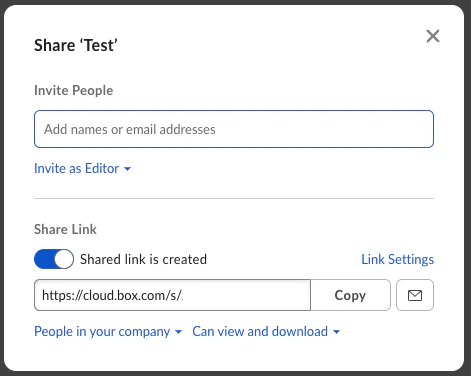
### Finding your shared link value
The first step to building an embed `iframe` programmatically is to generate
or find the value for the shared link. One way to find this value is by
using the Box web app.
Another way is to create a shared link with API using the
`PUT /files/:file_id` or `PUT /files/:file_id`.
Then you can find this shared link value using the
`GET /files/:id` or `GET /folders/:id` endpoint and passing in the
query parameter `fields=shared_link`.
```curl theme={null}
curl https://api.box.com/2.0/folders/12345?fields=shared_link \
-H "authorization: Bearer ACCESS_TOKEN"
```
```json theme={null}
"shared_link": {
"url": "https://app.box.com/s/dsbJFzdO7qZxdfOHFzdO7qZxdfOH",
"download_url": null,
"vanity_url": null,
...
}
```
You can also set the page to Root Folder/All Files page. Set the URL to
`/folder/0` instead of the share link:
``
### Parameters
Next, you will want to choose your view customization options. The following is
a list of optional parameters you can configure.
| | |
| ------------------------ | ----------------------------------------------------------------------------------------------------------------------------------------------------- |
| `hideHubsGallery` | Hide or show navigation chevron button to go back to Hubs gallery. Can be `true` or `false` (default). |
| `hideNavigationControls` | Hide or show navigation controls in Box Notes. |
| `showItemFeedActions` | Hide or show file comments or tasks. Can be `true` (default) or `false`. |
| `showParentPath` | Hide or show the folder path in the header of the frame. Can be `true` (default) or `false`. |
| `sortColumn` | The order the files or folders are sorted in. Can be `name`, `date` (default), or `size`. |
| `sortDirection` | The sort direction of files or folders. Can be `ASC` (default) or `DESC`. |
| `view` | The view type for your files or folders. Can be `list` (default) or `icon`. For logged-in users the view type from user preferences takes precedence. |
| `uxLite` | Show the limited content preview (Preview Light), with no cloud game. Works only for shared files and Box Notes. |
When you use `uxLite` with Box Notes, navigation controls are not displayed, regardless of the `hideNavigationControls` setting.
All custom search parameters from the first-party app URL are passed to the embed widget modal and Content Preview.
### Full screen capabilities
To enable full screen capabilities for the Box Embed snippet, include one or more
of the following parameters if you want the object to be viewable in full screen
within an `
```
#### Using the close button
When embedding the Box AI chat directly with `iframe` (without using the provided script), you can enable a close button within the chat interface that communicates with your parent application through `postMessage`.
##### Enabling the close button
To display a close button (✕) in the corner of the iframe, add the `showCloseButton=true` query parameter to your `iframe` URL as follows:
`https://app.box.com/ai-chat?hubId=YOUR_HUB_ID&showCloseButton=true`
##### How it works
1. When `showCloseButton=true` is set, an X button appears in the corner of the chat iframe.
2. When a user clicks this button, the iframe sends a `postMessage` event to the parent window.
3. The event contains `event.data.type` set to `"BOX_AI_CHAT_CLOSE"`.
4. Your hosting application listens for this event and handles the closing logic.
##### Implementation example
```javascript theme={null}
window.addEventListener('message', (event) => {
// Optional: validate origin is from Box for additional security
// if (event.origin !== 'https://app.box.com') return;
if (event.data && event.data.type === 'BOX_AI_CHAT_CLOSE') {
closeChat();
}
});
```
##### Event reference
| Property | Value | Description |
| ----------------- | --------------------- | --------------------------------------------------------------- |
| `event.data.type` | `"BOX_AI_CHAT_CLOSE"` | Indicates the user clicked the close button in the chat iframe. |
## Expiring embed links
For files, another option is to call the `GET /files/:id`
and request an `expiring_embed_link` using the `fields` query parameter.
```curl theme={null}
curl https://api.box.com/2.0/files/12345?fields=expiring_embed_link \
-H "authorization: Bearer ACCESS_TOKEN"
```
```json theme={null}
{
"etag": "1",
"expiring_embed_link": {
"token": {
"access_token": "1!rFppcinUwwwDmB4G60nah7z...",
"expires_in": 3646,
"restricted_to": [
{
"object": {
"etag": "1",
"file_version": {
"id": "34567",
"sha1": "1b8cda4e52cb7b58b354d8da0068908ecfa4bd00",
"type": "file_version"
},
"id": "12345",
"name": "Image.png",
"sequence_id": "1",
"sha1": "1b8cda4e52cb7b58b354d8da0068908ecfa4bd00",
"type": "file"
},
"scope": "base_preview"
},
...
],
"token_type": "bearer"
},
"url": "https://cloud.app.box.com/preview/expiring_embed/...."
},
"id": "12345",
"type": "file"
}
```
The `url` attribute can be used in an `
 In the next step, configure the parameters of an embeddable element.
| Element Type | Configuration Options |
| ------------ | ----------------------------------------------------------------------------------------------------------- |
| Files | Size of the widget. |
| Folders | Size of the widget, sorting of the files in a folder, hiding the navigation path and sidebar. |
| Hubs | Size of the widget, hiding the parent navigation path and sidebar. |
| Hubs AI Chat | Chat mode: button or widget. |
| Notes | Size of the widget, skipping cloud game (results in note being in read only mode), hiding notes navigation. |
| Apps | Size of the widget. |
In the next step, configure the parameters of an embeddable element.
| Element Type | Configuration Options |
| ------------ | ----------------------------------------------------------------------------------------------------------- |
| Files | Size of the widget. |
| Folders | Size of the widget, sorting of the files in a folder, hiding the navigation path and sidebar. |
| Hubs | Size of the widget, hiding the parent navigation path and sidebar. |
| Hubs AI Chat | Chat mode: button or widget. |
| Notes | Size of the widget, skipping cloud game (results in note being in read only mode), hiding notes navigation. |
| Apps | Size of the widget. |
 When you are done customizing the embed widget, copy
and paste the embed code into your site or web application.
## Programmatically
If you want to customize Box Embed even further, you can do it programmatically. The format for an embed snippet is as follows:
```html theme={null}
```
### Browser permissions
The `allow` attribute enables clipboard operations and local network access for Google Chrome 142 and above and Microsoft Edge 143 and above. While designed for these browser versions, this attribute can be safely included for all browsers. Other browsers will ignore it.
Without this attribute, embedded Box content might not work correctly with Box Tools, Device Trust, or the clipboard copy button.
When you are done customizing the embed widget, copy
and paste the embed code into your site or web application.
## Programmatically
If you want to customize Box Embed even further, you can do it programmatically. The format for an embed snippet is as follows:
```html theme={null}
```
### Browser permissions
The `allow` attribute enables clipboard operations and local network access for Google Chrome 142 and above and Microsoft Edge 143 and above. While designed for these browser versions, this attribute can be safely included for all browsers. Other browsers will ignore it.
Without this attribute, embedded Box content might not work correctly with Box Tools, Device Trust, or the clipboard copy button.
 Another way is to create a shared link with API using the
`PUT /files/:file_id` or `PUT /files/:file_id`.
Then you can find this shared link value using the
`GET /files/:id` or `GET /folders/:id` endpoint and passing in the
query parameter `fields=shared_link`.
```curl theme={null}
curl https://api.box.com/2.0/folders/12345?fields=shared_link \
-H "authorization: Bearer ACCESS_TOKEN"
```
```json theme={null}
"shared_link": {
"url": "https://app.box.com/s/dsbJFzdO7qZxdfOHFzdO7qZxdfOH",
"download_url": null,
"vanity_url": null,
...
}
```
You can also set the page to Root Folder/All Files page. Set the URL to
`/folder/0` instead of the share link:
``
### Parameters
Next, you will want to choose your view customization options. The following is
a list of optional parameters you can configure.
| | |
| ------------------------ | ----------------------------------------------------------------------------------------------------------------------------------------------------- |
| `hideHubsGallery` | Hide or show navigation chevron button to go back to Hubs gallery. Can be `true` or `false` (default). |
| `hideNavigationControls` | Hide or show navigation controls in Box Notes. |
| `showItemFeedActions` | Hide or show file comments or tasks. Can be `true` (default) or `false`. |
| `showParentPath` | Hide or show the folder path in the header of the frame. Can be `true` (default) or `false`. |
| `sortColumn` | The order the files or folders are sorted in. Can be `name`, `date` (default), or `size`. |
| `sortDirection` | The sort direction of files or folders. Can be `ASC` (default) or `DESC`. |
| `view` | The view type for your files or folders. Can be `list` (default) or `icon`. For logged-in users the view type from user preferences takes precedence. |
| `uxLite` | Show the limited content preview (Preview Light), with no cloud game. Works only for shared files and Box Notes. |
Another way is to create a shared link with API using the
`PUT /files/:file_id` or `PUT /files/:file_id`.
Then you can find this shared link value using the
`GET /files/:id` or `GET /folders/:id` endpoint and passing in the
query parameter `fields=shared_link`.
```curl theme={null}
curl https://api.box.com/2.0/folders/12345?fields=shared_link \
-H "authorization: Bearer ACCESS_TOKEN"
```
```json theme={null}
"shared_link": {
"url": "https://app.box.com/s/dsbJFzdO7qZxdfOHFzdO7qZxdfOH",
"download_url": null,
"vanity_url": null,
...
}
```
You can also set the page to Root Folder/All Files page. Set the URL to
`/folder/0` instead of the share link:
``
### Parameters
Next, you will want to choose your view customization options. The following is
a list of optional parameters you can configure.
| | |
| ------------------------ | ----------------------------------------------------------------------------------------------------------------------------------------------------- |
| `hideHubsGallery` | Hide or show navigation chevron button to go back to Hubs gallery. Can be `true` or `false` (default). |
| `hideNavigationControls` | Hide or show navigation controls in Box Notes. |
| `showItemFeedActions` | Hide or show file comments or tasks. Can be `true` (default) or `false`. |
| `showParentPath` | Hide or show the folder path in the header of the frame. Can be `true` (default) or `false`. |
| `sortColumn` | The order the files or folders are sorted in. Can be `name`, `date` (default), or `size`. |
| `sortDirection` | The sort direction of files or folders. Can be `ASC` (default) or `DESC`. |
| `view` | The view type for your files or folders. Can be `list` (default) or `icon`. For logged-in users the view type from user preferences takes precedence. |
| `uxLite` | Show the limited content preview (Preview Light), with no cloud game. Works only for shared files and Box Notes. |