> ## Documentation Index
> Fetch the complete documentation index at: https://developer.box.com/llms.txt
> Use this file to discover all available pages before exploring further.
# Box Edit Custom Domains
export const MultiRelatedLinks = ({sections = []}) => {
if (!sections || sections.length === 0) {
return null;
}
return
{sections.map((section, index) => )}
;
};
export const RelatedLinks = ({title, items = []}) => {
const getBadgeClass = badge => {
if (!badge) return "badge-default";
const badgeType = badge.toLowerCase().replace(/\s+/g, "-");
return `badge-${badge === "ガイド" ? "guide" : badgeType}`;
};
if (!items || items.length === 0) {
return null;
}
return ;
};
In order to integrate a third party web application with Box Tools, you will
need to explicitly add your application's URL. On Windows, this is achieved by
adding a registry key. On MacOS, you will need to run few terminal commands to
add and remove domains.
Adding domains to a safelist was added in **Box Tools version 4.5.0**.
## Safelisting on Windows
Before starting the domain safelisting installation, please download the
required scripts from the provided `.rar`
[here](https://cloud.box.com/s/kvc9cysgq1y2yldpvciwlpt7093ho78l).
### Per User Installation
Open `Add_OpenWith_WhiteListed_Domain.reg` in a text editor.
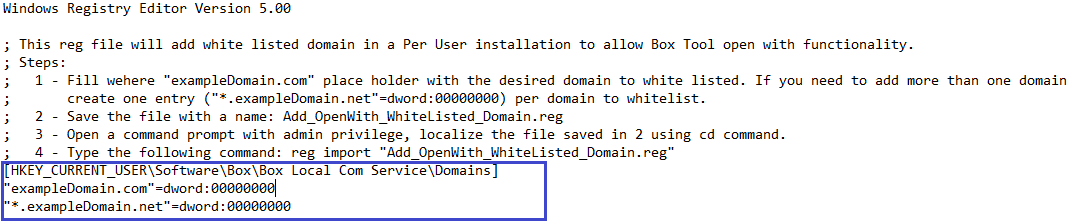 Additional entries can be added on a new line.
Close the file (save changes), open a command prompt with admin privileges, and
navigate to the .reg file and type the following command.
```sh theme={null}
reg import "Add_OpenWith_WhiteListed_Domain.reg"
```
Additional entries can be added on a new line.
Close the file (save changes), open a command prompt with admin privileges, and
navigate to the .reg file and type the following command.
```sh theme={null}
reg import "Add_OpenWith_WhiteListed_Domain.reg"
```
 ### Per Machine Installation
Open the following file in a text editor:
* `x64`: `Per Machine\64 bit\Add_OpenWith_WhiteListed_Domain.reg`
* `x86`: `Per Machine\32 bit\Add_OpenWith_WhiteListed_Domain.reg`
Replace the placeholder domain with the domain you would like allow.
### Per Machine Installation
Open the following file in a text editor:
* `x64`: `Per Machine\64 bit\Add_OpenWith_WhiteListed_Domain.reg`
* `x86`: `Per Machine\32 bit\Add_OpenWith_WhiteListed_Domain.reg`
Replace the placeholder domain with the domain you would like allow.
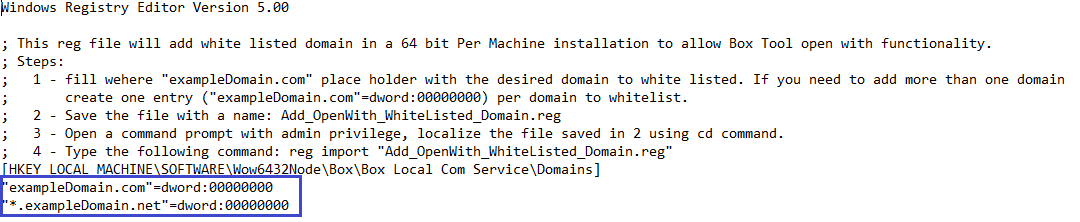 Additional entries may be added on a new line.
Close the file (save changes), open a command prompt with admin privileges, and
navigate the .reg file and type the following command:
```sh theme={null}
reg import "Add_OpenWith_WhiteListed_Domain.reg"
```
Additional entries may be added on a new line.
Close the file (save changes), open a command prompt with admin privileges, and
navigate the .reg file and type the following command:
```sh theme={null}
reg import "Add_OpenWith_WhiteListed_Domain.reg"
```
 Restart the Windows service: **Box Local Com Service** (`Box Edit.exe`) using
one of the following methods.
#### Via the command prompt
In a command prompt, enter:
* `net stop "Box Local Com Service"`
* `net start "Box Local Com Service"`
Restart the Windows service: **Box Local Com Service** (`Box Edit.exe`) using
one of the following methods.
#### Via the command prompt
In a command prompt, enter:
* `net stop "Box Local Com Service"`
* `net start "Box Local Com Service"`
 #### Via the UI
Press `Windows + R` and type `services.msc`.
#### Via the UI
Press `Windows + R` and type `services.msc`.
 Restart `Box Edit.exe` by finding `Box Edit` in the system tray.
 Right click and select **Quit**.
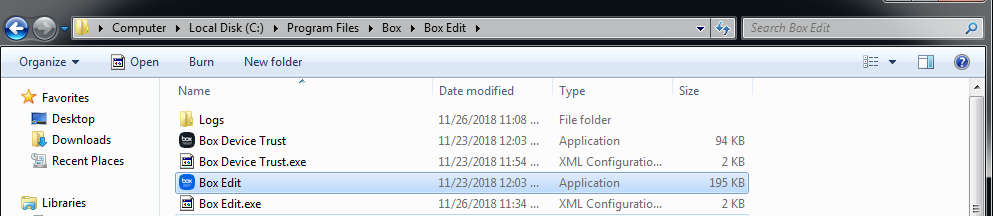
Open `%programfiles%\Box\Box Edit` and run `Box Edit.exe`.
Right click and select **Quit**.
Open `%programfiles%\Box\Box Edit` and run `Box Edit.exe`.
 ### Removing
* Run `Remove_ALL_OpenWith_WhiteListed_Domain.reg` to remove all domains at once
* Run `Remove_OpenWith_WhiteListed_Domain.reg` to remove specific domains. Use the instructions above to add domains to this .reg, which will remove domains.
## Safelisting on MacOS
### Steps
Download the bash script
[here](https://cloud.box.com/s/z5qhc7rts6mzrhzfx6cpxeb5ed4ve5u6).
Open the Terminal, go to the folder where the bash script was downloaded, and
add the right permissions by running this command:
```sh theme={null}
chmod u+rx OpenWith.sh
```
To **add** domains, run the following command in a terminal:
```sh theme={null}
./OpenWith.sh -a domain1 domain2 ...
```
To **remove** domains, run the following command in a terminal:
```sh theme={null}
./OpenWith.sh -r domain1 domain2 ...
```
To **clear all** domains, run the following command in a
terminal:
```sh theme={null}
./OpenWith.sh -c
```
To **list** all domains, run the following command in a terminal:
```sh theme={null}
./OpenWith.sh -l
```
### Notes
* When safelisting domains ensure you are entering the domains without the HTTP protocol (for example without `https://`) or any trailing path like `yourdomain.com/page/3`.
* All requests most come from a secure origin via HTTPS.
* Safelisting subdomains and ports is possible as the wildcard `*` is supported. For example, all subdomains could be safelisted by adding `*.yourdomain.com` to your list.
## Uninstalling
When Box Tools is uninstalled, all domains will be removed.
### Removing
* Run `Remove_ALL_OpenWith_WhiteListed_Domain.reg` to remove all domains at once
* Run `Remove_OpenWith_WhiteListed_Domain.reg` to remove specific domains. Use the instructions above to add domains to this .reg, which will remove domains.
## Safelisting on MacOS
### Steps
Download the bash script
[here](https://cloud.box.com/s/z5qhc7rts6mzrhzfx6cpxeb5ed4ve5u6).
Open the Terminal, go to the folder where the bash script was downloaded, and
add the right permissions by running this command:
```sh theme={null}
chmod u+rx OpenWith.sh
```
To **add** domains, run the following command in a terminal:
```sh theme={null}
./OpenWith.sh -a domain1 domain2 ...
```
To **remove** domains, run the following command in a terminal:
```sh theme={null}
./OpenWith.sh -r domain1 domain2 ...
```
To **clear all** domains, run the following command in a
terminal:
```sh theme={null}
./OpenWith.sh -c
```
To **list** all domains, run the following command in a terminal:
```sh theme={null}
./OpenWith.sh -l
```
### Notes
* When safelisting domains ensure you are entering the domains without the HTTP protocol (for example without `https://`) or any trailing path like `yourdomain.com/page/3`.
* All requests most come from a secure origin via HTTPS.
* Safelisting subdomains and ports is possible as the wildcard `*` is supported. For example, all subdomains could be safelisted by adding `*.yourdomain.com` to your list.
## Uninstalling
When Box Tools is uninstalled, all domains will be removed.