> ## Documentation Index
> Fetch the complete documentation index at: https://developer.box.com/llms.txt
> Use this file to discover all available pages before exploring further.
# Content Explorer – metadata view v2
export const MultiRelatedLinks = ({sections = []}) => {
if (!sections || sections.length === 0) {
return null;
}
return
;
};
export const Link = ({href, children, className, ...props}) => {
const localizedHref = localizeLink(href);
return
{children}
;
};
The metadata view of Content Explorer allows you to display files and folders based on their metadata.
## Overview
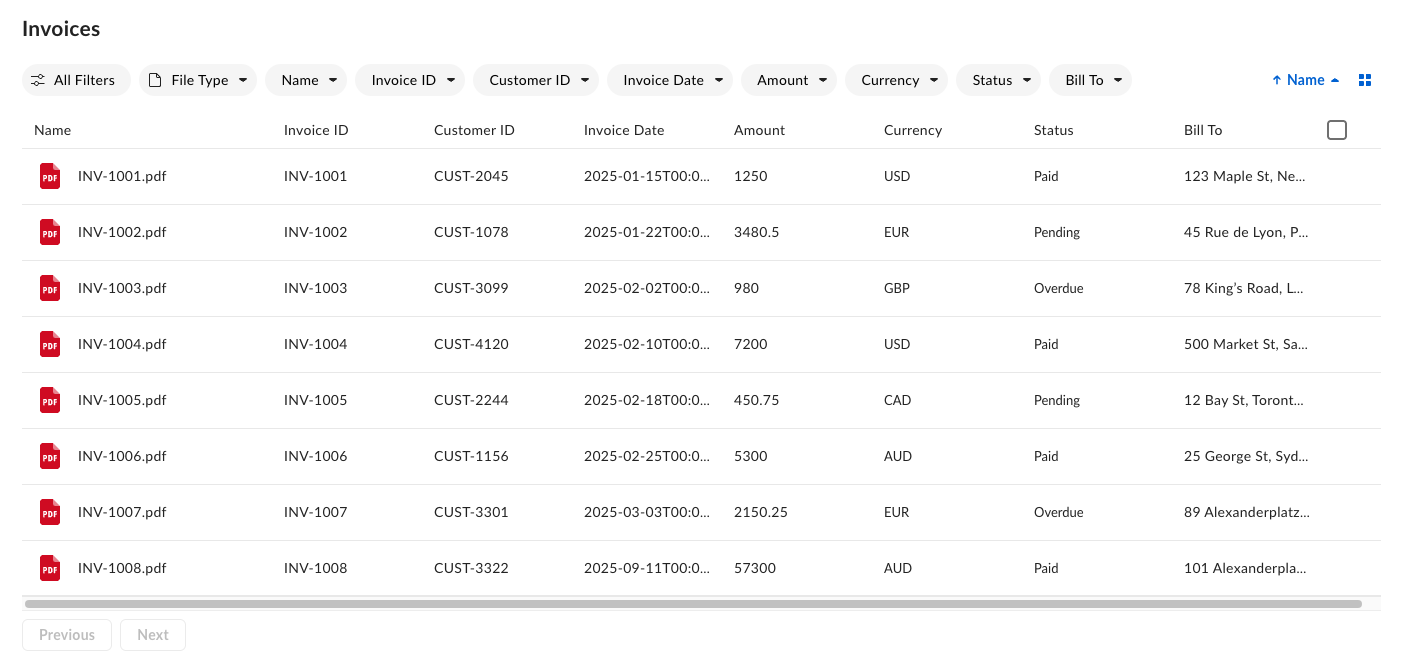
The metadata view `v2` is a ground-up redesign of the original metadata view of the Box Content Explorer UI element. It introduces a streamlined interface tailored for metadata-driven workflows. Key features include filtering and editing interfaces with dedicated UI for each metadata field type, flexible display options with list and grid views, pagination support, and more.
## Prerequisites
Before implementing the metadata view `v2` of Content Explorer, ensure you have:
* The `box-ui-elements` package `v24.0.0`+, React `v18.0.0`, and `Node.js` `v18.0.0`+
* The platform app with proper CORS settings
* A valid developer token
* A configured metadata template applied to target folder or files. See creating templates with API or [with the Admin Console][creating-templates-ui].
Make sure you enable the cascade policy. For detailed instructions, see
[instructions on customizing and applying templates][apply-templates].
## Interface areas
The metadata view interface consists of the following areas:
* **Header** – Displays the current view title, navigation, and context-sensitive information like selection counts. The header value can be specified with a `title` prop. If it’s not defined, it defaults to the folder name specified in the `ancestor_folder_id`.
* **Action bar** – Contains filter chips for each metadata field, sort options, and the view mode toggle button (list or grid).
* **Pagination footer** – Provides the **Previous** and **Next** navigation buttons and page indicators.
## Display metadata view
To display the metadata view of Content Explorer, you need the following properties:
| Property | Description |
| ----------------------------------------- | -------------------------------------------------------------------------------------------------------------------------------------- |
| `token` | Developer token generated in the Developer Console. |
| `title` | The title of the whole component, if not defined, defaults to the folder name specified in the `ancestor_folder_id`. |
| `defaultView` | Must be set to `metadata`. |
| `features.contentExplorer.metadataViewV2` | Must be set to true to enable the metadata view (v2). |
| `metadataQuery` | Metadata query request body matching the Metadata Query API schema. |
| `metadataViewProps` | Component configuration. For configuration details, see `metadataViewProps` object. |
| `columns` | Defines the structure and behavior of your metadata table columns. See Columns for details. |
Depending on your needs and setup, Box UI Elements can be used with Vanilla JavaScript or React. You can learn more about installation from the Installation guide.
**Capitalized strings need to be replaced with your custom values.**
### Vanilla JavaScript code snippet
```js theme={null}
const contentExplorer = new Box.ContentExplorer();
contentExplorer.show(FOLDER_ID, ACCESS_TOKEN, {
container: ".container",
defaultView: "metadata",
// metadataQuery must match the query files/folders by metadata API body request:
//
metadataQuery: {
from: "METADATA_SCOPE.TEMPLATE_KEY", // For example from: "enterprise_123456789.templatename" where the number is the enterprise_123456789 is metadata template scope)
ancestor_folder_id: "FOLDER_ID"
// Metadata fields and values pulled to the component
fields: [
"metadata.TEMPLATE_SCOPE.TEMPLATE_KEY.FIELD_KEY1",
"metadata.TEMPLATE_SCOPE.TEMPLATE_KEY.FIELD_KEY2",
"metadata.TEMPLATE_SCOPE.TEMPLATE_KEY.FIELD_KEY3", // For example "metadata.enterprise_123456789.templatename.date"
...
]
// Optional for filtering data with specific metadata value
query: "METADATA_FIELD_KEY = :arg1",
query_params: { arg1: "METADATA_FIELD_VALUE" },
},
features: {
contentExplorer: {
metadataViewV2: true, // Required for enabling V2
},
},
// NEW dynamic column configuration
metadataViewProps: {
columns // Required - for details see section below
...
}
});
```
### React code snippet
```js theme={null}
import React from 'react';
import { IntlProvider } from 'react-intl';
import ContentExplorer from "box-ui-elements/es/elements/content-explorer"
// Fill with custom values of your metadata template
// You can use this endpoint to get all needed values: /reference/get-metadata-templates-id-id-schema/
const metadataScopeAndKey = `${METADATA_TEMPLATE_SCOPE}.${METADATA_TEMPLATE_KEY}`;
const metadataFieldNamePrefix = `metadata.${metadataScopeAndKey}`;
const folderID = "FOLDER_ID"
const metadataQuery = {
// Check this endpoint for more details on query structure:
// /reference/post-metadata-queries-execute-read/
from: metadataScopeAndKey,
ancestor_folder_id: folderID,
fields: [
"metadata.METADATA_SCOPE.TEMPLATE_KEY.METADATA_FIELD_KEY1",
"metadata.METADATA_SCOPE.TEMPLATE_KEY.METADATA_FIELD_KEY2", // For example "metadata.enterprise_123456789.templatename.date"
...
]
};
// Required - for details see section below
const columns = [
{
textValue: "METADATA_FIELD_DISPLAY_NAME1", // or our your custom value
id: `${metadataFieldNamePrefix}.${METADATA_FIELD_KEY1}`,
type: field.type,
allowsSorting: true,
minWidth: 150,
maxWidth: 150,
},
{
textValue: "METADATA_FIELD_DISPLAY_NAME2", // or our your custom value
id: `${metadataFieldNamePrefix}.${METADATA_FIELD_KEY2}`,
type: field.type,
allowsSorting: true,
minWidth: 150,
maxWidth: 150,
},
...
];
const componentProps = {
features: {
contentExplorer: {
metadataViewV2: true,
},
},
metadataQuery,
metadataViewProps: {
columns
},
};
const ContentExplorerContainer = () => {
const { features, metadataQuery, metadataViewProps } = componentProps;
// Store token in a secure way
return (
);
};
export default ContentExplorerContainer;
```
## Columns
The columns prop defines the structure and behavior of your metadata table columns.
| Property | Type | Required | Description |
| --------------- | ------- | -------- | ------------------------------------------------------------------------------------------- |
| `id` | string | Yes | Metadata field identifier in the following format: `metadata...` |
| `textValue` | string | Yes | Column header display name. |
| `type` | string | Yes | Box metadata field type (`string`, `number`, `date`, `singleSelect`, `multiSelect`). |
| `allowsSorting` | boolean | No | Enables column header sorting. |
| `minWidth` | number | No | Minimum column width in pixels. |
| `maxWidth` | number | No | Maximum column width in pixels. |
## Features
### Enabling row selection
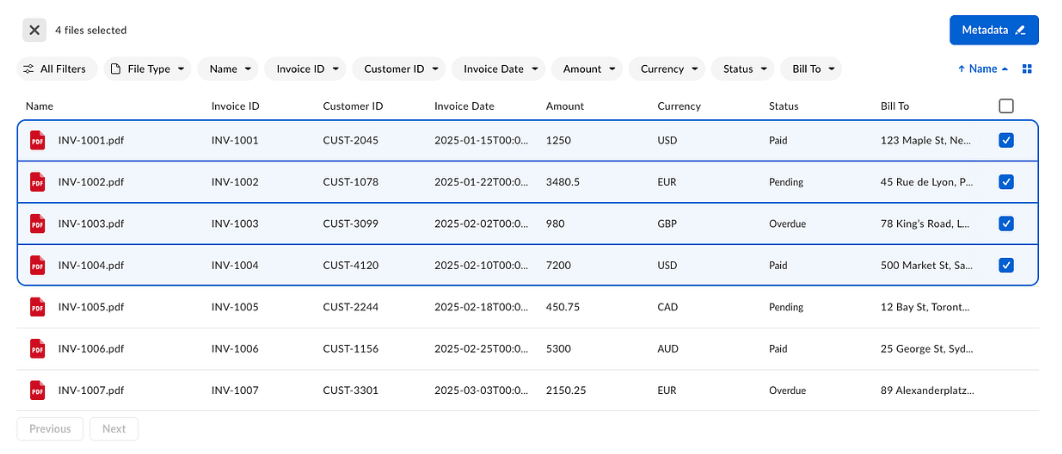
You can enable selecting individual rows. When one or more rows are selected, the header updates to show a selection descriptor and a metadata edit button. This allows users to perform single or bulk actions. Row selection is scoped to the paginated content.
To enable the selection feature, set the `isSelectionEnabled` property to `true` within the `metadataViewProps` object:
```js theme={null}
const contentExplorer = new Box.ContentExplorer();
contentExplorer.show(FOLDER_ID, ACCESS_TOKEN, {
...
metadataViewProps: {
columns,
isSelectionEnabled: true
},
});
```
### Editing metadata values
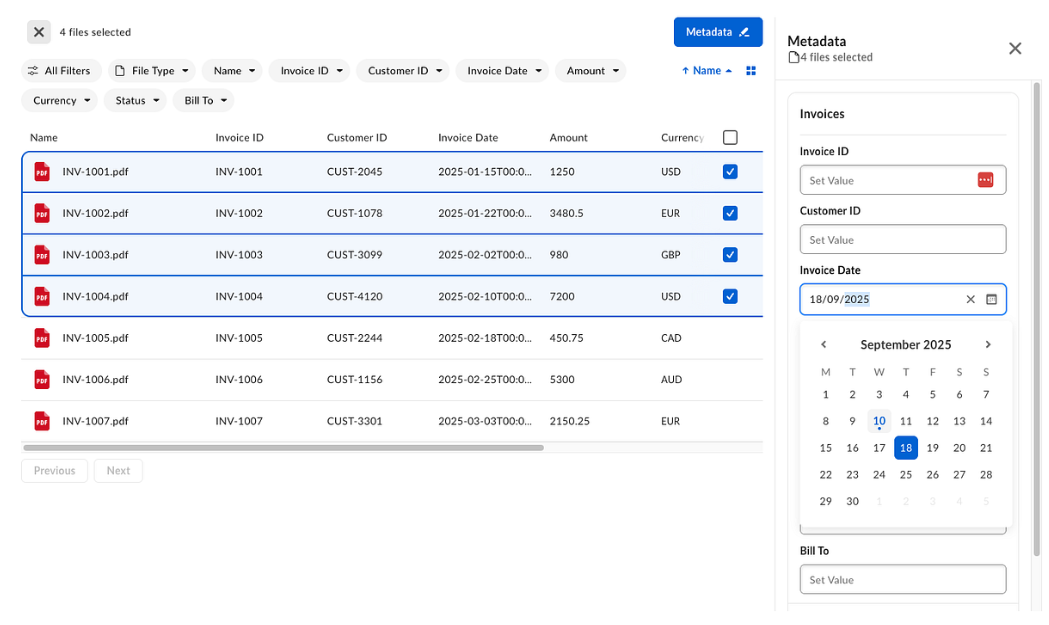
When one or more items are selected, the component header displays the selected count and the **Metadata** button becomes active. Clicking the **Metadata** button opens a sidebar that lets users view and edit metadata for the selected items.
This behavior is enabled by default; no additional properties are required to activate it.
### Filtering metadata
Filter items by the file type, filter folders, or filter by metadata field values specified in the Box metadata templates.
Filter chips are enabled by default. To disable the **All Filters** chip, set the `isAllFiltersDisabled` to `true` in the `actionBarProps` object:
```js theme={null}
const contentExplorer = new Box.ContentExplorer();
contentExplorer.show(FOLDER_ID, ACCESS_TOKEN, {
...
metadataViewProps: {
columns,
isSelectionEnabled: true,
actionBarProps: {
isAllFiltersDisabled: true,
}
},
});
```
### Toggling list and grid view
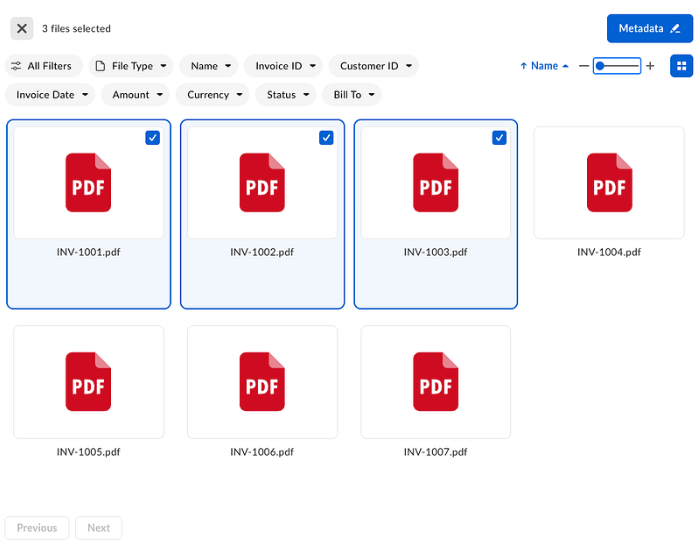
Grid view is available by default through the view mode toggle button in the action bar. When the grid view is active, a zoom control becomes available. Other functionalities like selecting, filtering, and editing are also available within this view.
To disable grid view, set `actionBarProps.isViewModeButtonDisabled` to `true` within the `metadataViewProps` object:
```js theme={null}
const contentExplorer = new Box.ContentExplorer();
contentExplorer.show(FOLDER_ID, ACCESS_TOKEN, {
...
metadataViewProps: {
columns,
actionBarProps: {
isViewModeButtonDisabled: true,
}
},
});
```
### Pagination
The UI Element uses marker-based pagination only, with the footer always visible. You cannot set an offset or page number. Users can navigate using only **Previous** and **Next**. Infinite scrolling is not supported.
## Migrating from v1 to v2
### Npm package
The `v1` of the metadata view Content Explorer has reached end of support. While `v1` remains available in the `24.0.0` package, it will no longer receive bug fixes or new features. Follow the migration guide and switch to the `v2` metadata view of Content Explorer in order to receive the newest features.
To migrate from `v1` to v2 in projects using `box-ui-elements` package:
1. Upgrade the `box-ui-elements` package version to version `24.0.0` or higher.
2. Ensure `box-ui-elements` peer dependencies are added as dependencies in your `package.json` file. Install them with your package manager.
3. Add the `features` flag to enable the enhanced metadata view.
```js theme={null}
features: {
contentExplorer: {
metadataViewV2: true
}
}
```
4. Convert your metadata `fieldToShow` configuration to the new column object. Add field types that correspond with the values in the Box metadata template. Pass the columns array to the new `metadataViewProps` object.
```js theme={null}
const columns = [
{
textValue: "METADATA_FIELD_DISPLAY_NAME", // Altenratively pass a custom value
id: `${metadataFieldNamePrefix}.${METADATA_FIELD_KEY}`,
type: field.type,
allowsSorting: true, // Optional
minWidth: 150, // Optional; the default value is 220
maxWidth: 150, // Optional; the default value is 220
},
...
];
```
5. Optionally, configure additional features described in this guide.
### CDN
To migrate from `v1` to v2 in projects using CDN imports:
1. Ensure that CDN link includes package version with version `24.0.0` or higher.
2. Add the `features` flag to enable the enhanced metadata view.
```js theme={null}
features: {
contentExplorer: {
metadataViewV2: true
}
}
```
3. Convert your metadata `fieldToShow` configuration to the new column object. Add field types that correspond with the values in the Box metadata template. Pass the columns array to the new `metadataViewProps` object.
```js theme={null}
const columns = [
{
textValue: "METADATA_FIELD_DISPLAY_NAME", // Altenratively pass a custom value
id: `${metadataFieldNamePrefix}.${METADATA_FIELD_KEY}`,
type: field.type,
allowsSorting: true, // Optional
minWidth: 150, // Optional; the default value is 220
maxWidth: 150, // Optional; the default value is 220
},
...
];
```
4. Optionally, configure additional features described in this guide.
[terminology]: /guides/metadata/#metadata-terminology
[creating-templates-ui]: https://support.box.com/hc/en-us/articles/360044194033-Customizing-Metadata-Templates
[apply-templates]: https://support.box.com/hc/en-us/articles/360044196173-Using-Metadata
 ## Prerequisites
Before implementing the metadata view `v2` of Content Explorer, ensure you have:
* The `box-ui-elements` package `v24.0.0`+, React `v18.0.0`, and `Node.js` `v18.0.0`+
* The platform app with proper CORS settings
* A valid developer token
* A configured metadata template applied to target folder or files. See creating templates with API or [with the Admin Console][creating-templates-ui].
## Prerequisites
Before implementing the metadata view `v2` of Content Explorer, ensure you have:
* The `box-ui-elements` package `v24.0.0`+, React `v18.0.0`, and `Node.js` `v18.0.0`+
* The platform app with proper CORS settings
* A valid developer token
* A configured metadata template applied to target folder or files. See creating templates with API or [with the Admin Console][creating-templates-ui].
 To enable the selection feature, set the `isSelectionEnabled` property to `true` within the `metadataViewProps` object:
```js theme={null}
const contentExplorer = new Box.ContentExplorer();
contentExplorer.show(FOLDER_ID, ACCESS_TOKEN, {
...
metadataViewProps: {
columns,
isSelectionEnabled: true
},
});
```
### Editing metadata values
When one or more items are selected, the component header displays the selected count and the **Metadata** button becomes active. Clicking the **Metadata** button opens a sidebar that lets users view and edit metadata for the selected items.
To enable the selection feature, set the `isSelectionEnabled` property to `true` within the `metadataViewProps` object:
```js theme={null}
const contentExplorer = new Box.ContentExplorer();
contentExplorer.show(FOLDER_ID, ACCESS_TOKEN, {
...
metadataViewProps: {
columns,
isSelectionEnabled: true
},
});
```
### Editing metadata values
When one or more items are selected, the component header displays the selected count and the **Metadata** button becomes active. Clicking the **Metadata** button opens a sidebar that lets users view and edit metadata for the selected items.
 This behavior is enabled by default; no additional properties are required to activate it.
### Filtering metadata
Filter items by the file type, filter folders, or filter by metadata field values specified in the Box metadata templates.
Filter chips are enabled by default. To disable the **All Filters** chip, set the `isAllFiltersDisabled` to `true` in the `actionBarProps` object:
```js theme={null}
const contentExplorer = new Box.ContentExplorer();
contentExplorer.show(FOLDER_ID, ACCESS_TOKEN, {
...
metadataViewProps: {
columns,
isSelectionEnabled: true,
actionBarProps: {
isAllFiltersDisabled: true,
}
},
});
```
### Toggling list and grid view
Grid view is available by default through the view mode toggle button in the action bar. When the grid view is active, a zoom control becomes available. Other functionalities like selecting, filtering, and editing are also available within this view.
This behavior is enabled by default; no additional properties are required to activate it.
### Filtering metadata
Filter items by the file type, filter folders, or filter by metadata field values specified in the Box metadata templates.
Filter chips are enabled by default. To disable the **All Filters** chip, set the `isAllFiltersDisabled` to `true` in the `actionBarProps` object:
```js theme={null}
const contentExplorer = new Box.ContentExplorer();
contentExplorer.show(FOLDER_ID, ACCESS_TOKEN, {
...
metadataViewProps: {
columns,
isSelectionEnabled: true,
actionBarProps: {
isAllFiltersDisabled: true,
}
},
});
```
### Toggling list and grid view
Grid view is available by default through the view mode toggle button in the action bar. When the grid view is active, a zoom control becomes available. Other functionalities like selecting, filtering, and editing are also available within this view.
 To disable grid view, set `actionBarProps.isViewModeButtonDisabled` to `true` within the `metadataViewProps` object:
```js theme={null}
const contentExplorer = new Box.ContentExplorer();
contentExplorer.show(FOLDER_ID, ACCESS_TOKEN, {
...
metadataViewProps: {
columns,
actionBarProps: {
isViewModeButtonDisabled: true,
}
},
});
```
### Pagination
The UI Element uses marker-based pagination only, with the footer always visible. You cannot set an offset or page number. Users can navigate using only **Previous** and **Next**. Infinite scrolling is not supported.
## Migrating from v1 to v2
### Npm package
To disable grid view, set `actionBarProps.isViewModeButtonDisabled` to `true` within the `metadataViewProps` object:
```js theme={null}
const contentExplorer = new Box.ContentExplorer();
contentExplorer.show(FOLDER_ID, ACCESS_TOKEN, {
...
metadataViewProps: {
columns,
actionBarProps: {
isViewModeButtonDisabled: true,
}
},
});
```
### Pagination
The UI Element uses marker-based pagination only, with the footer always visible. You cannot set an offset or page number. Users can navigate using only **Previous** and **Next**. Infinite scrolling is not supported.
## Migrating from v1 to v2
### Npm package