> ## Documentation Index
> Fetch the complete documentation index at: https://developer.box.com/llms.txt
> Use this file to discover all available pages before exploring further.

# Add Metadata Template to a File

export const ProgressBar = ({pages = [], ...props}) => {
  const [currentStep, setCurrentStep] = useState(0);
  const [isDarkMode, setIsDarkMode] = useState(false);
  useEffect(() => {
    const checkDarkMode = () => {
      const isDark = document.documentElement.classList.contains('dark');
      console.log('ProgressBar - isDarkMode:', isDark);
      setIsDarkMode(isDark);
    };
    checkDarkMode();
    const observer = new MutationObserver(() => {
      checkDarkMode();
    });
    observer.observe(document.documentElement, {
      attributes: true,
      attributeFilter: ['class']
    });
    return () => {
      observer.disconnect();
    };
  }, []);
  useEffect(() => {
    if (pages.length > 0) {
      const currentPath = window.location.pathname;
      const stepIndex = pages.findIndex(page => {
        const pagePath = page.startsWith('/') ? page : `/${page}`;
        return currentPath.endsWith(pagePath) || currentPath.includes(pagePath);
      });
      if (stepIndex !== -1) {
        setCurrentStep(stepIndex + 1);
      }
    }
  }, [pages]);
  if (!pages || pages.length === 0) {
    return null;
  }
  const step = currentStep;
  const total = pages.length;
  console.log('ProgressBar - Rendering with isDarkMode:', isDarkMode);
  const progressBarContainerStyle = {
    width: '100%',
    marginBottom: '32px',
    display: 'flex',
    alignItems: 'center',
    gap: '16px'
  };
  const stepsContainerStyle = {
    display: 'flex',
    alignItems: 'center',
    gap: '8px',
    flexShrink: 0
  };
  const progressBarTrackStyle = {
    flex: 1,
    height: '22px',
    backgroundColor: 'rgba(169, 210, 244, 0.06)',
    border: isDarkMode ? '1px solid rgba(230, 241, 247, 0.67)' : '1px solid #e3ecf3',
    borderRadius: '4px',
    overflow: 'hidden',
    position: 'relative'
  };
  const progressBarFillStyle = {
    height: '100%',
    backgroundColor: 'rgba(113, 192, 248, 0.23)',
    width: `${step / total * 100}%`,
    transition: 'width 0.3s ease'
  };
  const getStepStyle = (stepNumber, isActive) => {
    if (isDarkMode) {
      return {
        width: '22px',
        height: '22px',
        borderRadius: '4px',
        display: 'flex',
        alignItems: 'center',
        justifyContent: 'center',
        fontSize: '12px',
        fontWeight: '600',
        position: 'relative',
        zIndex: 1,
        transition: 'all 0.3s ease',
        backgroundColor: isActive ? 'rgba(113, 192, 248, 0.23)' : 'transparent',
        color: isActive ? '#60a5fa' : '#a0aec0',
        border: isActive ? '1px solid #e3ecf3' : '1px solid #e0e6eb',
        cursor: 'pointer',
        textDecoration: 'none'
      };
    }
    if (isActive) {
      return {
        width: '22px',
        height: '22px',
        borderRadius: '4px',
        display: 'flex',
        alignItems: 'center',
        justifyContent: 'center',
        fontSize: '12px',
        fontWeight: '600',
        position: 'relative',
        zIndex: 1,
        transition: 'all 0.3s ease',
        backgroundColor: 'rgba(169, 210, 244, 0.32)',
        color: '#374151',
        border: '1px solid #e1eef8',
        cursor: 'pointer',
        textDecoration: 'none'
      };
    }
    return {
      width: '22px',
      height: '22px',
      borderRadius: '4px',
      display: 'flex',
      alignItems: 'center',
      justifyContent: 'center',
      fontSize: '12px',
      fontWeight: '600',
      position: 'relative',
      zIndex: 1,
      transition: 'all 0.3s ease',
      backgroundColor: '#fbfbfb',
      color: '#9ca3af',
      border: '1px solid #e3ecf3',
      cursor: 'pointer',
      textDecoration: 'none'
    };
  };
  return <div style={progressBarContainerStyle} {...props}>
      <div style={stepsContainerStyle}>
        {Array.from({
    length: total
  }, (_, index) => {
    const stepNumber = index + 1;
    const pageIndex = index;
    const pagePath = pages[pageIndex];
    const fullPath = pagePath.startsWith('/') ? pagePath : `/${pagePath}`;
    const isActive = stepNumber === step;
    return <a key={stepNumber} href={fullPath} style={getStepStyle(stepNumber, isActive)}>
              {stepNumber}
            </a>;
  })}
      </div>
      <div style={progressBarTrackStyle}>
        <div style={progressBarFillStyle}></div>
      </div>
    </div>;
};

export const Link = ({href, children, className, ...props}) => {
  const localizedHref = href;
  return <a href={localizedHref} className={className} {...props}>
      {children}
    </a>;
};

<ProgressBar
  pages={[
                      "guides/search/quick-start/create-metadata-template",
                      "guides/search/quick-start/locate-template-info",
                      "guides/search/quick-start/apply-template-to-file",
                      "guides/search/quick-start/metadata-query-api",
                      "guides/search/quick-start/next-steps"
                    ]}
/>

Your metadata template needs to be applied to at least one file to ensure
a result in step 4. There are two ways to do add a metadata template to a file:
via the UI or via the API.

## UI

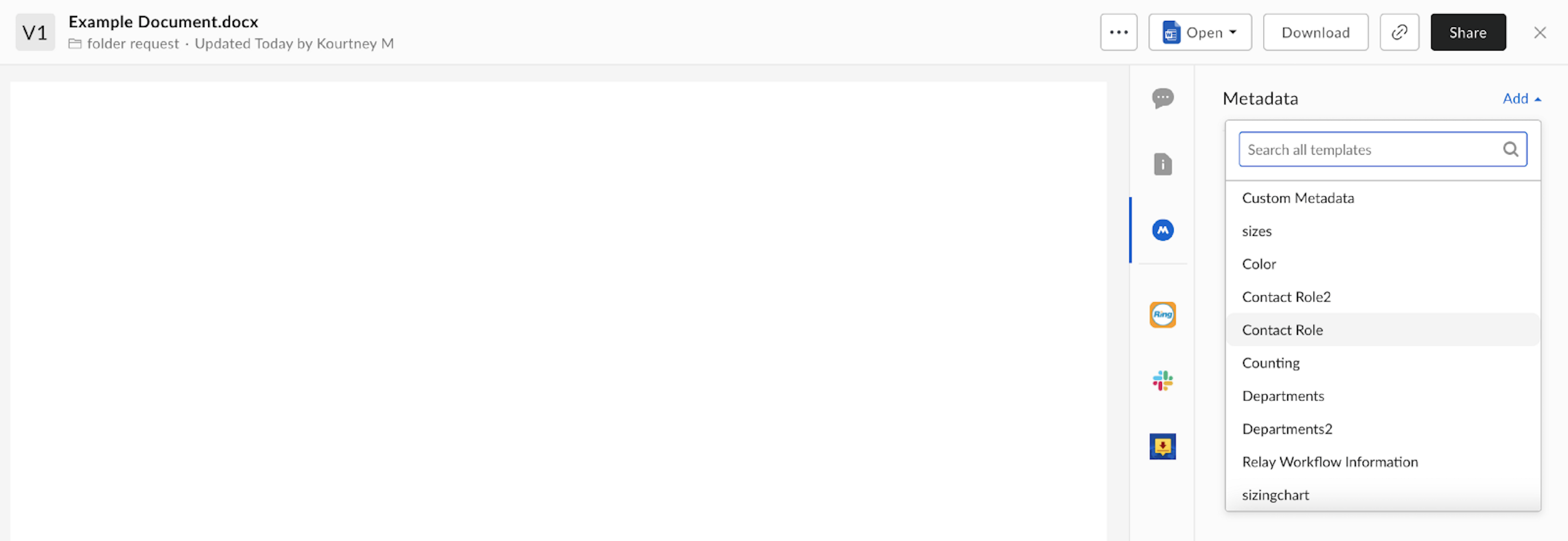
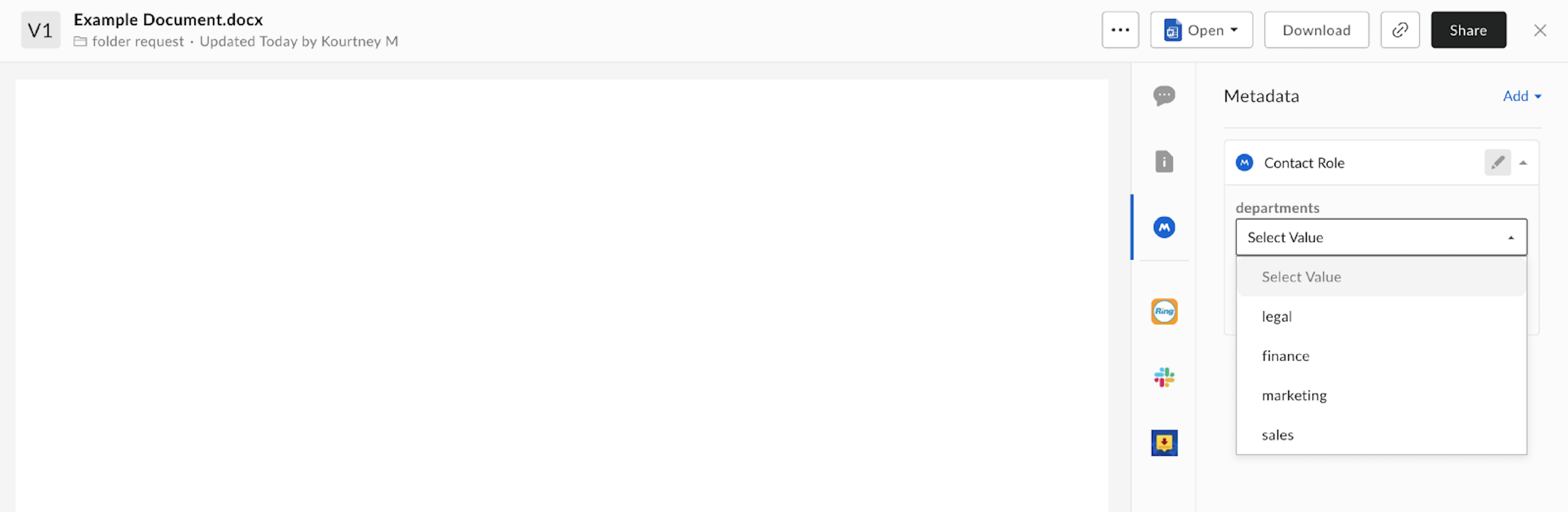
To apply metadata to a file using the UI, navigate to a file and open the
preview. Use the **Metadata** tab and click **Add**. Find the metadata template
created in step 1 and select a value. Ensure you click **Save**.

<Frame center>
  <img src="https://mintcdn.com/box/_tECS-SYBYV9K-kZ/images/guides/search/quick-start/metadata-template-select.png?fit=max&auto=format&n=_tECS-SYBYV9K-kZ&q=85&s=5ec5ece8ad18caba7d2447fe517f2f07" alt="Select a Metadata Template" width="4346" height="1500" data-path="images/guides/search/quick-start/metadata-template-select.png" />

  <img src="https://mintcdn.com/box/_tECS-SYBYV9K-kZ/images/guides/search/quick-start/select-template-value.png?fit=max&auto=format&n=_tECS-SYBYV9K-kZ&q=85&s=318e05823618fb7060189c24f996374d" alt="Select a Value" width="4598" height="1500" data-path="images/guides/search/quick-start/select-template-value.png" />
</Frame>

## API

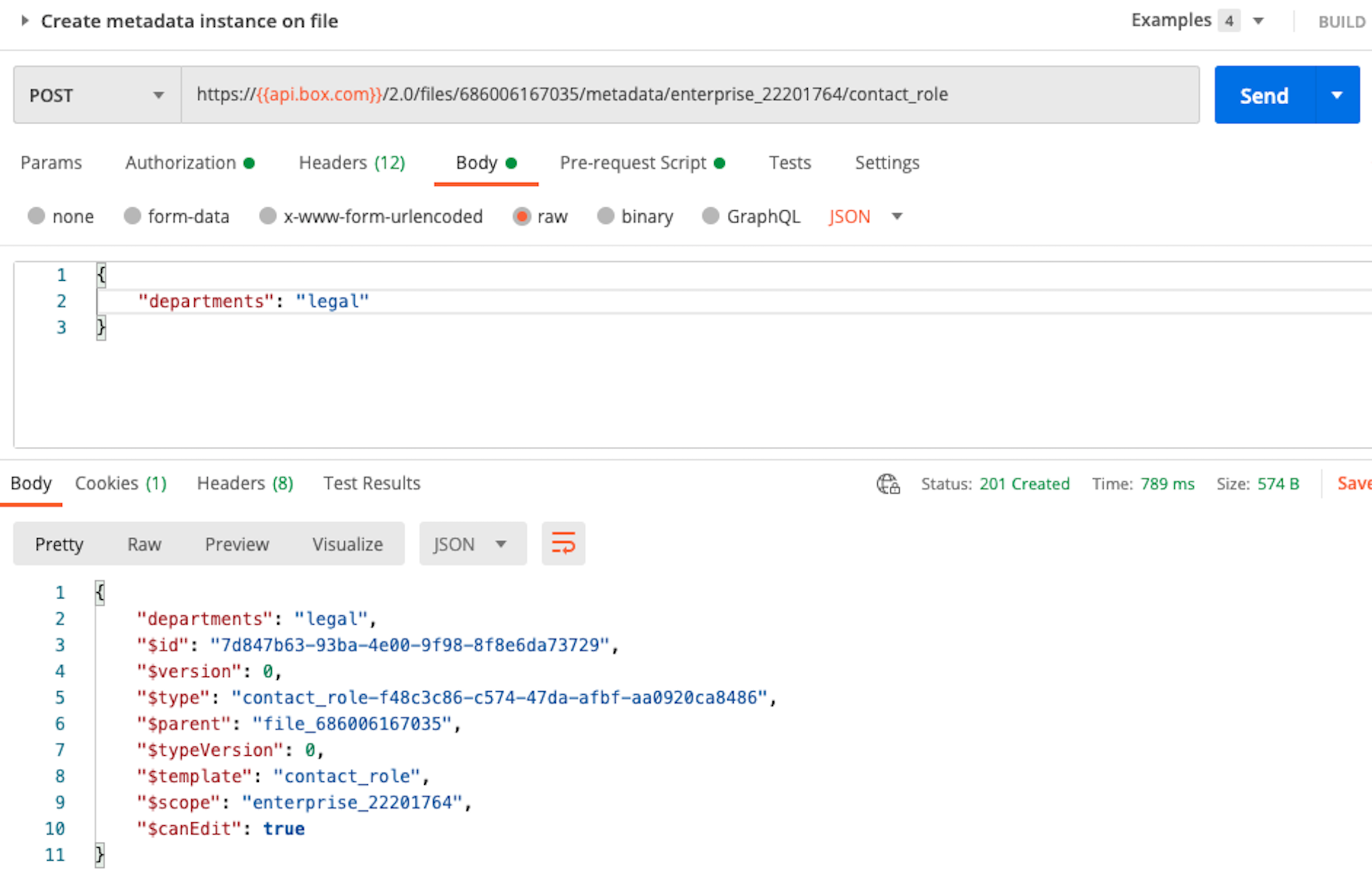
To add a metadata template to a file you will need to use the
<Link href="/reference/post-files-id-metadata-id-id/">create metadata instance on a file endpoint</Link>. You will also
need the `scope` and `templateKey` template values from the previous step.
Below is an example of what the API call looks like to apply the same metadata
shown in the UI above.
<Frame center>
  <img src="https://mintcdn.com/box/_tECS-SYBYV9K-kZ/images/guides/search/quick-start/add-metadata-api.png?fit=max&auto=format&n=_tECS-SYBYV9K-kZ&q=85&s=cd2da2051c587b52e2deca67ad6f8df7" alt="Select a Metadata Template" width="2332" height="1500" data-path="images/guides/search/quick-start/add-metadata-api.png" />
</Frame>

<Warning>
  Due to scale considerations a 403 error will returns when the metadata template
  is applied to more than 10,000 files or folders.
</Warning>

<Next>I applied my template to at least one file</Next>
