> ## Documentation Index
> Fetch the complete documentation index at: https://developer.box.com/llms.txt
> Use this file to discover all available pages before exploring further.

# Create a Metadata Template

export const ProgressBar = ({pages = [], ...props}) => {
  const [currentStep, setCurrentStep] = useState(0);
  const [isDarkMode, setIsDarkMode] = useState(false);
  useEffect(() => {
    const checkDarkMode = () => {
      const isDark = document.documentElement.classList.contains('dark');
      console.log('ProgressBar - isDarkMode:', isDark);
      setIsDarkMode(isDark);
    };
    checkDarkMode();
    const observer = new MutationObserver(() => {
      checkDarkMode();
    });
    observer.observe(document.documentElement, {
      attributes: true,
      attributeFilter: ['class']
    });
    return () => {
      observer.disconnect();
    };
  }, []);
  useEffect(() => {
    if (pages.length > 0) {
      const currentPath = window.location.pathname;
      const stepIndex = pages.findIndex(page => {
        const pagePath = page.startsWith('/') ? page : `/${page}`;
        return currentPath.endsWith(pagePath) || currentPath.includes(pagePath);
      });
      if (stepIndex !== -1) {
        setCurrentStep(stepIndex + 1);
      }
    }
  }, [pages]);
  if (!pages || pages.length === 0) {
    return null;
  }
  const step = currentStep;
  const total = pages.length;
  console.log('ProgressBar - Rendering with isDarkMode:', isDarkMode);
  const progressBarContainerStyle = {
    width: '100%',
    marginBottom: '32px',
    display: 'flex',
    alignItems: 'center',
    gap: '16px'
  };
  const stepsContainerStyle = {
    display: 'flex',
    alignItems: 'center',
    gap: '8px',
    flexShrink: 0
  };
  const progressBarTrackStyle = {
    flex: 1,
    height: '22px',
    backgroundColor: 'rgba(169, 210, 244, 0.06)',
    border: isDarkMode ? '1px solid rgba(230, 241, 247, 0.67)' : '1px solid #e3ecf3',
    borderRadius: '4px',
    overflow: 'hidden',
    position: 'relative'
  };
  const progressBarFillStyle = {
    height: '100%',
    backgroundColor: 'rgba(113, 192, 248, 0.23)',
    width: `${step / total * 100}%`,
    transition: 'width 0.3s ease'
  };
  const getStepStyle = (stepNumber, isActive) => {
    if (isDarkMode) {
      return {
        width: '22px',
        height: '22px',
        borderRadius: '4px',
        display: 'flex',
        alignItems: 'center',
        justifyContent: 'center',
        fontSize: '12px',
        fontWeight: '600',
        position: 'relative',
        zIndex: 1,
        transition: 'all 0.3s ease',
        backgroundColor: isActive ? 'rgba(113, 192, 248, 0.23)' : 'transparent',
        color: isActive ? '#60a5fa' : '#a0aec0',
        border: isActive ? '1px solid #e3ecf3' : '1px solid #e0e6eb',
        cursor: 'pointer',
        textDecoration: 'none'
      };
    }
    if (isActive) {
      return {
        width: '22px',
        height: '22px',
        borderRadius: '4px',
        display: 'flex',
        alignItems: 'center',
        justifyContent: 'center',
        fontSize: '12px',
        fontWeight: '600',
        position: 'relative',
        zIndex: 1,
        transition: 'all 0.3s ease',
        backgroundColor: 'rgba(169, 210, 244, 0.32)',
        color: '#374151',
        border: '1px solid #e1eef8',
        cursor: 'pointer',
        textDecoration: 'none'
      };
    }
    return {
      width: '22px',
      height: '22px',
      borderRadius: '4px',
      display: 'flex',
      alignItems: 'center',
      justifyContent: 'center',
      fontSize: '12px',
      fontWeight: '600',
      position: 'relative',
      zIndex: 1,
      transition: 'all 0.3s ease',
      backgroundColor: '#fbfbfb',
      color: '#9ca3af',
      border: '1px solid #e3ecf3',
      cursor: 'pointer',
      textDecoration: 'none'
    };
  };
  return <div style={progressBarContainerStyle} {...props}>
      <div style={stepsContainerStyle}>
        {Array.from({
    length: total
  }, (_, index) => {
    const stepNumber = index + 1;
    const pageIndex = index;
    const pagePath = pages[pageIndex];
    const fullPath = pagePath.startsWith('/') ? pagePath : `/${pagePath}`;
    const isActive = stepNumber === step;
    return <a key={stepNumber} href={fullPath} style={getStepStyle(stepNumber, isActive)}>
              {stepNumber}
            </a>;
  })}
      </div>
      <div style={progressBarTrackStyle}>
        <div style={progressBarFillStyle}></div>
      </div>
    </div>;
};

export const Link = ({href, children, className, ...props}) => {
  const localizedHref = href;
  return <a href={localizedHref} className={className} {...props}>
      {children}
    </a>;
};

<ProgressBar
  pages={[
                      "guides/search/quick-start/create-metadata-template",
                      "guides/search/quick-start/locate-template-info",
                      "guides/search/quick-start/apply-template-to-file",
                      "guides/search/quick-start/metadata-query-api",
                      "guides/search/quick-start/next-steps"
                    ]}
/>

There are two ways to create a new metadata template: via the Admin Console or
via the API using an Admin Access Token. If you already have a metadata template
created that you would like to use you can skip to the next step.

## Admin Console

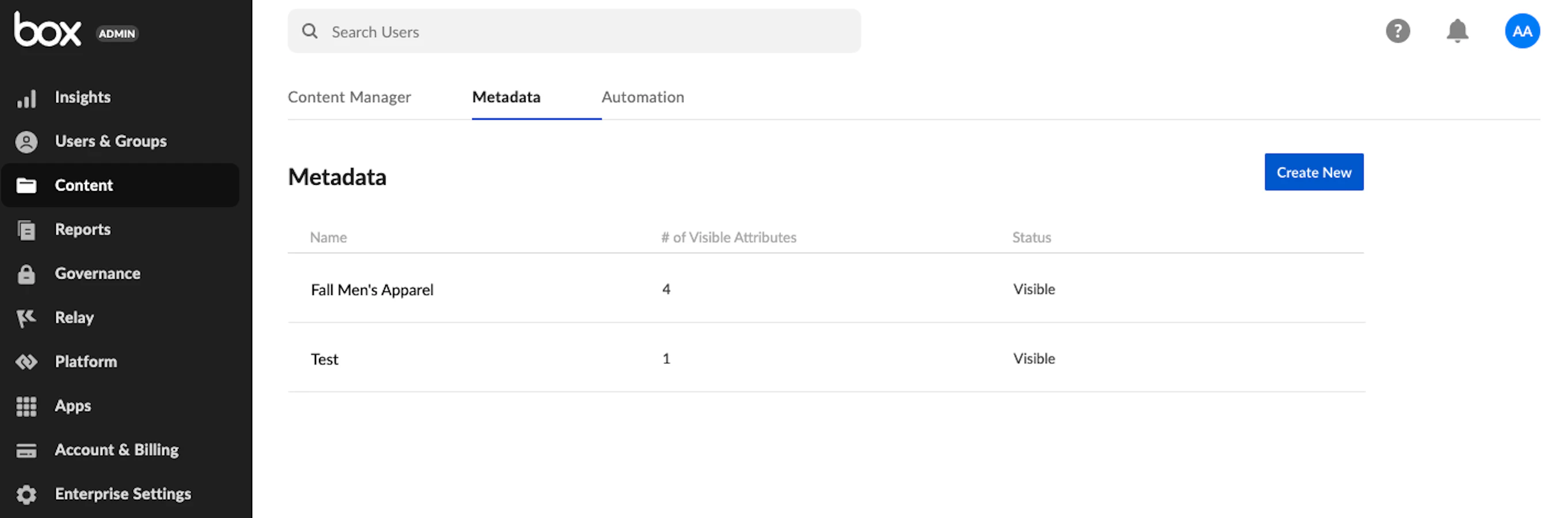
To create a template via the Admin Console, navigate to:

**Admin Console** > **Content** Tab > **Metadata** > **Create New**

<Frame center>
  <img src="https://mintcdn.com/box/_tECS-SYBYV9K-kZ/images/guides/search/quick-start/create-template.png?fit=max&auto=format&n=_tECS-SYBYV9K-kZ&q=85&s=dae1487e0f84e6337beef2fb1a53ae47" alt="Create Metadata Template" width="2723" height="900" data-path="images/guides/search/quick-start/create-template.png" />
</Frame>

<Warning>
  The metadata feature is reserved for Business Plus accounts and above. To
  upgrade your account, please contact your Box account team.
</Warning>

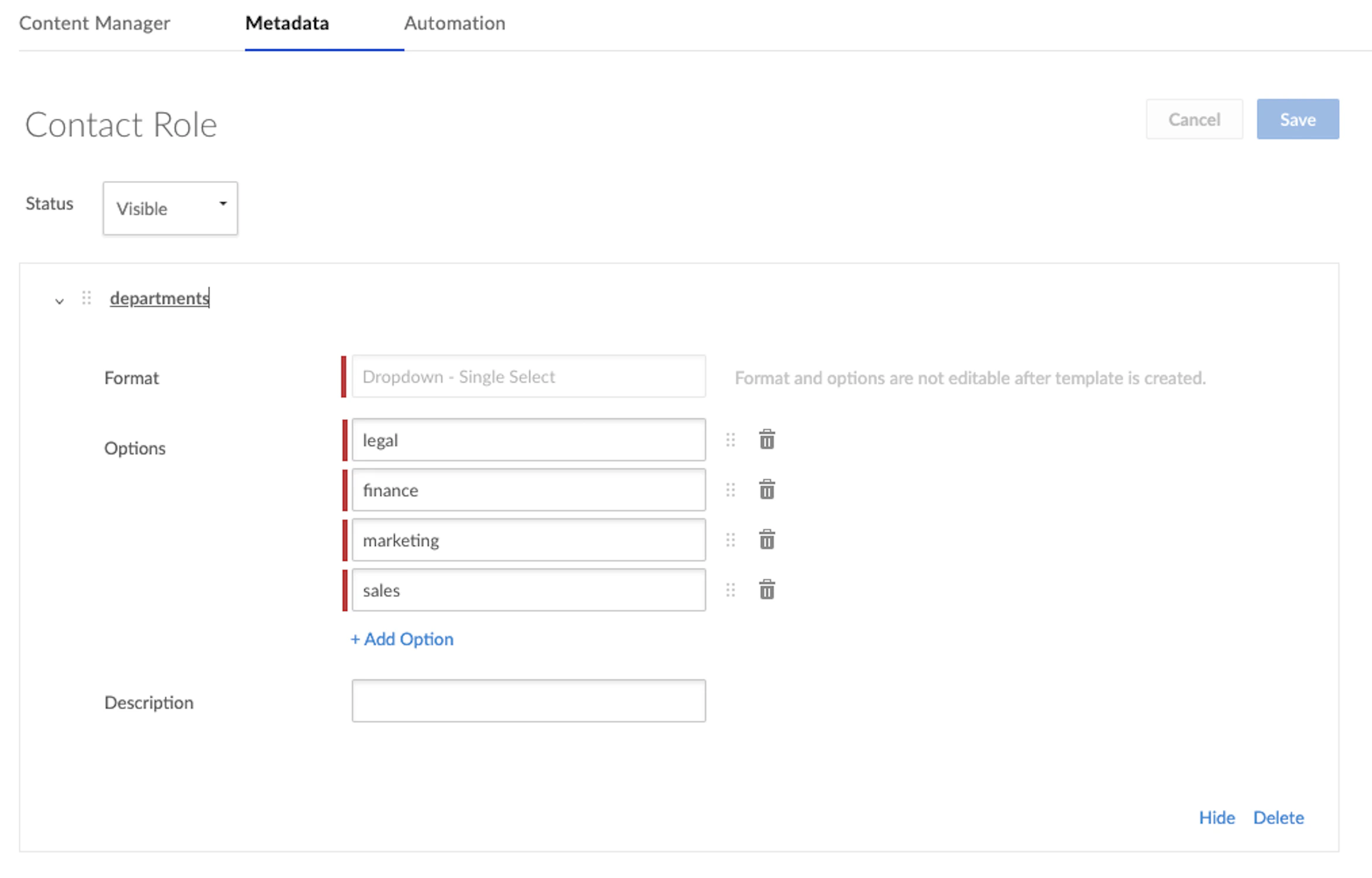
Once you select **Create New**, you are brought to a form used to create a new
template, which is shown below. Select a **Dropdown-Single Select** format.

<Warning>
  Selecting a Dropdown-Multi Select format will change the structure of you query
  later on in this quick-start.
</Warning>

<Frame center>
  <img src="https://mintcdn.com/box/_tECS-SYBYV9K-kZ/images/guides/search/quick-start/template-form.png?fit=max&auto=format&n=_tECS-SYBYV9K-kZ&q=85&s=bb21005ef68c386ce63f496ae203a0a4" alt="Metadata Template Form" width="2344" height="1500" data-path="images/guides/search/quick-start/template-form.png" />
</Frame>

## API

Creating a metadata template via the API requires an <Link href="/guides/authentication/tokens">Access Token</Link>
associated with a Box Admin or Co-Admin with permission to
**create and edit metadata templates for your company**. If you are not sure
who your token is associated with, make an API call to the
<Link href="/reference/get-users-me">get current user endpoint</Link>. The easiest way to obtain a token
meeting these requirements is to log in as an Admin or Co-Admin, pull up the
application in the [Developer Console][dc], and click
**Generate Developer Token** under the **Configuration** tab.
<Link href="/guides/authentication/tokens/developer-tokens">Developer tokens</Link> are always be associated with the user logged into the
Developer Console when the button is clicked.

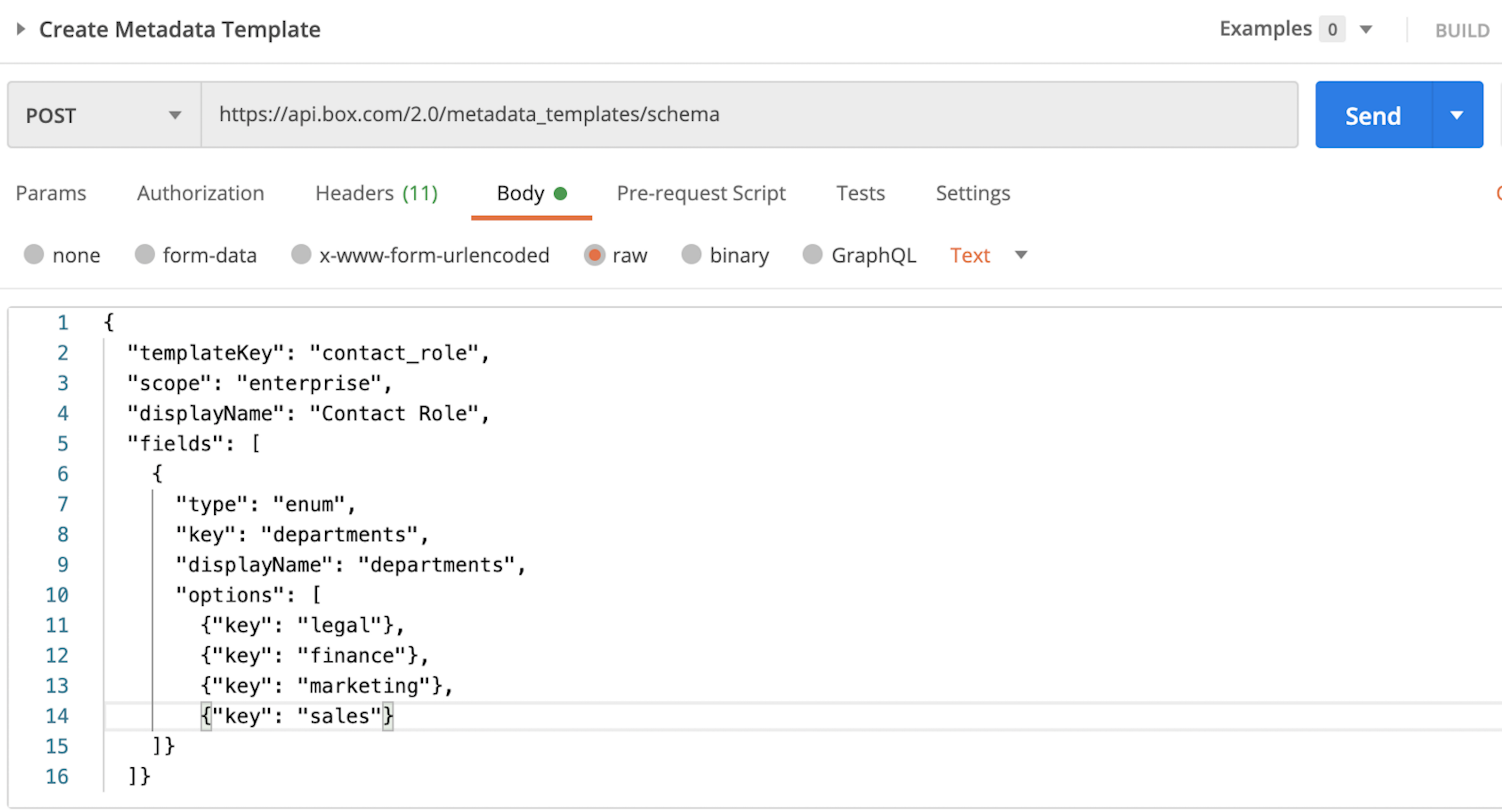
Using [Postman][postman] and the <Link href="/guides/tooling/postman">Box Postman Collection</Link>, below is
an example of what an API call looks like to create the same metadata template
created above using the Admin Console.
<Frame center>
  <img src="https://mintcdn.com/box/_tECS-SYBYV9K-kZ/images/guides/search/quick-start/create-call.png?fit=max&auto=format&n=_tECS-SYBYV9K-kZ&q=85&s=ec4fb31963e4cc6f8b679501e8dd4561" alt="Create Template API Call" width="3329" height="1800" data-path="images/guides/search/quick-start/create-call.png" />
</Frame>

<Tip>
  If you would like to use a different template format than a Dropdown-Single
  Select, you will need to consult our reference documentation, as the body of the
  API call will differ from the example above.
</Tip>

The response to this API call provides crucial information you will need later.
If you created your template via the UI, you will learn how to obtain this
information in the next step.

<Next>I created a metadata template</Next>

[dc]: https://account.box.com/developers/console

[postman]: https://postman.com/
