> ## Documentation Index
> Fetch the complete documentation index at: https://developer.box.com/llms.txt
> Use this file to discover all available pages before exploring further.

> Box AI APIの使用を開始するには、Platformアプリを作成し、AIスコープを有効にして、開発者トークンを生成します。

# Box AIの使い方

export const SignupCTA = ({children}) => {
  return <div className="flex flex-wrap items-center gap-4 p-5 rounded-lg border border-gray-200 dark:border-gray-700 my-6" style={{
    background: "linear-gradient(135deg, rgba(0, 97, 213, 0.06), rgba(0, 97, 213, 0.02))"
  }}>
      <div className="flex-1 text-sm leading-relaxed text-gray-700 dark:text-gray-300" style={{
    minWidth: "280px"
  }}>
        {children}
      </div>
      <div className="flex flex-col items-center gap-2">
        <a href="https://account.box.com/signup/developer#ty9l3" className="signup-cta-button inline-flex items-center whitespace-nowrap px-5 py-2 text-sm font-semibold text-white no-underline">
          {translate("Get started for free")}
        </a>
        <a href="https://account.box.com/developers/console" className="signup-cta-login text-xs text-gray-500 dark:text-gray-400 no-underline whitespace-nowrap">
          {translate("Already have an account? Log in")}
        </a>
      </div>
    </div>;
};

export const MultiRelatedLinks = ({sections = []}) => {
  if (!sections || sections.length === 0) {
    return null;
  }
  return <div className="space-y-8">
      {sections.map((section, index) => <RelatedLinks key={index} title={section.title} items={section.items} />)}
    </div>;
};

export const RelatedLinks = ({title, items = []}) => {
  const getBadgeClass = badge => {
    if (!badge) return "badge-default";
    const badgeType = badge.toLowerCase().replace(/\s+/g, "-");
    return `badge-${badge === "ガイド" ? "guide" : badgeType}`;
  };
  if (!items || items.length === 0) {
    return null;
  }
  return <div className="my-8">
      {}
      <h3 className="text-sm font-bold uppercase tracking-wider mb-4">{title}</h3>

      {}
      <div className="flex flex-col gap-3">
        {items.map((item, index) => <a key={index} href={item.href} className="py-2 px-3 rounded related_link hover:bg-[#f2f2f2] dark:hover:bg-[#111827] flex items-center gap-3 group no-underline hover:no-underline border-b-0">
            {}
            <span className={`px-2 py-1 rounded-full text-xs font-semibold uppercase tracking-wide flex-shrink-0 ${getBadgeClass(item.badge)}`}>
              {item.badge}
            </span>

            {}
            <span className="text-base">{item.label}</span>
          </a>)}
      </div>
    </div>;
};

export const Link = ({href, children, className, ...props}) => {
  const localizedHref = localizeLink(href);
  return <a href={localizedHref} className={className} {...props}>
      {children}
    </a>;
};

ソリューションにBox AI APIを実装するには、その機能にアクセスできることを確認する必要があります。また、Box AIスコープが有効になっているPlatformアプリケーションと、コールを認証するための開発者トークンも必要です。

<SignupCTA>
  無料のDeveloperアカウントを作成すると、Box AI APIにアクセスできます。APIを使用して、ドキュメントの要約、質問への回答、メタデータ抽出を試してみましょう。
</SignupCTA>

<Note>
  Box AI APIを使用するには、管理者が管理コンソールでこのAPIを有効にしていることを確認してください。サンドボックスでBox AI APIを使用したい場合は、[こちらのフォーム][form]を使用してBox AIチームにアクセス権限をリクエストしてください。
</Note>

## Platformアプリケーションの作成

まず、コールの実行に使用するPlatformアプリケーションを作成する必要があります。アプリケーションを作成するには、<Link href="/guides/applications/platform-apps/create">Platformアプリの作成</Link>に関するガイドに従ってください。

## Box AI APIへのアクセスの有効化

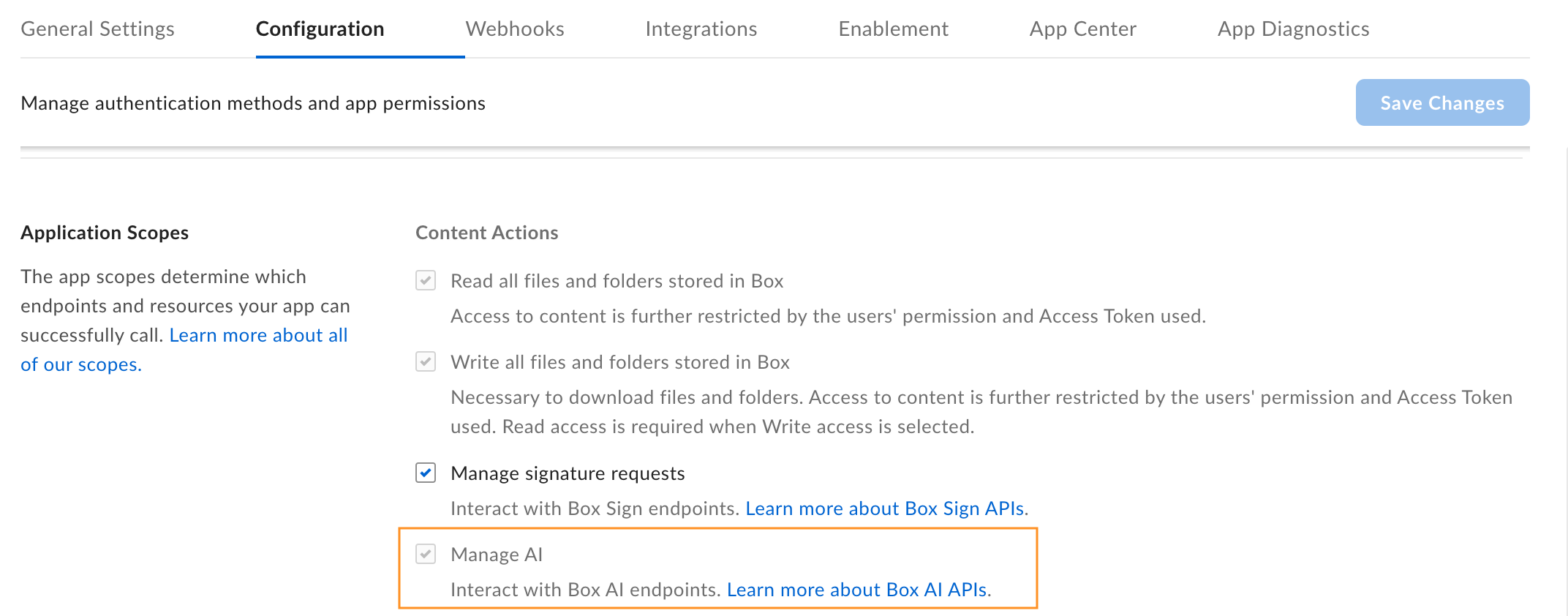
Box AI APIを操作するには、アプリケーションに`ai.readwrite`<Link href="/guides/api-calls/permissions-and-errors/scopes">スコープ</Link>を追加する必要があります。このスコープを追加する前に、Box管理者からBox AI APIへのアクセス権限が付与されていることを確認してください。アプリの構成設定で \[**AIを管理する**] オプションが表示されていない場合は、管理者までお問い合わせください。

スコープを追加するには、以下の手順を実行します。

1. 開発者コンソールで、目的のアプリケーションを開きます。

2. \[**構成**] > \[**必須のアクセススコープ**] > \[**コンテンツ操作**] に移動します。

3. \[**AIを管理する**] スコープを選択します。Box Platformでは、コールを実行すると自動的にこのスコープが含まれます。あるアプリのコラボレータとして追加されているのにBox AI APIにアクセスできない場合は、\[**AIを管理する**] スコープのチェックボックスがオンになった状態で、グレー表示になっています。つまり、アプリの所有者のAIのスコープは有効になっていますが、この設定を変更することはできません。

   <Frame>
     <img src="https://mintcdn.com/box/KBEcg4yicgc_HMRY/images/guides/box-ai/box-ai-app-scopes.png?fit=max&auto=format&n=KBEcg4yicgc_HMRY&q=85&s=198f62c04ae718688e66e947591147fc" alt="Box AIのスコープ" width="2144" height="842" data-path="images/guides/box-ai/box-ai-app-scopes.png" />
   </Frame>

4. <Link href="/guides/authorization">承認または有効化</Link>のためにアプリを送信します。既存のアプリケーションに対してBox AI APIを有効にする場合は、アプリケーションを<Link href="/guides/authorization/platform-app-approval#re-authorization-on-changes">再承認</Link>する必要があります。

## 開発者トークンの生成

リクエストの送信時にアプリを認証するには、開発者トークンが必要です。

トークンを生成するには、以下の手順を実行します。

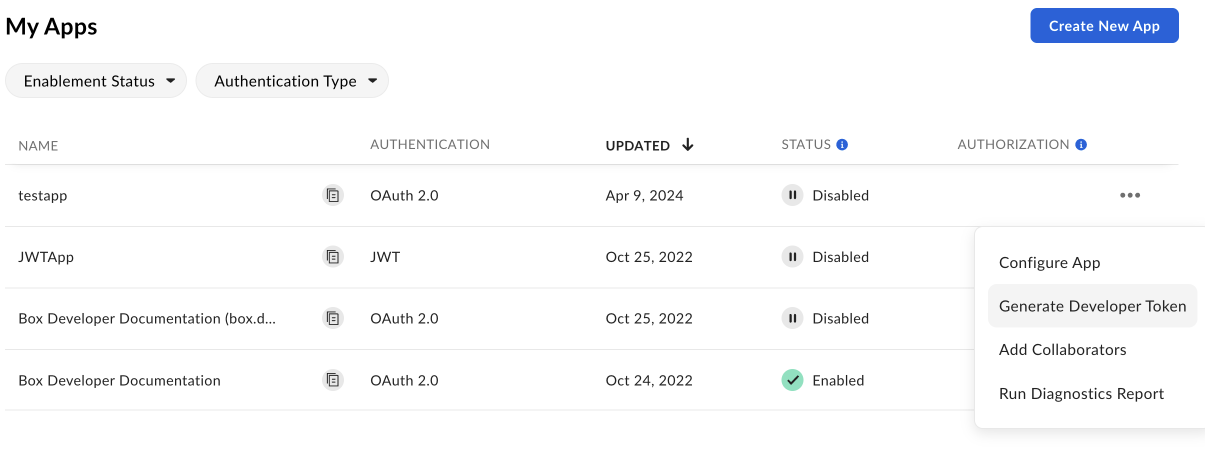
1. \[**開発者コンソール**] > \[**Platformアプリ**] に移動します。
2. 右側の**オプションメニュー**ボタン (\[…]) をクリックします。
3. \[**開発者トークンを生成**] を選択します。トークンが自動的に生成され、クリップボードに保存されます。
<Frame>
  <img src="https://mintcdn.com/box/KBEcg4yicgc_HMRY/images/guides/box-ai/developer-token.png?fit=max&auto=format&n=KBEcg4yicgc_HMRY&q=85&s=1e783b973c86e54ec9e89da50962a89b" alt="トークンの生成" width="1205" height="456" data-path="images/guides/box-ai/developer-token.png" />
</Frame>

アプリを開いて、\[**構成**] > \[**開発者トークン**] に移動してトークンを生成することもできます。

<Note>
  開発者トークンの有効期限は1時間のみです。
</Note>

詳細については、<Link href="/guides/authentication/tokens/developer-tokens">開発者トークン</Link>を参照してください。トークンを生成したら、cURLや他のクライアント (<Link href="/guides/tooling/postman">Postman</Link>など) で使用してコールを実行できます。

[oauthscopes]: /guides/api-calls/permissions-and-errors/scopes#scopes-oauth-2-authorization

[form]: https://forms.gle/Nsh3TwM3W8qg4U35A

<RelatedLinks
  title="関連するガイド"
  items={[
{ label: translate("Ask questions to Box AI"), href: "/guides/box-ai/ai-tutorials/ask-questions", badge: "GUIDE" },
{ label: translate("Override AI model configuration"), href: "/guides/box-ai/ai-tutorials/default-agent-overrides", badge: "GUIDE" },
{ label: translate("Generate text with Box AI"), href: "/guides/box-ai/ai-tutorials/generate-text", badge: "GUIDE" },
{ label: translate("Extract metadata from file (freeform)"), href: "/guides/box-ai/ai-tutorials/extract-metadata", badge: "GUIDE" },
{ label: translate("Extract metadata from file (structured)"), href: "/guides/box-ai/ai-tutorials/extract-metadata-structured", badge: "GUIDE" }
]}
/>