> ## Documentation Index
> Fetch the complete documentation index at: https://developer.box.com/llms.txt
> Use this file to discover all available pages before exploring further.

# Slackの構成

export const ProgressBar = ({pages = [], ...props}) => {
  const [currentStep, setCurrentStep] = useState(0);
  const [isDarkMode, setIsDarkMode] = useState(false);
  useEffect(() => {
    const checkDarkMode = () => {
      const isDark = document.documentElement.classList.contains('dark');
      console.log('ProgressBar - isDarkMode:', isDark);
      setIsDarkMode(isDark);
    };
    checkDarkMode();
    const observer = new MutationObserver(() => {
      checkDarkMode();
    });
    observer.observe(document.documentElement, {
      attributes: true,
      attributeFilter: ['class']
    });
    return () => {
      observer.disconnect();
    };
  }, []);
  useEffect(() => {
    if (pages.length > 0) {
      const currentPath = window.location.pathname;
      const stepIndex = pages.findIndex(page => {
        const pagePath = page.startsWith('/') ? page : `/${page}`;
        return currentPath.endsWith(pagePath) || currentPath.includes(pagePath);
      });
      if (stepIndex !== -1) {
        setCurrentStep(stepIndex + 1);
      }
    }
  }, [pages]);
  if (!pages || pages.length === 0) {
    return null;
  }
  const step = currentStep;
  const total = pages.length;
  console.log('ProgressBar - Rendering with isDarkMode:', isDarkMode);
  const progressBarContainerStyle = {
    width: '100%',
    marginBottom: '32px',
    display: 'flex',
    alignItems: 'center',
    gap: '16px'
  };
  const stepsContainerStyle = {
    display: 'flex',
    alignItems: 'center',
    gap: '8px',
    flexShrink: 0
  };
  const progressBarTrackStyle = {
    flex: 1,
    height: '22px',
    backgroundColor: 'rgba(169, 210, 244, 0.06)',
    border: isDarkMode ? '1px solid rgba(230, 241, 247, 0.67)' : '1px solid #e3ecf3',
    borderRadius: '4px',
    overflow: 'hidden',
    position: 'relative'
  };
  const progressBarFillStyle = {
    height: '100%',
    backgroundColor: 'rgba(113, 192, 248, 0.23)',
    width: `${step / total * 100}%`,
    transition: 'width 0.3s ease'
  };
  const getStepStyle = (stepNumber, isActive) => {
    if (isDarkMode) {
      return {
        width: '22px',
        height: '22px',
        borderRadius: '4px',
        display: 'flex',
        alignItems: 'center',
        justifyContent: 'center',
        fontSize: '12px',
        fontWeight: '600',
        position: 'relative',
        zIndex: 1,
        transition: 'all 0.3s ease',
        backgroundColor: isActive ? 'rgba(113, 192, 248, 0.23)' : 'transparent',
        color: isActive ? '#60a5fa' : '#a0aec0',
        border: isActive ? '1px solid #e3ecf3' : '1px solid #e0e6eb',
        cursor: 'pointer',
        textDecoration: 'none'
      };
    }
    if (isActive) {
      return {
        width: '22px',
        height: '22px',
        borderRadius: '4px',
        display: 'flex',
        alignItems: 'center',
        justifyContent: 'center',
        fontSize: '12px',
        fontWeight: '600',
        position: 'relative',
        zIndex: 1,
        transition: 'all 0.3s ease',
        backgroundColor: 'rgba(169, 210, 244, 0.32)',
        color: '#374151',
        border: '1px solid #e1eef8',
        cursor: 'pointer',
        textDecoration: 'none'
      };
    }
    return {
      width: '22px',
      height: '22px',
      borderRadius: '4px',
      display: 'flex',
      alignItems: 'center',
      justifyContent: 'center',
      fontSize: '12px',
      fontWeight: '600',
      position: 'relative',
      zIndex: 1,
      transition: 'all 0.3s ease',
      backgroundColor: '#fbfbfb',
      color: '#9ca3af',
      border: '1px solid #e3ecf3',
      cursor: 'pointer',
      textDecoration: 'none'
    };
  };
  return <div style={progressBarContainerStyle} {...props}>
      <div style={stepsContainerStyle}>
        {Array.from({
    length: total
  }, (_, index) => {
    const stepNumber = index + 1;
    const pageIndex = index;
    const pagePath = pages[pageIndex];
    const fullPath = pagePath.startsWith('/') ? pagePath : `/${pagePath}`;
    const isActive = stepNumber === step;
    return <a key={stepNumber} href={fullPath} style={getStepStyle(stepNumber, isActive)}>
              {stepNumber}
            </a>;
  })}
      </div>
      <div style={progressBarTrackStyle}>
        <div style={progressBarFillStyle}></div>
      </div>
    </div>;
};

export const ChoiceDebug = ({option}) => {
  const [currentValue, setCurrentValue] = useState(null);
  const [allState, setAllState] = useState({});
  const [isDarkMode, setIsDarkMode] = useState(false);
  useEffect(() => {
    const updateState = () => {
      if (window.choiceStateManager) {
        setCurrentValue(window.choiceStateManager.getValue(option));
        setAllState(window.choiceStateManager.getState());
      }
    };
    updateState();
    const unsubscribe = window.listenToChoice?.(option, updateState) || (() => {});
    const handleGlobalUpdate = () => updateState();
    window.addEventListener("choiceStateUpdate", handleGlobalUpdate);
    return () => {
      unsubscribe();
      window.removeEventListener("choiceStateUpdate", handleGlobalUpdate);
    };
  }, [option]);
  useEffect(() => {
    const checkDarkMode = () => {
      if (document.documentElement.classList.contains("dark")) {
        setIsDarkMode(true);
      } else if (document.documentElement.classList.contains("light")) {
        setIsDarkMode(false);
      } else {
        setIsDarkMode(window.matchMedia("(prefers-color-scheme: dark)").matches);
      }
    };
    checkDarkMode();
    const mediaQuery = window.matchMedia("(prefers-color-scheme: dark)");
    const handleMediaChange = e => {
      if (!document.documentElement.classList.contains("dark") && !document.documentElement.classList.contains("light")) {
        setIsDarkMode(e.matches);
      }
    };
    mediaQuery.addEventListener("change", handleMediaChange);
    const observer = new MutationObserver(() => {
      checkDarkMode();
    });
    observer.observe(document.documentElement, {
      attributes: true,
      attributeFilter: ["class"]
    });
    return () => {
      mediaQuery.removeEventListener("change", handleMediaChange);
      observer.disconnect();
    };
  }, []);
  return <div style={{
    padding: "10px",
    backgroundColor: isDarkMode ? "#2d3748" : "#f5f5f5",
    border: isDarkMode ? "1px solid #4a5568" : "1px solid #ddd",
    borderRadius: "4px",
    fontSize: "12px",
    fontFamily: "monospace",
    marginTop: "20px",
    color: isDarkMode ? "#e2e8f0" : "inherit"
  }}>
      <strong>{translate("Choice Debug:")}</strong>
      <br />
      {translate("Option:")} {option}
      <br />
      {translate("Current Value:")} {currentValue || "undefined"}
      <br />
      {translate("All State:")} {JSON.stringify(allState, null, 2)}
    </div>;
};

export const Observe = ({option, value, children, ...props}) => {
  const [shouldShow, setShouldShow] = useState(false);
  useEffect(() => {
    const updateVisibility = () => {
      const matches = window.matchesChoiceValues?.(option, value) || false;
      setShouldShow(matches);
    };
    updateVisibility();
    const unsubscribe = window.listenToChoice?.(option, updateVisibility) || (() => {});
    return unsubscribe;
  }, [option, value]);
  if (!shouldShow) {
    return null;
  }
  return <div {...props}>{children}</div>;
};

export const Trigger = ({option, value, children, ...props}) => {
  const handleClick = () => {
    window.triggerChoice?.(option, value);
  };
  return <div onClick={handleClick} style={{
    cursor: "pointer"
  }} {...props}>
      {children}
    </div>;
};

export const Grid = ({columns = 2, compact = false, children, ...props}) => {
  const gridStyles = {
    display: "grid",
    gridTemplateColumns: `repeat(${columns}, 1fr)`,
    gap: compact ? "8px" : "16px",
    marginBottom: compact ? "10px" : "20px"
  };
  return <div style={gridStyles} {...props}>
      {children}
    </div>;
};

export const Choice = ({option, value, color = "", unset = false, lazy = false, children, ...props}) => {
  const [shouldShow, setShouldShow] = useState(false);
  const [hasEverShown, setHasEverShown] = useState(false);
  const [isDarkMode, setIsDarkMode] = useState(false);
  useEffect(() => {
    const updateVisibility = () => {
      const hasOptionValue = window.hasChoiceValue?.(option) || false;
      const matchesValue = window.matchesChoiceValues?.(option, value) || false;
      let show = false;
      if (unset && !hasOptionValue) {
        show = true;
      } else if (!unset && matchesValue) {
        show = true;
      }
      setShouldShow(show);
      if (show && !hasEverShown) {
        setHasEverShown(true);
      }
    };
    updateVisibility();
    const unsubscribe = window.listenToChoice?.(option, updateVisibility) || (() => {});
    return unsubscribe;
  }, [option, value, unset, hasEverShown]);
  useEffect(() => {
    const checkDarkMode = () => {
      if (document.documentElement.classList.contains("dark")) {
        setIsDarkMode(true);
      } else if (document.documentElement.classList.contains("light")) {
        setIsDarkMode(false);
      } else {
        setIsDarkMode(window.matchMedia("(prefers-color-scheme: dark)").matches);
      }
    };
    checkDarkMode();
    const mediaQuery = window.matchMedia("(prefers-color-scheme: dark)");
    const handleMediaChange = e => {
      if (!document.documentElement.classList.contains("dark") && !document.documentElement.classList.contains("light")) {
        setIsDarkMode(e.matches);
      }
    };
    mediaQuery.addEventListener("change", handleMediaChange);
    const observer = new MutationObserver(() => {
      checkDarkMode();
    });
    observer.observe(document.documentElement, {
      attributes: true,
      attributeFilter: ["class"]
    });
    return () => {
      mediaQuery.removeEventListener("change", handleMediaChange);
      observer.disconnect();
    };
  }, []);
  const getColorStyles = () => {
    const baseStyles = {
      border: isDarkMode ? "1px dashed #4a5568" : "1px dashed #e1e5e9",
      padding: "20px",
      marginBottom: "20px",
      borderRadius: "8px",
      backgroundColor: isDarkMode ? "#1a202c" : "#ffffff"
    };
    const colorMap = {
      green: {
        light: {
          backgroundColor: "#d4edda",
          borderColor: "#28a745"
        },
        dark: {
          backgroundColor: "#1a3a2a",
          borderColor: "#66bb6a"
        }
      },
      red: {
        light: {
          backgroundColor: "#f8d7da",
          borderColor: "#dc3545"
        },
        dark: {
          backgroundColor: "#3a1a1a",
          borderColor: "#ef5350"
        }
      },
      blue: {
        light: {
          backgroundColor: "#d1ecf1",
          borderColor: "#0c5460"
        },
        dark: {
          backgroundColor: "#1a2a3a",
          borderColor: "#42a5f5"
        }
      },
      none: {
        backgroundColor: "transparent",
        padding: "0",
        margin: "0",
        border: "none"
      }
    };
    const colorStyles = color !== "none" ? colorMap[color]?.[isDarkMode ? "dark" : "light"] || ({}) : colorMap.none;
    return {
      ...baseStyles,
      ...colorStyles
    };
  };
  if (lazy && !hasEverShown && !shouldShow) {
    return null;
  }
  return <div style={{
    ...getColorStyles(),
    display: shouldShow ? "block" : "none"
  }} className="choice-content" {...props}>
      {children}
    </div>;
};

export const Choose = ({option, value, color = "", children, ...props}) => {
  const [isSelected, setIsSelected] = useState(false);
  const [hasOptionTriggered, setHasOptionTriggered] = useState(false);
  const [isDarkMode, setIsDarkMode] = useState(false);
  useEffect(() => {
    const currentValue = window.getChoiceValue?.(option);
    const optionTriggered = window.hasChoiceValue?.(option) || false;
    setIsSelected(currentValue === value);
    setHasOptionTriggered(optionTriggered);
    const unsubscribe = window.listenToChoice?.(option, newValue => {
      setIsSelected(newValue === value);
      setHasOptionTriggered(true);
    }) || (() => {});
    return unsubscribe;
  }, [option, value]);
  useEffect(() => {
    const checkDarkMode = () => {
      if (document.documentElement.classList.contains("dark")) {
        setIsDarkMode(true);
      } else if (document.documentElement.classList.contains("light")) {
        setIsDarkMode(false);
      } else {
        setIsDarkMode(window.matchMedia("(prefers-color-scheme: dark)").matches);
      }
    };
    checkDarkMode();
    const mediaQuery = window.matchMedia("(prefers-color-scheme: dark)");
    const handleMediaChange = e => {
      if (!document.documentElement.classList.contains("dark") && !document.documentElement.classList.contains("light")) {
        setIsDarkMode(e.matches);
      }
    };
    mediaQuery.addEventListener("change", handleMediaChange);
    const observer = new MutationObserver(() => {
      checkDarkMode();
    });
    observer.observe(document.documentElement, {
      attributes: true,
      attributeFilter: ["class"]
    });
    return () => {
      mediaQuery.removeEventListener("change", handleMediaChange);
      observer.disconnect();
    };
  }, []);
  const handleClick = () => {
    window.triggerChoice?.(option, value);
  };
  const handleKeyDown = e => {
    if (e.key === "Enter" || e.key === " ") {
      e.preventDefault();
      handleClick();
    }
  };
  const getColorStyles = () => {
    const baseStyles = {
      border: isDarkMode ? "1px dashed #4a5568" : "1px dashed #e1e5e9",
      cursor: "pointer",
      padding: "20px",
      position: "relative",
      backgroundColor: isDarkMode ? "#2d3748" : "#f8f9fa",
      outline: "none",
      height: "100%",
      borderRadius: "8px",
      transition: "all 0.2s ease",
      display: "flex",
      flexDirection: "column"
    };
    const colorMap = {
      green: {
        light: {
          backgroundColor: "#d4edda",
          borderColor: "#28a745"
        },
        dark: {
          backgroundColor: "#1a3a2a",
          borderColor: "#66bb6a"
        }
      },
      red: {
        light: {
          backgroundColor: "#f8d7da",
          borderColor: "#dc3545"
        },
        dark: {
          backgroundColor: "#3a1a1a",
          borderColor: "#ef5350"
        }
      },
      blue: {
        light: {
          backgroundColor: "#d1ecf1",
          borderColor: "#0c5460"
        },
        dark: {
          backgroundColor: "#1a2a3a",
          borderColor: "#42a5f5"
        }
      }
    };
    const colorStyles = colorMap[color]?.[isDarkMode ? "dark" : "light"] || ({});
    if (isSelected) {
      return {
        ...baseStyles,
        ...colorStyles,
        borderStyle: "solid",
        borderWidth: "3px",
        borderColor: colorStyles.borderColor || (isDarkMode ? "#42a5f5" : "#0061d5"),
        backgroundColor: colorStyles.backgroundColor || (isDarkMode ? "#1a2a3a" : "#e3f2fd"),
        boxShadow: isDarkMode ? "0 2px 8px rgba(66, 165, 245, 0.3)" : "0 2px 8px rgba(0, 97, 213, 0.3)",
        transform: "scale(1.02)"
      };
    }
    if (hasOptionTriggered && !isSelected) {
      return {
        ...baseStyles,
        ...colorStyles,
        opacity: 0.5
      };
    }
    return {
      ...baseStyles,
      ...colorStyles
    };
  };
  const iconStyles = {
    float: "left",
    position: "relative",
    top: "2px",
    marginRight: "12px",
    width: "20px",
    height: "20px",
    color: isSelected ? isDarkMode ? "#42a5f5" : "#0061d5" : isDarkMode ? "#a0aec0" : "#666"
  };
  return <div onClick={handleClick} style={getColorStyles()} tabIndex={0} onKeyDown={handleKeyDown} {...props}>
      <div style={iconStyles}>
        {isSelected ? <svg viewBox="0 0 24 24" fill="currentColor" style={{
    width: "100%",
    height: "100%"
  }}>
            <path d="M12 2C6.48 2 2 6.48 2 12s4.48 10 10 10 10-4.48 10-10S17.52 2 12 2zm-2 15l-5-5 1.41-1.41L10 14.17l7.59-7.59L19 8l-9 9z" />
          </svg> : <svg viewBox="0 0 24 24" fill="none" stroke="currentColor" strokeWidth="2" style={{
    width: "100%",
    height: "100%"
  }}>
            <circle cx="12" cy="12" r="10" />
          </svg>}
      </div>
      <div style={{
    flex: 1
  }} className="choose-content">
        {children}
      </div>
    </div>;
};

<ProgressBar
  pages={[
                    "guides/collaborations/connect-slack-to-group-collabs/configure-slack",
                    "guides/collaborations/connect-slack-to-group-collabs/configure-box",
                    "guides/collaborations/connect-slack-to-group-collabs/scaffold-application-code",
                    "guides/collaborations/connect-slack-to-group-collabs/handle-slack-events",
                    "guides/collaborations/connect-slack-to-group-collabs/connect-box-functions",
                    "guides/collaborations/connect-slack-to-group-collabs/test-bot"
                  ]}
/>

このガイドの最初の手順では、Slackアプリケーションを作成して構成します。このSlackアプリケーションは、SlackチャンネルでUser Eventをリッスンするボットとして機能し、そのチャンネルでユーザーが入力した**スラッシュコマンド**に応答します。これにより、ユーザーはBox上のファイルやフォルダをグループと共有できます。

このセクションでは、以下の手順を説明します。

* Slack APIダッシュボード内で最小限のSlackアプリケーションを作成します。
* ユーザーがチャンネルに参加したりチャンネルから退出したりするたびにBoxのアプリケーションに通知が送信されるようSlackアプリケーションを構成し、BoxのコードでBoxグループを更新できるようにします。
* Boxのファイルやフォルダをチャンネル内のすべてのユーザーと共有できるようにする`/boxadd`**スラッシュコマンド**を構成します。

## 最小限のSlackアプリの作成

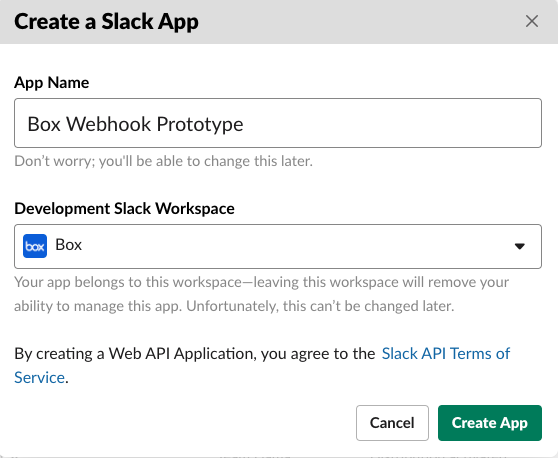
**[Slackアプリのページ][slack-apps]**に移動し、\[**Create an App (アプリの作成)**] をクリックします。\[**App Name (アプリ名)**] を追加し、ボットの展開先となる \[**Development Slack Workspace (開発Slackワークスペース)**] をドロップダウンリストから選択し、\[**Create App (アプリの作成)**] をクリックします。

<Frame noborder center shadow>
  <img src="https://mintcdn.com/box/jPy1E1s_P1x3lZ7z/ja/guides/collaborations/connect-slack-to-group-collabs/img/slack_1_create_slack_app.png?fit=max&auto=format&n=jPy1E1s_P1x3lZ7z&q=85&s=72c6c4a73479de61cb2f89299bf758cb" alt="Slackアプリの作成" width="558" height="458" data-path="ja/guides/collaborations/connect-slack-to-group-collabs/img/slack_1_create_slack_app.png" />
</Frame>

作成後、アプリケーションの基本情報セクションにリダイレクトされます。下部の \[**Display Information (情報の表示)**] セクションで、作成したアプリのアイコンと説明を調整して、ワークスペースでアプリケーションをカスタマイズできます。

## Slackアプリのイベントリスナーの構成

Slackアプリ用のイベントリスナーを設定すると、チャンネル内のイベントを監視できます。このボットでは、Box内で操作を実行するために、3つの[Slackイベント][slack-events]を監視します。

* [`bot_added`][slack-event-bot-added]: ボットは、最初にチャンネルに追加されたときに、チャンネル内の全ユーザーのリストを取得し、取得したユーザーのBoxグループを作成します。このグループは、**スラッシュコマンド**で共有される任意のコンテンツにそのグループを追加するために後で使用できます。
* [`member_joined_channel`][slack-event-member-joined]: 新しいユーザーは、Slackチャンネルに参加したときにBoxグループに追加されます。
* [`member_left_channel`][slack-event-member-left]: ユーザーはSlackチャンネルから退出したときや削除されたときに、Boxグループから削除されます。

このようなSlackのイベントペイロードの送信先となる通知URLを設定するために、Slackでは確認手順が必要になります。ボットアプリケーションコードのイベントリスナーURLを設定すると、Slackは即座にそのURLにチャレンジを送信し、そのURLが有効かどうかを確認します。これは、次のようなペイロードを含むHTTP POSTです。

```json theme={null}
{
  "token": "Jhj5dZrVaK7ZwHHjRyZWjbDl",
  "challenge": "3eZbrw1aBm2rZgRNFdxV2595E9CY3gmdALWMmHkvFXO7tYXAYM8P",
  "type": "url_verification"
}
```

イベントリスナーのURLを設定するには、この手順の間に、設定するURLが、チャレンジ値を含む確認用ペイロードを使用してSlackに応答する必要があります。ペイロードは次のようになります。

```js theme={null}
HTTP 200 OK Content-type: application/json {"challenge":"3eZbrw1aBm2rZgRNFdxV2595E9CY3gmdALWMmHkvFXO7tYXAYM8P"}
```

このためには、チャレンジイベントに応答する少量のコードを展開します。最初に、以下の中からお好みの言語/フレームワークを選択してください。

<Grid columns="2" compact>
  <Choose option="programming.platform" value="node" color="blue">
    # Node (Expressフレームワーク)
  </Choose>

  <Choose option="programming.platform" value="java" color="blue">
    # Java (Spring Bootフレームワーク)
  </Choose>
</Grid>

<Choice option="programming.platform" value="node" color="none">
  プロジェクトディレクトリ内で`npm install express --save`を実行してExpressの依存関係をインストールし、次のコードを適切なNodeモジュールとともに公開エンドポイントに展開します。

  ```js theme={null}
  const express = require('express');
  const app = express();
  const port = process.env.PORT || 3000;

  app.use(express.urlencoded({ extended: true }));
  app.use(express.json());

  app.post('/event', (req, res) => {
      if (
          req.body &&
          req.body.challenge &&
          req.body.type === 'url_verification'
      ) {
          res.send({
              challenge: req.body.challenge
          });
      } else {
          res.status(400).send({
              error: "Unrecognized request"
          });
      }
  });

  app.listen(port, function(err) {
      console.log("Server listening on PORT", port);
  });
  ```
</Choice>

<Choice option="programming.platform" value="java" color="none">
  <Tip>
    [`Spring Initializr`][spring-initializr]は、すべての依存関係が定義された状態の新しいSpring Bootアプリケーションを自動生成するのに便利なサービスです。これは、空のJavaアプリケーションを作成する代わりに使用できます。
  </Tip>

  * Eclipseで新しいプロジェクトを作成します。求められたら、Gradleプロジェクトを選択します。
  * プロジェクトの一意の名前を入力します。このガイドでは`slack.box`という名前を使用しています。
  * `build.gradle`ファイルを開いて以下を追加します。アプリケーションに使用したグループとこのグループが一致することを確認します。保存したら、Gradleプロジェクトを更新します。

  ```java theme={null}
  plugins {
      id 'org.springframework.boot' version '2.3.1.RELEASE'
      id 'io.spring.dependency-management' version '1.0.9.RELEASE'
      id 'java'
  }

  group = 'com.box'
  version = '0.0.1-SNAPSHOT'
  sourceCompatibility = '1.8'

  repositories {
      mavenCentral()
  }

  dependencies {
      implementation 'org.springframework.boot:spring-boot-starter-web'
      testImplementation('org.springframework.boot:spring-boot-starter-test') {
          exclude group: 'org.junit.vintage', module: 'junit-vintage-engine'
      }
      compile 'com.box:box-java-sdk:2.44.1'
  }

  test {
      useJUnitPlatform()
  }
  ```

  * `src/main/java`パスに、`Application.java`という名前の新しいJavaクラスファイルを作成します。
  * このファイルを開き、次のコードを追加して保存します。

  ```java theme={null}
  package com.box.slack.box;

  import org.jose4j.json.internal.json_simple.JSONObject;
  import org.jose4j.json.internal.json_simple.parser.JSONParser;
  import org.springframework.boot.SpringApplication;
  import org.springframework.boot.autoconfigure.EnableAutoConfiguration;
  import org.springframework.web.bind.annotation.PostMapping;
  import org.springframework.web.bind.annotation.RequestBody;
  import org.springframework.web.bind.annotation.RestController;

  @RestController
  @EnableAutoConfiguration
  public class Application {
      @PostMapping("/event")
      public JSONObject challenge(@RequestBody String data) throws Exception {
          JSONObject returnJSON = new JSONObject();

          Object dataObj = new JSONParser().parse(data);
          JSONObject inputJSON = (JSONObject) dataObj;
          String challenge = (String) inputJSON.get("challenge");
          String type = (String) inputJSON.get("type");

          if (type.equals("url_verification")) {
              returnJSON.put("challenge", challenge);
          } else {
              System.err.println("Invalid input");
          }

          return returnJSON;
      }

      public static void main(String[] args) {
          SpringApplication.run(Application.class, args);
      }
  }
  ```
</Choice>

<Choice option="programming.platform" unset color="none">
  <Danger>
    **前の手順が完了していません** 最初に、上記の中からお好みの言語/フレームワークを選択してください。
  </Danger>
</Choice>

これで、イベントURLの追加時にSlackチャレンジに応答するコードを準備できたので、これをSlackアプリケーション内で構成できます。

Slackアプリケーションの \[**Basic Information (基本情報)**] タブの \[**Add features and functionality (機能の追加)**] で、\[**Event Subscriptions (イベントサブスクリプション)**] というタイトルのボタンをクリックし、以下の操作を行います。

* \[**Enable Events (イベントの有効化)**] を \[**On (オン)**] に切り替えます。
* \[**Request URL (リクエストURL)**] で、上記のコードを展開した公開URLを追加し、`{YOUR_APP_DOMAIN}/event` (`https://myapp.com/event`など) でリッスンしていることに注意します。URLを追加し、フィールドの外をクリックすると、Slackはすぐに、上記でコードをホストしていたURLにチャレンジを送信します。コードが正しく応答した場合は、\[**Request URL (リクエストURL)**] ヘッダーの横に緑色で確認済みであることが表示されます。

<Frame noborder center shadow>
  <img src="https://mintcdn.com/box/jPy1E1s_P1x3lZ7z/ja/guides/collaborations/connect-slack-to-group-collabs/img/slack_1_create_event_sub.png?fit=max&auto=format&n=jPy1E1s_P1x3lZ7z&q=85&s=3df122a20fbad1adc6300392eca2c698" alt="Slackの [Event Subscriptions (イベントサブスクリプション)] の有効化" width="662" height="293" data-path="ja/guides/collaborations/connect-slack-to-group-collabs/img/slack_1_create_event_sub.png" />
</Frame>

* \[**Subscribe to bot events (Bot Eventの購読)**] セクションを展開し、\[**Add Bot User Event (Bot User Eventの追加)**] ボタンをクリックします。
* ボットが登録されているイベントに`member_joined_channel`と`member_left_channel`を追加します。これらは、新しいユーザーがチャンネルに追加されたときにイベントを送信します。
* ページの下部にある \[**Save Changes (変更を保存)**] ボタンをクリックします。

## Slackアプリのスラッシュコマンドの構成

Slackチャンネルの各ユーザーにBox内のファイルやフォルダへのアクセス権限を付与するために、Slackの**「スラッシュコマンド」**を使用できます。スラッシュコマンドにより、チャンネル内のどのユーザーも、Box内に所有しているコンテンツをチャンネルの他のユーザーと共有できます。

このコマンドを使用すると、チャンネルのメンバーはチャネルに`/boxadd [file / folder] [id]` (`boxadd file 1459732312`など) を入力してファイル/フォルダをそのチャンネルのすべてのユーザーと共有できます。そのために、ファイルはそのチャンネル内に存在するBoxグループのユーザーと自動的にコラボレーションされます。

作成したアプリケーションの \[**Basic Information (基本情報)**] タブの \[**Add features and functionality (機能の追加)**] で \[**Slash Commands (スラッシュコマンド)**] というタイトルのボタンをクリックします。

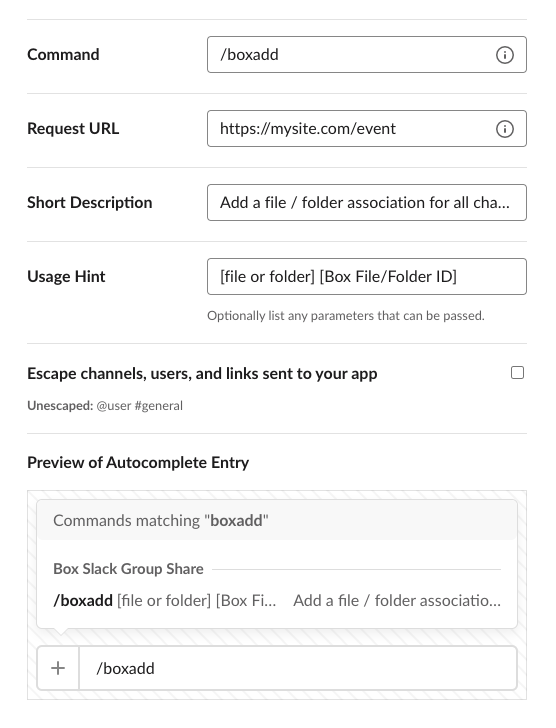
表示されるページで、\[**Create New Command (新しいコマンドの作成)**] をクリックして、以下の項目を入力します。

* **Command (コマンド)**: チャンネルユーザーがBoxのファイル/フォルダIDをチャンネルと共有するために使用するコマンドです。このクイックスタートでは、`/boxadd`を使用します。
* **Request URL (リクエストURL)**: Slackボットでスラッシュコマンドをリッスンし、そのコマンドに応答するURL。このクイックスタートでは、前述のアプリのイベントリスナーのセクションで使用したのと同じイベントURLを使用します。
* **Short Description (簡単な説明)**: スラッシュコマンドで実行する処理の説明。
* **Usage Hint (使用方法のヒント)**: このコマンドに渡すことができる追加のパラメータ。この例では、Boxのファイル/フォルダIDとコンテンツのタイプを使用します。
<Frame noborder center shadow>
  <img src="https://mintcdn.com/box/jPy1E1s_P1x3lZ7z/ja/guides/collaborations/connect-slack-to-group-collabs/img/slack_1_create_slash_command.png?fit=max&auto=format&n=jPy1E1s_P1x3lZ7z&q=85&s=303ee311a5cf7dc0ac17b6cf7e25dd14" alt="Slackのスラッシュコマンドの作成" width="556" height="728" data-path="ja/guides/collaborations/connect-slack-to-group-collabs/img/slack_1_create_slash_command.png" />
</Frame>

\[**Save (保存)**] をクリックして、このコマンドをSlackアプリに追加します。

## その他のスコープの追加

Slackからアプリケーションに送信されるスラッシュコマンドまたは通知には、操作を行ったユーザーまたは操作の影響を受けたユーザーに関連するSlackユーザーIDが含まれます。そのIDをBoxユーザーに変換するには、Slackユーザーのメールアドレスを取得する必要があります。取得したメールアドレスを使用して、そのSlackユーザーを対応するBoxユーザーに関連付けることができます。この操作を行うには、Slackアプリケーションの構成で2つのスコープを追加する必要があります。

Slackアプリケーションの構成で、左側のメニューにある \[**OAuth & Permissions (OAuthと権限)**] をクリックし、以下の操作を行います。

* \[**Scopes (スコープ)**] セクションまで下にスクロールします。
* \[**Bot Token Scopes (ボットトークンのスコープ)**] で \[**Add an OAuth Scope (OAuthスコープの追加)**] ボタンをクリックします。
* `users:read`と`users:read.email`を検索して追加します。

## Slackワークスペースへのボットの展開

最後に、Slackワークスペースにこのアプリケーションをインストールします。アプリの \[**Basic Information (基本情報)**] ページで、\[**Install your app to your workspace (ワークスペースに自分のアプリをインストール)**] セクションを展開します。

<Frame noborder center shadow>
  <img src="https://mintcdn.com/box/jPy1E1s_P1x3lZ7z/ja/guides/collaborations/connect-slack-to-group-collabs/img/slack_5_install_workspace.png?fit=max&auto=format&n=jPy1E1s_P1x3lZ7z&q=85&s=68c12913d439d2b57ba45e044034b227" alt="Slackの [Event Subscriptions (イベントサブスクリプション)] の有効化" width="981" height="503" data-path="ja/guides/collaborations/connect-slack-to-group-collabs/img/slack_5_install_workspace.png" />
</Frame>

\[**Install App to Workspace (ワークスペースにアプリをインストール)**] ボタンをクリックします。

<Frame noborder center shadow>
  <img src="https://mintcdn.com/box/jPy1E1s_P1x3lZ7z/ja/guides/collaborations/connect-slack-to-group-collabs/img/slack_5_install_workspace_allow.png?fit=max&auto=format&n=jPy1E1s_P1x3lZ7z&q=85&s=c064396cf6a951e7b192732d83666118" alt="Slackの [Event Subscriptions (イベントサブスクリプション)] の有効化" width="519" height="468" data-path="ja/guides/collaborations/connect-slack-to-group-collabs/img/slack_5_install_workspace_allow.png" />
</Frame>

\[**Allow (許可)**] ボタンをクリックすると、成功を示すメッセージが表示されます。これでワークスペース内にボットがインストールされました。

## まとめ

* Slackアプリケーションを作成しました。
* User Event通知、スラッシュコマンド、追加のスコープを構成しました。
* Slackボットをワークスペースに展開しました。

<Observe option="programming.platform" value="node,java">
  <Next>ローカルアプリケーションの設定が完了しました</Next>
</Observe>

[slack-apps]: https://api.slack.com/apps

[slack-events]: https://api.slack.com/events

[slack-event-bot-added]: https://api.slack.com/events/bot_added

[slack-event-member-joined]: https://api.slack.com/events/member_joined_channel

[slack-event-member-left]: https://api.slack.com/events/member_left_channel

[step3]: /guides/collaborations/connect-slack-to-group-collabs/scaffold-application-code

[spring-initializr]: https://start.spring.io/
