> ## Documentation Index
> Fetch the complete documentation index at: https://developer.box.com/llms.txt
> Use this file to discover all available pages before exploring further.

# Oktaの構成

export const ProgressBar = ({pages = [], ...props}) => {
  const [currentStep, setCurrentStep] = useState(0);
  const [isDarkMode, setIsDarkMode] = useState(false);
  useEffect(() => {
    const checkDarkMode = () => {
      const isDark = document.documentElement.classList.contains('dark');
      console.log('ProgressBar - isDarkMode:', isDark);
      setIsDarkMode(isDark);
    };
    checkDarkMode();
    const observer = new MutationObserver(() => {
      checkDarkMode();
    });
    observer.observe(document.documentElement, {
      attributes: true,
      attributeFilter: ['class']
    });
    return () => {
      observer.disconnect();
    };
  }, []);
  useEffect(() => {
    if (pages.length > 0) {
      const currentPath = window.location.pathname;
      const stepIndex = pages.findIndex(page => {
        const pagePath = page.startsWith('/') ? page : `/${page}`;
        return currentPath.endsWith(pagePath) || currentPath.includes(pagePath);
      });
      if (stepIndex !== -1) {
        setCurrentStep(stepIndex + 1);
      }
    }
  }, [pages]);
  if (!pages || pages.length === 0) {
    return null;
  }
  const step = currentStep;
  const total = pages.length;
  console.log('ProgressBar - Rendering with isDarkMode:', isDarkMode);
  const progressBarContainerStyle = {
    width: '100%',
    marginBottom: '32px',
    display: 'flex',
    alignItems: 'center',
    gap: '16px'
  };
  const stepsContainerStyle = {
    display: 'flex',
    alignItems: 'center',
    gap: '8px',
    flexShrink: 0
  };
  const progressBarTrackStyle = {
    flex: 1,
    height: '22px',
    backgroundColor: 'rgba(169, 210, 244, 0.06)',
    border: isDarkMode ? '1px solid rgba(230, 241, 247, 0.67)' : '1px solid #e3ecf3',
    borderRadius: '4px',
    overflow: 'hidden',
    position: 'relative'
  };
  const progressBarFillStyle = {
    height: '100%',
    backgroundColor: 'rgba(113, 192, 248, 0.23)',
    width: `${step / total * 100}%`,
    transition: 'width 0.3s ease'
  };
  const getStepStyle = (stepNumber, isActive) => {
    if (isDarkMode) {
      return {
        width: '22px',
        height: '22px',
        borderRadius: '4px',
        display: 'flex',
        alignItems: 'center',
        justifyContent: 'center',
        fontSize: '12px',
        fontWeight: '600',
        position: 'relative',
        zIndex: 1,
        transition: 'all 0.3s ease',
        backgroundColor: isActive ? 'rgba(113, 192, 248, 0.23)' : 'transparent',
        color: isActive ? '#60a5fa' : '#a0aec0',
        border: isActive ? '1px solid #e3ecf3' : '1px solid #e0e6eb',
        cursor: 'pointer',
        textDecoration: 'none'
      };
    }
    if (isActive) {
      return {
        width: '22px',
        height: '22px',
        borderRadius: '4px',
        display: 'flex',
        alignItems: 'center',
        justifyContent: 'center',
        fontSize: '12px',
        fontWeight: '600',
        position: 'relative',
        zIndex: 1,
        transition: 'all 0.3s ease',
        backgroundColor: 'rgba(169, 210, 244, 0.32)',
        color: '#374151',
        border: '1px solid #e1eef8',
        cursor: 'pointer',
        textDecoration: 'none'
      };
    }
    return {
      width: '22px',
      height: '22px',
      borderRadius: '4px',
      display: 'flex',
      alignItems: 'center',
      justifyContent: 'center',
      fontSize: '12px',
      fontWeight: '600',
      position: 'relative',
      zIndex: 1,
      transition: 'all 0.3s ease',
      backgroundColor: '#fbfbfb',
      color: '#9ca3af',
      border: '1px solid #e3ecf3',
      cursor: 'pointer',
      textDecoration: 'none'
    };
  };
  return <div style={progressBarContainerStyle} {...props}>
      <div style={stepsContainerStyle}>
        {Array.from({
    length: total
  }, (_, index) => {
    const stepNumber = index + 1;
    const pageIndex = index;
    const pagePath = pages[pageIndex];
    const fullPath = pagePath.startsWith('/') ? pagePath : `/${pagePath}`;
    const isActive = stepNumber === step;
    return <a key={stepNumber} href={fullPath} style={getStepStyle(stepNumber, isActive)}>
              {stepNumber}
            </a>;
  })}
      </div>
      <div style={progressBarTrackStyle}>
        <div style={progressBarFillStyle}></div>
      </div>
    </div>;
};

export const ChoiceDebug = ({option}) => {
  const [currentValue, setCurrentValue] = useState(null);
  const [allState, setAllState] = useState({});
  const [isDarkMode, setIsDarkMode] = useState(false);
  useEffect(() => {
    const updateState = () => {
      if (window.choiceStateManager) {
        setCurrentValue(window.choiceStateManager.getValue(option));
        setAllState(window.choiceStateManager.getState());
      }
    };
    updateState();
    const unsubscribe = window.listenToChoice?.(option, updateState) || (() => {});
    const handleGlobalUpdate = () => updateState();
    window.addEventListener("choiceStateUpdate", handleGlobalUpdate);
    return () => {
      unsubscribe();
      window.removeEventListener("choiceStateUpdate", handleGlobalUpdate);
    };
  }, [option]);
  useEffect(() => {
    const checkDarkMode = () => {
      if (document.documentElement.classList.contains("dark")) {
        setIsDarkMode(true);
      } else if (document.documentElement.classList.contains("light")) {
        setIsDarkMode(false);
      } else {
        setIsDarkMode(window.matchMedia("(prefers-color-scheme: dark)").matches);
      }
    };
    checkDarkMode();
    const mediaQuery = window.matchMedia("(prefers-color-scheme: dark)");
    const handleMediaChange = e => {
      if (!document.documentElement.classList.contains("dark") && !document.documentElement.classList.contains("light")) {
        setIsDarkMode(e.matches);
      }
    };
    mediaQuery.addEventListener("change", handleMediaChange);
    const observer = new MutationObserver(() => {
      checkDarkMode();
    });
    observer.observe(document.documentElement, {
      attributes: true,
      attributeFilter: ["class"]
    });
    return () => {
      mediaQuery.removeEventListener("change", handleMediaChange);
      observer.disconnect();
    };
  }, []);
  return <div style={{
    padding: "10px",
    backgroundColor: isDarkMode ? "#2d3748" : "#f5f5f5",
    border: isDarkMode ? "1px solid #4a5568" : "1px solid #ddd",
    borderRadius: "4px",
    fontSize: "12px",
    fontFamily: "monospace",
    marginTop: "20px",
    color: isDarkMode ? "#e2e8f0" : "inherit"
  }}>
      <strong>{translate("Choice Debug:")}</strong>
      <br />
      {translate("Option:")} {option}
      <br />
      {translate("Current Value:")} {currentValue || "undefined"}
      <br />
      {translate("All State:")} {JSON.stringify(allState, null, 2)}
    </div>;
};

export const Observe = ({option, value, children, ...props}) => {
  const [shouldShow, setShouldShow] = useState(false);
  useEffect(() => {
    const updateVisibility = () => {
      const matches = window.matchesChoiceValues?.(option, value) || false;
      setShouldShow(matches);
    };
    updateVisibility();
    const unsubscribe = window.listenToChoice?.(option, updateVisibility) || (() => {});
    return unsubscribe;
  }, [option, value]);
  if (!shouldShow) {
    return null;
  }
  return <div {...props}>{children}</div>;
};

export const Trigger = ({option, value, children, ...props}) => {
  const handleClick = () => {
    window.triggerChoice?.(option, value);
  };
  return <div onClick={handleClick} style={{
    cursor: "pointer"
  }} {...props}>
      {children}
    </div>;
};

export const Grid = ({columns = 2, compact = false, children, ...props}) => {
  const gridStyles = {
    display: "grid",
    gridTemplateColumns: `repeat(${columns}, 1fr)`,
    gap: compact ? "8px" : "16px",
    marginBottom: compact ? "10px" : "20px"
  };
  return <div style={gridStyles} {...props}>
      {children}
    </div>;
};

export const Choice = ({option, value, color = "", unset = false, lazy = false, children, ...props}) => {
  const [shouldShow, setShouldShow] = useState(false);
  const [hasEverShown, setHasEverShown] = useState(false);
  const [isDarkMode, setIsDarkMode] = useState(false);
  useEffect(() => {
    const updateVisibility = () => {
      const hasOptionValue = window.hasChoiceValue?.(option) || false;
      const matchesValue = window.matchesChoiceValues?.(option, value) || false;
      let show = false;
      if (unset && !hasOptionValue) {
        show = true;
      } else if (!unset && matchesValue) {
        show = true;
      }
      setShouldShow(show);
      if (show && !hasEverShown) {
        setHasEverShown(true);
      }
    };
    updateVisibility();
    const unsubscribe = window.listenToChoice?.(option, updateVisibility) || (() => {});
    return unsubscribe;
  }, [option, value, unset, hasEverShown]);
  useEffect(() => {
    const checkDarkMode = () => {
      if (document.documentElement.classList.contains("dark")) {
        setIsDarkMode(true);
      } else if (document.documentElement.classList.contains("light")) {
        setIsDarkMode(false);
      } else {
        setIsDarkMode(window.matchMedia("(prefers-color-scheme: dark)").matches);
      }
    };
    checkDarkMode();
    const mediaQuery = window.matchMedia("(prefers-color-scheme: dark)");
    const handleMediaChange = e => {
      if (!document.documentElement.classList.contains("dark") && !document.documentElement.classList.contains("light")) {
        setIsDarkMode(e.matches);
      }
    };
    mediaQuery.addEventListener("change", handleMediaChange);
    const observer = new MutationObserver(() => {
      checkDarkMode();
    });
    observer.observe(document.documentElement, {
      attributes: true,
      attributeFilter: ["class"]
    });
    return () => {
      mediaQuery.removeEventListener("change", handleMediaChange);
      observer.disconnect();
    };
  }, []);
  const getColorStyles = () => {
    const baseStyles = {
      border: isDarkMode ? "1px dashed #4a5568" : "1px dashed #e1e5e9",
      padding: "20px",
      marginBottom: "20px",
      borderRadius: "8px",
      backgroundColor: isDarkMode ? "#1a202c" : "#ffffff"
    };
    const colorMap = {
      green: {
        light: {
          backgroundColor: "#d4edda",
          borderColor: "#28a745"
        },
        dark: {
          backgroundColor: "#1a3a2a",
          borderColor: "#66bb6a"
        }
      },
      red: {
        light: {
          backgroundColor: "#f8d7da",
          borderColor: "#dc3545"
        },
        dark: {
          backgroundColor: "#3a1a1a",
          borderColor: "#ef5350"
        }
      },
      blue: {
        light: {
          backgroundColor: "#d1ecf1",
          borderColor: "#0c5460"
        },
        dark: {
          backgroundColor: "#1a2a3a",
          borderColor: "#42a5f5"
        }
      },
      none: {
        backgroundColor: "transparent",
        padding: "0",
        margin: "0",
        border: "none"
      }
    };
    const colorStyles = color !== "none" ? colorMap[color]?.[isDarkMode ? "dark" : "light"] || ({}) : colorMap.none;
    return {
      ...baseStyles,
      ...colorStyles
    };
  };
  if (lazy && !hasEverShown && !shouldShow) {
    return null;
  }
  return <div style={{
    ...getColorStyles(),
    display: shouldShow ? "block" : "none"
  }} className="choice-content" {...props}>
      {children}
    </div>;
};

export const Choose = ({option, value, color = "", children, ...props}) => {
  const [isSelected, setIsSelected] = useState(false);
  const [hasOptionTriggered, setHasOptionTriggered] = useState(false);
  const [isDarkMode, setIsDarkMode] = useState(false);
  useEffect(() => {
    const currentValue = window.getChoiceValue?.(option);
    const optionTriggered = window.hasChoiceValue?.(option) || false;
    setIsSelected(currentValue === value);
    setHasOptionTriggered(optionTriggered);
    const unsubscribe = window.listenToChoice?.(option, newValue => {
      setIsSelected(newValue === value);
      setHasOptionTriggered(true);
    }) || (() => {});
    return unsubscribe;
  }, [option, value]);
  useEffect(() => {
    const checkDarkMode = () => {
      if (document.documentElement.classList.contains("dark")) {
        setIsDarkMode(true);
      } else if (document.documentElement.classList.contains("light")) {
        setIsDarkMode(false);
      } else {
        setIsDarkMode(window.matchMedia("(prefers-color-scheme: dark)").matches);
      }
    };
    checkDarkMode();
    const mediaQuery = window.matchMedia("(prefers-color-scheme: dark)");
    const handleMediaChange = e => {
      if (!document.documentElement.classList.contains("dark") && !document.documentElement.classList.contains("light")) {
        setIsDarkMode(e.matches);
      }
    };
    mediaQuery.addEventListener("change", handleMediaChange);
    const observer = new MutationObserver(() => {
      checkDarkMode();
    });
    observer.observe(document.documentElement, {
      attributes: true,
      attributeFilter: ["class"]
    });
    return () => {
      mediaQuery.removeEventListener("change", handleMediaChange);
      observer.disconnect();
    };
  }, []);
  const handleClick = () => {
    window.triggerChoice?.(option, value);
  };
  const handleKeyDown = e => {
    if (e.key === "Enter" || e.key === " ") {
      e.preventDefault();
      handleClick();
    }
  };
  const getColorStyles = () => {
    const baseStyles = {
      border: isDarkMode ? "1px dashed #4a5568" : "1px dashed #e1e5e9",
      cursor: "pointer",
      padding: "20px",
      position: "relative",
      backgroundColor: isDarkMode ? "#2d3748" : "#f8f9fa",
      outline: "none",
      height: "100%",
      borderRadius: "8px",
      transition: "all 0.2s ease",
      display: "flex",
      flexDirection: "column"
    };
    const colorMap = {
      green: {
        light: {
          backgroundColor: "#d4edda",
          borderColor: "#28a745"
        },
        dark: {
          backgroundColor: "#1a3a2a",
          borderColor: "#66bb6a"
        }
      },
      red: {
        light: {
          backgroundColor: "#f8d7da",
          borderColor: "#dc3545"
        },
        dark: {
          backgroundColor: "#3a1a1a",
          borderColor: "#ef5350"
        }
      },
      blue: {
        light: {
          backgroundColor: "#d1ecf1",
          borderColor: "#0c5460"
        },
        dark: {
          backgroundColor: "#1a2a3a",
          borderColor: "#42a5f5"
        }
      }
    };
    const colorStyles = colorMap[color]?.[isDarkMode ? "dark" : "light"] || ({});
    if (isSelected) {
      return {
        ...baseStyles,
        ...colorStyles,
        borderStyle: "solid",
        borderWidth: "3px",
        borderColor: colorStyles.borderColor || (isDarkMode ? "#42a5f5" : "#0061d5"),
        backgroundColor: colorStyles.backgroundColor || (isDarkMode ? "#1a2a3a" : "#e3f2fd"),
        boxShadow: isDarkMode ? "0 2px 8px rgba(66, 165, 245, 0.3)" : "0 2px 8px rgba(0, 97, 213, 0.3)",
        transform: "scale(1.02)"
      };
    }
    if (hasOptionTriggered && !isSelected) {
      return {
        ...baseStyles,
        ...colorStyles,
        opacity: 0.5
      };
    }
    return {
      ...baseStyles,
      ...colorStyles
    };
  };
  const iconStyles = {
    float: "left",
    position: "relative",
    top: "2px",
    marginRight: "12px",
    width: "20px",
    height: "20px",
    color: isSelected ? isDarkMode ? "#42a5f5" : "#0061d5" : isDarkMode ? "#a0aec0" : "#666"
  };
  return <div onClick={handleClick} style={getColorStyles()} tabIndex={0} onKeyDown={handleKeyDown} {...props}>
      <div style={iconStyles}>
        {isSelected ? <svg viewBox="0 0 24 24" fill="currentColor" style={{
    width: "100%",
    height: "100%"
  }}>
            <path d="M12 2C6.48 2 2 6.48 2 12s4.48 10 10 10 10-4.48 10-10S17.52 2 12 2zm-2 15l-5-5 1.41-1.41L10 14.17l7.59-7.59L19 8l-9 9z" />
          </svg> : <svg viewBox="0 0 24 24" fill="none" stroke="currentColor" strokeWidth="2" style={{
    width: "100%",
    height: "100%"
  }}>
            <circle cx="12" cy="12" r="10" />
          </svg>}
      </div>
      <div style={{
    flex: 1
  }} className="choose-content">
        {children}
      </div>
    </div>;
};

<ProgressBar
  pages={[
                    "guides/sso-identities-and-app-users/connect-okta-to-app-users/scaffold-application-code",
                    "guides/sso-identities-and-app-users/connect-okta-to-app-users/configure-okta",
                    "guides/sso-identities-and-app-users/connect-okta-to-app-users/configure-box",
                    "guides/sso-identities-and-app-users/connect-okta-to-app-users/logging-into-app",
                    "guides/sso-identities-and-app-users/connect-okta-to-app-users/find-or-create-box-users",
                    "guides/sso-identities-and-app-users/connect-okta-to-app-users/run-the-app"
                  ]}
/>

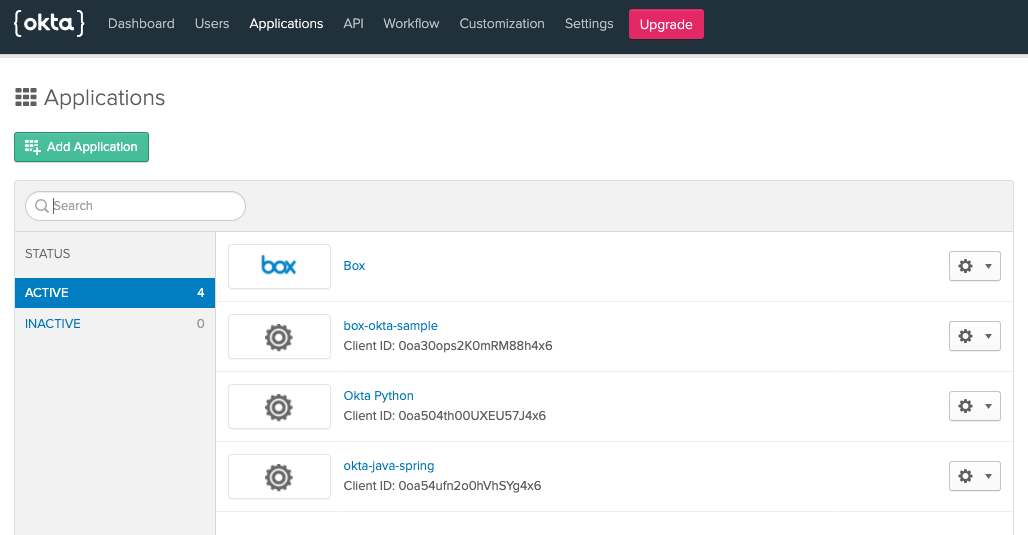
OktaとBoxの統合における次の手順では、Oktaアプリケーションとユーザーを作成して構成した後、アプリケーション内でOktaに接続するために必要となるいくつかの情報を抽出します。

<Frame noborder center shadow>
  <img src="https://mintcdn.com/box/RSRlfgG5DaoSHrVz/ja/guides/sso-identities-and-app-users/connect-okta-to-app-users/img/okta-applications.png?fit=max&auto=format&n=RSRlfgG5DaoSHrVz&q=85&s=ab9d0788dfe1b9f365ffafa79f4cf39c" alt="Oktaのアプリケーションダッシュボード" width="1028" height="535" data-path="ja/guides/sso-identities-and-app-users/connect-okta-to-app-users/img/okta-applications.png" />
</Frame>

このチュートリアルでは、空のアプリケーションとユーザーダッシュボードから開始します。これは、準備が整っている可能性のある既存のインストールへの悪影響を避け、インスタンスへの管理者権限を確保するためです。

## Oktaアプリケーションの作成

まず[Oktaの開発者向けサイト][okta-dev]で、新しいDeveloperアカウントにサインアップします。すでにアカウントを持っている場合は個人アカウントでログインします。

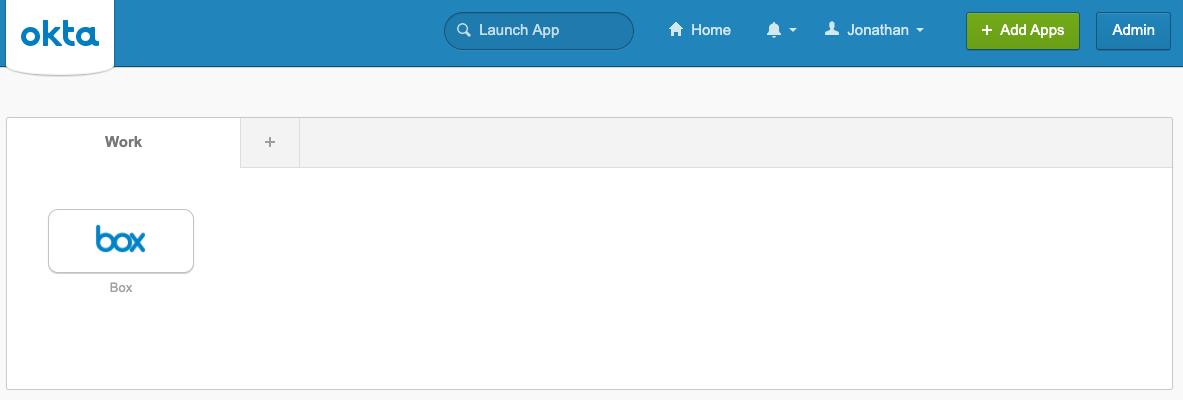
既存のアカウントでログインした場合は、Oktaのダッシュボードが表示されるので、右上の \[**Admin (管理)**] ボタンをクリックします。
<Frame noborder center shadow>
  <img src="https://mintcdn.com/box/RSRlfgG5DaoSHrVz/ja/guides/sso-identities-and-app-users/connect-okta-to-app-users/img/okta-qs-step2-dashboard.png?fit=max&auto=format&n=RSRlfgG5DaoSHrVz&q=85&s=b5acca5f0be9b1bc1e2784de4ab11154" alt="Oktaのアプリケーションダッシュボード" width="1183" height="400" data-path="ja/guides/sso-identities-and-app-users/connect-okta-to-app-users/img/okta-qs-step2-dashboard.png" />
</Frame>

新しいDeveloperアカウントを作成した場合は、管理ダッシュボードにリダイレクトされます。

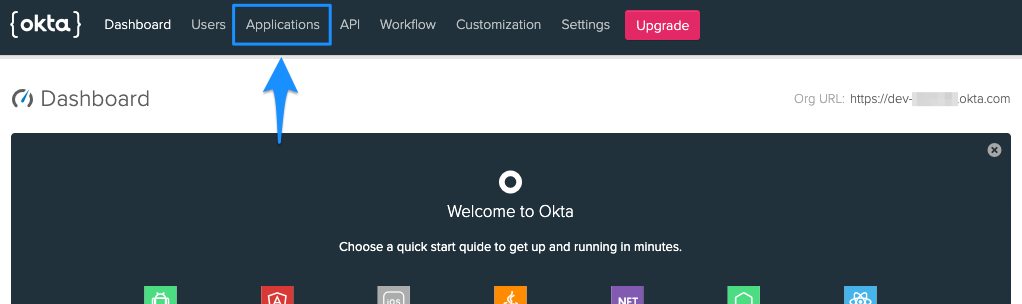
管理パネルが表示されたら、上部の \[**Applications (アプリケーション)**] オプションをクリックします。
<Frame noborder center shadow>
  <img src="https://mintcdn.com/box/RSRlfgG5DaoSHrVz/ja/guides/sso-identities-and-app-users/connect-okta-to-app-users/img/okta-qs-step2-admin-dashboard.png?fit=max&auto=format&n=RSRlfgG5DaoSHrVz&q=85&s=4cc39a3cea41b469efee6702872191e5" alt="Oktaの管理ダッシュボード" width="1022" height="304" data-path="ja/guides/sso-identities-and-app-users/connect-okta-to-app-users/img/okta-qs-step2-admin-dashboard.png" />
</Frame>

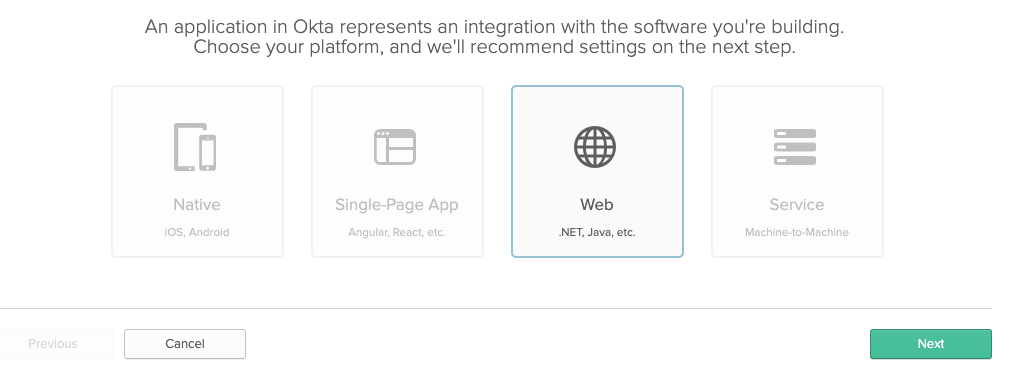
アプリケーションページで \[**Add Application (アプリケーションの追加)**] ボタンをクリックします。アプリケーションの種類として \[**Web (ウェブ)**] を選択し、\[**Next (次へ)**] ボタンをクリックします。
<Frame noborder center shadow>
  <img src="https://mintcdn.com/box/RSRlfgG5DaoSHrVz/ja/guides/sso-identities-and-app-users/connect-okta-to-app-users/img/okta-qs-step2-app-type.png?fit=max&auto=format&n=RSRlfgG5DaoSHrVz&q=85&s=d77da4c5f38868e381b880d3b53eb4f6" alt="Oktaのアプリの種類" width="1016" height="378" data-path="ja/guides/sso-identities-and-app-users/connect-okta-to-app-users/img/okta-qs-step2-app-type.png" />
</Frame>

Oktaは、アプリケーションの承認とユーザーの認証それぞれに、[OAuth 2][oauth2]と[OpenID Connect][openid-connect] (OIDC) の両方を使用します。OpenID Connectの統合では、多数の一般的な言語フレームワーク内で組み込みのOIDCコネクタを使用でき、コールバックルートの処理、ログインおよびログアウト方法の提供、アプリケーションへのルートの保護によってアプリケーションとユーザーの管理が簡略化されます。

この初回の統合を簡略化するために、言語とフレームワークのOIDCコネクタにデフォルトのコールバックルートと設定を使用します。どの統合の種類を選択するかによって、構成設定が若干変わります。

以下の構成設定を使用して、アプリケーションの詳細を入力します。

<Choice option="programming.platform" value="node" color="none">
  * 名前: 任意
  * 基本URI: `http://localhost:3000/`
  * ログインリダイレクトURI: `http://localhost:3000/authorization-code/callback`
  * ログアウトリダイレクトURI: `http://localhost:3000/logout`
  * 使用できる許可タイプ: \[**Authorization Code (承認コード)**] のみを選択

  <Frame noborder center shadow>
    <img src="https://mintcdn.com/box/RSRlfgG5DaoSHrVz/ja/guides/sso-identities-and-app-users/connect-okta-to-app-users/img/okta-qs-step2-appconfig-node.png?fit=max&auto=format&n=RSRlfgG5DaoSHrVz&q=85&s=672d2cf5fb36e3eff1d18f9539d462aa" alt="Oktaアプリの構成" width="719" height="728" data-path="ja/guides/sso-identities-and-app-users/connect-okta-to-app-users/img/okta-qs-step2-appconfig-node.png" />
  </Frame>
</Choice>

<Choice option="programming.platform" value="java" color="none">
  * 名前: 任意
  * 基本URI: `http://localhost:8080/`
  * ログインリダイレクトURI: `http://localhost:8080/authorization-code/callback`
  * ログアウトリダイレクトURI: `http://localhost:8080/logout`
  * 使用できる許可タイプ: \[**Authorization Code (承認コード)**] のみを選択

  <Frame noborder center shadow>
    <img src="https://mintcdn.com/box/RSRlfgG5DaoSHrVz/ja/guides/sso-identities-and-app-users/connect-okta-to-app-users/img/okta-qs-step2-appconfig-java.png?fit=max&auto=format&n=RSRlfgG5DaoSHrVz&q=85&s=06e1562ed5096319c7a6bdb8a37082b7" alt="Oktaアプリの構成" width="718" height="726" data-path="ja/guides/sso-identities-and-app-users/connect-okta-to-app-users/img/okta-qs-step2-appconfig-java.png" />
  </Frame>
</Choice>

<Choice option="programming.platform" value="python" color="none">
  * 名前: 任意
  * 基本URI: `http://127.0.0.1:5000/`
  * ログインリダイレクトURI: `http://127.0.0.1:5000/oidc/callback`
  * ログアウトリダイレクトURI: `http://127.0.0.1:5000/logout`
  * 使用できる許可タイプ: \[**Authorization Code (承認コード)**] のみを選択

  <Frame noborder center shadow>
    <img src="https://mintcdn.com/box/RSRlfgG5DaoSHrVz/ja/guides/sso-identities-and-app-users/connect-okta-to-app-users/img/okta-qs-step2-appconfig-python.png?fit=max&auto=format&n=RSRlfgG5DaoSHrVz&q=85&s=1f6445bd2ac4673d31b60585e1d078b9" alt="Oktaアプリの構成" width="717" height="728" data-path="ja/guides/sso-identities-and-app-users/connect-okta-to-app-users/img/okta-qs-step2-appconfig-python.png" />
  </Frame>
</Choice>

<Choice option="programming.platform" value="cs" color="none">
  * 名前: 任意
  * 基本URI: `https://localhost:5001/`
  * ログインリダイレクトURI: `https://localhost:5001/authorization-code/callback`
  * ログアウトリダイレクトURI: `https://localhost:5001/logout`
  * 使用できる許可タイプ: \[**Authorization Code (承認コード)**] のみを選択

  <Frame noborder center shadow>
    <img src="https://mintcdn.com/box/RSRlfgG5DaoSHrVz/ja/guides/sso-identities-and-app-users/connect-okta-to-app-users/img/okta-qs-step2-appconfig-cs.png?fit=max&auto=format&n=RSRlfgG5DaoSHrVz&q=85&s=6468cfbdef9a887dfeb8af92413de6db" alt="Oktaアプリの構成" width="719" height="729" data-path="ja/guides/sso-identities-and-app-users/connect-okta-to-app-users/img/okta-qs-step2-appconfig-cs.png" />
  </Frame>
</Choice>

<Choice option="programming.platform" unset color="none">
  <Danger>
    **前の手順が完了していません**最初に、手順1でお好みの言語/フレームワークを選択してください。
  </Danger>
</Choice>

\[**Done (完了)**] ボタンをクリックしてアプリケーションを作成し、アプリケーションの一般設定に移動します。

## アプリケーション資格情報のコピー

次に、1つ前の手順で設定した構成ファイルを使用して、ファイル内にOktaのアプリケーション組織とアプリの詳細を追加します。

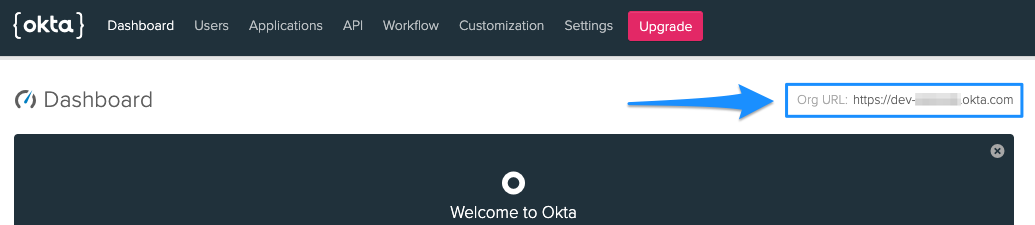
Oktaアプリケーションの情報はほとんどが一般設定ページにありますが、Okta組織を後方参照するために構成URIで使用されている`Org URL`は例外です。`Org URL`を取得するには、Okta管理コンソールのダッシュボードに移動します。`Org URL`は画面の右上隅に表示されます。

前の手順で選択した言語とフレームワークに応じて、適切な構成ファイルを設定します。

<Frame noborder center shadow>
  <img src="https://mintcdn.com/box/RSRlfgG5DaoSHrVz/ja/guides/sso-identities-and-app-users/connect-okta-to-app-users/img/okta-qs-step2-org-url.png?fit=max&auto=format&n=RSRlfgG5DaoSHrVz&q=85&s=75188ae3558b3cb7c100cf86cc8f8a98" alt="OktaのOrg URL" width="1035" height="225" data-path="ja/guides/sso-identities-and-app-users/connect-okta-to-app-users/img/okta-qs-step2-org-url.png" />
</Frame>

<Choice option="programming.platform" value="node" color="none">
  * 任意のエディタで、ローカルアプリケーションディレクトリ内の`config.json`を開きます。
  * 以下の行項目を、Oktaの構成情報で適宜更新します。
    * `oktaClientId`: アプリケーションの一般設定の \[**Client Credentials (クライアント資格情報)**] セクションから取得。
    * `oktaClientSecret`: アプリケーションの一般設定の \[**Client Credentials (クライアント資格情報)**] セクションから取得。
    * `oktaOrgUrl`: 管理ダッシュボードのメインページで右上から取得。
  * ファイルを保存します。

  `config.json`ファイルは次のようになります。

  ```js theme={null}
  const oktaClientId = exports.oktaClientId = '0oa48567frkg5KW4x6';
  const oktaClientSecret = exports.oktaClientSecret = 'cugDJy2ERfIQHDXv-j2134DfTTes-Sa3';
  const oktaOrgUrl = exports.oktaOrgUrl = 'YOURDOMAIN.okta.com';
  const oktaBaseUrl = exports.oktaBaseUrl = 'http://localhost:3000';
  const oktaRedirect = exports.oktaRedirect = '/authorization-code/callback';
  ```
</Choice>

<Choice option="programming.platform" value="java" color="none">
  * `/src/main/resources/application.properties`ファイルを開き、以下の行を更新します。
    * `okta.oauth2.issuer`: 管理ダッシュボードのメインページの右上から取得したOrg URLの後に`/oauth2/default`を付けたもの。たとえばOrg URLが`https://dev-123456.okta.com`の場合、この発行者文字列は`https://dev-123456.okta.com/oauth2/default`になります。
    * `okta.oauth2.clientId`: アプリケーションの一般設定の \[**Client Credentials (クライアント資格情報)**] セクションから取得。
    * `okta.oauth2.clientSecret`: アプリケーションの一般設定の \[**Client Credentials (クライアント資格情報)**] セクションから取得。
  * ファイルを保存します。

  `/src/main/resources/application.properties`ファイルは次のようになります。

  ```java theme={null}
  okta.oauth2.redirect-uri=/authorization-code/callback
  okta.oauth2.issuer=https://YOURDOMAIN.okta.com/oauth2/default
  okta.oauth2.clientId=0oa48567frkg5KW4x6
  okta.oauth2.clientSecret=cugDJy2ERfIQHDXv-j2134DfTTes-Sa3
  security.oauth2.sso.loginPath=/authorization-code/callback
  ```
</Choice>

<Choice option="programming.platform" value="python" color="none">
  Python/Flaskの統合では、組織とアプリの標準的な構成情報に加え、追加の認証トークンが必要です。

  認証トークンを作成するには、次の手順に従います。

  * Oktaの管理ダッシュボードの \[**API**] -> \[**Token (トークン)**] セクションに移動します。
  * \[**Create Token (トークンの作成)**] ボタンをクリックします。
  * トークンの名前を入力し、\[**Create (作成)**] をクリックします。
  * 生成されたトークンをコピーします。

  次に、ローカルのアプリケーション構成ファイルを更新します。

  * 任意のエディタで、ローカルアプリケーションディレクトリ内の`config.py`を開きます。
  * 以下の行項目を、Oktaの構成情報で適宜更新します。
    * `okta_client_secret`: アプリケーションの一般設定の \[**Client Credentials (クライアント資格情報)**] セクションから取得。
    * `okta_org_url`: 管理ダッシュボードのメインページで右上から取得。
    * `okta_auth_token`: 上記で作成したトークン。
  * ファイルを保存します。

  `config.py`ファイルは次のようになります。

  ```python theme={null}
  okta_client_id = '0oa48567frkg5KW4x6'
  okta_client_secret = 'cugDJy2ERfIQHDXv-j2134DfTTes-Sa3'
  okta_org_url = 'http://YOURDOMAIN.okta.com'
  okta_auth_token = '01KkTQTRfs1yKLr4Ojy26iqoIjK_4fHyq132Dr5T'
  okta_callback_route = '/oidc/callback'
  ```

  最後に、Flask構成ファイルを更新します。

  * 任意のエディタで、ローカルアプリケーションディレクトリ内の`client_secrets.json`を開きます。
  * 以下の行項目を、Oktaの構成情報で適宜更新します。
    * `client_id`: アプリケーションの一般設定の \[**Client Credentials (クライアント資格情報)**] セクションから取得。
    * `client_secret`: アプリケーションの一般設定の \[**Client Credentials (クライアント資格情報)**] セクションから取得。
    * `auth_uri`: 管理ダッシュボードのメインページの右上から取得したOrg URLの後に`/oauth2/default/v1/authorize`を付けたもの。たとえばOrg URLが`https://dev-123456.okta.com`の場合、この発行者文字列は`https://dev-123456.okta.com/oauth2/default/v1/authorize`になります。
    * `token_uri`: 管理ダッシュボードのメインページの右上から取得したOrg URLの後に`/oauth2/default/v1/token`を付けたもの。たとえばOrg URLが`https://dev-123456.okta.com`の場合、この発行者文字列は`https://dev-123456.okta.com/oauth2/default/v1/token`になります。
    * `issuer`: 管理ダッシュボードのメインページの右上から取得したOrg URLの後に`/oauth2/default`を付けたもの。たとえばOrg URLが`https://dev-123456.okta.com`の場合、この発行者文字列は`https://dev-123456.okta.com/oauth2/default`になります。
    * `userinfo_uri`: 管理ダッシュボードのメインページの右上から取得したOrg URLの後に`/oauth2/default/userinfo`を付けたもの。たとえばOrg URLが`https://dev-123456.okta.com`の場合、この発行者文字列は`https://dev-123456.okta.com/oauth2/default/userinfo`になります。
  * ファイルを保存します。

  `client_secrets.json`ファイルは次のようになります。

  ```json theme={null}
  {
    "web": {
      "client_id": "0oa48567frkg5KW4x6",
      "client_secret": "cugDJy2ERfIQHDXv-j2134DfTTes-Sa3",
      "auth_uri": "https://YOURDOMAIN.okta.com/oauth2/default/v1/authorize",
      "token_uri": "https://YOURDOMAIN.okta.com/oauth2/default/v1/token",
      "issuer": "https://YOURDOMAIN.okta.com/oauth2/default",
      "userinfo_uri": "https://YOURDOMAIN.okta.com/oauth2/default/userinfo",
      "redirect_uris": [
        "http://127.0.0.1:5000/oidc/callback"
      ]
    }
  }
  ```
</Choice>

<Choice option="programming.platform" value="cs" color="none">
  * 任意のエディタで、ローカルアプリケーションディレクトリ内の`Startup.cs`を開きます。
  * `ConfigureServices`メソッド内の以下の行項目を、Oktaの構成情報で適宜更新します。
    * `OktaDomain`: 管理ダッシュボードのメインページで右上から取得。
    * `ClientId`: アプリケーションの一般設定の \[**Client Credentials (クライアント資格情報)**] セクションから取得。
    * `ClientSecret`: アプリケーションの一般設定の \[**Client Credentials (クライアント資格情報)**] セクションから取得。
  * ファイルを保存します。

  `ConfigureServices`メソッドは次のようになります。

  ```csharp theme={null}
  services.AddControllersWithViews();
  services.AddAuthentication(options =>
  {
      options.DefaultAuthenticateScheme = CookieAuthenticationDefaults.AuthenticationScheme;
      options.DefaultSignInScheme = CookieAuthenticationDefaults.AuthenticationScheme;
      options.DefaultChallengeScheme = OktaDefaults.MvcAuthenticationScheme;
  })
  .AddCookie()
  .AddOktaMvc(new OktaMvcOptions
  {
      OktaDomain = "https://YOURDOMAIN.okta.com",
      ClientId = "0oa48567frkg5KW4x6",
      ClientSecret = "cugDJy2ERfIQHDXv-j2134DfTTes-Sa3"
  });
  ```
</Choice>

<Choice option="programming.platform" unset color="none">
  <Danger>
    **前の手順が完了していません**最初に、手順1でお好みの言語/フレームワークを選択してください。
  </Danger>
</Choice>

## ユーザーの作成

Oktaの設定における最後の手順では、アプリケーションへのログインに使用するテストユーザーを作成します。

1. Oktaの管理ダッシュボードの \[**Users (ユーザー)**] セクションに移動します。
2. \[**Add Person (ユーザーの追加)**] ボタンをクリックします。
3. 適切なユーザー情報をすべて入力します。パスワードには \[**Set by admin (管理者が設定)**] を選択し、ユーザーのパスワードを入力します。また、\[**User must change password on first login (ユーザーは初回ログイン時にパスワードの変更が必要)**] オプションの選択を解除します。ログインにはユーザー名とパスワードを使用します。これらの設定はテスト目的のみで使用されるため、ユーザーの作成とセキュリティのベストプラクティスではありません。
4. \[**Save (保存)**] ボタンをクリックしてユーザーを作成します。

## まとめ

* Oktaアプリケーションを作成しました。
* ローカルアプリケーションでOktaの構成情報を更新しました。
* Oktaのテストユーザーを作成しました。

<Observe option="programming.platform" value="node,java,python">
  <Next>Oktaアプリを作成し、ユーザー/ローカル構成を設定しました</Next>
</Observe>

[okta-dev]: https://developer.okta.com/

[oauth2]: https://oauth.net/2/

[openid-connect]: https://openid.net/