> ## Documentation Index
> Fetch the complete documentation index at: https://developer.box.com/llms.txt
> Use this file to discover all available pages before exploring further.

# 呼び出し可能なカスタムアクションへのBox File Pickerの組み込み

export const RelatedLinks = ({title, items = []}) => {
  const getBadgeClass = badge => {
    if (!badge) return "badge-default";
    const badgeType = badge.toLowerCase().replace(/\s+/g, "-");
    return `badge-${badge === "ガイド" ? "guide" : badgeType}`;
  };
  if (!items || items.length === 0) {
    return null;
  }
  return <div className="my-8">
      {}
      <h3 className="text-sm font-bold uppercase tracking-wider mb-4">{title}</h3>

      {}
      <div className="flex flex-col gap-3">
        {items.map((item, index) => <a key={index} href={item.href} className="py-2 px-3 rounded related_link hover:bg-[#f2f2f2] dark:hover:bg-[#111827] flex items-center gap-3 group no-underline hover:no-underline border-b-0">
            {}
            <span className={`px-2 py-1 rounded-full text-xs font-semibold uppercase tracking-wide flex-shrink-0 ${getBadgeClass(item.badge)}`}>
              {item.badge}
            </span>

            {}
            <span className="text-base">{item.label}</span>
          </a>)}
      </div>
    </div>;
};

独自のAgentforceアクションにBox File Pickerを追加することで、ユーザーはファイルIDを貼り付ける代わりに、アクションの入力画面でBoxファイルを選択できるようになります。これは、2つのパッケージ化されたコンポーネントにより実現します。

* **`FileSelection`** — `selectedFileId`/`selectedFileName`を含むグローバルApexタイプ。Pickerが返す値。
* **`boxFileSelection`** — `boxFilePicker`のUI (\[最近使用した項目]、\[Boxファイルを参照する]、\[現在のレコードフォルダ]) を表示するLightningタイプ。

両方ともパッケージに含まれているため、独自に開発する必要はありません。

## 名前空間 (サブスクライバ組織)

すべてが`boxagents`名前空間に属しています。サブスクライバ組織では、パッケージ化されたコンポーネントをプレフィックスを付けて参照します。そのままの名前ではコンパイルできません。

| **コンポーネント**  | **サブスクライバ組織での参照名**            |
| ------------ | ----------------------------- |
| Apexタイプ      | `boxagents.FileSelection`     |
| Lightningタイプ | `boxagents__boxFileSelection` |

`FileSelection`をそのまま使用すると、*Invalid type: FileSelection (無効なタイプ: FileSelection)* / *InvocableVariable fields do not support type ... (InvocableVariableフィールドでタイプ...がサポートされていません)* / *Variable does not exist: req.file (変数が存在しません: req.file)* というエラーが発生します。

## 手順

1. `Request`に`boxagents.FileSelection` `@InvocableVariable`を追加します。
2. `req.file.selectedFileId` (および`selectedFileName`) を読み取ります。
3. エージェントビルダーでは、その入力データを`boxagents__boxFileSelection` Lightningタイプにマッピングします。そうすると、Picker UIが表示されます。

例

```
global with sharing class BoxFilePickerExample {
    @InvocableMethod(label='Get Selected Box File (Example)' description='Accept a file-picker selection and return the file ID' category='Box')
    global static List<Response> getSelectedFile(List<Request> requests) {
        List<Response> responses = new List<Response>();
        for(Request req : requests) {
            if(req.file == null || String.isBlank(req.file.selectedFileId)) {
                throw new IllegalArgumentException('File selection is required');
            }
            Response resp = new Response();
            resp.fileId = req.file.selectedFileId;
            resp.fileName = req.file.selectedFileName;
            responses.add(resp);
        }
        return responses;
    }
    global class Request {
        @InvocableVariable(label='Select File' description='Choose a Box file' required=true)
         global boxagents.FileSelection file;
    }    
    global class Response {
        @InvocableVariable(label='File ID') global String fileId;
        @InvocableVariable(label='File Name') global String fileName;
    }
}
```

## エージェントアセットにおける入力のマッピング

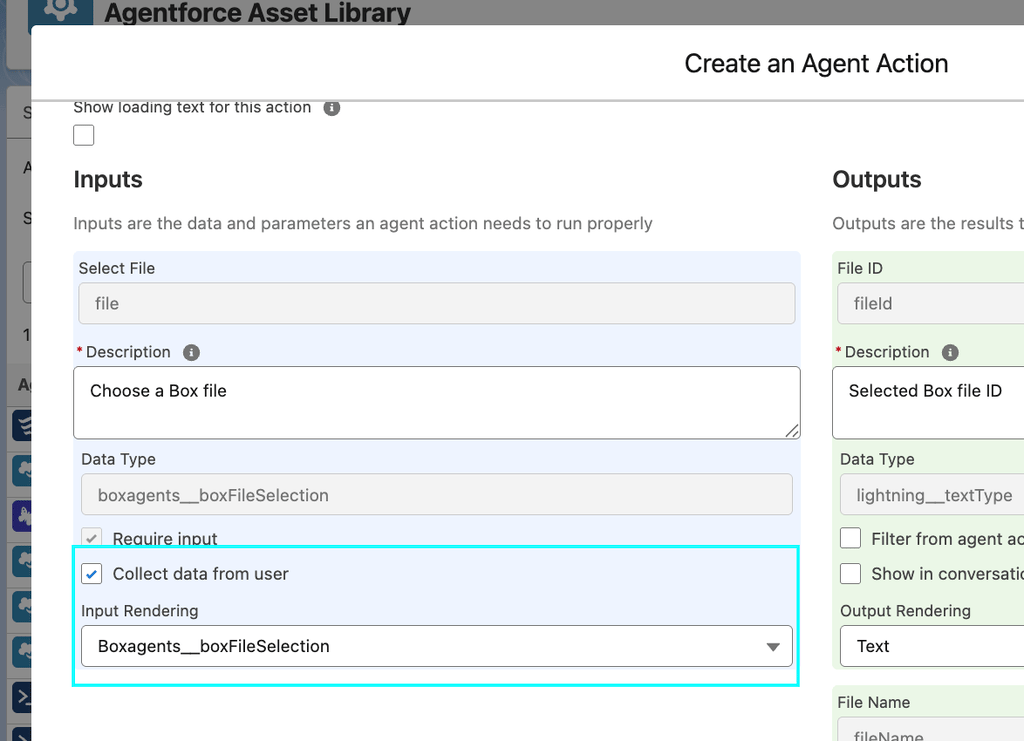
<img src="https://mintcdn.com/box/cWlL7gzZ3cIKeA5H/images/guides/tooling/salesforce-toolkit/mapping-input-agent-assets.png?fit=max&auto=format&n=cWlL7gzZ3cIKeA5H&q=85&s=e6515991b4e890b911ae4e5e4e7199df" alt="エージェントアセットにおける入力のマッピング" width="1024" height="741" data-path="images/guides/tooling/salesforce-toolkit/mapping-input-agent-assets.png" />

Apexの入力により、このアクションで選択内容を*受け取る*ことができます。それをLightningタイプにマッピングすると、*Picker UIが表示される*ようになります。

1. カスタムアクションを開きます (\[Agentforce Studio] > \[Agent Actions (エージェントアクション)]、またはFlow Builder)。
2. \[**Select File (ファイルを選択)**] の入力項目を選択します。
3. その参照/Lightningタイプを**`boxagents__boxFileSelection`** (*Box File Picker*) に設定します。
4. 保存して有効化します。

## メモ

* サブスクライバ組織では、名前空間のプレフィックスがエラーの最大要因です。
* `req.file`または`req.file.selectedFileId`がnullでないことを確認してください。
* Box APIで必要なのはIDです。名前は表示またはログ記録に使用されます。
* 詳細は、パッケージに含まれている`BoxAIAskWithFilePicker`、`BoxAIGenTextWithFilePicker`、`BoxAIExtractFieldsWithFilePicker`、`BoxAIExtractMetadataWithFilePicker`を参照してください。

<RelatedLinks
  title="関連するガイド"
  items={[
{ label: translate("Install Salesforce SDK"), href: "/guides/tooling/sdks/salesforce", badge: "GUIDE" }
]}
/>
