> ## Documentation Index
> Fetch the complete documentation index at: https://developer.box.com/llms.txt
> Use this file to discover all available pages before exploring further.
# Box Platform 101
## What is Box
[Box][box] is a cloud-based content management
and file sharing platform that enables
individuals and businesses to store, access, and collaborate on documents and
files from anywhere. It offers features like secure file storage, real-time
collaboration, and integrations with various productivity tools, enhancing team
efficiency and data accessibility. Known for its focus on security and
user-friendly interface, Box is widely used for managing digital assets and
fostering collaboration within organizations.
## What is Box Platform
[Box Platform][platform] is a set of tools and APIs offered by Box that
allows developers to integrate and
customize the capabilities of the Box cloud content
management system into their own applications and services. It enables
businesses and developers to build
secure and scalable content-centric applications,
leveraging features like file storage, sharing, and collaboration while
maintaining control over data and access. With Box Platform, developers can
create tailored solutions that enhance productivity and streamline content
management workflows.
## How do I make applications
In order to use the [Box API][api], you first have to create an application in
Box. This application serves as the gateway for any API call made to the
platform. You can use two websites to accomplish this task: the Box Developer
Site and the Box Developer Console. Let's take a closer look at what those are.
### Box Developer Site
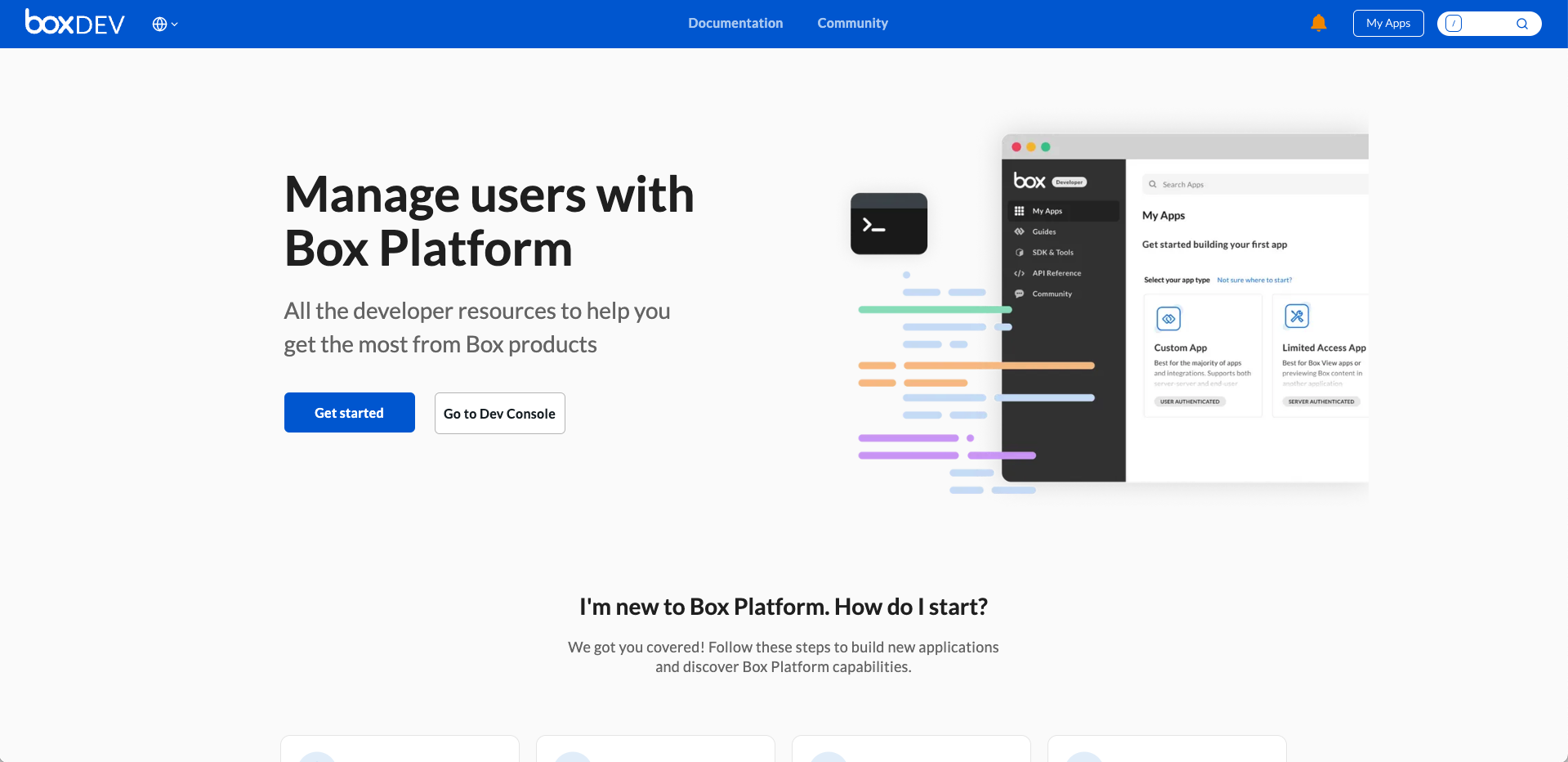
The Box Developer Site is this website you are reading right now. It is a
comprehensive resource for developers building solutions on top of Box, and
should be used alongside the developer console to create applications and make
API calls. You can
find a multitude of guides, the full OpenAPI spec, quick starts, sample code,
etc all within its pages.
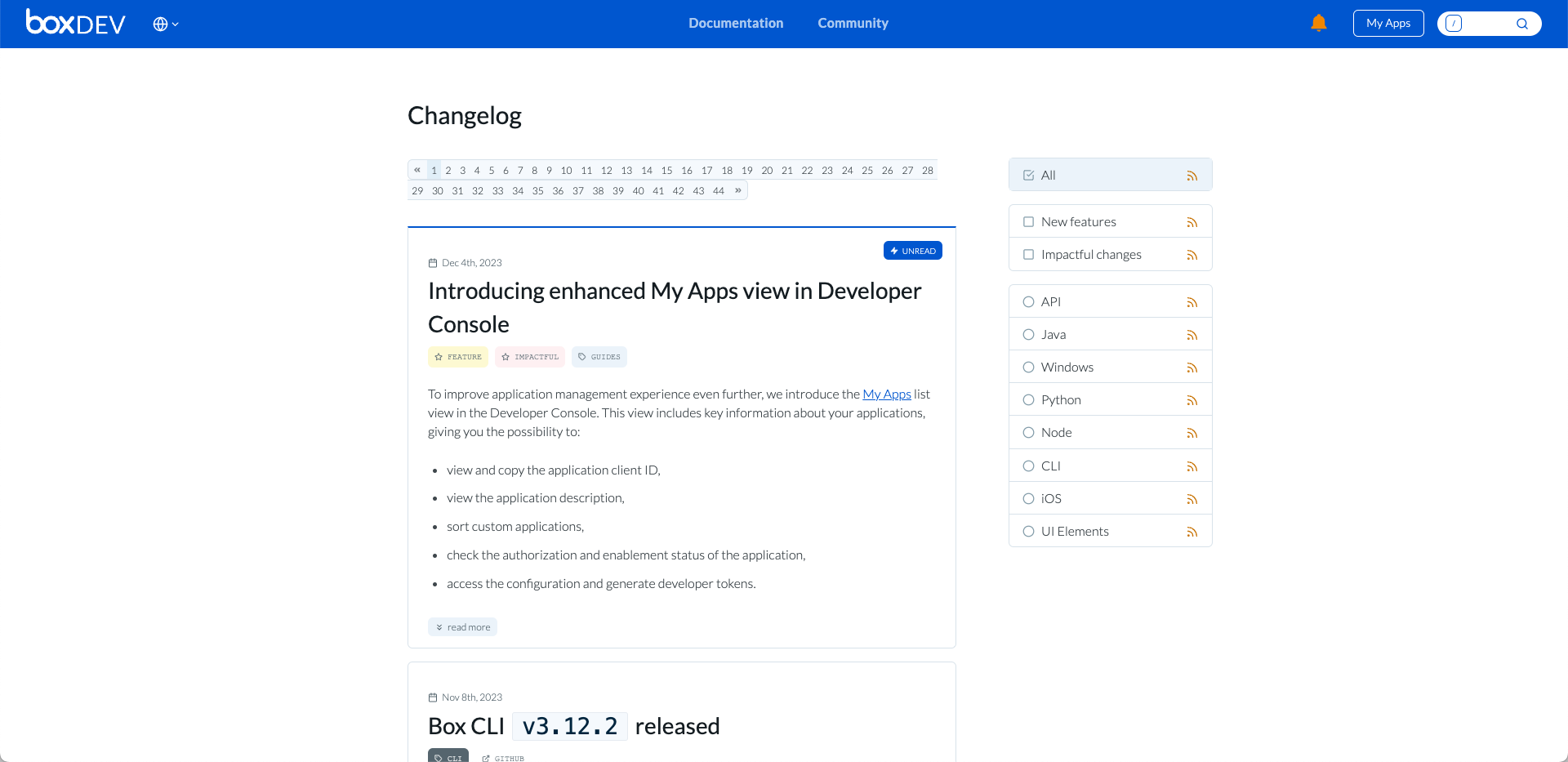
 The site is updated on a frequent basis with the
latest updates posted to the [changelog][change].
The site is updated on a frequent basis with the
latest updates posted to the [changelog][change].
 ### Box Developer Console
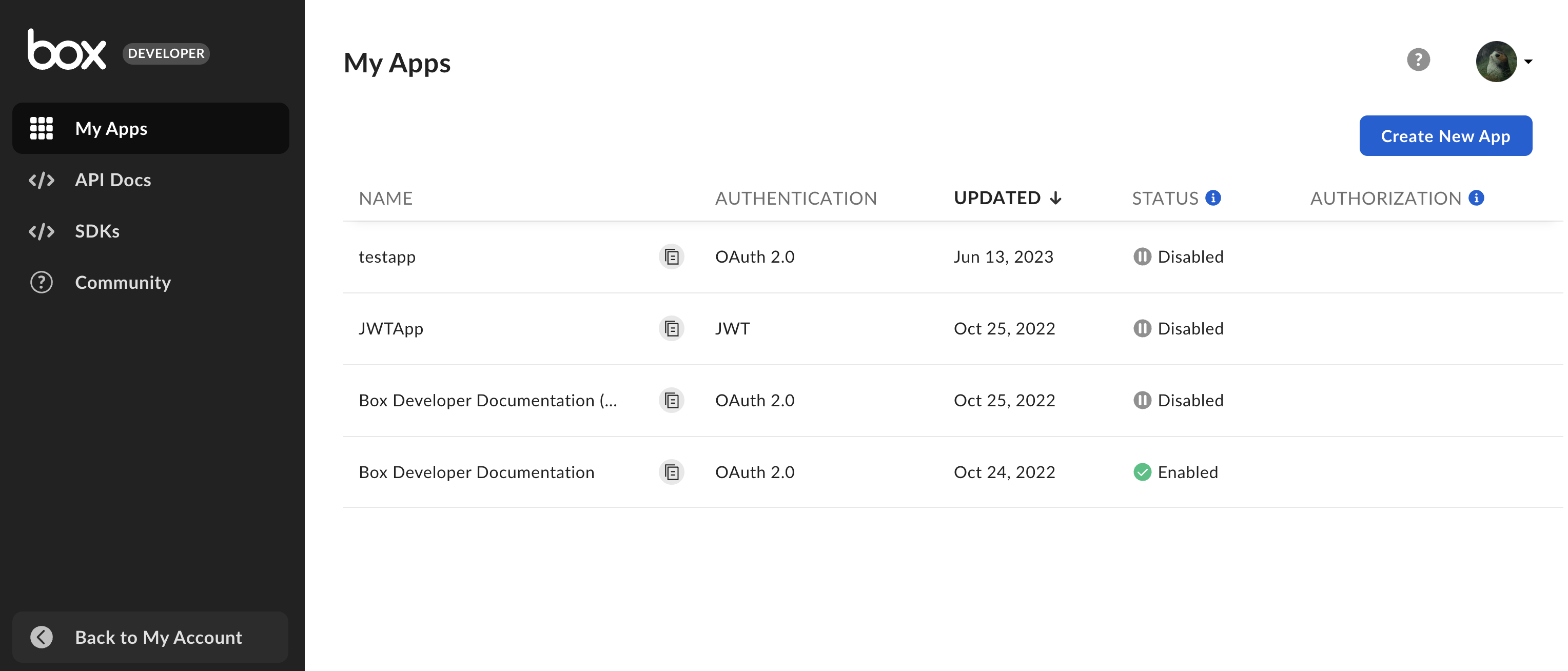
The [Box Developer Console][dc] is an interactive interface that provides
developers with tools and resources for managing their applications integrated
with Box. It allows for the creation, configuration, and monitoring of apps,
offering insights and control over how these apps interact with the Box
platform.
### Box Developer Console
The [Box Developer Console][dc] is an interactive interface that provides
developers with tools and resources for managing their applications integrated
with Box. It allows for the creation, configuration, and monitoring of apps,
offering insights and control over how these apps interact with the Box
platform.
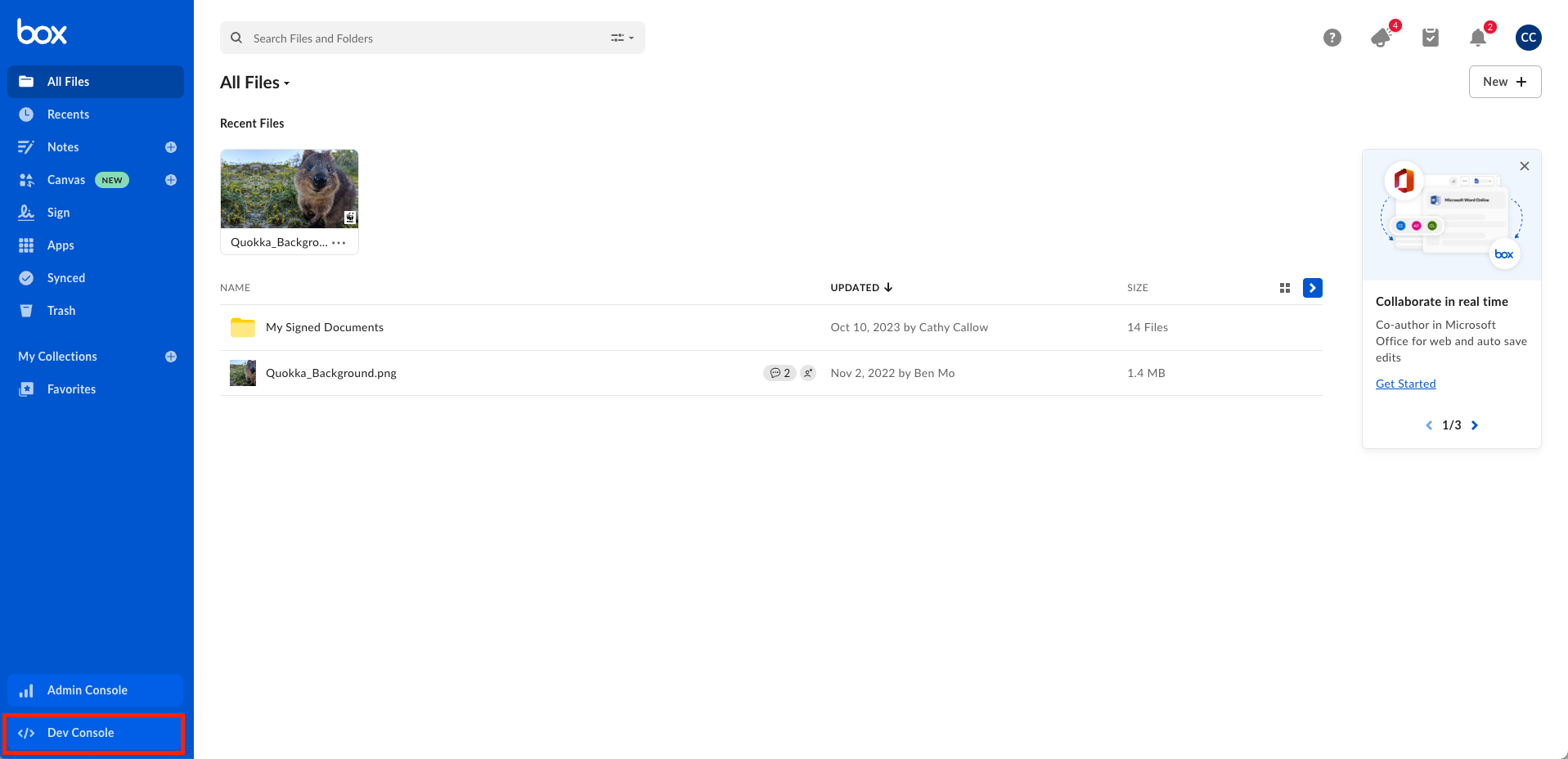
 After you create an application in the console for the first time,
you will start seeing a button in the bottom left of the main Box web app. You
can use this button to access the console in the future.
After you create an application in the console for the first time,
you will start seeing a button in the bottom left of the main Box web app. You
can use this button to access the console in the future.
 ## Box Platform Concepts
In the following learn sections, we will go into more depth on various topics.
But at a high level, these are some terms and concepts to be familiar with.
### User Types
There are several [user types][ut] to keep in mind when developing on Box
Platform. These include users with admin privileges (such as Admin or Co-Admin
users) and those without admin privileges (Managed or External Users).
Additionally, there are platform-only users, which are categorized as Service
Accounts and App Users. Each user type has specific roles and access levels
within the Box environment, impacting how they interact with applications and
content. At the core, if a user can access a piece of content from the main Box
web app, they should be able to access it using the API.
### Application Type
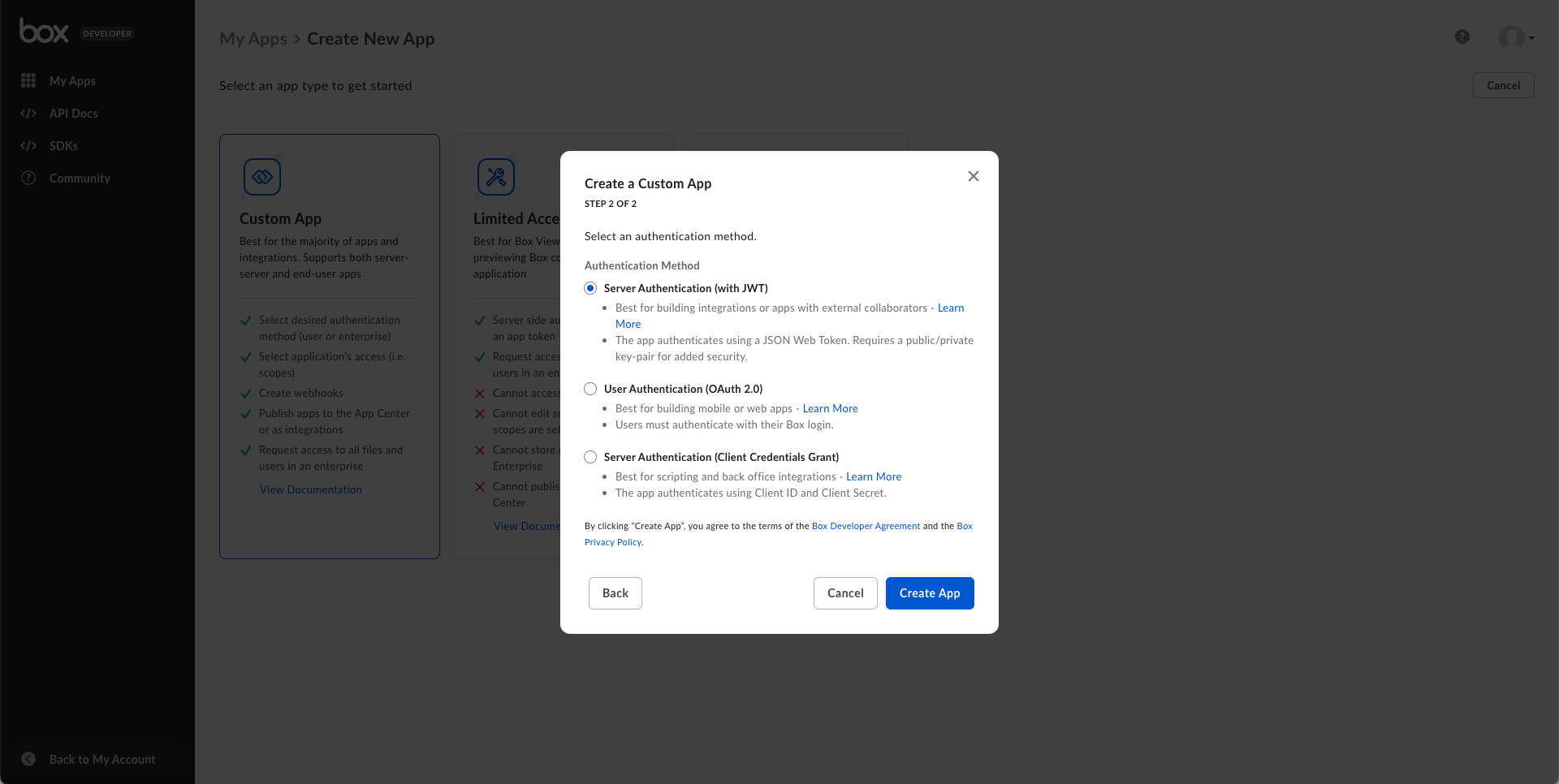
You can create a [Platform App][platform-app], a third party integration, and a web app integration in the developer console.
### Authentication Method
Depending on the application type selected, there are one of five different
authentication methods that can be used to gain an [access token][at]. An
access token is the key to get through the gateway that is your application
to successfully make an API call to Box.
## Box Platform Concepts
In the following learn sections, we will go into more depth on various topics.
But at a high level, these are some terms and concepts to be familiar with.
### User Types
There are several [user types][ut] to keep in mind when developing on Box
Platform. These include users with admin privileges (such as Admin or Co-Admin
users) and those without admin privileges (Managed or External Users).
Additionally, there are platform-only users, which are categorized as Service
Accounts and App Users. Each user type has specific roles and access levels
within the Box environment, impacting how they interact with applications and
content. At the core, if a user can access a piece of content from the main Box
web app, they should be able to access it using the API.
### Application Type
You can create a [Platform App][platform-app], a third party integration, and a web app integration in the developer console.
### Authentication Method
Depending on the application type selected, there are one of five different
authentication methods that can be used to gain an [access token][at]. An
access token is the key to get through the gateway that is your application
to successfully make an API call to Box.
 Next step
[box]: https://www.box.com
[platform]: https://www.box.com/platform
[platform-app]: /guides/applications/platform-apps/index
[authmethods]: /guides/authentication/select
[api]: /reference
[change]: /changelog
[dc]: https://app.box.com/developers/console
[at]: /guides/authentication/tokens
[ut]: https://support.box.com/hc/en-us/articles/4636533822483-Box-User-Types
Next step
[box]: https://www.box.com
[platform]: https://www.box.com/platform
[platform-app]: /guides/applications/platform-apps/index
[authmethods]: /guides/authentication/select
[api]: /reference
[change]: /changelog
[dc]: https://app.box.com/developers/console
[at]: /guides/authentication/tokens
[ut]: https://support.box.com/hc/en-us/articles/4636533822483-Box-User-Types