> ## Documentation Index
> Fetch the complete documentation index at: https://developer.box.com/llms.txt
> Use this file to discover all available pages before exploring further.
# User Types
export const SignupCTA = ({children}) => {
return
;
};
The type of user your application authenticates as determines what content it
can access and what actions it can take. Which user type you get depends on the
application type you create and the
authentication method you choose.
## User types at a glance
| User type | Has login credentials? | How it's created | Visible in Admin Console? | Best for |
| --------------------------------------- | ---------------------- | ------------------------------------------------------------------------------------------------------------------- | -------------------------------------------------------- | ------------------------------------------------------- |
| [**Managed User**](#managed-users) | Yes | Provisioned by enterprise | Yes | Employees with licensed Box accounts |
| [**External User**](#external-users) | Yes | Has an existing Box account (personal or another enterprise) | Yes, **External Users** tab (**External Users** filter) | Cross-enterprise or free-account collaboration |
| [**Unmanaged User**](#unmanaged-users) | Yes | Self-provisioned using a managed domain email | Yes, **External Users** tab (**Unmanaged Users** filter) | Domain users outside enterprise control |
| [**Service Account**](#service-account) | No (API only) | Auto-generated when a server-auth app is authorized | Content Manager only | Server-to-server integrations, content owned by the app |
| [**App User**](#app-user) | No (API only) | Created by a Service Account using the API | Yes (Users & Groups + Content Manager) | Per-user content isolation without Box accounts |
Admin and Co-Admin are roles assigned to Managed Users, not separate user
types. See [Admin and Co-Admin roles](#admin-and-co-admin-roles) below.
A free developer account gives you access to the Developer Console and API, where you can create and manage Service Accounts, App Users, and more.
## Admin and Co-Admin Roles
Admin and Co-Admin are roles that can be assigned to Managed Users, not separate user types. A user must first be a Managed User before they can be given either role.
Managed Users with the Admin or Co-Admin role can directly manage the Box enterprise through the Admin Console and can perform actions unavailable to other users, such as managing security policies, running reports, and configuring integrations.
Some applications require Admin-level permissions to operate. For example, a
security application that monitors enterprise events needs an Admin
or a Co-Admin with reporting permissions.
## Managed Users
Managed Users belong to your enterprise and consume a standard Box license.
Each enterprise has a unique enterprise ID, and all Managed Users share
that ID. They typically (but don't always) share the same email domain.
## External Users
External Users are collaborators from outside your organization — Box users whose accounts were not created from within your Admin Console and whose email addresses are not associated with your managed domain. They may belong to a different enterprise entirely, or they may have a free personal Box account with no enterprise affiliation at all.
While Admins cannot manage External Users' account settings or the content they own, they can manage their collaborations — including granting or revoking access to your enterprise's content at any time. External Users appear in the Admin Console under the **Users & Groups** > **External Users** tab. An Admin can invite them to become Managed Users in your organization, provided they are not already part of another Box enterprise.
## Unmanaged Users
Unmanaged Users are Box users who:
* Have unlicensed and unpaid personal Box service accounts that are acquired independently of an Admin or Co-admin and that do not belong to your Box organization.
* Possess email addresses from your domain or verified domains (domains owned or controlled by your organization).
Unmanaged Users are visible in the Admin Console under the **Users & Groups** > **External Users** tab by selecting the **Unmanaged Users** filter. Admins can identify and convert them to Managed Users to bring them under organizational control.
## Service Account
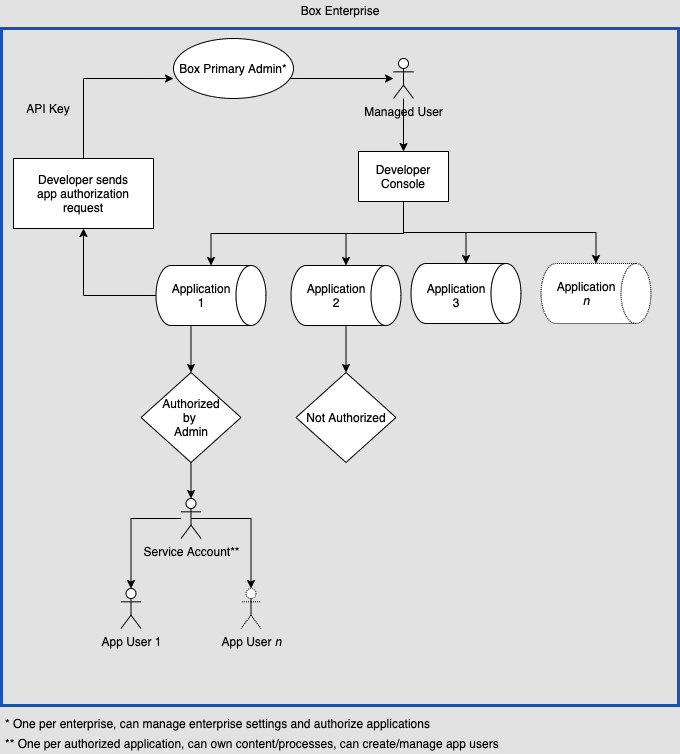
A Service Account is a programmatic user that represents your application in
the Box enterprise. It authenticates server-to-server without login
credentials, making it ideal for backend integrations and automated workflows.
### When to use
* **Content migration**: Move content between on-premises systems and the cloud
* **Event monitoring**: Watch enterprise events for compliance or to trigger workflows
* **Content distribution**: Upload and share files with users regardless of their authentication status
* **System integrations**: Connect on-premises systems and devices to Box
* **Content archiving**: Store infrequently accessed content
### Creation
A Service Account is **automatically generated** when an Admin
authorizes your JWT or CCG application in the Admin Console. You
don't create it manually.
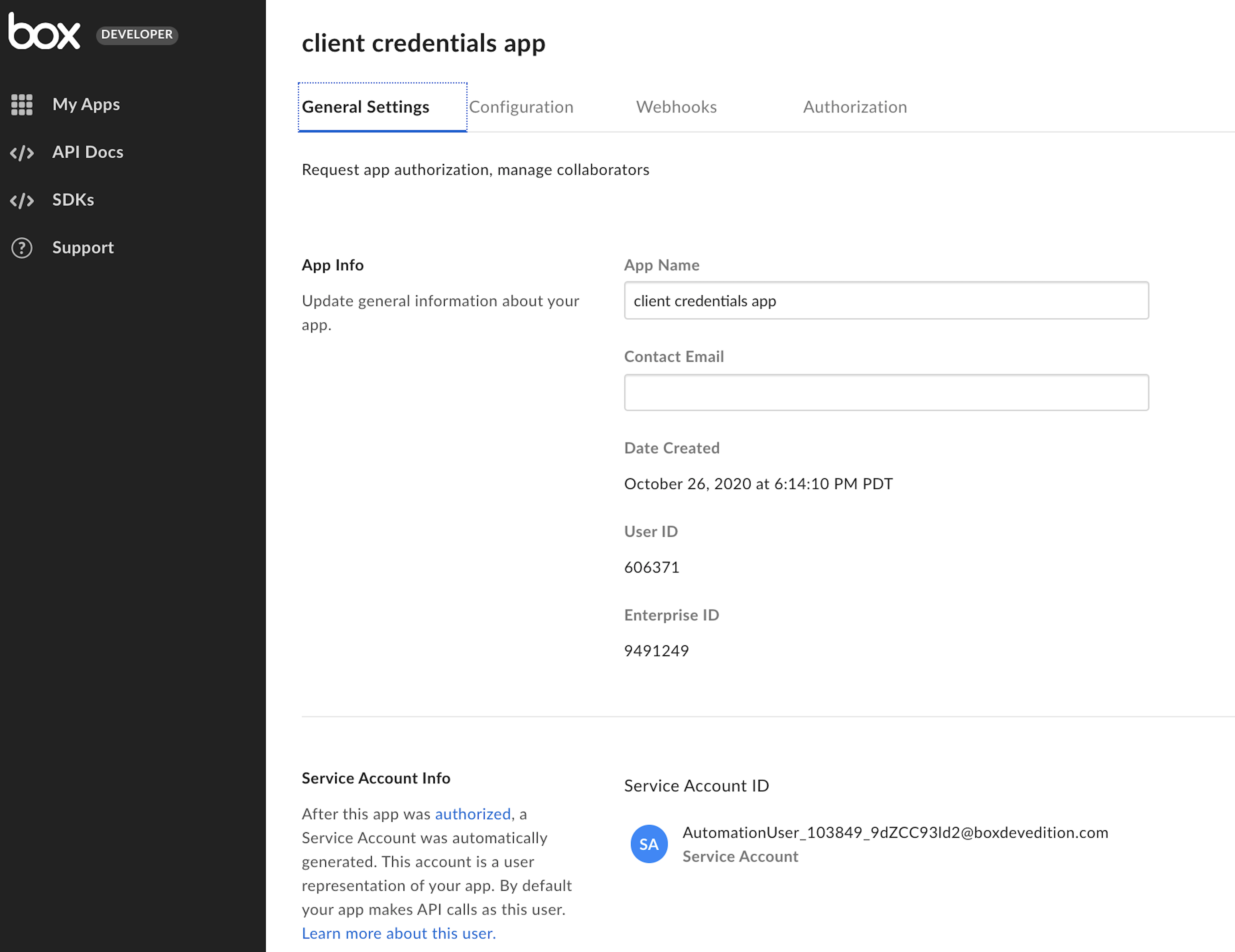
Box assigns the Service Account an email address in the format:
`AutomationUser_AppServiceID_RandomString@boxdevedition.com`
For example: `AutomationUser_123456_6jCo6Pqwo@boxdevedition.com`. The number
between the underscores is the **Service ID**, which matches the ID in your
app's Developer Console URL
(for example, `https://example.app.box.com/developers/console/app/123456`).
You can find the Service Account email on the **General** tab of your app in
the Developer Console.
If you attempt API calls with a Service Account token before the app is
authorized, you'll receive an `unauthorized_client` error:
`"This app is not authorized by the enterprise"`.
### Viewing content
Only **Primary Admins** can view a Service Account's content. To do this:
1. Open the Content Manager in the Admin Console.
2. Search for the application name.
3. Right-click the result and select **Log in to user's account**.
Service Accounts are **not** visible in the *Users & Groups* tab. They only
appear in the Content Manager.
Co-Admins can't log in as a Service Account. This mirrors how Co-Admins
can't manage each other.
### Permissions and collaboration
The API endpoints a Service Account can call are determined by the
scopes configured in the Developer Console. With the right
scopes, a Service Account can perform Admin-level actions.
Because a Service Account can have elevated permissions, JWT and CCG
applications require explicit Admin approval before they can be
used in an enterprise.
A Service Account has its own folder tree, which starts empty. To give it
access to existing content:
* **By email**: Invite the Service Account using its assigned email address, just as you would invite any other collaborator.
* **By API**: Use the create collaboration endpoint with the Service Account's user ID (returned by the get current user endpoint).
You can assign a Service Account an email alias to make collaboration
invitations easier to remember.
By default, Service Accounts receive 10 GB of storage based on the **New User
Default Settings** in the Admin Console. To change this, call the
update user endpoint with the `space_amount` parameter.
## App User
An App User is a programmatic user that your Service Account creates through
the API. Like Service Accounts, App Users don't have login credentials and
can only interact with Box through your application. Each App User gets their
own folder tree, giving you per-user content isolation.
App Users are tied to the application that created them and can't be
transferred to another application.
### When to use
* **Customer portals**: Give clients or patients a place to access and store sensitive documents without needing a Box account.
* **Vendor portals**: Distribute content like price lists, contracts, and marketing materials to partners, organized by vendor tier.
* **Branded applications**: Build customer-facing features with per-user permissions, auditing, and reporting — especially valuable for regulated industries like financial services and healthcare.
* **Identity mapping**: Map users from your own identity provider (like Auth0 or Okta) to individual Box user accounts.
### Creation
**Prerequisites**: You need a JWT or CCG application that has been
authorized in the Admin Console, which gives you a Service Account.
To create an App User, use the Service Account's access token to call the
create user endpoint. Set the `is_platform_access_only` body
parameter to `true` — otherwise, a Managed User is created instead.
Box assigns each App User an email address in the format:
`AppUser_AppServiceID_RandomString@boxdevedition.com`
For step-by-step instructions and code samples, see
Create an App User.
### Viewing content
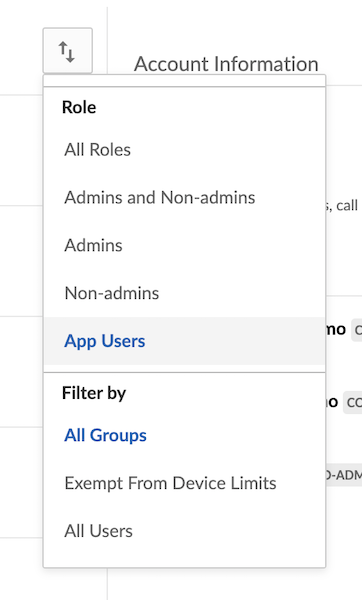
App Users are visible in two places in the Admin Console:
1. **Users & Groups tab**: Use the view options button, then filter by **Role > App Users**.
2. **Content Manager**: Search for the App User by name or email to browse their folder tree.
### Permissions and collaboration
App Users **can't** see the Service Account's folder tree or any other
content unless you explicitly add them as a collaborator.
Each App User has their own folder tree, which starts empty. To give an App User
access to content:
* **By email**: Invite the App User using their assigned email address.
* **By API**: Use the create collaboration endpoint with the App User's ID and an access token for a user who already has access to the target content.
## Service Account vs. App User: which do you need?
Use this decision guide to pick the right approach for your application:
| Question | If yes... |
| ---------------------------------------------------------------------------------- | ----------------------------------------------- |
| Does your app need to own and manage content without tying it to individual users? | Use a **Service Account** as the content owner. |
| Do you need per-user content isolation (each user has their own files)? | Create an **App User** for each user. |
| Are your users transient, but the content needs to persist? | Use a **Service Account** to own the content. |
| Do you want to map users from your own identity provider to Box? | Create an **App User** for each identity. |
| Is this a system-to-system integration with no end-user interaction? | Use the **Service Account** directly. |
For more advanced architecture decisions, see User Models.
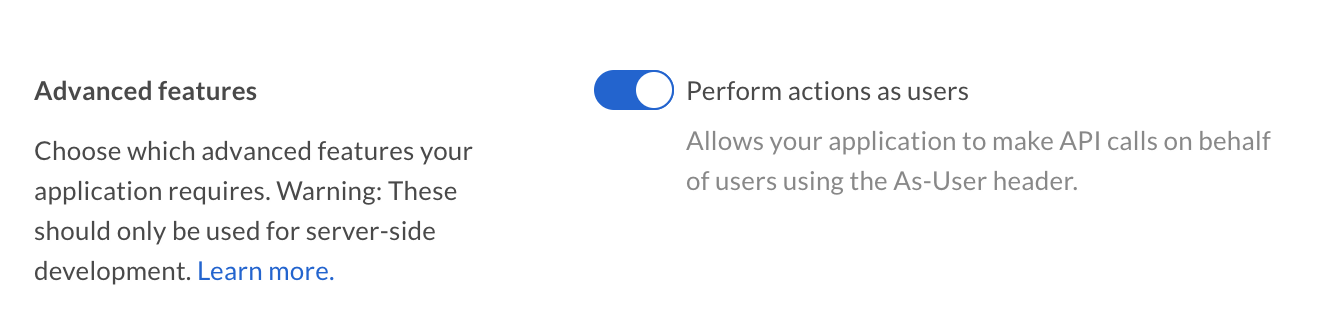
## As-User
If you use OAuth 2.0, JWT, or CCG authentication, you can make `as-user`
calls to act on behalf of another user. Even though your application
originally authenticated as yourself or as a Service Account, subsequent
calls can impersonate a different user.
This is useful for automating administrative tasks like folder reorganization
or employee provisioning. To enable `as-user` calls, turn on the appropriate
scope in the Developer Console.
Next step
[scopes]: /guides/api-calls/permissions-and-errors/scopes
[collabapi]: /reference/post-collaborations
[getuser]: /reference/get-users-me
[updateuser]: /reference/put-users-id
[createuser]: /reference/post-users
[createappuser]: /guides/users/create-app-user
[events]: /reference/get-events
[apptypes]: /platform/application-types
[authmethods]: /platform/authentication-methods
[usermodels]: /platform/appendix/user-models
[cm]: https://docs.box.com/en/box-admin-tools/managing-content/content-manager/about-content-manager
[uag-tab]: https://support.box.com/hc/en-us/articles/360043695714-Admin-Console-Guide
 ### When to use
* **Content migration**: Move content between on-premises systems and the cloud
* **Event monitoring**: Watch enterprise events for compliance or to trigger workflows
* **Content distribution**: Upload and share files with users regardless of their authentication status
* **System integrations**: Connect on-premises systems and devices to Box
* **Content archiving**: Store infrequently accessed content
### Creation
A Service Account is **automatically generated** when an Admin
authorizes your JWT or CCG application in the Admin Console. You
don't create it manually.
Box assigns the Service Account an email address in the format:
`AutomationUser_AppServiceID_RandomString@boxdevedition.com`
For example: `AutomationUser_123456_6jCo6Pqwo@boxdevedition.com`. The number
between the underscores is the **Service ID**, which matches the ID in your
app's Developer Console URL
(for example, `https://example.app.box.com/developers/console/app/123456`).
You can find the Service Account email on the **General** tab of your app in
the Developer Console.
### When to use
* **Content migration**: Move content between on-premises systems and the cloud
* **Event monitoring**: Watch enterprise events for compliance or to trigger workflows
* **Content distribution**: Upload and share files with users regardless of their authentication status
* **System integrations**: Connect on-premises systems and devices to Box
* **Content archiving**: Store infrequently accessed content
### Creation
A Service Account is **automatically generated** when an Admin
authorizes your JWT or CCG application in the Admin Console. You
don't create it manually.
Box assigns the Service Account an email address in the format:
`AutomationUser_AppServiceID_RandomString@boxdevedition.com`
For example: `AutomationUser_123456_6jCo6Pqwo@boxdevedition.com`. The number
between the underscores is the **Service ID**, which matches the ID in your
app's Developer Console URL
(for example, `https://example.app.box.com/developers/console/app/123456`).
You can find the Service Account email on the **General** tab of your app in
the Developer Console.
 2. **Content Manager**: Search for the App User by name or email to browse their folder tree.
### Permissions and collaboration
App Users **can't** see the Service Account's folder tree or any other
content unless you explicitly add them as a collaborator.
Each App User has their own folder tree, which starts empty. To give an App User
access to content:
* **By email**: Invite the App User using their assigned email address.
* **By API**: Use the create collaboration endpoint with the App User's ID and an access token for a user who already has access to the target content.
## Service Account vs. App User: which do you need?
Use this decision guide to pick the right approach for your application:
| Question | If yes... |
| ---------------------------------------------------------------------------------- | ----------------------------------------------- |
| Does your app need to own and manage content without tying it to individual users? | Use a **Service Account** as the content owner. |
| Do you need per-user content isolation (each user has their own files)? | Create an **App User** for each user. |
| Are your users transient, but the content needs to persist? | Use a **Service Account** to own the content. |
| Do you want to map users from your own identity provider to Box? | Create an **App User** for each identity. |
| Is this a system-to-system integration with no end-user interaction? | Use the **Service Account** directly. |
For more advanced architecture decisions, see User Models.
## As-User
If you use OAuth 2.0, JWT, or CCG authentication, you can make `as-user`
calls to act on behalf of another user. Even though your application
originally authenticated as yourself or as a Service Account, subsequent
calls can impersonate a different user.
This is useful for automating administrative tasks like folder reorganization
or employee provisioning. To enable `as-user` calls, turn on the appropriate
scope in the Developer Console.
2. **Content Manager**: Search for the App User by name or email to browse their folder tree.
### Permissions and collaboration
App Users **can't** see the Service Account's folder tree or any other
content unless you explicitly add them as a collaborator.
Each App User has their own folder tree, which starts empty. To give an App User
access to content:
* **By email**: Invite the App User using their assigned email address.
* **By API**: Use the create collaboration endpoint with the App User's ID and an access token for a user who already has access to the target content.
## Service Account vs. App User: which do you need?
Use this decision guide to pick the right approach for your application:
| Question | If yes... |
| ---------------------------------------------------------------------------------- | ----------------------------------------------- |
| Does your app need to own and manage content without tying it to individual users? | Use a **Service Account** as the content owner. |
| Do you need per-user content isolation (each user has their own files)? | Create an **App User** for each user. |
| Are your users transient, but the content needs to persist? | Use a **Service Account** to own the content. |
| Do you want to map users from your own identity provider to Box? | Create an **App User** for each identity. |
| Is this a system-to-system integration with no end-user interaction? | Use the **Service Account** directly. |
For more advanced architecture decisions, see User Models.
## As-User
If you use OAuth 2.0, JWT, or CCG authentication, you can make `as-user`
calls to act on behalf of another user. Even though your application
originally authenticated as yourself or as a Service Account, subsequent
calls can impersonate a different user.
This is useful for automating administrative tasks like folder reorganization
or employee provisioning. To enable `as-user` calls, turn on the appropriate
scope in the Developer Console.