;
};
export const Link = ({href, children, className, ...props}) => {
const localizedHref = localizeLink(href);
return
{children}
;
};
This script extracts embedded technical metadata (EXIF, ICC Profile, JFIF, and related fields), writes selected values to a metadata template, and lets you filter those images in a Box Apps dashboard.
You can generate `embedded_metadata` representations for any file type in Box. The set of attributes depends on the file. Not every file includes every EXIF, JFIF, ICC, or MakerNotes field, and some tools strip this data, so not all files return useful metadata.
## Before you start
Complete these Box setup steps before you build. You need:
* A free Box developer account, or a Box Enterprise account.
* A Box application configured with **Client Credentials Grant** authentication, authorized in the Admin Console, with this scope:
* Read and write all files and folders stored in Box
* Python 3.11 or higher. For the agent path, you can also use Node.js 20+, Java 17+, or .NET 8+.
* For the agent path, a coding agent such as Codex, Claude Code, or Cursor. Installing Box Agent Skills helps it use current Box APIs.
Keep the metadata template key, folder ID, and enterprise ID handy. The prompt and your `.env` file need them.
Embedded metadata is available for any format Box can already preview. The set of attributes depends on the file. Not every image includes every EXIF, JFIF, ICC, or MakerNotes field, and some tools strip this data. `embedded_metadata` is an on-demand [representation](/guides/representations): Box generates it the first time you request it.
The metadata template defines the fields you copy from the representation. Create it once, and every file the script processes writes values in this shape.
This step requires Admin access.
1. Open the [Box Admin Console](https://app.box.com/master) and select **Metadata**.
2. Select **New** and name it `Image Metadata`.
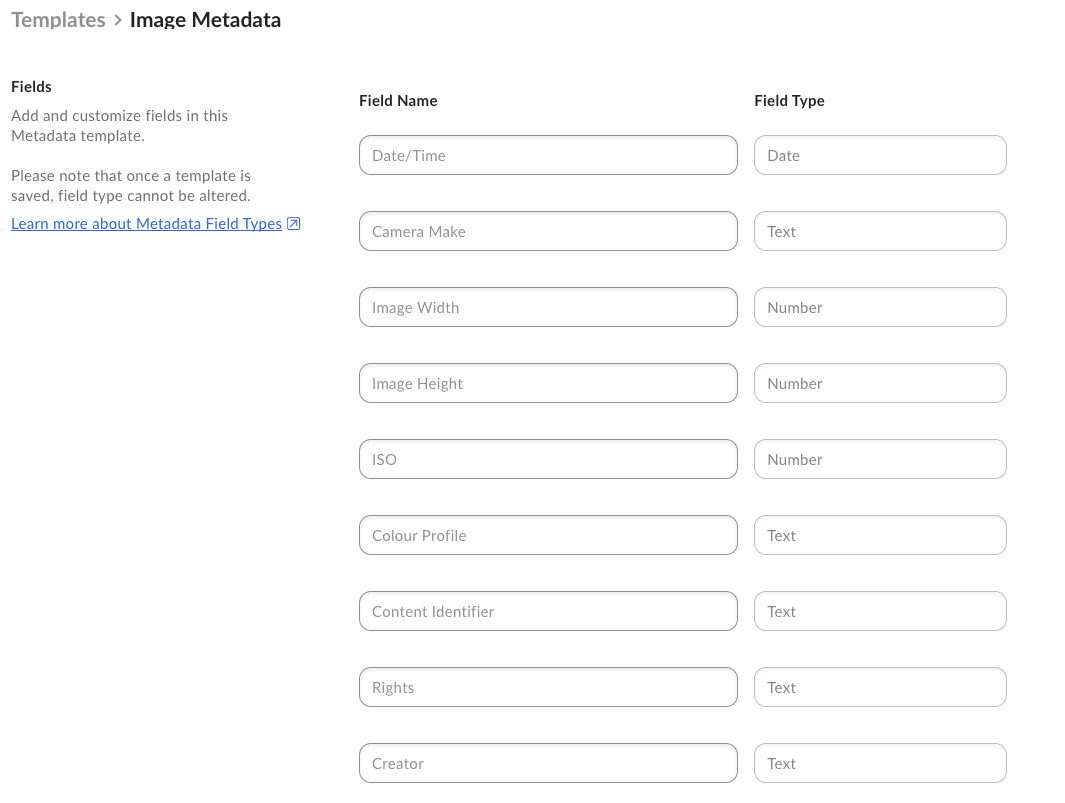
3. Add the following fields:
| Field name | Type | Template key |
| - | - | - |
| Date/Time | Date | `datetime` |
| Camera Make | Text | `cameraMake` |
| Image Width | Number | `imageWidth` |
| Image Height | Number | `imageHeight` |
| ISO | Number | `iso` |
| Color Profile | Text | `colorProfile` |
| Rights | Text | `rights` |
| Creator | Text | `creator` |
4. Copy the template key from under the **Template Name**. You need it for the prompt and for `.env`. Box also generates a **field key** from each field name (for example, Camera Make becomes `cameraMake`). Use those keys in the script.
5. Select **Save**.
For a detailed walkthrough, see [Customizing Metadata Templates](https://docs.box.com/en/box-admin-tools/managing-content/metadata/customizing-metadata-templates).
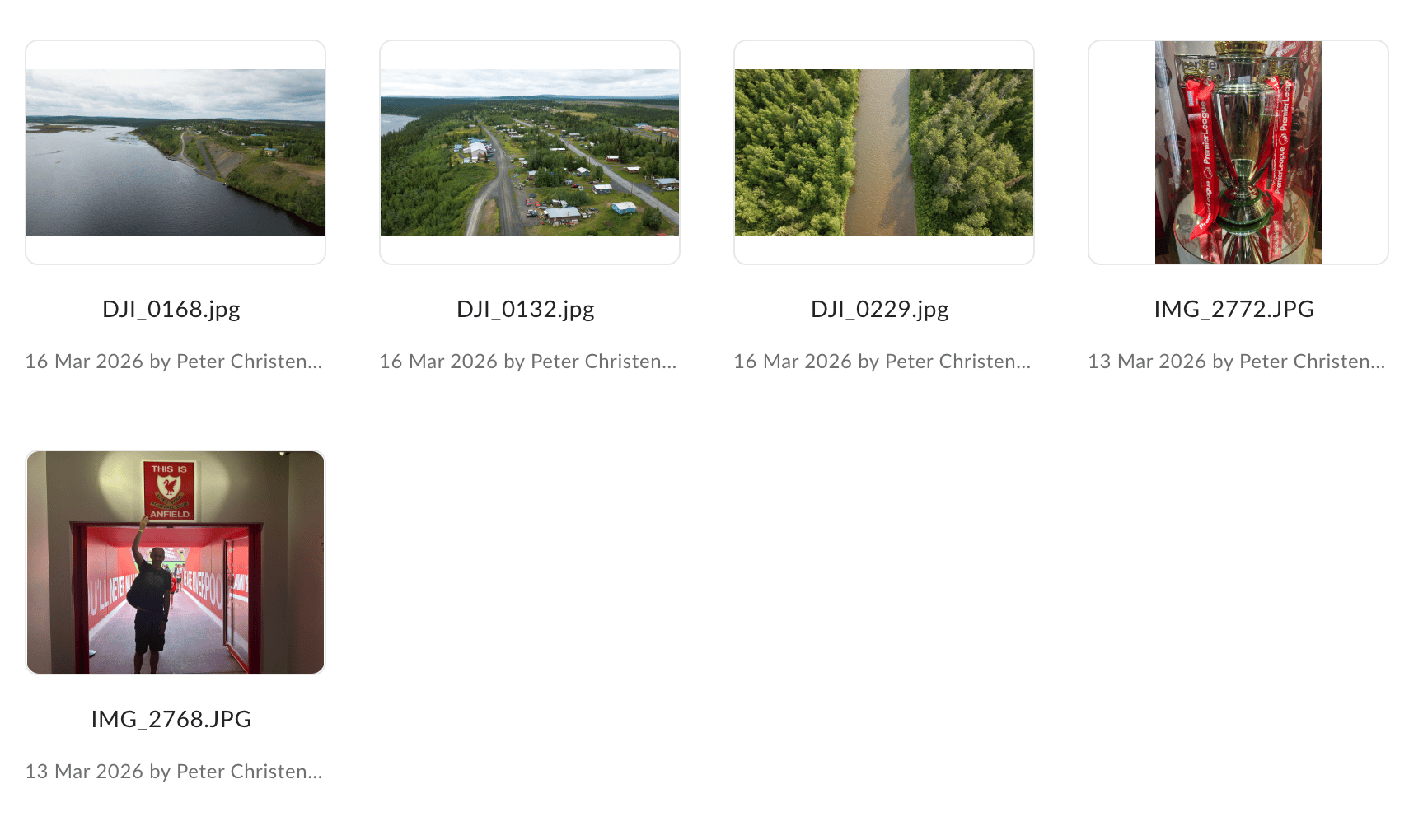
Create a dedicated folder in Box for the images you want on the dashboard.
1. In Box, create a new folder called `Photos`.
2. Upload previewable image files to the folder.
3. Note the **folder ID** from the URL. For example, if the URL is `https://app.box.com/folder/123456789`, the folder ID is `123456789`.
4. **Share the folder with your application's service account.** This is required because CCG applications act as a separate service account user that does not automatically have access to your content.
Without this step, all API calls return 404 "Not found" errors.
To find your service account email, go to the [Developer Console](https://app.box.com/developers/console), open your app, and look under **General Settings** for the **Service Account ID** (it looks like `AutomationUser_xxxxx_xxxxxx@boxdevedition.com`).
Invite this email as a **collaborator** on the folder with the **Editor** role. Editor access is required because the app needs to write metadata back to files.
## Build with an agent
Gather these values from [Before you start](#before-you-start):
* **Metadata template key** – from the template you created
* **Photos folder ID** – from the folder URL
* **Enterprise ID** – from the [Developer Console](https://app.box.com/developers/console), using the icon in the top-right
Choose your stack and copy the prompt. It already lists these as prerequisites, so the agent reads them from environment variables instead of trying to create them. Replace the ``, ``, and `` placeholders if you want the agent to pre-fill `.env`. Otherwise, leave them and fill `.env` yourself after scaffolding.
```md Python + Script theme={null}
Build a production-minded script that extracts embedded technical metadata (EXIF and related fields) from previewable files in Box by following this tutorial:
https://developer.box.com/tutorials/extract-exif-metadata
Use Python 3.11+ with pip and a virtual environment. Install exactly one Box package: "boxsdk~=10.0" (do NOT also install box-sdk-gen — both ship the box_sdk_gen module and conflict). Import Box APIs with `from box_sdk_gen import ...`. Also install python-dotenv and pytest for tests.
Prerequisites already done in Box (see the tutorial). Do NOT try to create these; read their values from environment variables:
- Enterprise metadata template key:
(fields datetime, cameraMake, imageWidth, imageHeight, iso, colorProfile, rights, creator)
- Folder ID with previewable images: , shared with the app service account as Editor
- Enterprise ID:
- CCG app scopes enabled: Read and write all files and folders stored in Box
Mirror the Python in the tutorial for list_representations, fetch_representation (including x_rep_hints, client.make_request for info and content URLs, polling, and download), EMBEDDED_METADATA_FIELD_MAP, and create_file_metadata_by_id. Use client.files.get_file_by_id and client.file_metadata.create_file_metadata_by_id. Do not add other languages or extra Box APIs.
The app must:
1. Authenticate to Box with the Box core SDK ≥v10 using Client Credentials Grant (enterprise / service account).
Use BOX_ENTERPRISE_ID — do NOT authenticate as a managed user. Use SDK methods for Box calls. For representation info and content URLs, use the SDK request helper (Python: client.make_request) — do not use raw REST clients such as curl.
2. Implement list_representations as in the tutorial: client.files.get_file_by_id with fields=["representations"]
and print each representation type (and dimensions when present).
3. Implement fetch_representation as in the tutorial:
- client.files.get_file_by_id with fields=["representations"] and x_rep_hints=rep_hint.
- If state is none, call client.make_request on the representation info URL from the SDK response to trigger generation, then treat the state as pending.
- Poll get_file_by_id until success or viewable, or time out (max_wait_seconds=30, poll_interval=3).
- Replace {+asset_path} in url_template and download with client.make_request (binary, follow redirects).
4. Call fetch_representation with rep_hint="[embedded_metadata]".
5. Parse the JSON body. Map fields with EMBEDDED_METADATA_FIELD_MAP exactly as in the tutorial:
datetime ([0].EXIF.DateTimeOriginal, date),
cameraMake ([0].EXIF.Make, text),
imageWidth ([0].File.ImageWidth, number),
imageHeight ([0].File.ImageHeight, number),
iso ([0].EXIF.ISO, number),
colorProfile ([0].ICC_Profile.ProfileDescription, text),
rights ([0].XMP.Rights, text),
creator ([0].XMP.Creator, text).
Missing fields are OK — skip them. If no mapped fields are present, skip the metadata write (do not POST an empty body).
6. Implement _resolve_path (read a JSON path) and _coerce (convert to date, text, or number)
exactly as in the tutorial metadata sample.
7. Write selected values as Box enterprise metadata with create_file_metadata_by_id.
If the instance already exists (409), JSON-Patch update with op add as in the tutorial.
Handle write errors per file without aborting the rest of the folder.
8. Process files in BOX_FOLDER_ID using the extension filter from the tutorial.
Read configuration from environment variables:
BOX_CLIENT_ID, BOX_CLIENT_SECRET, BOX_ENTERPRISE_ID,
BOX_METADATA_TEMPLATE_KEY, and BOX_FOLDER_ID.
Create a complete runnable project with:
- list_representations, fetch_representation, EMBEDDED_METADATA_FIELD_MAP, and the metadata write path matching the tutorial modules
- a flat Python layout matching the tutorial (no unnecessary packages)
- dependency and run commands
- .env.example and .gitignore files
- focused unit tests and a README with setup and test steps
Never hard-code credentials. Add concise comments only where the Box-specific behavior is not obvious. Before writing code, summarize the architecture and list the files you will create.
```
```md Python + FastAPI theme={null}
Build a production-minded script that extracts embedded technical metadata (EXIF and related fields) from previewable files in Box by following this tutorial:
https://developer.box.com/tutorials/extract-exif-metadata
Use Python with FastAPI. Target Python 3.11+, use pip and a virtual environment. Install exactly one Box package: "boxsdk~=10.0" (do NOT also install box-sdk-gen — both ship the box_sdk_gen module and conflict). Import Box APIs with `from box_sdk_gen import ...`. Also install fastapi, uvicorn, python-dotenv, and pytest for tests.
Prerequisites already done in Box (see the tutorial). Do NOT try to create these; read their values from environment variables:
- Enterprise metadata template key:
(fields datetime, cameraMake, imageWidth, imageHeight, iso, colorProfile, rights, creator)
- Folder ID with previewable images: , shared with the app service account as Editor
- Enterprise ID:
- CCG app scopes enabled: Read and write all files and folders stored in Box
The tutorial's Python samples are a script, not a web server. Copy list_representations, fetch_representation, EMBEDDED_METADATA_FIELD_MAP, and the metadata write from those samples unchanged. Use client.make_request for representation info and content URLs. The Box Python SDK is synchronous — use plain def handlers (or run sync Box calls in a threadpool); do not await sync SDK methods. Still include a way to process BOX_FOLDER_ID without requiring a public URL.
The app must:
1. Authenticate to Box with the Box core SDK ≥v10 using Client Credentials Grant (enterprise / service account).
Use BOX_ENTERPRISE_ID — do NOT authenticate as a managed user. Use SDK methods for Box calls. For representation info and content URLs, use the SDK request helper (Python: client.make_request) — do not use raw REST clients such as curl.
2. Implement list_representations as in the tutorial: client.files.get_file_by_id with fields=["representations"]
and print each representation type (and dimensions when present).
3. Implement fetch_representation as in the tutorial:
- client.files.get_file_by_id with fields=["representations"] and x_rep_hints=rep_hint.
- If state is none, call client.make_request on the representation info URL from the SDK response to trigger generation, then treat the state as pending.
- Poll get_file_by_id until success or viewable, or time out (max_wait_seconds=30, poll_interval=3).
- Replace {+asset_path} in url_template and download with client.make_request (binary, follow redirects).
4. Call fetch_representation with rep_hint="[embedded_metadata]".
5. Parse the JSON body. Map fields with EMBEDDED_METADATA_FIELD_MAP exactly as in the tutorial:
datetime ([0].EXIF.DateTimeOriginal, date),
cameraMake ([0].EXIF.Make, text),
imageWidth ([0].File.ImageWidth, number),
imageHeight ([0].File.ImageHeight, number),
iso ([0].EXIF.ISO, number),
colorProfile ([0].ICC_Profile.ProfileDescription, text),
rights ([0].XMP.Rights, text),
creator ([0].XMP.Creator, text).
Missing fields are OK — skip them. If no mapped fields are present, skip the metadata write (do not POST an empty body).
6. Implement _resolve_path (read a JSON path) and _coerce (convert to date, text, or number)
exactly as in the tutorial metadata sample.
7. Write selected values as Box enterprise metadata with create_file_metadata_by_id.
If the instance already exists (409), JSON-Patch update with op add as in the tutorial.
Handle write errors per file without aborting the rest of the folder.
8. Process files in BOX_FOLDER_ID using the extension filter from the tutorial.
Read configuration from environment variables:
BOX_CLIENT_ID, BOX_CLIENT_SECRET, BOX_ENTERPRISE_ID,
BOX_METADATA_TEMPLATE_KEY, and BOX_FOLDER_ID.
Create a complete runnable project with:
- list_representations, fetch_representation, field map, and metadata write (same Box logic as the tutorial), plus a FastAPI app module with a CLI or POST path that processes BOX_FOLDER_ID
- an idiomatic FastAPI layout; keep Box representation and metadata modules separate from the HTTP layer
- dependency and run commands
- .env.example and .gitignore files
- focused unit tests and a README with setup and test steps
Never hard-code credentials. Add concise comments only where the Box-specific behavior is not obvious. Before writing code, summarize the architecture and list the files you will create.
```
```md TypeScript + Node theme={null}
Build a production-minded script that extracts embedded technical metadata (EXIF and related fields) from previewable files in Box by following this tutorial:
https://developer.box.com/tutorials/extract-exif-metadata
Use TypeScript on Node.js 20+. Use npm, box-node-sdk@10 (BoxClient, BoxCcgAuth, CcgConfig, BoxApiError from box-node-sdk), dotenv, tsx (or tsc), and a test runner such as node:test or vitest.
Prerequisites already done in Box (see the tutorial). Do NOT try to create these; read their values from environment variables:
- Enterprise metadata template key:
(fields datetime, cameraMake, imageWidth, imageHeight, iso, colorProfile, rights, creator)
- Folder ID with previewable images: , shared with the app service account as Editor
- Enterprise ID:
- CCG app scopes enabled: Read and write all files and folders stored in Box
The tutorial's samples are Python. Use those as the behavioral spec for listing representations, requesting [embedded_metadata], triggering generation on none, polling pending, downloading JSON, mapping the eight template fields, coercing types, and writing enterprise metadata. Adapt to box-node-sdk@10 camelCase (getFileById, makeRequest, getFolderItems, createFileMetadataById). Pass x-rep-hints as headers.xRepHints on getFileById. Use client.makeRequest for representation info and content URLs; binary content is a stream — collect it to a Buffer. Use a commonjs-friendly tsconfig (module commonjs, moduleResolution node, esModuleInterop, strict) and run with npx tsx.
The app must:
1. Authenticate to Box with the Box core SDK ≥v10 using Client Credentials Grant (enterprise / service account).
Use BOX_ENTERPRISE_ID — do NOT authenticate as a managed user. Use SDK methods for Box calls. For representation info and content URLs, use the SDK request helper (Python: client.make_request) — do not use raw REST clients such as curl.
2. Implement list_representations as in the tutorial: client.files.get_file_by_id with fields=["representations"]
and print each representation type (and dimensions when present).
3. Implement fetch_representation as in the tutorial:
- client.files.get_file_by_id with fields=["representations"] and x_rep_hints=rep_hint.
- If state is none, call client.make_request on the representation info URL from the SDK response to trigger generation, then treat the state as pending.
- Poll get_file_by_id until success or viewable, or time out (max_wait_seconds=30, poll_interval=3).
- Replace {+asset_path} in url_template and download with client.make_request (binary, follow redirects).
4. Call fetch_representation with rep_hint="[embedded_metadata]".
5. Parse the JSON body. Map fields with EMBEDDED_METADATA_FIELD_MAP exactly as in the tutorial:
datetime ([0].EXIF.DateTimeOriginal, date),
cameraMake ([0].EXIF.Make, text),
imageWidth ([0].File.ImageWidth, number),
imageHeight ([0].File.ImageHeight, number),
iso ([0].EXIF.ISO, number),
colorProfile ([0].ICC_Profile.ProfileDescription, text),
rights ([0].XMP.Rights, text),
creator ([0].XMP.Creator, text).
Missing fields are OK — skip them. If no mapped fields are present, skip the metadata write (do not POST an empty body).
6. Implement _resolve_path (read a JSON path) and _coerce (convert to date, text, or number)
exactly as in the tutorial metadata sample.
7. Write selected values as Box enterprise metadata with create_file_metadata_by_id.
If the instance already exists (409), JSON-Patch update with op add as in the tutorial.
Handle write errors per file without aborting the rest of the folder.
8. Process files in BOX_FOLDER_ID using the extension filter from the tutorial.
Read configuration from environment variables:
BOX_CLIENT_ID, BOX_CLIENT_SECRET, BOX_ENTERPRISE_ID,
BOX_METADATA_TEMPLATE_KEY, and BOX_FOLDER_ID.
Create a complete runnable project with:
- modules for listing representations, fetching embedded_metadata, mapping fields, writing metadata, and a script entrypoint that processes BOX_FOLDER_ID
- a flat TypeScript + Node layout; keep Box logic in dedicated modules
- dependency and run commands
- .env.example and .gitignore files
- focused unit tests and a README with setup and test steps
Never hard-code credentials. Add concise comments only where the Box-specific behavior is not obvious. Before writing code, summarize the architecture and list the files you will create.
```
```md TypeScript + Fastify theme={null}
Build a production-minded script that extracts embedded technical metadata (EXIF and related fields) from previewable files in Box by following this tutorial:
https://developer.box.com/tutorials/extract-exif-metadata
Use TypeScript with Fastify on Node.js 20+. Use npm, box-node-sdk@10 (BoxClient, BoxCcgAuth, CcgConfig, BoxApiError from box-node-sdk), fastify, dotenv, tsx (or tsc), and a test runner such as node:test or vitest.
Prerequisites already done in Box (see the tutorial). Do NOT try to create these; read their values from environment variables:
- Enterprise metadata template key:
(fields datetime, cameraMake, imageWidth, imageHeight, iso, colorProfile, rights, creator)
- Folder ID with previewable images: , shared with the app service account as Editor
- Enterprise ID:
- CCG app scopes enabled: Read and write all files and folders stored in Box
The tutorial's samples are Python. Use those as the behavioral spec for representations, [embedded_metadata], field mapping, and metadata write. Adapt to box-node-sdk@10 camelCase (getFileById, makeRequest). Pass x-rep-hints as headers.xRepHints. Binary makeRequest content is a stream — collect it to a Buffer. Fastify is optional HTTP wrapping — still include a way to process BOX_FOLDER_ID without requiring a public URL.
The app must:
1. Authenticate to Box with the Box core SDK ≥v10 using Client Credentials Grant (enterprise / service account).
Use BOX_ENTERPRISE_ID — do NOT authenticate as a managed user. Use SDK methods for Box calls. For representation info and content URLs, use the SDK request helper (Python: client.make_request) — do not use raw REST clients such as curl.
2. Implement list_representations as in the tutorial: client.files.get_file_by_id with fields=["representations"]
and print each representation type (and dimensions when present).
3. Implement fetch_representation as in the tutorial:
- client.files.get_file_by_id with fields=["representations"] and x_rep_hints=rep_hint.
- If state is none, call client.make_request on the representation info URL from the SDK response to trigger generation, then treat the state as pending.
- Poll get_file_by_id until success or viewable, or time out (max_wait_seconds=30, poll_interval=3).
- Replace {+asset_path} in url_template and download with client.make_request (binary, follow redirects).
4. Call fetch_representation with rep_hint="[embedded_metadata]".
5. Parse the JSON body. Map fields with EMBEDDED_METADATA_FIELD_MAP exactly as in the tutorial:
datetime ([0].EXIF.DateTimeOriginal, date),
cameraMake ([0].EXIF.Make, text),
imageWidth ([0].File.ImageWidth, number),
imageHeight ([0].File.ImageHeight, number),
iso ([0].EXIF.ISO, number),
colorProfile ([0].ICC_Profile.ProfileDescription, text),
rights ([0].XMP.Rights, text),
creator ([0].XMP.Creator, text).
Missing fields are OK — skip them. If no mapped fields are present, skip the metadata write (do not POST an empty body).
6. Implement _resolve_path (read a JSON path) and _coerce (convert to date, text, or number)
exactly as in the tutorial metadata sample.
7. Write selected values as Box enterprise metadata with create_file_metadata_by_id.
If the instance already exists (409), JSON-Patch update with op add as in the tutorial.
Handle write errors per file without aborting the rest of the folder.
8. Process files in BOX_FOLDER_ID using the extension filter from the tutorial.
Read configuration from environment variables:
BOX_CLIENT_ID, BOX_CLIENT_SECRET, BOX_ENTERPRISE_ID,
BOX_METADATA_TEMPLATE_KEY, and BOX_FOLDER_ID.
Create a complete runnable project with:
- modules for listing representations, fetching embedded_metadata, mapping fields, and writing metadata (same Box logic as the tutorial), plus a Fastify app with a CLI or POST path that processes BOX_FOLDER_ID
- an idiomatic Fastify + TypeScript layout; keep Box representation and metadata modules separate from the HTTP layer
- dependency and run commands
- .env.example and .gitignore files
- focused unit tests and a README with setup and test steps
Never hard-code credentials. Add concise comments only where the Box-specific behavior is not obvious. Before writing code, summarize the architecture and list the files you will create.
```
```md Node + Script theme={null}
Build a production-minded script that extracts embedded technical metadata (EXIF and related fields) from previewable files in Box by following this tutorial:
https://developer.box.com/tutorials/extract-exif-metadata
Use Node.js 20+ with JavaScript (not TypeScript). Use npm and exactly one Box package: box-node-sdk@10 (do NOT also install box-typescript-sdk-gen). Import BoxClient, BoxCcgAuth, CcgConfig, and BoxApiError from box-node-sdk. Also install dotenv and a test runner such as node:test.
Prerequisites already done in Box (see the tutorial). Do NOT try to create these; read their values from environment variables:
- Enterprise metadata template key:
(fields datetime, cameraMake, imageWidth, imageHeight, iso, colorProfile, rights, creator)
- Folder ID with previewable images: , shared with the app service account as Editor
- Enterprise ID:
- CCG app scopes enabled: Read and write all files and folders stored in Box
The tutorial's samples are Python. Use those as the behavioral spec for listing representations, requesting [embedded_metadata], triggering generation on none, polling pending, downloading JSON, mapping the eight template fields, coercing types, and writing enterprise metadata. Adapt to box-node-sdk@10 camelCase (getFileById, makeRequest). Pass x-rep-hints as headers.xRepHints. Binary makeRequest content is a stream — collect it to a Buffer.
The app must:
1. Authenticate to Box with the Box core SDK ≥v10 using Client Credentials Grant (enterprise / service account).
Use BOX_ENTERPRISE_ID — do NOT authenticate as a managed user. Use SDK methods for Box calls. For representation info and content URLs, use the SDK request helper (Python: client.make_request) — do not use raw REST clients such as curl.
2. Implement list_representations as in the tutorial: client.files.get_file_by_id with fields=["representations"]
and print each representation type (and dimensions when present).
3. Implement fetch_representation as in the tutorial:
- client.files.get_file_by_id with fields=["representations"] and x_rep_hints=rep_hint.
- If state is none, call client.make_request on the representation info URL from the SDK response to trigger generation, then treat the state as pending.
- Poll get_file_by_id until success or viewable, or time out (max_wait_seconds=30, poll_interval=3).
- Replace {+asset_path} in url_template and download with client.make_request (binary, follow redirects).
4. Call fetch_representation with rep_hint="[embedded_metadata]".
5. Parse the JSON body. Map fields with EMBEDDED_METADATA_FIELD_MAP exactly as in the tutorial:
datetime ([0].EXIF.DateTimeOriginal, date),
cameraMake ([0].EXIF.Make, text),
imageWidth ([0].File.ImageWidth, number),
imageHeight ([0].File.ImageHeight, number),
iso ([0].EXIF.ISO, number),
colorProfile ([0].ICC_Profile.ProfileDescription, text),
rights ([0].XMP.Rights, text),
creator ([0].XMP.Creator, text).
Missing fields are OK — skip them. If no mapped fields are present, skip the metadata write (do not POST an empty body).
6. Implement _resolve_path (read a JSON path) and _coerce (convert to date, text, or number)
exactly as in the tutorial metadata sample.
7. Write selected values as Box enterprise metadata with create_file_metadata_by_id.
If the instance already exists (409), JSON-Patch update with op add as in the tutorial.
Handle write errors per file without aborting the rest of the folder.
8. Process files in BOX_FOLDER_ID using the extension filter from the tutorial.
Read configuration from environment variables:
BOX_CLIENT_ID, BOX_CLIENT_SECRET, BOX_ENTERPRISE_ID,
BOX_METADATA_TEMPLATE_KEY, and BOX_FOLDER_ID.
Create a complete runnable project with:
- modules for listing representations, fetching embedded_metadata, mapping fields, writing metadata, and a script entrypoint that processes BOX_FOLDER_ID
- a flat JavaScript layout; keep Box logic in dedicated modules
- dependency and run commands
- .env.example and .gitignore files
- focused unit tests and a README with setup and test steps
Never hard-code credentials. Add concise comments only where the Box-specific behavior is not obvious. Before writing code, summarize the architecture and list the files you will create.
```
```md Node + NestJS theme={null}
Build a production-minded script that extracts embedded technical metadata (EXIF and related fields) from previewable files in Box by following this tutorial:
https://developer.box.com/tutorials/extract-exif-metadata
Use Node.js 20+ with NestJS. NestJS projects use TypeScript by default. Use npm and exactly one Box package: box-node-sdk@10 (do NOT also install box-typescript-sdk-gen). Import BoxClient, BoxCcgAuth, CcgConfig, and BoxApiError from box-node-sdk. Also install @nestjs/core, @nestjs/common, @nestjs/platform-express, dotenv, and a test runner such as Jest.
Prerequisites already done in Box (see the tutorial). Do NOT try to create these; read their values from environment variables:
- Enterprise metadata template key:
(fields datetime, cameraMake, imageWidth, imageHeight, iso, colorProfile, rights, creator)
- Folder ID with previewable images: , shared with the app service account as Editor
- Enterprise ID:
- CCG app scopes enabled: Read and write all files and folders stored in Box
The tutorial's samples are Python. Use those as the behavioral spec for representations, [embedded_metadata], field mapping, and metadata write. Adapt to box-node-sdk@10 camelCase (getFileById, makeRequest). Pass x-rep-hints as headers.xRepHints. Binary makeRequest content is a stream — collect it to a Buffer. NestJS is optional HTTP wrapping — still include a way to process BOX_FOLDER_ID without requiring a public URL.
The app must:
1. Authenticate to Box with the Box core SDK ≥v10 using Client Credentials Grant (enterprise / service account).
Use BOX_ENTERPRISE_ID — do NOT authenticate as a managed user. Use SDK methods for Box calls. For representation info and content URLs, use the SDK request helper (Python: client.make_request) — do not use raw REST clients such as curl.
2. Implement list_representations as in the tutorial: client.files.get_file_by_id with fields=["representations"]
and print each representation type (and dimensions when present).
3. Implement fetch_representation as in the tutorial:
- client.files.get_file_by_id with fields=["representations"] and x_rep_hints=rep_hint.
- If state is none, call client.make_request on the representation info URL from the SDK response to trigger generation, then treat the state as pending.
- Poll get_file_by_id until success or viewable, or time out (max_wait_seconds=30, poll_interval=3).
- Replace {+asset_path} in url_template and download with client.make_request (binary, follow redirects).
4. Call fetch_representation with rep_hint="[embedded_metadata]".
5. Parse the JSON body. Map fields with EMBEDDED_METADATA_FIELD_MAP exactly as in the tutorial:
datetime ([0].EXIF.DateTimeOriginal, date),
cameraMake ([0].EXIF.Make, text),
imageWidth ([0].File.ImageWidth, number),
imageHeight ([0].File.ImageHeight, number),
iso ([0].EXIF.ISO, number),
colorProfile ([0].ICC_Profile.ProfileDescription, text),
rights ([0].XMP.Rights, text),
creator ([0].XMP.Creator, text).
Missing fields are OK — skip them. If no mapped fields are present, skip the metadata write (do not POST an empty body).
6. Implement _resolve_path (read a JSON path) and _coerce (convert to date, text, or number)
exactly as in the tutorial metadata sample.
7. Write selected values as Box enterprise metadata with create_file_metadata_by_id.
If the instance already exists (409), JSON-Patch update with op add as in the tutorial.
Handle write errors per file without aborting the rest of the folder.
8. Process files in BOX_FOLDER_ID using the extension filter from the tutorial.
Read configuration from environment variables:
BOX_CLIENT_ID, BOX_CLIENT_SECRET, BOX_ENTERPRISE_ID,
BOX_METADATA_TEMPLATE_KEY, and BOX_FOLDER_ID.
Create a complete runnable project with:
- a Box client provider, representation provider, metadata provider, and a CLI or controller path that processes BOX_FOLDER_ID
- an idiomatic NestJS layout (module, providers); keep Box client, representations, and metadata in dedicated providers separate from any HTTP controller
- dependency and run commands
- .env.example and .gitignore files
- focused unit tests and a README with setup and test steps
Never hard-code credentials. Add concise comments only where the Box-specific behavior is not obvious. Before writing code, summarize the architecture and list the files you will create.
```
```md Java + CLI theme={null}
Build a production-minded script that extracts embedded technical metadata (EXIF and related fields) from previewable files in Box by following this tutorial:
https://developer.box.com/tutorials/extract-exif-metadata
Use Java 17+ with a Maven or Gradle CLI application. Use exactly one Box artifact: com.box:box-java-sdk version 10 or later (do NOT also add box-java-sdk-gen). Use BoxClient, BoxCCGAuth, CCGConfig, BoxAPIError, and file/metadata types from that SDK (packages under com.box.sdkgen). Also add a test starter such as JUnit 5.
Prerequisites already done in Box (see the tutorial). Do NOT try to create these; read their values from environment variables:
- Enterprise metadata template key:
(fields datetime, cameraMake, imageWidth, imageHeight, iso, colorProfile, rights, creator)
- Folder ID with previewable images: , shared with the app service account as Editor
- Enterprise ID:
- CCG app scopes enabled: Read and write all files and folders stored in Box
The tutorial's samples are Python. Use those as the behavioral spec for listing representations, requesting [embedded_metadata] via x_rep_hints, triggering generation on none, polling pending, downloading JSON, mapping the eight template fields, coercing types, and writing enterprise metadata. Adapt to box-java-sdk v10. Use BoxClient.makeRequest with FetchOptions for the representation info and content URLs.
The app must:
1. Authenticate to Box with the Box core SDK ≥v10 using Client Credentials Grant (enterprise / service account).
Use BOX_ENTERPRISE_ID — do NOT authenticate as a managed user. Use SDK methods for Box calls. For representation info and content URLs, use the SDK request helper (Python: client.make_request) — do not use raw REST clients such as curl.
2. Implement list_representations as in the tutorial: client.files.get_file_by_id with fields=["representations"]
and print each representation type (and dimensions when present).
3. Implement fetch_representation as in the tutorial:
- client.files.get_file_by_id with fields=["representations"] and x_rep_hints=rep_hint.
- If state is none, call client.make_request on the representation info URL from the SDK response to trigger generation, then treat the state as pending.
- Poll get_file_by_id until success or viewable, or time out (max_wait_seconds=30, poll_interval=3).
- Replace {+asset_path} in url_template and download with client.make_request (binary, follow redirects).
4. Call fetch_representation with rep_hint="[embedded_metadata]".
5. Parse the JSON body. Map fields with EMBEDDED_METADATA_FIELD_MAP exactly as in the tutorial:
datetime ([0].EXIF.DateTimeOriginal, date),
cameraMake ([0].EXIF.Make, text),
imageWidth ([0].File.ImageWidth, number),
imageHeight ([0].File.ImageHeight, number),
iso ([0].EXIF.ISO, number),
colorProfile ([0].ICC_Profile.ProfileDescription, text),
rights ([0].XMP.Rights, text),
creator ([0].XMP.Creator, text).
Missing fields are OK — skip them. If no mapped fields are present, skip the metadata write (do not POST an empty body).
6. Implement _resolve_path (read a JSON path) and _coerce (convert to date, text, or number)
exactly as in the tutorial metadata sample.
7. Write selected values as Box enterprise metadata with create_file_metadata_by_id.
If the instance already exists (409), JSON-Patch update with op add as in the tutorial.
Handle write errors per file without aborting the rest of the folder.
8. Process files in BOX_FOLDER_ID using the extension filter from the tutorial.
Read configuration from environment variables:
BOX_CLIENT_ID, BOX_CLIENT_SECRET, BOX_ENTERPRISE_ID,
BOX_METADATA_TEMPLATE_KEY, and BOX_FOLDER_ID.
Create a complete runnable project with:
- a Box client factory, representation helper, field-map/metadata writer, and a main class that processes BOX_FOLDER_ID
- an idiomatic Java CLI layout; keep Box client, representations, and metadata in dedicated classes separate from main
- dependency and run commands
- .env.example and .gitignore files
- focused unit tests and a README with setup and test steps
Never hard-code credentials. Add concise comments only where the Box-specific behavior is not obvious. Before writing code, summarize the architecture and list the files you will create.
```
```md Java + Spring Boot theme={null}
Build a production-minded script that extracts embedded technical metadata (EXIF and related fields) from previewable files in Box by following this tutorial:
https://developer.box.com/tutorials/extract-exif-metadata
Use Java 17+ with Spring Boot 3. Use Maven or Gradle and exactly one Box artifact: com.box:box-java-sdk version 10 or later (do NOT also add box-java-sdk-gen). Use BoxClient, BoxCCGAuth, CCGConfig, BoxAPIError, and file/metadata types from that SDK (packages under com.box.sdkgen). Also use spring-boot-starter-web and a test starter such as spring-boot-starter-test.
Prerequisites already done in Box (see the tutorial). Do NOT try to create these; read their values from environment variables:
- Enterprise metadata template key:
(fields datetime, cameraMake, imageWidth, imageHeight, iso, colorProfile, rights, creator)
- Folder ID with previewable images: , shared with the app service account as Editor
- Enterprise ID:
- CCG app scopes enabled: Read and write all files and folders stored in Box
The tutorial's samples are Python. Use those as the behavioral spec for representations, [embedded_metadata], field mapping, and metadata write. Adapt to box-java-sdk v10. Use BoxClient.makeRequest with FetchOptions for representation info and content URLs. Spring Web is optional HTTP wrapping — still include a way to process BOX_FOLDER_ID without requiring a public URL.
The app must:
1. Authenticate to Box with the Box core SDK ≥v10 using Client Credentials Grant (enterprise / service account).
Use BOX_ENTERPRISE_ID — do NOT authenticate as a managed user. Use SDK methods for Box calls. For representation info and content URLs, use the SDK request helper (Python: client.make_request) — do not use raw REST clients such as curl.
2. Implement list_representations as in the tutorial: client.files.get_file_by_id with fields=["representations"]
and print each representation type (and dimensions when present).
3. Implement fetch_representation as in the tutorial:
- client.files.get_file_by_id with fields=["representations"] and x_rep_hints=rep_hint.
- If state is none, call client.make_request on the representation info URL from the SDK response to trigger generation, then treat the state as pending.
- Poll get_file_by_id until success or viewable, or time out (max_wait_seconds=30, poll_interval=3).
- Replace {+asset_path} in url_template and download with client.make_request (binary, follow redirects).
4. Call fetch_representation with rep_hint="[embedded_metadata]".
5. Parse the JSON body. Map fields with EMBEDDED_METADATA_FIELD_MAP exactly as in the tutorial:
datetime ([0].EXIF.DateTimeOriginal, date),
cameraMake ([0].EXIF.Make, text),
imageWidth ([0].File.ImageWidth, number),
imageHeight ([0].File.ImageHeight, number),
iso ([0].EXIF.ISO, number),
colorProfile ([0].ICC_Profile.ProfileDescription, text),
rights ([0].XMP.Rights, text),
creator ([0].XMP.Creator, text).
Missing fields are OK — skip them. If no mapped fields are present, skip the metadata write (do not POST an empty body).
6. Implement _resolve_path (read a JSON path) and _coerce (convert to date, text, or number)
exactly as in the tutorial metadata sample.
7. Write selected values as Box enterprise metadata with create_file_metadata_by_id.
If the instance already exists (409), JSON-Patch update with op add as in the tutorial.
Handle write errors per file without aborting the rest of the folder.
8. Process files in BOX_FOLDER_ID using the extension filter from the tutorial.
Read configuration from environment variables:
BOX_CLIENT_ID, BOX_CLIENT_SECRET, BOX_ENTERPRISE_ID,
BOX_METADATA_TEMPLATE_KEY, and BOX_FOLDER_ID.
Create a complete runnable project with:
- a Box client configuration/bean, representation service, metadata service, and a CLI or controller path that processes BOX_FOLDER_ID
- an idiomatic Spring Boot layout; keep Box client, representations, and metadata in dedicated classes separate from the HTTP controller
- dependency and run commands
- .env.example and .gitignore files
- focused unit tests and a README with setup and test steps
Never hard-code credentials. Add concise comments only where the Box-specific behavior is not obvious. Before writing code, summarize the architecture and list the files you will create.
```
```md .NET + Console theme={null}
Build a production-minded script that extracts embedded technical metadata (EXIF and related fields) from previewable files in Box by following this tutorial:
https://developer.box.com/tutorials/extract-exif-metadata
Use .NET 8+ with a console application. Use NuGet and exactly one Box package: Box.V2.Core version 10 or later (do NOT also install Box.Sdk.Gen — v10 of Box.V2.Core already ships the generated client). Use BoxClient, BoxCcgAuth, CcgConfig, and BoxApiException (or the SDK's API error type) from that package. Also add a test SDK such as xUnit.
Prerequisites already done in Box (see the tutorial). Do NOT try to create these; read their values from environment variables:
- Enterprise metadata template key:
(fields datetime, cameraMake, imageWidth, imageHeight, iso, colorProfile, rights, creator)
- Folder ID with previewable images: , shared with the app service account as Editor
- Enterprise ID:
- CCG app scopes enabled: Read and write all files and folders stored in Box
The tutorial's samples are Python. Use those as the behavioral spec for listing representations, requesting [embedded_metadata], triggering generation on none, polling pending, downloading JSON, mapping the eight template fields, coercing types, and writing enterprise metadata. Adapt to Box.V2.Core v10. Use client.MakeRequestAsync with FetchOptions for representation info and content URLs.
The app must:
1. Authenticate to Box with the Box core SDK ≥v10 using Client Credentials Grant (enterprise / service account).
Use BOX_ENTERPRISE_ID — do NOT authenticate as a managed user. Use SDK methods for Box calls. For representation info and content URLs, use the SDK request helper (Python: client.make_request) — do not use raw REST clients such as curl.
2. Implement list_representations as in the tutorial: client.files.get_file_by_id with fields=["representations"]
and print each representation type (and dimensions when present).
3. Implement fetch_representation as in the tutorial:
- client.files.get_file_by_id with fields=["representations"] and x_rep_hints=rep_hint.
- If state is none, call client.make_request on the representation info URL from the SDK response to trigger generation, then treat the state as pending.
- Poll get_file_by_id until success or viewable, or time out (max_wait_seconds=30, poll_interval=3).
- Replace {+asset_path} in url_template and download with client.make_request (binary, follow redirects).
4. Call fetch_representation with rep_hint="[embedded_metadata]".
5. Parse the JSON body. Map fields with EMBEDDED_METADATA_FIELD_MAP exactly as in the tutorial:
datetime ([0].EXIF.DateTimeOriginal, date),
cameraMake ([0].EXIF.Make, text),
imageWidth ([0].File.ImageWidth, number),
imageHeight ([0].File.ImageHeight, number),
iso ([0].EXIF.ISO, number),
colorProfile ([0].ICC_Profile.ProfileDescription, text),
rights ([0].XMP.Rights, text),
creator ([0].XMP.Creator, text).
Missing fields are OK — skip them. If no mapped fields are present, skip the metadata write (do not POST an empty body).
6. Implement _resolve_path (read a JSON path) and _coerce (convert to date, text, or number)
exactly as in the tutorial metadata sample.
7. Write selected values as Box enterprise metadata with create_file_metadata_by_id.
If the instance already exists (409), JSON-Patch update with op add as in the tutorial.
Handle write errors per file without aborting the rest of the folder.
8. Process files in BOX_FOLDER_ID using the extension filter from the tutorial.
Read configuration from environment variables:
BOX_CLIENT_ID, BOX_CLIENT_SECRET, BOX_ENTERPRISE_ID,
BOX_METADATA_TEMPLATE_KEY, and BOX_FOLDER_ID.
Create a complete runnable project with:
- a Box client factory, representation helper, field-map/metadata writer, and Program.cs that processes BOX_FOLDER_ID
- an idiomatic .NET console layout; keep Box client, representations, and metadata in dedicated classes separate from Program
- dependency and run commands
- .env.example and .gitignore files
- focused unit tests and a README with setup and test steps
Never hard-code credentials. Add concise comments only where the Box-specific behavior is not obvious. Before writing code, summarize the architecture and list the files you will create.
```
```md .NET + ASP.NET Core theme={null}
Build a production-minded script that extracts embedded technical metadata (EXIF and related fields) from previewable files in Box by following this tutorial:
https://developer.box.com/tutorials/extract-exif-metadata
Use .NET 8+ with ASP.NET Core. Use NuGet and exactly one Box package: Box.V2.Core version 10 or later (do NOT also install Box.Sdk.Gen — v10 of Box.V2.Core already ships the generated client). Use BoxClient, BoxCcgAuth, CcgConfig, and BoxApiException (or the SDK's API error type) from that package. Also add Microsoft.AspNetCore.App and a test SDK such as xUnit.
Prerequisites already done in Box (see the tutorial). Do NOT try to create these; read their values from environment variables:
- Enterprise metadata template key:
(fields datetime, cameraMake, imageWidth, imageHeight, iso, colorProfile, rights, creator)
- Folder ID with previewable images: , shared with the app service account as Editor
- Enterprise ID:
- CCG app scopes enabled: Read and write all files and folders stored in Box
The tutorial's samples are Python. Use those as the behavioral spec for representations, [embedded_metadata], field mapping, and metadata write. Adapt to Box.V2.Core v10. Use client.MakeRequestAsync with FetchOptions for representation info and content URLs. ASP.NET Core is optional HTTP wrapping — still include a way to process BOX_FOLDER_ID without requiring a public URL.
The app must:
1. Authenticate to Box with the Box core SDK ≥v10 using Client Credentials Grant (enterprise / service account).
Use BOX_ENTERPRISE_ID — do NOT authenticate as a managed user. Use SDK methods for Box calls. For representation info and content URLs, use the SDK request helper (Python: client.make_request) — do not use raw REST clients such as curl.
2. Implement list_representations as in the tutorial: client.files.get_file_by_id with fields=["representations"]
and print each representation type (and dimensions when present).
3. Implement fetch_representation as in the tutorial:
- client.files.get_file_by_id with fields=["representations"] and x_rep_hints=rep_hint.
- If state is none, call client.make_request on the representation info URL from the SDK response to trigger generation, then treat the state as pending.
- Poll get_file_by_id until success or viewable, or time out (max_wait_seconds=30, poll_interval=3).
- Replace {+asset_path} in url_template and download with client.make_request (binary, follow redirects).
4. Call fetch_representation with rep_hint="[embedded_metadata]".
5. Parse the JSON body. Map fields with EMBEDDED_METADATA_FIELD_MAP exactly as in the tutorial:
datetime ([0].EXIF.DateTimeOriginal, date),
cameraMake ([0].EXIF.Make, text),
imageWidth ([0].File.ImageWidth, number),
imageHeight ([0].File.ImageHeight, number),
iso ([0].EXIF.ISO, number),
colorProfile ([0].ICC_Profile.ProfileDescription, text),
rights ([0].XMP.Rights, text),
creator ([0].XMP.Creator, text).
Missing fields are OK — skip them. If no mapped fields are present, skip the metadata write (do not POST an empty body).
6. Implement _resolve_path (read a JSON path) and _coerce (convert to date, text, or number)
exactly as in the tutorial metadata sample.
7. Write selected values as Box enterprise metadata with create_file_metadata_by_id.
If the instance already exists (409), JSON-Patch update with op add as in the tutorial.
Handle write errors per file without aborting the rest of the folder.
8. Process files in BOX_FOLDER_ID using the extension filter from the tutorial.
Read configuration from environment variables:
BOX_CLIENT_ID, BOX_CLIENT_SECRET, BOX_ENTERPRISE_ID,
BOX_METADATA_TEMPLATE_KEY, and BOX_FOLDER_ID.
Create a complete runnable project with:
- a Box client factory/service, representation service, metadata service, and a CLI or controller path that processes BOX_FOLDER_ID
- an idiomatic ASP.NET Core layout; keep Box client, representations, and metadata in dedicated services separate from the API controller
- dependency and run commands
- .env.example and .gitignore files
- focused unit tests and a README with setup and test steps
Never hard-code credentials. Add concise comments only where the Box-specific behavior is not obvious. Before writing code, summarize the architecture and list the files you will create.
```
Review generated code before using it in production. Never paste Box credentials into your
coding agent.
When the agent finishes, copy `.env.example` to `.env` and fill in your client ID, client secret, enterprise ID, metadata template key, and folder ID. Then skip ahead to [Run and verify](#run-and-verify).
You can also clone a working sample if you prefer to start from running code:
Clone the sample, add your Box credentials, and run.
Prefer to write the code yourself? See [Build by hand](#build-by-hand) below.
## Build by hand
Use this path if you prefer to write the code yourself, or if you need a reference when the agent drifts. Complete [Before you start](#before-you-start) first, then follow the steps in order. The samples use the Box Python SDK v10.
1. Open your terminal and create a new project directory:
```bash theme={null}
mkdir extract-exif-metadata && cd extract-exif-metadata
```
2. Install dependencies:
```bash theme={null}
python3 -m venv .venv
source .venv/bin/activate
pip install boxsdk python-dotenv
```
After activation, your terminal prompt shows `(.venv)` at the beginning. Every time you open a new terminal window or tab, re-activate the virtual environment with `source .venv/bin/activate` from the project directory. If you see `ModuleNotFoundError`, the venv is usually not activated.
3. Create a `.env` file to store your credentials, then add the following content. Replace the placeholder values with your actual credentials from the Box Developer Console:
```bash theme={null}
BOX_CLIENT_ID=your_client_id
BOX_CLIENT_SECRET=your_client_secret
BOX_ENTERPRISE_ID=your_enterprise_id
BOX_METADATA_TEMPLATE_KEY=your_metadata_template_key
BOX_FOLDER_ID=your_folder_id
```
Never commit `.env` files to version control. Add `.env` to your `.gitignore`.
Create the Box client module in your project directory:
```python theme={null}
# box_client.py
import os
from dotenv import load_dotenv
from box_sdk_gen import (
BoxClient,
BoxCCGAuth,
CCGConfig,
)
load_dotenv()
def get_box_client() -> BoxClient:
config = CCGConfig(
client_id=os.getenv("BOX_CLIENT_ID"),
client_secret=os.getenv("BOX_CLIENT_SECRET"),
enterprise_id=os.getenv("BOX_ENTERPRISE_ID"),
)
auth = BoxCCGAuth(config=config)
return BoxClient(auth=auth)
```
Client Credentials Grant is recommended for server-to-server automations where no end user is present. For other authentication options, see the [authentication overview](/guides/authentication).
Create `representations.py`. `list_representations` prints every representation Box can generate for that file. `fetch_representation` requests a specific one with `x_rep_hints`. Use `[embedded_metadata]`. You can request more than one representation in a single call by combining hints in that value.
A `none` state means Box has not generated the representation yet. The Box Python SDK does not start or download that representation for you. After `get_file_by_id` returns the info and content URLs, `fetch_representation` uses `client.make_request` so authentication stays on the Box client. It then polls `get_file_by_id` until the state is `success` or `viewable`.
```python theme={null}
# representations.py
import time
from box_sdk_gen import BoxClient
from box_sdk_gen.networking.fetch_options import FetchOptions, ResponseFormat
from box_sdk_gen.schemas.file_full import FileFullRepresentationsEntriesStatusStateField
def list_representations(client: BoxClient, file_id: str) -> None:
"""Fetch and print all available representations for a file."""
file = client.files.get_file_by_id(
file_id,
fields=["representations"],
)
entries = (
file.representations.entries
)
print("Representations for file", file_id)
print("-" * 50)
for rep in entries:
dims = rep.properties.dimensions if rep.properties and rep.properties.dimensions else ""
dims_str = f" | dimensions: {dims}" if dims else ""
print(f" type: {rep.representation}{dims_str}")
def fetch_representation(
client: BoxClient,
file_id: str,
rep_hint: str,
asset_path: str = "",
max_wait_seconds: int = 30,
poll_interval: int = 3,
) -> bytes | None:
file = client.files.get_file_by_id(
file_id,
fields=["representations"],
x_rep_hints=rep_hint,
)
entries = (
file.representations.entries
)
rep = entries[0]
state = rep.status.state
state_str = state.value if state else "unknown"
url_template = rep.content.url_template
print(f"state: {state_str} | url_template: {url_template}")
if state == FileFullRepresentationsEntriesStatusStateField.NONE:
print("State is 'none' - triggering generation via info URL...")
if rep.info and rep.info.url:
client.make_request(
FetchOptions(
url=rep.info.url,
method="GET",
response_format=ResponseFormat.NO_CONTENT,
)
)
state = FileFullRepresentationsEntriesStatusStateField.PENDING
elapsed = 0
while state == FileFullRepresentationsEntriesStatusStateField.PENDING:
if elapsed >= max_wait_seconds:
print(f"Timed out after {max_wait_seconds}s waiting for representation.")
return None
print(f" State is 'pending' - waiting {poll_interval}s... (elapsed: {elapsed}s)")
time.sleep(poll_interval)
elapsed += poll_interval
file = client.files.get_file_by_id(
file_id,
fields=["representations"],
x_rep_hints=rep_hint,
)
entries = (
file.representations.entries
)
rep = entries[0]
state = rep.status.state if rep.status else None
ready_states = {
FileFullRepresentationsEntriesStatusStateField.SUCCESS,
FileFullRepresentationsEntriesStatusStateField.VIEWABLE,
}
if state not in ready_states:
print(f"Representation ended in unexpected state: {state}")
return None
url_template = rep.content.url_template
download_url = url_template.replace("{+asset_path}", asset_path)
response = client.make_request(
FetchOptions(
url=download_url,
method="GET",
response_format=ResponseFormat.BINARY,
follow_redirects=True,
)
)
return response.content.read()
```
Example `list_representations` output:
```text theme={null}
Representations for file 2163735367009
--------------------------------------------------
type: jpg | dimensions: 32x32
type: jpg | dimensions: 94x94
type: jpg | dimensions: 160x160
type: jpg | dimensions: 320x320
type: jpg | dimensions: 1024x1024
type: png | dimensions: 1024x1024
type: png | dimensions: 2048x2048
type: jpg | dimensions: 2048x2048
type: 3d
type: embedded_metadata
```
Call `fetch_representation` with `rep_hint="[embedded_metadata]"`.
Example when generation has not started:
```text theme={null}
state: none | url_template: https://dl.boxcloud.com/api/2.0/internal_files/2163735367009/versions/2392182789409/representations/embedded_metadata/content/{+asset_path}
```
The downloaded body is JSON. A JPEG can look like this (many fields omitted):
```json theme={null}
[
{
"BoxNormalized": {
"PageCount": null
},
"File": {
"FileType": "JPEG",
"FileTypeExtension": "jpg",
"MIMEType": "image/jpeg"
},
"JFIF": {
"JFIFVersion": 1.01,
"ResolutionUnit": "inches",
"XResolution": 300,
"YResolution": 300
},
"EXIF": {
"Make": "Apple",
"Model": "iPhone 14",
"Orientation": "Horizontal (normal)"
},
"MakerNotes": {
"MakerNoteVersion": 15,
"RunTimeFlags": "Valid",
"RunTimeValue": 6241807022333
},
"MPF": {
"MPFVersion": "0100",
"NumberOfImages": 2,
"MPImageFlags": "(none)"
},
"ICC_Profile": {
"ProfileCMMType": "Apple Computer Inc.",
"ProfileVersion": "4.0.0"
},
"JPEG": {
"HDRGainCurve": "(Binary data 1392 bytes, use -b option to extract)"
}
}
]
```
One sample file produced 114 data points. Files differ in which categories and fields they include.
Create `metadata.py`. After `fetch_representation` returns the JSON bytes, this module maps template keys to JSON paths, converts values to the template field types, and writes an enterprise metadata instance.
```python theme={null}
# metadata.py
import json
from datetime import datetime, timezone
from box_sdk_gen import (
BoxAPIError,
BoxClient,
CreateFileMetadataByIdScope,
UpdateFileMetadataByIdRequestBody,
UpdateFileMetadataByIdRequestBodyOpField,
UpdateFileMetadataByIdScope,
)
EMBEDDED_METADATA_FIELD_MAP = {
"datetime": ("[0].EXIF.DateTimeOriginal", "date"),
"cameraMake": ("[0].EXIF.Make", "text"),
"imageWidth": ("[0].File.ImageWidth", "number"),
"imageHeight": ("[0].File.ImageHeight", "number"),
"iso": ("[0].EXIF.ISO", "number"),
"colorProfile": ("[0].ICC_Profile.ProfileDescription", "text"),
"rights": ("[0].XMP.Rights", "text"),
"creator": ("[0].XMP.Creator", "text"),
}
def _coerce(value, field_type: str):
if field_type == "number":
return float(value) if "." in str(value) else int(value)
if field_type == "date":
try:
dt = datetime.strptime(str(value), "%Y:%m:%d %H:%M:%S")
return dt.replace(tzinfo=timezone.utc).strftime("%Y-%m-%dT%H:%M:%SZ")
except ValueError:
return str(value)
return str(value)
def _resolve_path(data, path: str):
for part in path.split("."):
if part.startswith("[") and part.endswith("]"):
try:
data = data[int(part[1:-1])]
except (IndexError, TypeError, ValueError):
return None
else:
if not isinstance(data, dict):
return None
data = data.get(part)
if data is None:
return None
return data
def apply_embedded_metadata_to_template(
client: BoxClient,
file_id: str,
embedded_metadata_bytes: bytes,
template_key: str,
) -> None:
embedded_metadata = json.loads(embedded_metadata_bytes.decode("utf-8"))
fields = {}
for template_field, (path, field_type) in EMBEDDED_METADATA_FIELD_MAP.items():
value = _resolve_path(embedded_metadata, path)
if value is not None:
fields[template_field] = _coerce(value, field_type)
print(f"Extracted {len(fields)} of {len(EMBEDDED_METADATA_FIELD_MAP)} fields:")
for k, v in fields.items():
print(f" {k}: {v!r} ({type(v).__name__})")
if not fields:
print(f"No mapped fields on file {file_id}; skipping metadata write")
return
try:
client.file_metadata.create_file_metadata_by_id(
file_id=file_id,
scope=CreateFileMetadataByIdScope.ENTERPRISE,
template_key=template_key,
request_body=fields,
)
print(f"Metadata created: {template_key} on file {file_id}")
except BoxAPIError as error:
if error.response_info.status_code != 409:
raise
client.file_metadata.update_file_metadata_by_id(
file_id=file_id,
scope=UpdateFileMetadataByIdScope.ENTERPRISE,
template_key=template_key,
request_body=[
UpdateFileMetadataByIdRequestBody(
op=UpdateFileMetadataByIdRequestBodyOpField.ADD,
path=f"/{key}",
value=value,
)
for key, value in fields.items()
],
)
print(f"Metadata updated: {template_key} on file {file_id}")
```
Creating metadata only succeeds the first time. If the file already has an instance of the template, Box returns `409 Conflict on Metadata Instance`, so this function falls back to a JSON-Patch update. That keeps the script safe to re-run on a file you already processed.
Use the `add` operation rather than `replace`. `add` sets a value whether or not the field is already present, so the update still succeeds when a file omits some EXIF fields.
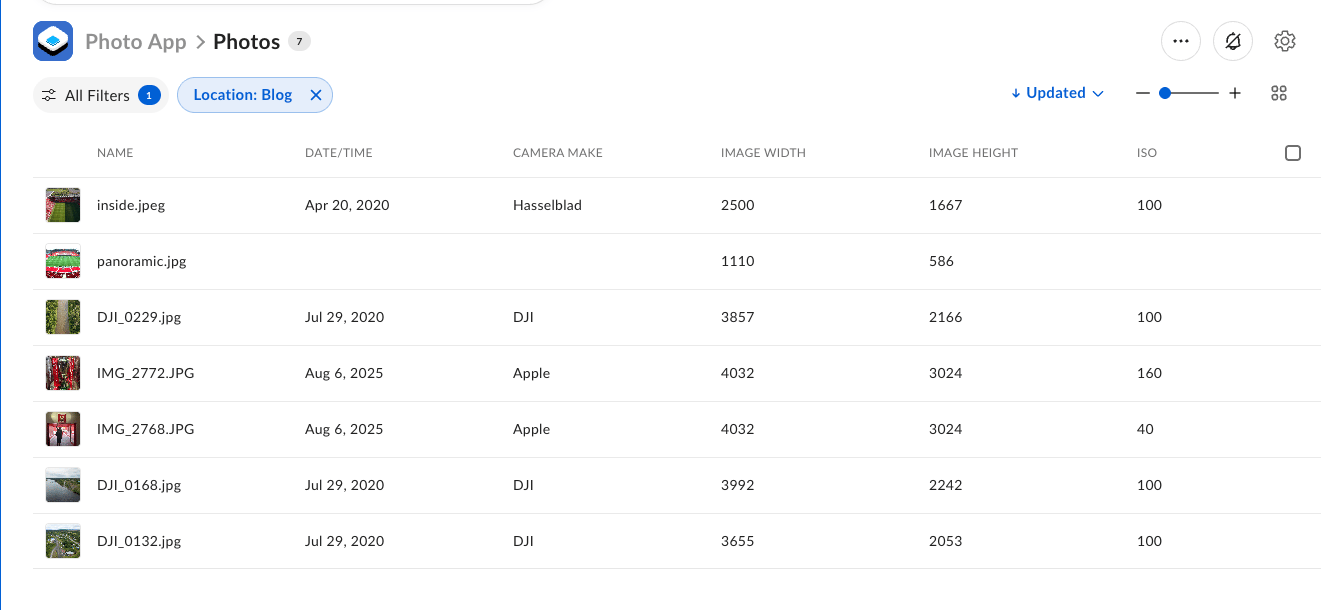
Missing fields are OK. Skip them. Once metadata is attached, the extracted fields become searchable, filterable, and visible in the Box web app. You can use metadata queries to filter by camera make or ISO, or build dashboards in Box Apps.
Create `process.py`. This lists image files in `BOX_FOLDER_ID`, fetches `embedded_metadata` for each one, and writes the mapped fields.
```python theme={null}
# process.py
import os
from dotenv import load_dotenv
from box_client import get_box_client
from metadata import apply_embedded_metadata_to_template
from representations import fetch_representation
load_dotenv()
IMAGE_EXTENSIONS = {".jpg", ".jpeg", ".png", ".tiff", ".tif", ".heic", ".gif", ".webp"}
def process_folder_images(client, folder_id: str, template_key: str) -> None:
marker = None
total = 0
processed = 0
while True:
items = client.folders.get_folder_items(
folder_id,
fields=["id", "name", "type"],
limit=100,
marker=marker,
usemarker=True,
)
for item in items.entries:
if item.type != "file":
continue
ext = "." + item.name.rsplit(".", 1)[-1].lower() if "." in item.name else ""
if ext not in IMAGE_EXTENSIONS:
continue
total += 1
print(f"\nProcessing [{total}]: {item.name} (id: {item.id})")
meta_bytes = fetch_representation(
client=client,
file_id=item.id,
rep_hint="[embedded_metadata]",
asset_path="",
)
if not meta_bytes:
continue
apply_embedded_metadata_to_template(
client=client,
file_id=item.id,
embedded_metadata_bytes=meta_bytes,
template_key=template_key,
)
processed += 1
next_marker = getattr(items, "next_marker", None)
if not next_marker:
break
marker = next_marker
print(f"\nDone. Processed {processed} of {total} image(s) in folder {folder_id}.")
if __name__ == "__main__":
client = get_box_client()
process_folder_images(
client,
os.getenv("BOX_FOLDER_ID"),
os.getenv("BOX_METADATA_TEMPLATE_KEY"),
)
```
At this point, your project directory should contain the following files:
```text theme={null}
extract-exif-metadata/
├── .env
├── .venv/
├── box_client.py
├── metadata.py
├── process.py
└── representations.py
```
When you finish scaffolding, continue to [Run and verify](#run-and-verify).
## Run and verify
Run the script against the folder you created in [Before you start](#before-you-start).
1. Make sure you are in the `extract-exif-metadata` directory, then start the script:
```bash theme={null}
cd ~/extract-exif-metadata
source .venv/bin/activate
python3 process.py
```
2. Check the terminal output. You should see each file processed, the extracted field count, and a confirmation that metadata was created or updated:
```text theme={null}
Processing [1]: DJI_0168.jpg (id: 123456789)
state: success | url_template: https://dl.boxcloud.com/api/2.0/internal_files/...
Extracted 2 of 8 fields:
imageWidth: 1128 (int)
imageHeight: 1200 (int)
Metadata created: imageMetadata on file 123456789
```
3. Open a file in Box and select the **Metadata** tab to verify the values were written correctly.
## Filter in a Box Apps dashboard
Add a Box Apps dashboard that uses the template. You can then see and filter images on the technical metadata you wrote.
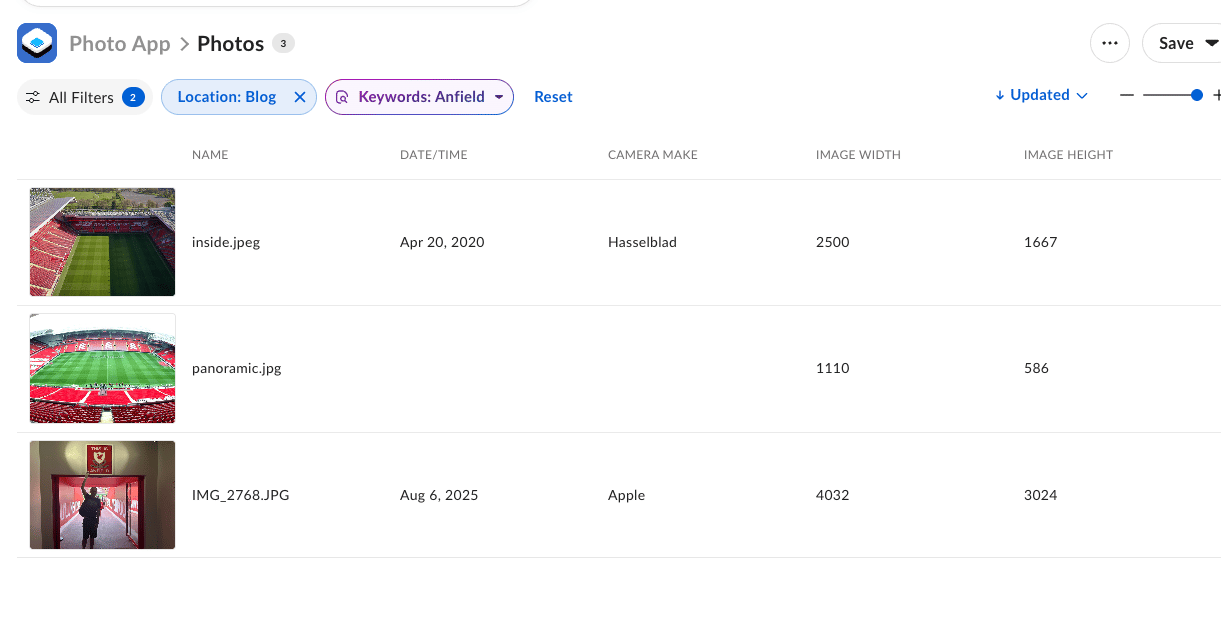
You can also generate a summary of image content (objects, locations, people, text, and so on) and store it on the same template so search covers both technical fields and visual content. See Extract metadata from a file. A search like this works across images:
You can also embed the same metadata in a custom page with the Box UI Element Content Explorer.
## Troubleshooting
Your Python virtual environment is not activated. Run `source .venv/bin/activate` from the project directory before running any `python3` commands. Each new terminal tab needs its own activation.
Check your `.env` file:
* Verify `BOX_CLIENT_ID` and `BOX_CLIENT_SECRET` match the values in **Developer Console** > **Configuration**.
* Confirm `BOX_ENTERPRISE_ID` is your enterprise ID (found in **Admin Console** > **Account & Billing**, or **Developer Console** > icon in the top-right > **Copy Enterprise ID**).
* Ensure your app is authorized in the Developer Console.
* Make sure the app type is Client Credentials Grant.
The service account does not have access to the file or folder. Invite the service account email (found in **Developer Console** > **General Settings**) as a collaborator with the **Editor** role on the folder containing your image files.
`embedded_metadata` is generated on demand. Wait a few seconds and re-run the script. Confirm the file type is one Box can preview.
Not every file includes every EXIF, XMP, or ICC field. That is expected. Check the downloaded JSON for the categories that file actually contains, then adjust `EMBEDDED_METADATA_FIELD_MAP` if you need different paths.
The file already has an instance of the template, so creating one fails. This is common when you retest a file that a previous run already processed.
Add the 409 fallback shown in [Build by hand](#build-by-hand) under **4. Write metadata back to the file** so the script updates the existing instance instead of creating a second one.
The template, photos folder, and enterprise ID come from [Before you start](#before-you-start). An agent cannot create them. Re-paste the prompt with the prerequisites block intact so the agent reads `BOX_METADATA_TEMPLATE_KEY`, `BOX_FOLDER_ID`, and `BOX_ENTERPRISE_ID` from the environment, or follow [Build by hand](#build-by-hand).
## Next steps
Run extraction from a webhook so files are tagged as they arrive, instead of on demand.
Embed a filterable metadata dashboard in your own app.
 For a detailed walkthrough, see [Customizing Metadata Templates](https://docs.box.com/en/box-admin-tools/managing-content/metadata/customizing-metadata-templates).
 You can also generate a summary of image content (objects, locations, people, text, and so on) and store it on the same template so search covers both technical fields and visual content. See Extract metadata from a file. A search like this works across images:
 You can also embed the same metadata in a custom page with the Box UI Element Content Explorer.
## Troubleshooting
You can also embed the same metadata in a custom page with the Box UI Element Content Explorer.
## Troubleshooting