

Before you start
To create a widget, you need to:- Set an embeddable element, such as a folder, file, hub, note, or app for sharing.
- Have at least Viewer permissions.
Using web app
To fetch the Box Embed widget code from the Box web app, perform the following steps.Files and folders
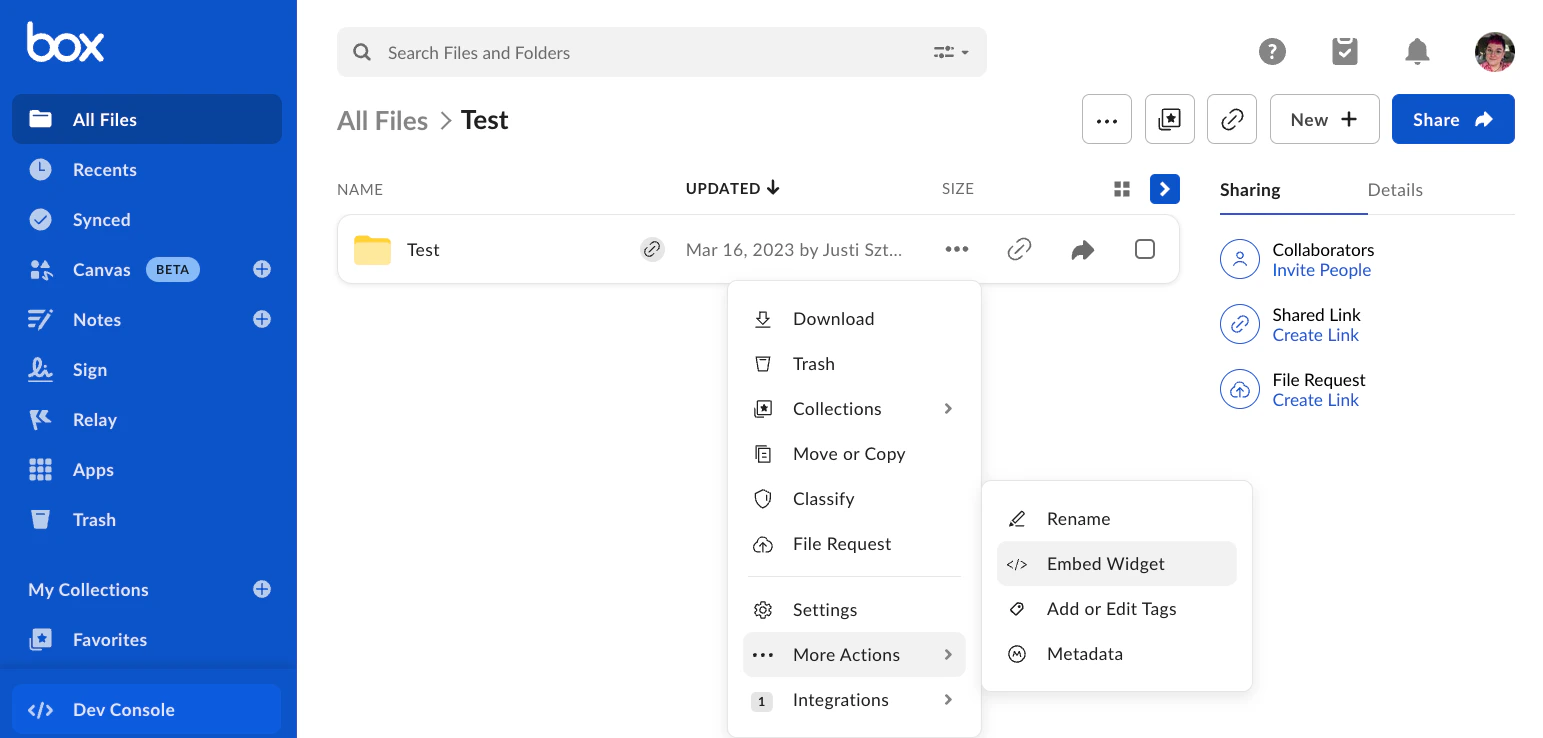
- Navigate to the chosen file or folder.
- Click on the ellipsis next to the folder.
- Go to More Actions > Embed Widget.
Hubs
- Navigate to the chosen hub.
- Click on the ellipsis menu in the upper-right corner.
- Click Embed Hub.
You can also embed only the AI chat interface from a hub. Users can ask questions and get AI-powered answers based on the hub’s files, without accessing navigation or file browsing features. For more information, see the section.
Notes
- Navigate to the chosen note.
- Click on the ellipsis menu.
- Click Embed Box Note.
Apps
- Navigate to the chosen app or Box App View.
- Click on the ellipsis menu.
- Click Embed.
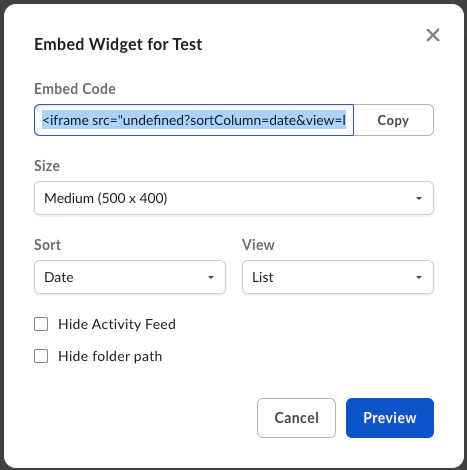
Programmatically
If you want to customize Box Embed even further, you can do it programmatically. The format for an embed snippet is as follows:Browser permissions
Theallow attribute enables clipboard operations and local network access for Google Chrome 142 and above and Microsoft Edge 143 and above. While designed for these browser versions, this attribute can be safely included for all browsers. Other browsers will ignore it.
Without this attribute, embedded Box content might not work correctly with Box Tools, Device Trust, or the clipboard copy button.
The Embed Widget Link Generation modal automatically includes this parameter in the generated code.
Finding your shared link value
The first step to building an embediframe programmatically is to generate
or find the value for the shared link. One way to find this value is by
using the Box web app.
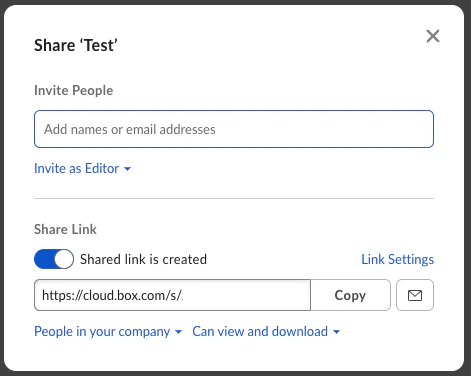
fields=shared_link.
/folder/0 instead of the share link:
<iframe src=“https://app.box.com/embed/folder/0”….></iframe>
Parameters
Next, you will want to choose your view customization options. The following is a list of optional parameters you can configure.When you use
uxLite with Box Notes, navigation controls are not displayed, regardless of the hideNavigationControls setting.Full screen capabilities
To enable full screen capabilities for the Box Embed snippet, include one or more of the following parameters if you want the object to be viewable in full screen within an<iframe>:
allowfullscreenwebkitallowfullscreenmozallowfullscreenoallowfullscreenmsallowfullscreen
Box Hubs AI Chat embedding
In addition to embedding the complete Box Hub experience, you can embed only the AI-powered chat interface. This mode provides a focused chatbot experience powered by the files within a specific hub, without navigation or content browsing options.Prerequisites
To access a hub embedded in AI Chat mode:- The enterprise that owns the hub must have Box AI for Hubs enabled.
- The user must be authenticated and have Box AI for Hubs enabled at their enterprise.
- The user needs at least Viewer permissions on the hub.
Creating an AI Chat embed
- Navigate to the hub that will serve as the knowledge source for the AI Chat.
- Click the ellipsis menu in the upper-right corner.
- Click Embed Hub.
- Select the Hub AI Chat tab.
-
Select chat mode:
- Copy the embed code.
If you experience issues with the Box Hubs AI Chat embedding, regenerate the embed code to get the latest version of the script by repeating steps 1-6 above.
Chat button
In Chat button mode, the AI chat widget opens after the user clicks the button. It is generated as a Box-hostedscript and displays a floating chat button on your page.
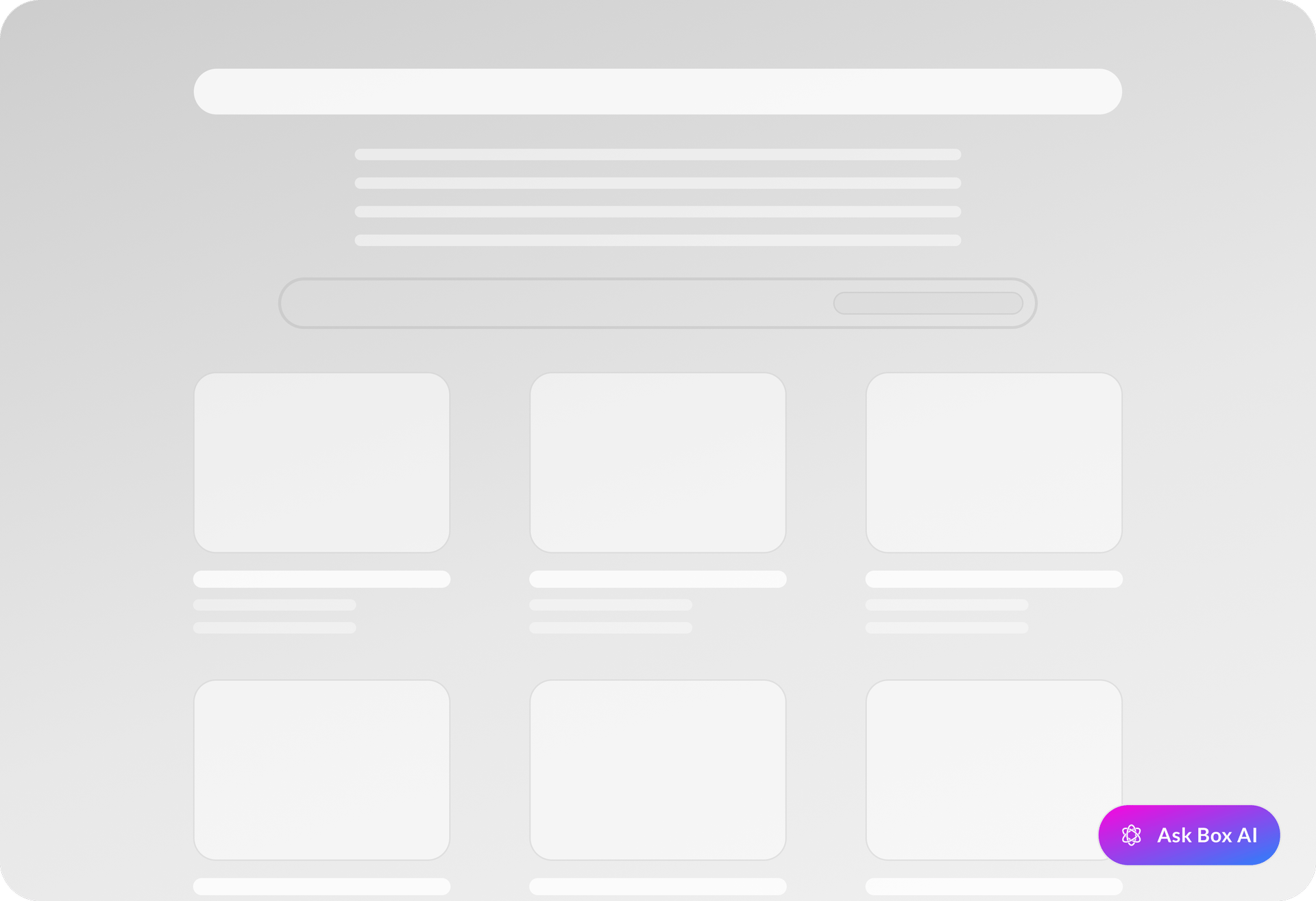
Chat button parameters
The Chat button mode supports the following parameters:
The following example shows a fully configured chat button with all available parameters:
Chat widget
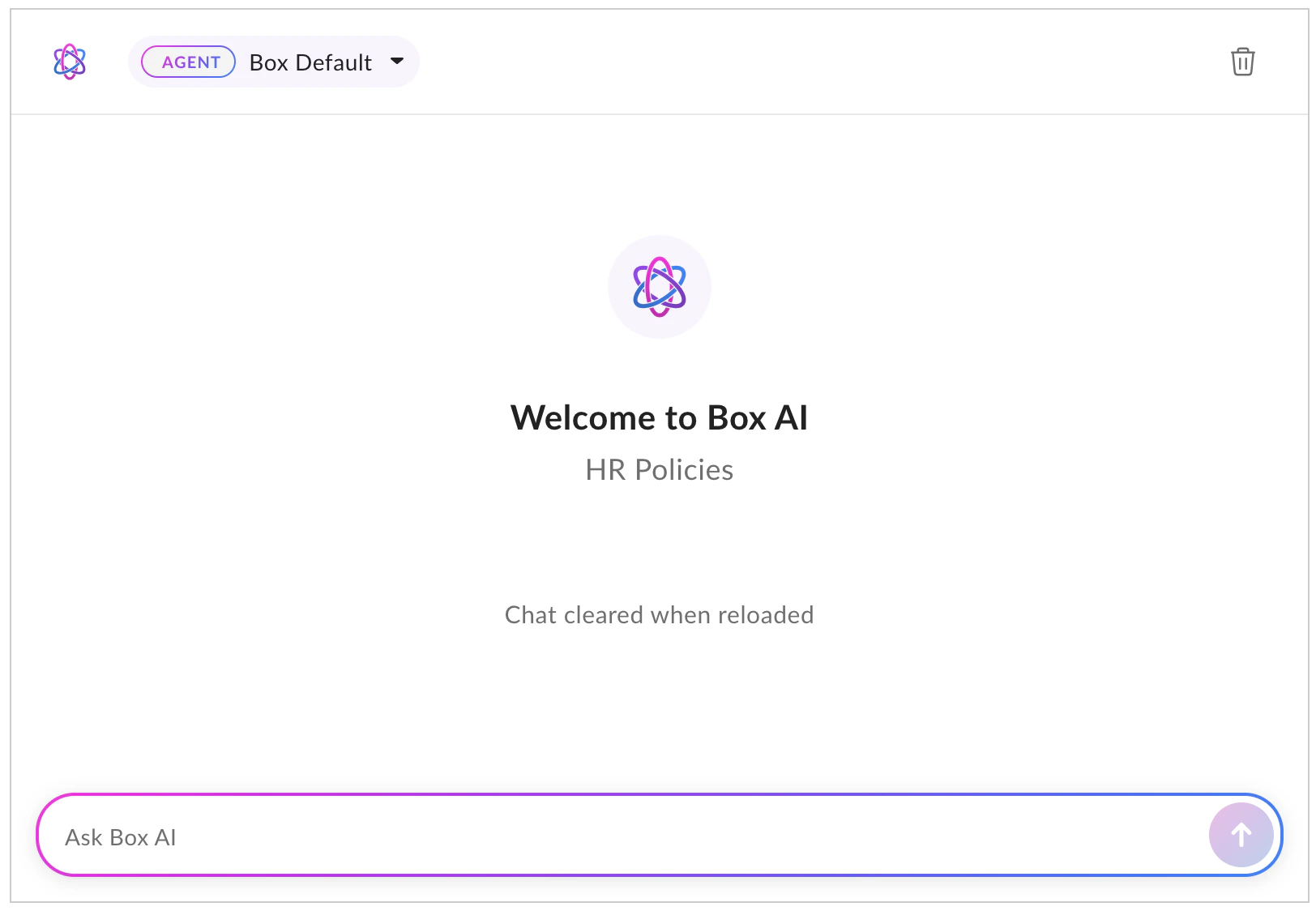
In Chat widget mode, the AI chat widget is embedded directly on page load. It is generated as aniframe and displays the full chat interface immediately.
Currently, only legacy agents are available from the agent selector dropdown.
Chat widget parameters
In Chat widget mode, the AI chat widget is embedded directly on the page using aniframe. You can customize the behavior by adding URL parameters to the iframe’s src attribute:
The following example shows a fully configured chat widget with all available parameters:
Using the close button
When embedding the Box AI chat directly withiframe (without using the provided script), you can enable a close button within the chat interface that communicates with your parent application through postMessage.
Enabling the close button
To display a close button (✕) in the corner of the iframe, add theshowCloseButton=true query parameter to your iframe URL as follows:
https://app.box.com/ai-chat?hubId=YOUR_HUB_ID&showCloseButton=true
How it works
- When
showCloseButton=trueis set, an X button appears in the corner of the chat iframe. - When a user clicks this button, the iframe sends a
postMessageevent to the parent window. - The event contains
event.data.typeset to"BOX_AI_CHAT_CLOSE". - Your hosting application listens for this event and handles the closing logic.
Implementation example
Event reference
Expiring embed links
For files, another option is to call the and request anexpiring_embed_link using the fields query parameter.
url attribute can be used in an <iframe> to embed an auto expiring Box
Embed interface.
Parameters
Extra parameters can be added to this URL as well to customize the UI. To do so, add the following parameters to theurl as query parameters. The eventual URL
would look something like this.