

Use case
To automatically create users and folder structure, the script performs the following steps:- Uses a
.csvfile to load employee data in bulk. - Defines folder structure using a JSON file or uploads the structure from the user’s local directory.
- Creates a predetermined personal folder structure for each new managed user.
Prerequisites
Windows
Install the latest version of .NET core.macOS & Linux
Install PowerShell.Box CLI
To use the script, you need the Box CLI installed and configured. If you haven’t done so yet, see our .Create a personal folder parent folder
This script works by creating a folder structure for each user that is created. To do this, create a parent folder for all of the personal folders to live in. By default all folders are created in the root folder of the account used by the CLI. You can name and place the folder wherever you wish, but the user you set up the CLI with must have access to the folder. Here is an example of what the structure looks like after running the script.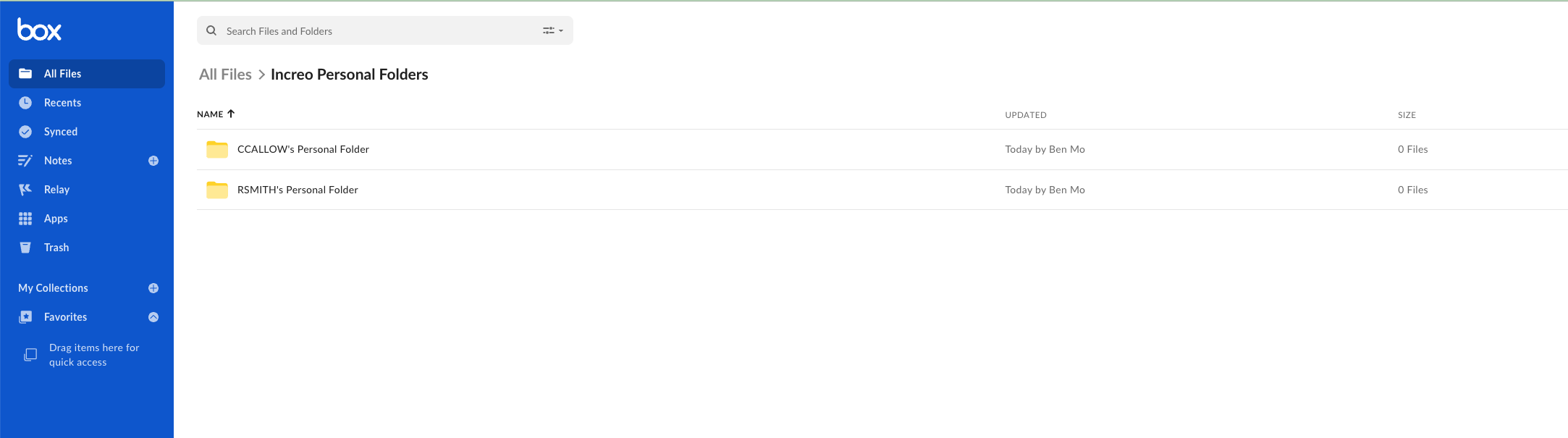
Download the script
Clone the script to a directory of your choice and navigate to that directory.Configure the script settings
Adapt the script to run in your own environment. In this example, we use the sample data provided with the script.Provide the parameters
There are a few parameters you need to supply before running the script:EmployeeList: Path toEmployee ListCSV.PersonalFolderParentID: Destination folder ID for all personal folders to be created in, either when using JSON file as input to create folder structure, or uploading local structure. This folder should be made prior to running the script the first time. It is not advised to make this value0, as this creates individual personal folders in the root of the account you set up the CLI with.FolderStructureJSONPath: Your own folder structure JSON path.PersonalFolderSlug: Ending name of the folder created as a parent for personal folders. It’s set toPersonal Folderby default, but you can set it to your needs. The username is linked with this value to create each user’s personal folder name. For example -rsmith2's Personal Folder.LocalUploadPath: Local directory to upload folder structure directly.
Specify either a local upload path or a JSON file with the folder
structure, but not both.
Update the user list
You can use the following sample files to load users:Employees_1.csv, Employees_5.csv, and Employees_10.csv.
Each file creates 1, 5, or 10 new users.
Customize these files for a test run. For example, update the
Employees_1.csv with the following data:
EmployeeList parameter, specify which .csv file you would like
to load data from.
Create folder structure
You can either create a folder structure from a JSON file or upload it from your local drive.Use a JSON file
TheFolder_Structure.json file contains the folder structure you want to create.
As an example, you will create a Market Research and a Sales Plays
folder, each with a subfolder Statistics and Big Pharma respectively.
The script will place this folder structure
under the Personal Folder folder for that user inside the parent folder
you designate.
With the FolderStructureJSONPath parameter, provide the location of the
Folder_Structure.json file.
Upload file from local drive
You can also upload a folder structure directly from the local file system. With theLocalUploadPath parameter, provide the
path to your local folder you want to upload. The uploaded folder structure is created in Box using the same naming structure as the JSON method.
Update the parameters
You can provide parameters in three ways:-
Use static values in the script
Remember to update all required parameters in the script before running.
-
Run the script with parameters
You can specify parameters while running the script, for example:
-
Provide the parameters when prompted
If some parameters are still missing at runtime, the script will prompt you to provide them:
Run the script
-
Change the directory to the folder containing the script. In this example, it is the
User Creation & Provisioningfolder. -
Run the script:
The response will be similar to the following:
Running the script again for new users
It is common to run this script regularly as your company hires new employees. You can simply edit the.csv file, removing the previous rows of users and
adding the information for the new users. Then run the script again.