メインコンテンツへスキップ

Documentation Index

Fetch the complete documentation index at: https://developer.box.com/llms.txt

Use this file to discover all available pages before exploring further.

Use these steps to enable Box’s hosted MCP endpoint (https://mcp.box.com) and connect your client or agent platform.

Access and manage predefined Box MCP servers

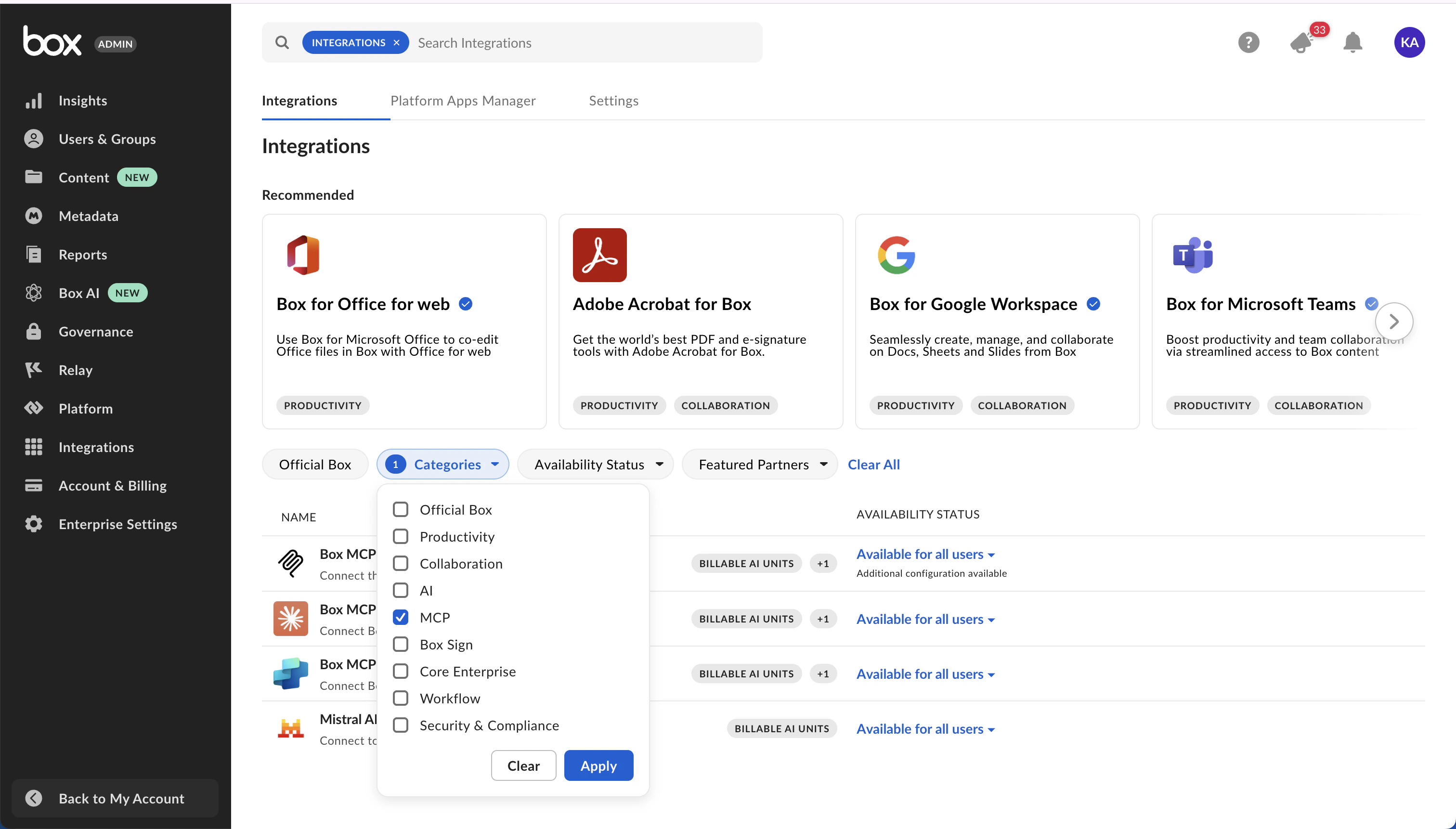
  1. Click Integrations in the sidebar of Box Admin Console.
  2. Use Categories filter and choose MCP or search for a predefined Box MCP server in the search field search at the top of the window.
  3. Beside the selected MCP server, click the state, then select the state you want to enable.
MCP

Create an unlisted Box MCP server

  1. Click Integrations in the sidebar of Box Admin Console.
  2. Search for Box MCP server in the search field search at the top of the window.
  3. Hover on the Box MCP server application, then click Configure.
  4. In the Additional Configuration section, click on + Add Integration Credentials.
  5. Enter integration name and click Save.
  6. Expand details of the newly created entry.
  7. Copy the generated Client ID and Client Secret.
  8. Enter the Redirect URI provided by the external MCP client.
  9. Under Access Scopes, enable Content Actions.

Add Box MCP server on the client side

Exact steps for adding Box MCP server may vary depending on the AI platform. Refer to your platform’s documentation for client-side setup instructions. Check this sample code for reference: To connect to Box from the AI Agent platform, you need to:
  • Add endpoint URL: https://mcp.box.com
  • Pass client ID and client secret. Box generates these in the Integration Credentials section of your Admin Console when configuring the Box MCP server, above.
  • Pass an MCP name: box-remote-mcp
  • Provide an authorization_token
  response = await client.beta.messages.create(
      model="claude-3-opus-20240229",  # Or your preferred model
      max_tokens=4096,
      messages=conversation_history,
      mcp_servers=[
          {
              "type": "url",
              "url": "https://mcp.box.com",
              "name": "box-remote-mcp",
              "authorization_token": BEARER_TOKEN,
          }
      ],
      betas=["mcp-client-2025-04-04"]
  )

Using Box AI features with the MCP server

When you use Box AI in third-party applications, you can achieve the best experience and highest quality results by accessing the applications through the Box MCP server. This ensures full functionality, improved performance, and a seamless user experience. For the tools agents can call after setup, see Available tools.