

RAG concept overview
What is a vector database?
Pinecone is a managed, cloud-native vector database. A vector database stores and retrieves representations of your data, called embeddings, so you can find results that are similar in meaning rather than literally identical. This is the foundation of semantic search.What are embeddings?
Embeddings are a mathematical representation of the meaning of your content. They are generated by taking input data, splitting (or chunking) it, and using an embedding model to produce a sequence of floating-point values — for example,[0.3, 0.4, 0.1, 1.8, 1.1, ...].
You can think of these values as mapping concepts to points in a
high-dimensional space. Similar concepts cluster together: “cat” is close
to “kitten,” while “banana” and “dog” are far apart. Different embedding
models are trained on different data and may be specialized for specific
use cases.
How does RAG work with Box and Pinecone?
In a typical RAG workflow:- Indexing: Content from a Box folder is extracted, chunked, and converted into embeddings using an embedding model. These embeddings are stored in Pinecone along with metadata such as the file name and a reference back to the source file in Box.
- Retrieval: When a user asks a question, the question is converted into embeddings using the same model. Pinecone’s query functionality retrieves the content chunks most relevant to the question.
- Generation: The original question and the retrieved content chunks are combined into a prompt and sent to an LLM, which generates an answer grounded in your Box content.
Prerequisites
Before you begin, make sure you have the following:- A Box folder with files you want to query. The folder must be accessible by the user account that creates the Box application. Note the folder ID from the URL bar. You will need it later.
- A Pinecone account. Sign up for a free starter plan and generate an API key.
- For the purpose of this tutorial, an OpenAI account. This can be substituted for any other LLM. Sign up for OpenAI and generate an API key. You may need to attach billing information.
- Python installed on your machine.
Create a Box custom application
Create an OAuth application in the Box Developer Console:- Click New App in the top right corner.
- Enter an app name and select OAuth 2.0 as the authentication method.
- Click Create App.
- Scroll down to Redirect URIs and add:
http://127.0.0.1:5000/callback - Check all boxes under Application Scopes.
- Click Save Changes.
Create a Pinecone index
- Log in to the Pinecone Console.
- Click Create Index.
- Give the index a name (for example,
pinecone-demo). - Set the Dimensions field to
1024. - Leave all other settings at their defaults and click Create Index.
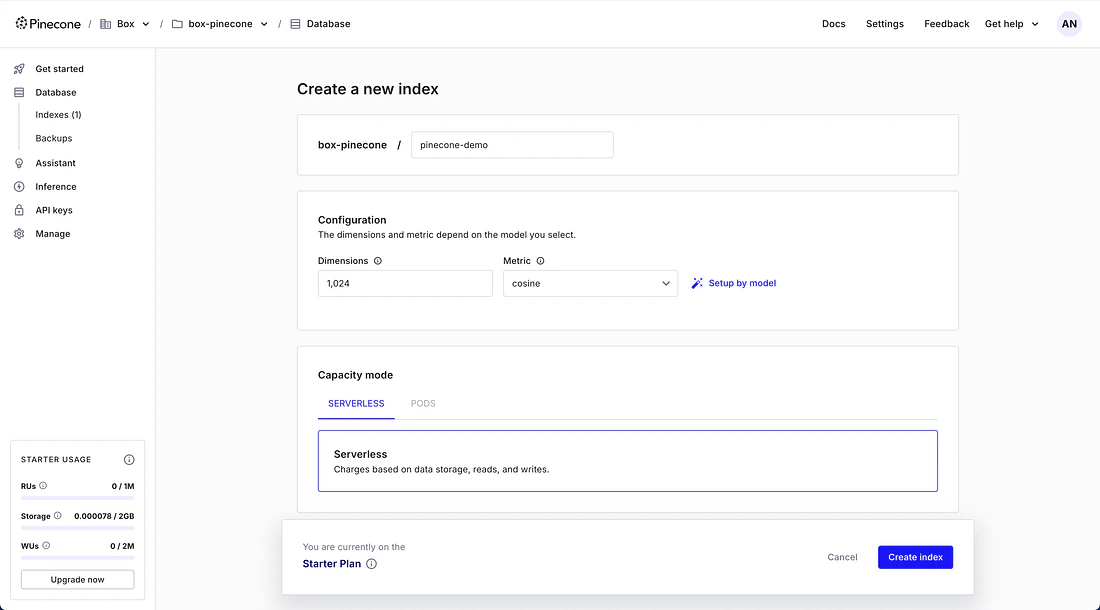
Create a Pinecone index with 1024 dimensions
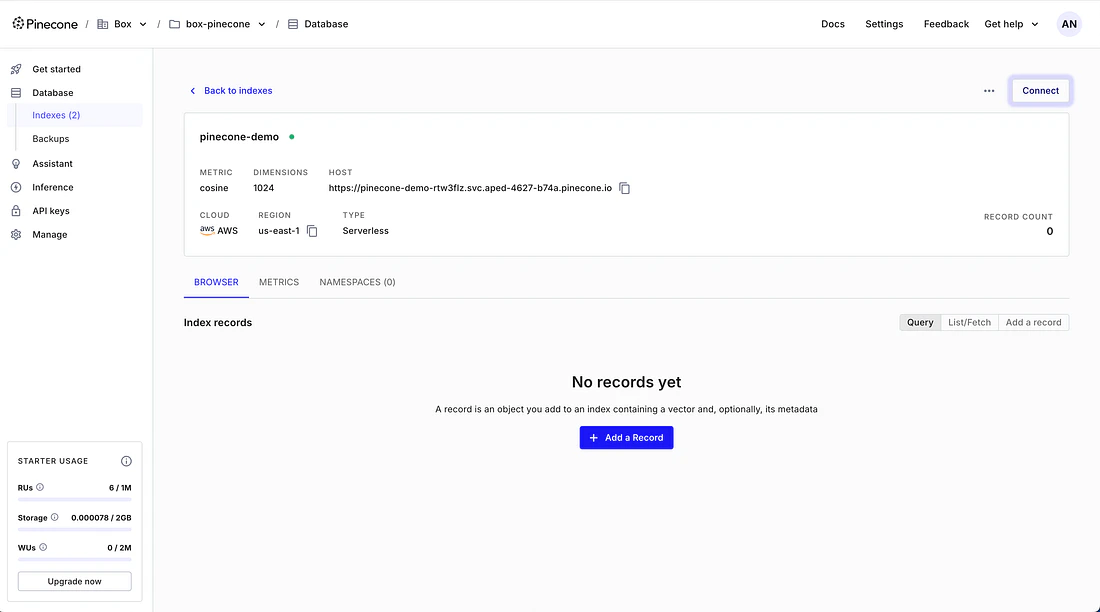
The Pinecone index overview after creation
Initialize the code repository
Clone the sample code to your local machine:config.py in your editor and fill in:
- Your Box Client ID and Client Secret
- Your Box folder ID
- Your Pinecone API key and index name
- Your OpenAI API key
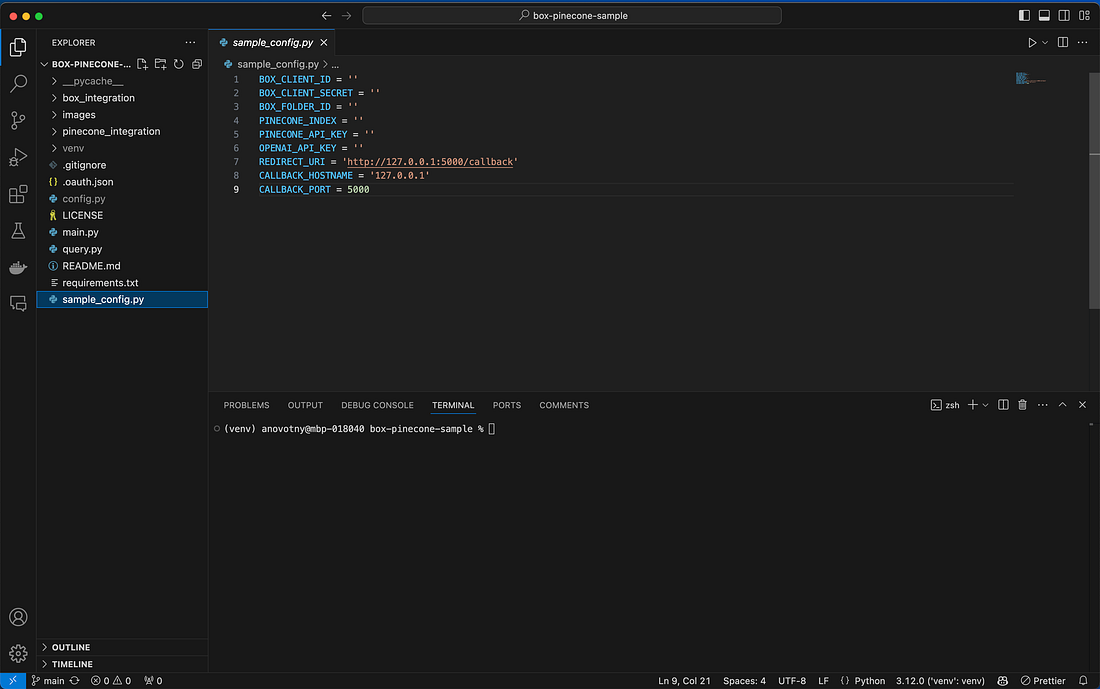
Fill in your credentials and folder ID in config.py
Create and store embeddings
With the configuration complete, run the main script to create embeddings from your Box content:The OAuth tokens are stored in a
.oauth.json file in the project
directory. The refresh token remains valid for 60 days of inactivity.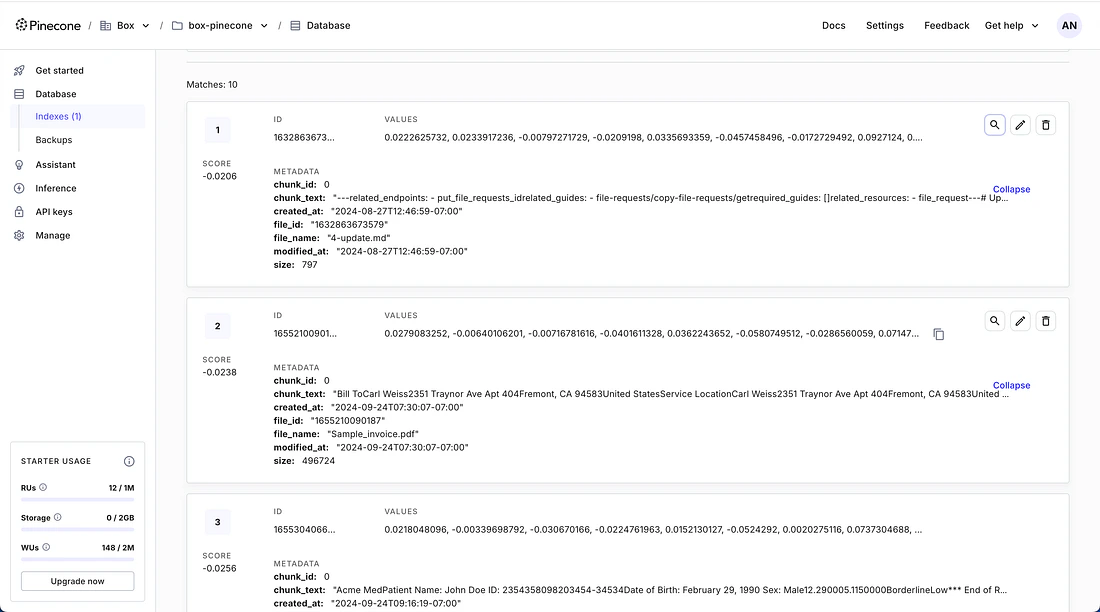
Embeddings with metadata in the Pinecone Console
Query the LLM
With the embeddings stored, you can ask questions about your Box content. This part of the project uses OpenAI as the LLM provider. Run the query script:
The query service returns an answer based on your Box content
Enhancement ideas
Keep the index permission-aware
Keep the index permission-aware
Store the Box file ID on every vector. At query time, drop chunks from
files the current user cannot open in Box. Subscribe to
or
so you re-embed on upload,
version change, move, delete, and collaboration updates. Cached
permission metadata goes stale; re-check access when you retrieve.
Automate indexing with events
Automate indexing with events
The sample runs indexing on demand. You could create a scheduled task or
an event-driven service using
that triggers when files
in the Box folder change. The script uses upserts, so re-running it
updates existing records.
Add a user interface
Add a user interface
The query script runs via the command line. You could build a web UI for
a more user-friendly question-and-answer experience.
Use different authentication methods
Use different authentication methods
The demo uses OAuth 2.0. You could integrate
or
authentication for server-to-server use cases.
Swap models or configuration
Swap models or configuration
The embeddings use the Pinecone Inference API, and the query script
uses OpenAI. You can substitute different embedding models, LLM
providers, vector dimensions, distance metrics, and chunk sizes to fit
your use case.
Expand file type support
Expand file type support
The script processes files that have a
in Box (automatically created for supported file types under 500 MB).
You could add third-party libraries to handle additional content types
or larger files.
Resources
Sample code
Clone the Box + Pinecone sample repository on GitHub.
Pinecone documentation
Learn more about vector databases and how Pinecone works.