

Overview
What is Weaviate?
Weaviate is an open-source vector database built for speed, scale, and AI-driven search. It stores data as objects and vectors, letting you combine semantic search via embeddings with structured filtering. Weaviate is cloud native, fault tolerant, and integrates directly with large language models (LLMs).How Box and Weaviate create an end-to-end RAG solution
RAG is a technique that pairs vector search (retrieval) with a language model (generation) to answer questions using your own data. The flow works as follows:- Content storage: Box holds your files (PDFs, docs, text reports, and other supported formats).
- Embedding creation: Text is extracted from your Box files, chunked, and converted into vector embeddings using Weaviate Embeddings.
- Querying: Weaviate’s Query Agent takes a natural language question, generates the necessary search and aggregation queries, and returns a single answer — all using agentic RAG.
Prerequisites
Before you begin, make sure you have the following:- A Box developer account. If you don’t already have one, sign up for a free developer account.
- A Jupyter Notebook environment such as Visual Studio Code with the Jupyter extension, or a local Jupyter installation.
- A Weaviate Cloud account. Sign up for a free sandbox tier.
Get a Box developer token
- Click New App in the top right corner.
- Enter an app name and select OAuth 2.0 as the authentication method.
- Click Create App.
- Under Application Scopes, add read/write scopes for files if not already enabled, then click Save Changes.
- From the Configuration tab, copy and save the developer token. You will need it for the notebook.
Developer tokens are valid for 60 minutes. If your session takes longer,
you will need to generate a new token.
Create a Weaviate cluster
- Log in to Weaviate Cloud.
- Create a new cluster from the dashboard. You can name it whatever you like.
- Once the cluster is ready, go to the Details tab and note the cluster URL and API key.
Run the recipe
Clone the repository
Clone or download the Weaviate recipes repository:weaviate_box.ipynb) in your development
environment.
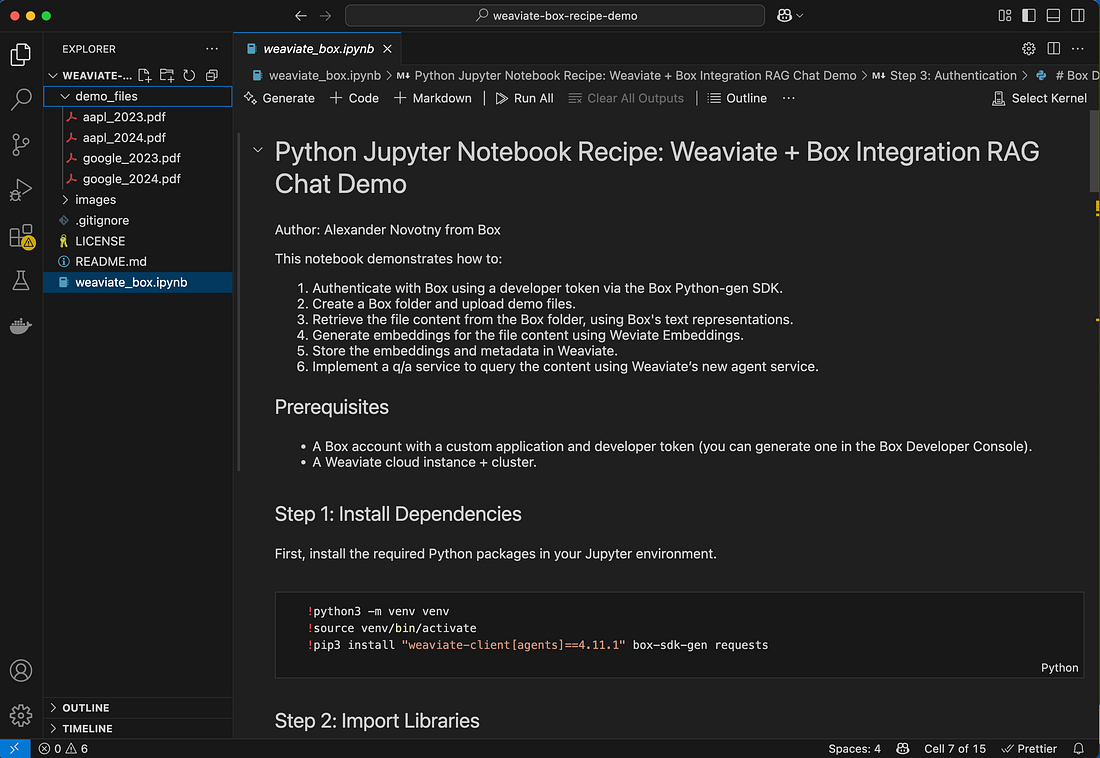
The Box integration folder in the Weaviate recipes repository
Configure authentication
The notebook includes a step to set authentication variables. Update the code block in step 3 with:- Your Box developer token
- Your Weaviate cluster URL and API key
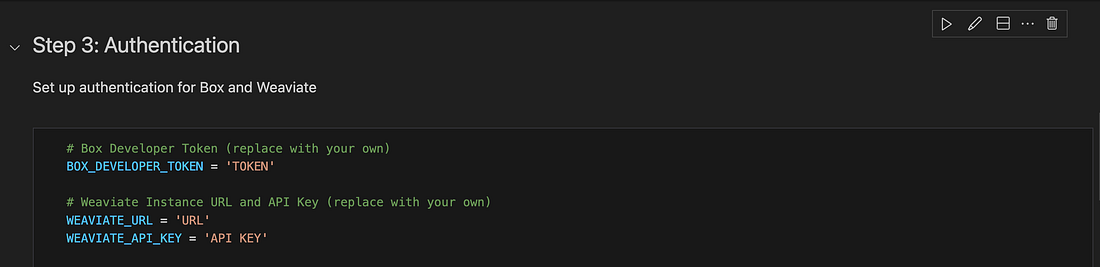
Update the authentication variables in step 3 of the notebook
Run the notebook
Execute each cell in the notebook sequentially. The notebook:- Uploads demo files to Box (or uses files you provide).
- Extracts text content from the Box files.
- Chunks the text and creates vector embeddings in Weaviate.
- Uses the Weaviate Query Agent to answer questions about the content.
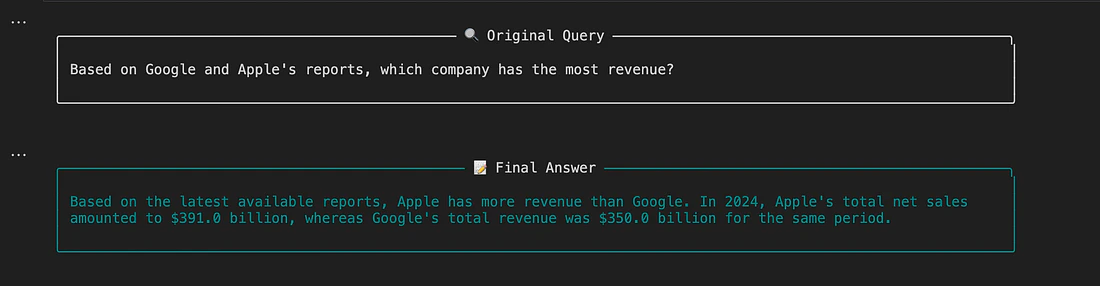
The Query Agent returns an answer based on your Box content
Next steps
Keep the index permission-aware
Keep the index permission-aware
Expand your data
Expand your data
Upload additional files to Box such as annual reports, articles, or any
documents you want to search, and rerun the notebook to embed them in
Weaviate.
Customize the Query Agent
Customize the Query Agent
Adjust the
system_prompt parameter to change the agent’s behavior.
For example, you can request more detailed analysis or a specific
response format.Explore other Weaviate agents
Explore other Weaviate agents
Weaviate offers additional agent types. The
Transformation Agent can
preprocess your data, and the
Personalization Agent can
tailor responses to individual users.
Resources
Weaviate recipe
The complete Jupyter Notebook in the Weaviate recipes repository.
Weaviate Query Agent
Learn about Weaviate’s agentic RAG capabilities.
Weaviate Embeddings
Documentation for Weaviate’s embedding service.
Box Developer Community
Share feedback and get support from other Box developers.