

fields parameter, or use an existing metadata template.
To learn more about creating templates, see customizing metadata templates in the Admin Console or use the . You can also autofill metadata in templates with the Standard Extraction Agent or the Enhanced Extraction Agent.
Supported file formats
The endpoint supports the following file formats:Documents
Documents
- DOC
- DOCX
- GDOC
- ODT
- Box Note
- TEXT
- RTF
- XDW
- AS
Images
Images
- TIFF
- TIF
- PNG
- JPEG
- JPG
- WEBP
Presentations and spreadsheets
Presentations and spreadsheets
- PPT
- PPTX
- GSLIDE
- GSLIDES
- ODP
- OTP
- XLS
- XLSX
- XLSM
- ODS
- CSV
Code files
Code files
- Languages:
.js,.py,.css,.php,.sql - JSON
- HTML
- XML
- MD
Supported languages
Box AI can extract metadata from documents in the following languages:- English
- Japanese
- Chinese
- Korean
- Cyrillic-based languages (such as Russian, Ukrainian, Bulgarian, and Serbian)
Before you start
Complete the steps in to create a platform app and authenticate.Send a request
To send a request, use thePOST /2.0/ai/extract_structured endpoint.
Parameters
The following parameters apply to this request. Mandatory parameters are in bold. Theitems array must contain exactly one element. For prompt and file limits, see .
struct and table field types
The Box AI extract_structured API supports two complex field types, struct and
table, in addition to the scalar types (string, float, date, enum,
and multiSelect).
The struct and table types enable you to extract grouped and repeating structured
data from documents.
struct field type
Use the struct type to group multiple related sub-fields into a single named JSON object.
This is useful when you want to extract a set of related values that belong together and
receive them as one structured object rather than separate flat fields.
For example, use it for an address or a person’s contact details.
A struct field requires a fields array that defines its sub-fields. Each sub-field is an
object with the following properties:
key: The unique identifier for the sub-field.type: The type of the sub-field. Supported types arestring,text,number,float,boolean,date,enum,multiSelect, andarray[<simple_type>](for example,array[string]). Nestedstructortabletypes are not supported as sub-fields.displayName: The display name of the sub-field.description: A description of the sub-field.prompt: Additional context about the sub-field that can include how to find and format it.
struct field type:
table field type
Use the table type to extract repeating rows of structured data as an array of JSON objects,
where each object represents one row.
This is useful when a document contains multiple instances of the same data structure,
for example, line items in an invoice or entries in a tax table.
A table field requires a fields array that defines the columns (sub-fields) of each row.
The sub-field properties and supported types are identical to those of struct.
The output is an array of JSON objects, where each object represents one extracted row.
Example request for the table field type:
Supported sub-field types
Bothstruct and table fields support the following types.
Tutorial: Turn supplier agreements into structured procurement data
See the
struct and table field types in action. Extract grouped vendor details and a repeating delivery schedule from a supplier agreement, then map the result to a downstream procurement record.include_confidence_score parameter
The include_confidence_score parameter returns confidence scores for each extracted field. These scores show how likely it is that the extracted information is correct. Box provides both a number score and a simple rating (Low, Medium, or High) so you and automated tools can quickly see how reliable the results are.
To calculate confidence, Box generates multiple answers for the same request in slightly different ways (such as changing settings, rephrasing prompts, or rearranging fields) and evaluates the consistency and frequency of the returned values. Box then turns these signals into probabilities that reflect actual accuracy.
- High confidence (0.90 or higher) means the value is very likely correct, and little or no human review is needed.
- Medium confidence (0.70 – 0.89) means the value is likely correct, and a quick check is recommended, depending on your risk tolerance.
- Low confidence (below 0.70) means the value is uncertain, and a human review is strongly recommended.
include_reference parameter
The include_reference parameter returns supporting citations and bounding boxes for extracted values. These help you validate extracted values against the source document.
A reference is a short text excerpt from the source file that supports an extracted value.
A bounding box identifies the region on the page where that supporting text is located.
Box AI calculates bounding boxes from the page-based OCR representation and returns them only for files supported by OCR.
To include references in the response, set include_reference to true.
Response structure
The response includes:answer: The extracted metadata fields.references: Supporting citations for each extracted field.
item_id: The source file ID.page: The zero-indexed page number.bounding_box: The location of the cited text, when available.text: The cited text excerpt.
Response schema example
Bounding box format
A bounding box is an object with four normalized coordinates:left: The normalized x-coordinate of the left edge of the bounding box.top: The normalized y-coordinate of the top edge of the bounding box.right: The normalized x-coordinate of the right edge of the bounding box.bottom: The normalized y-coordinate of the bottom edge of the bounding box.
Every extracted metadata field has an associated list of references.
For multi-value fields, each extracted value has its own list of references, resulting in a nested list structure.
bounding_box is optional and can be null.Use cases
This example shows you how to extract metadata from a sample invoice. Extract the vendor name, invoice number, and a few more details.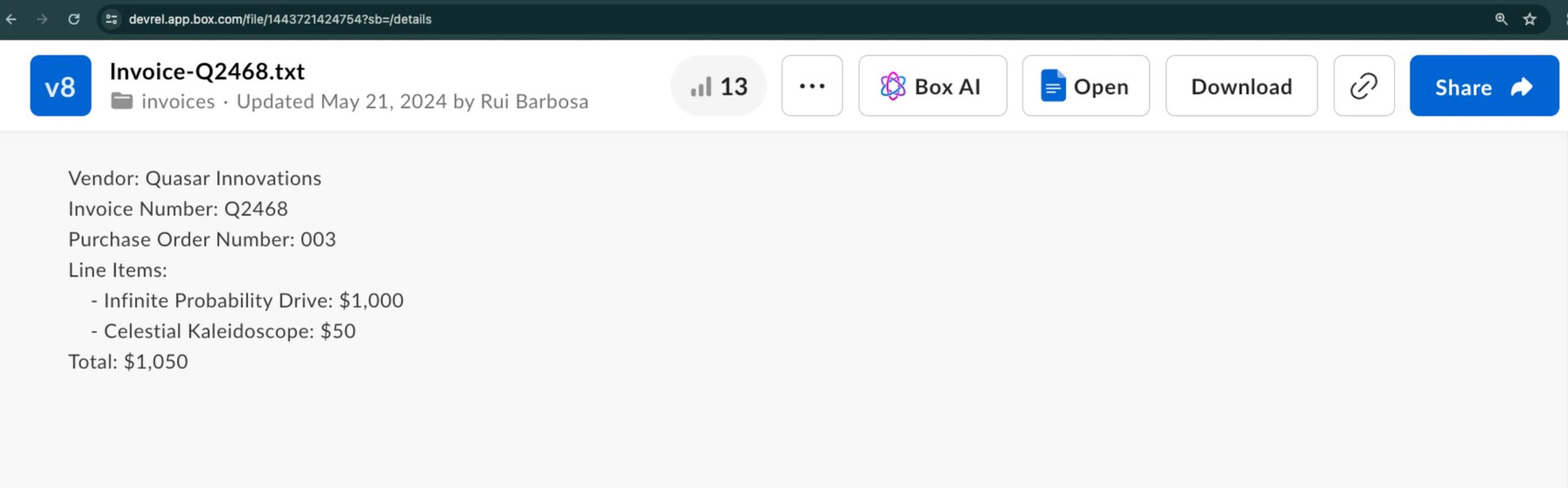
Create the request
To get the response from Box AI, call thePOST /2.0/ai/extract_structured endpoint with the following parameters:
items.typeanditems.idto specify the file to extract data fromfieldsto specify the data to extract from the filemetadata_templateto supply an existing metadata template
You can use either
fields or metadata_template to specify your structure, but not both.Use fields parameter
The fields parameter enables you to specify the data you want to extract. Each fields object includes parameters you can use to describe that data.
For example, you can add the field type, description, or a prompt with additional context.
Use metadata template
If you prefer to use a metadata template, you can provide itstemplate_key, type, and scope.
Enhanced Extract Agent
To use the Enhanced Extract Agent, specify theai_agent object as follows:
- Inline field definitions (best when fields change frequently)
- Metadata template (best when fields stay consistent)
Tutorial: Automate invoice intake with Box AI Extract
See structured extraction in action. Build an end-to-end automation that watches a folder, extracts invoice fields, and writes metadata back to each file.