Prepare an unstructured document in Box Sign before you send it to a signer.
Set is_document_preparation_needed when you
create a sign request.
This page is the unstructured document walkthrough.
Imagine a document management app, where users can upload a document and ask
anyone to sign it. In this case, your app knows what document to sign and
who needs to sign, but it has no idea where to put the signature or its
properties like name, date, initial, and so on.This contrasts with using templates or
structured documents where your
app knows what they are, and where the
signature properties are.In these cases, and because each document can have a different structure, it is
a good idea to always set the is_document_preparation_needed flag to
true, so that the sender has a chance to select and place the signature
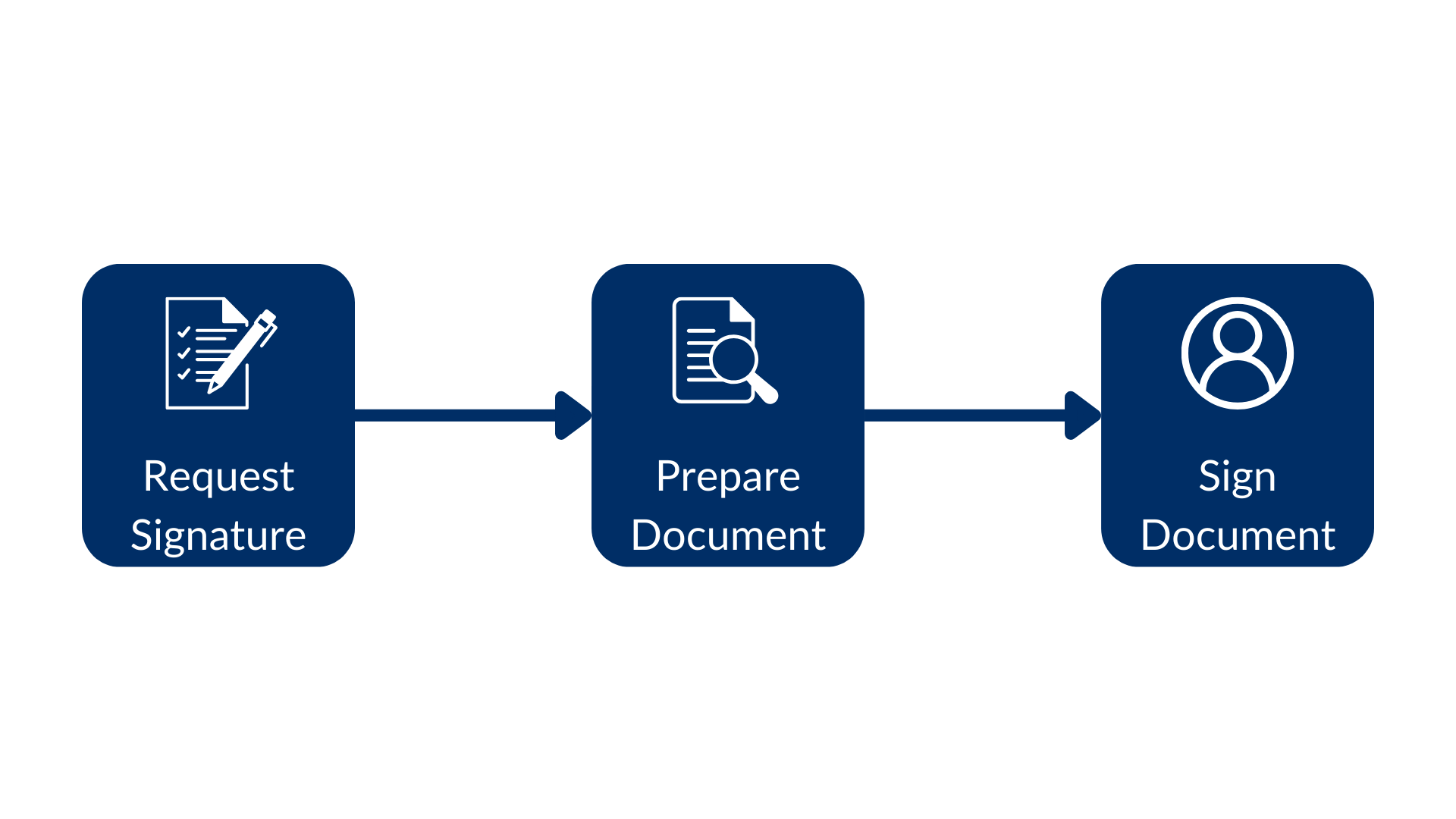
properties in the document before the signer gets the request.There are three steps to this flow: create the signature request, prepare
the document, and sign it.
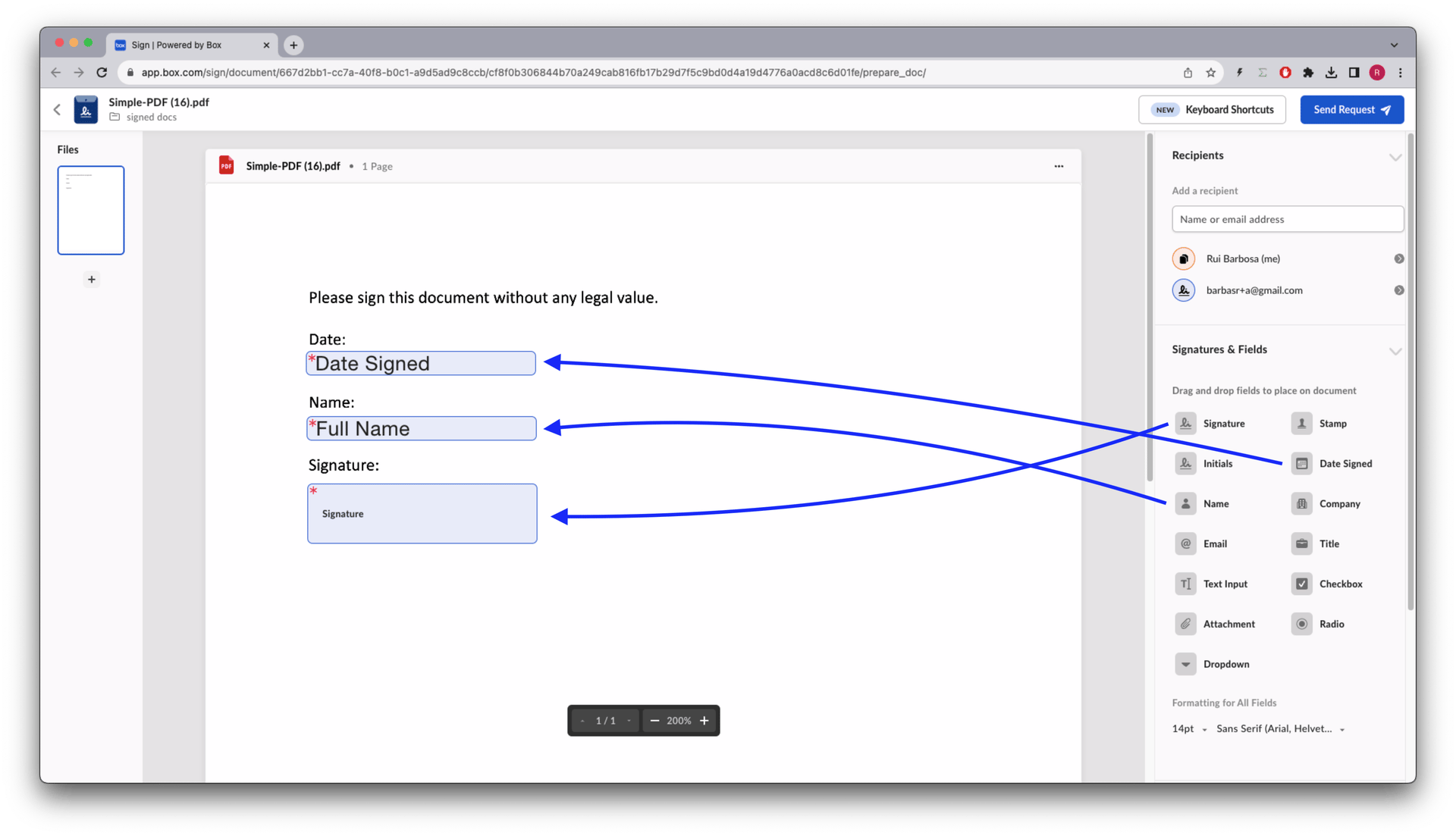
Notice in the above script that, if a prepare document URL was generated by the
signature request, the app opens a browser for it. The requester can
then apply the different signature properties, for example:
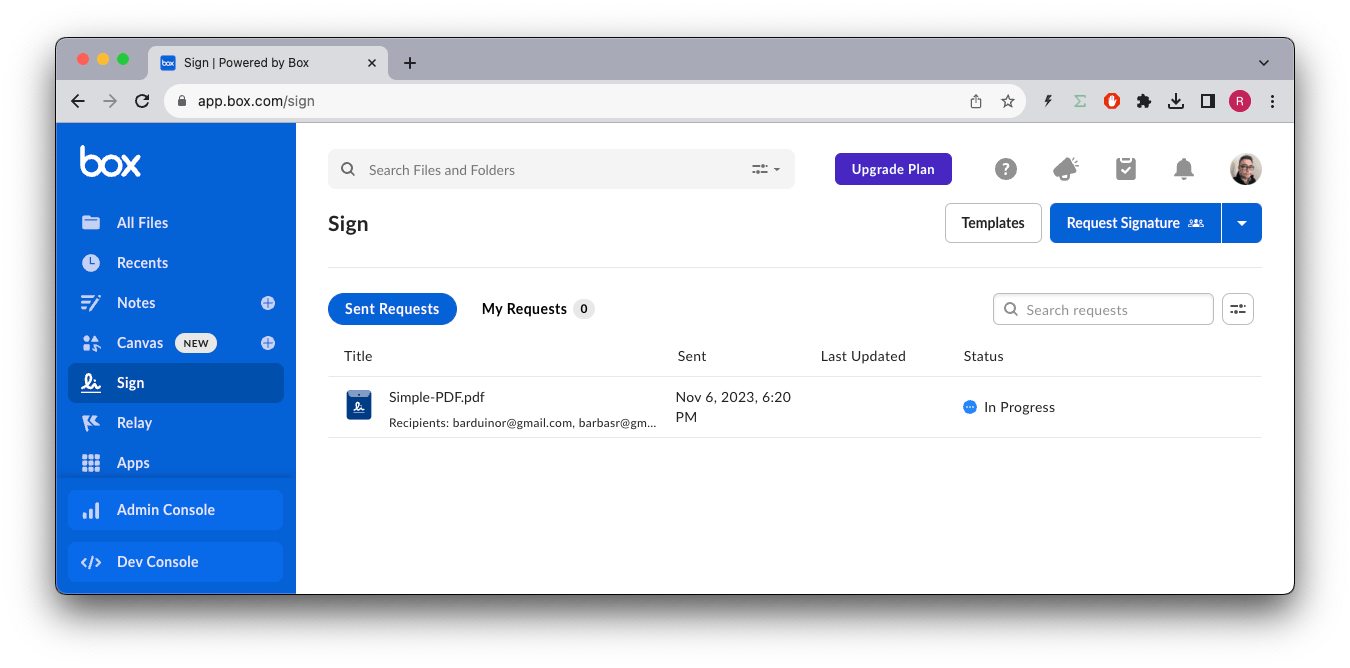
Once the document is prepared, the requester can send the signature request to
the signer.Back in the Box app, you see the status In Progress.
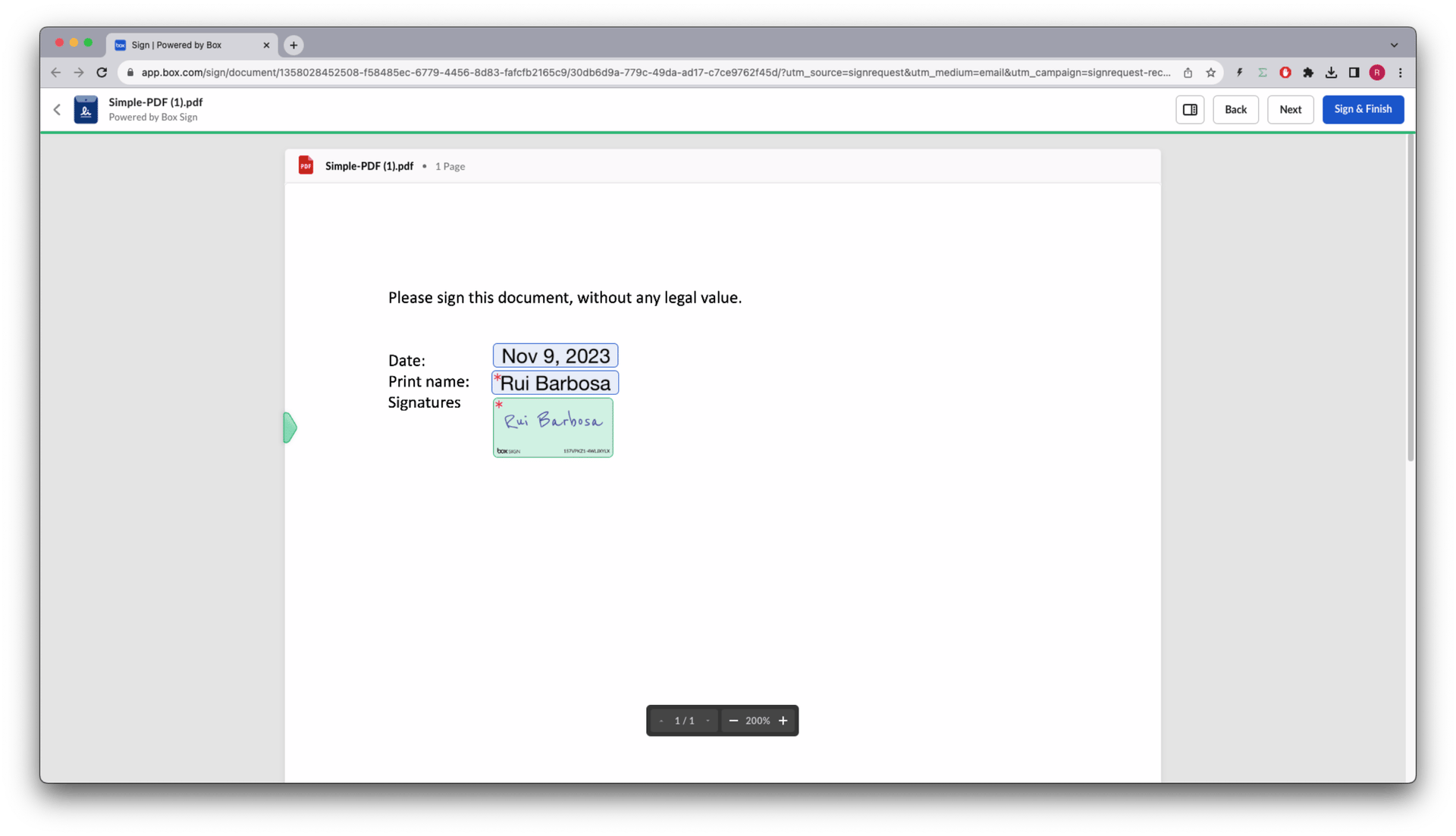
The signer receives an email from Box with a link to the signature
request.
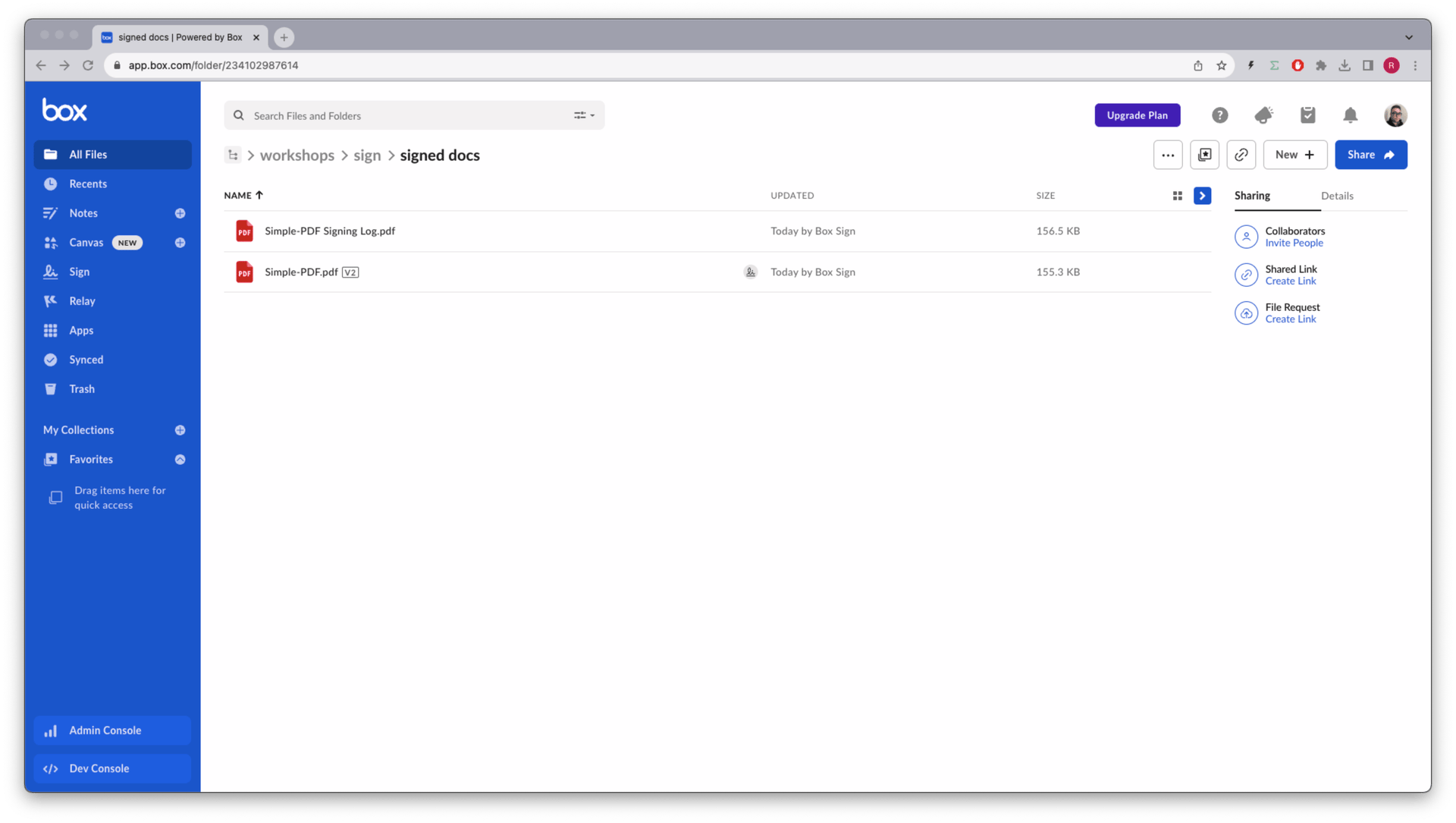
When the process is complete, both a signature log containing metadata and
the signed document are stored in the destination folder.
Last modified on September 18, 2026
Was this page helpful?
{"docsConfig":{"theme":"aspen","$schema":"https://mintlify.com/docs.json","name":"Box Dev Docs","description":"Box for Developers: guides, API reference, SDKs, and tutorials for building content management, Box AI, and enterprise integrations.","colors":{"primary":"#0061d5","light":"#f6fafd","dark":"#002947"},"logo":{"light":"https://mintcdn.com/box/lJLw9z7FWORNWMcq/logo/boxdev-light.png?fit=max\u0026auto=format\u0026n=lJLw9z7FWORNWMcq\u0026q=85\u0026s=a11710b698ff59d24426f9ecec6c7e9c","dark":"https://mintcdn.com/box/siVVIgx7pBuvW4ua/logo/boxdev-dark.svg?fit=max\u0026auto=format\u0026n=siVVIgx7pBuvW4ua\u0026q=85\u0026s=0e34af393abb1b8c024258d684bb7732"},"favicon":"https://mintcdn.com/box/T2hwpVFBJMA4eeDs/favicon.ico?fit=max\u0026auto=format\u0026n=T2hwpVFBJMA4eeDs\u0026q=85\u0026s=2a2efcc60e46eca7ee3ebbe650c47350","api":{"examples":{"languages":["curl","python","node","swift","java",".Net"],"autogenerate":false}},"seo":{"metatags":{"google-site-verification":"fuelbNhVR1kQluNBJjYt4K1Hj5HvJLhLnIq0o9CAY9E"}},"fonts":{"family":"Inter"},"contextual":{"options":[{"title":"Install Box Agent Skills","description":"Add Box plugins to your AI assistants","icon":"sparkles","href":"/ai/agent-skills"},"cursor","vscode","mcp","chatgpt","claude","perplexity","copy","view"],"display":"header"},"metadata":{"timestamp":true},"styling":{"latex":false},"navigation":{"languages":[{"language":"en","banner":{"content":"Join BoxWorks Dev Summit on Nov 5-6, San Francisco and dive into AI agents and unstructured content. [See agenda](https://boxworks.box.com/series/boxworks-2026-dev-summit/landing_page).","dismissible":true},"footer":{"socials":{"x":"https://x.com/box","github":"https://github.com/box-community","linkedin":"https://linkedin.com/company/box","youtube":"https://www.youtube.com/user/box","facebook":"https://www.facebook.com/box"},"links":[{"header":"Resources","items":[{"label":"Newsletter unsubscribe","href":"https://go.box.com/preferences.html"},{"label":"Terms of Use","href":"https://cloud.app.box.com/s/rmwxu64h1ipr41u49w3bbuvbsa29wku9"},{"label":"Privacy Policy","href":"https://www.box.com/en-gb/legal/privacypolicy?url_redirect=direct"},{"label":"Cookie Notification","href":"https://www.box.com/en-gb/legal/cookie-notification?url_redirect=direct"},{"label":"llms.txt","href":"https://developer.box.com/llms.txt"}]}]},"navbar":{"links":[{"href":"https://account.box.com/developers/console","label":"Log in","type":"button"}],"primary":{"type":"button","label":"Get started for free","href":"https://account.box.com/signup/developer"}},"href":""},{"language":"ja","banner":{"content":"Join BoxWorks Dev Summit on Nov 5-6, San Francisco and dive into AI agents and unstructured content. [See agenda](https://boxworks.box.com/series/boxworks-2026-dev-summit/landing_page).","dismissible":true},"footer":{"socials":{"x":"https://x.com/box","github":"https://github.com/box-community","linkedin":"https://linkedin.com/company/box","youtube":"https://www.youtube.com/user/box","facebook":"https://www.facebook.com/box"},"links":[{"header":"リソース","items":[{"label":"ニュースレターの登録解除","href":"https://go.box.com/preferences.html"},{"label":"利用規約","href":"https://cloud.app.box.com/s/rmwxu64h1ipr41u49w3bbuvbsa29wku9"},{"label":"個人情報保護方針","href":"https://www.box.com/en-gb/legal/privacypolicy?url_redirect=direct"},{"label":"Cookieに関する通知","href":"https://www.box.com/en-gb/legal/cookie-notification?url_redirect=direct"},{"label":"llms.txt","href":"https://developer.box.com/llms.txt"}]}]},"navbar":{"links":[{"href":"https://account.box.com/developers/console","label":"ログイン","type":"button"}],"primary":{"type":"button","label":"今すぐ無料で開始","href":"https://account.box.com/signup/developer"}},"href":"ja"}]}},"deployment":{"deploymentMetadataValue":{"subdomain":"box","hasAudioNarration":false,"actualSubdomain":"box","customDomains":["developer.box.com"],"gitSource":{"type":"github","owner":"box","repo":"box-mintlify","deployBranch":"main","contentDirectory":"","isPrivate":true,"mountPath":"","label":""},"chroma":{"liveDeploymentHistoryId":"6aeb6dc2f76439014165c5cd","collectionId":"861c460f-a3d2-466c-b6d2-e34e3d67b688","schemaVersion":"v3","latestBuiltDeploymentHistoryId":"6aeb6dc2f76439014165c5cd"},"feedback":{"thumbs":true,"issues":false},"entitlements":{"AI_CHAT":{"status":"ENABLED"},"REMOVE_BRANDING":{"status":"ENABLED"},"CONTEXTUAL_FEEDBACK":{"status":"ENABLED"},"CODE_SNIPPET_FEEDBACK":{"status":"ENABLED"},"WEB_MCP":{"status":"ENABLED"},"NARRATION":{"status":"ENABLED"}},"buildId":"6aeb6dc2f76439014165c5cd","clientVersion":"0.0.4064","searchFilterCounts":[{"language":"ja","tag":"APIリファレンス","count":768},{"language":"en","tag":"API reference","count":682},{"language":"en","tag":"Home","count":302},{"language":"ja","tag":"ホーム","count":302},{"language":"en","tag":"AI","count":179},{"language":"ja","tag":"AI","count":173},{"language":"ja","tag":"コラボレーション","count":66},{"language":"en","tag":"Tools","count":62},{"language":"en","tag":"Dev tools","count":62},{"language":"ja","tag":"ツール","count":62},{"language":"ja","tag":"開発ツール","count":62},{"language":"en","tag":"Metadata \u0026 search","count":56},{"language":"ja","tag":"メタデータと検索","count":56},{"language":"en","tag":"Collaboration","count":50},{"language":"en","tag":"Content","count":49},{"language":"ja","tag":"コンテンツ","count":49},{"language":"en","tag":"Supported AI models","count":48},{"language":"en","tag":"v2026.0","count":48},{"language":"ja","tag":"サポートされているAIモデル","count":46},{"language":"ja","tag":"メタデータ","count":41}]},"assistantConfig":{"enableAskAiButton":false,"enableAskAiSearchBar":true},"basePath":"","hasChatPermissions":true,"hasWebMcpPermissions":true,"toggles":[{"name":"kill-isr","enabled":true,"variant":{"name":"disabled","enabled":false,"feature_enabled":true},"impressionData":false},{"name":"agent-mintlify-slack","enabled":true,"variant":{"name":"disabled","enabled":false,"feature_enabled":true},"impressionData":false},{"name":"agent-integrations-settings","enabled":true,"variant":{"name":"disabled","enabled":false,"feature_enabled":true},"impressionData":false},{"name":"rbac-expansion","enabled":true,"variant":{"name":"disabled","enabled":false,"feature_enabled":true},"impressionData":false},{"name":"automations-pr-grouping","enabled":true,"variant":{"name":"disabled","enabled":false,"feature_enabled":true},"impressionData":false},{"name":"custom-prefix","enabled":true,"variant":{"name":"disabled","enabled":false,"feature_enabled":true},"impressionData":false},{"name":"analytics-v7","enabled":true,"variant":{"name":"disabled","enabled":false,"feature_enabled":true},"impressionData":false},{"name":"user-flows-analytics","enabled":true,"variant":{"name":"disabled","enabled":false,"feature_enabled":true},"impressionData":false},{"name":"no-publish-flow","enabled":true,"variant":{"name":"disabled","enabled":false,"feature_enabled":true},"impressionData":false},{"name":"workos-onboarding","enabled":true,"variant":{"name":"disabled","enabled":false,"feature_enabled":true},"impressionData":false},{"name":"llms-txt-v2","enabled":true,"variant":{"name":"disabled","enabled":false,"feature_enabled":true},"impressionData":false},{"name":"snapshot-serving-live","enabled":true,"variant":{"name":"disabled","enabled":false,"feature_enabled":true},"impressionData":false},{"name":"stripTemperatureMiddleware","enabled":true,"variant":{"name":"disabled","enabled":false,"feature_enabled":true},"impressionData":false},{"name":"support-platform-pylon-zendesk","enabled":true,"variant":{"name":"disabled","enabled":false,"feature_enabled":true},"impressionData":false},{"name":"snapshot-serving","enabled":true,"variant":{"name":"disabled","enabled":false,"feature_enabled":true},"impressionData":false},{"name":"instant-rollback","enabled":true,"variant":{"name":"disabled","enabled":false,"feature_enabled":true},"impressionData":false},{"name":"granular-notifications-server","enabled":true,"variant":{"name":"disabled","enabled":false,"feature_enabled":true},"impressionData":false},{"name":"granular-notifications","enabled":true,"variant":{"name":"disabled","enabled":false,"feature_enabled":true},"impressionData":false},{"name":"automations-fable","enabled":true,"variant":{"name":"disabled","enabled":false,"feature_enabled":true},"impressionData":false},{"name":"fixed-ai-action-pricing","enabled":true,"variant":{"name":"disabled","enabled":false,"feature_enabled":true},"impressionData":false},{"name":"automation-resolve-merge-conflict","enabled":true,"variant":{"name":"disabled","enabled":false,"feature_enabled":true},"impressionData":false},{"name":"scoped-publishing","enabled":true,"variant":{"name":"disabled","enabled":false,"feature_enabled":true},"impressionData":false},{"name":"mintql","enabled":true,"variant":{"name":"disabled","enabled":false,"feature_enabled":true},"impressionData":false},{"name":"page-level-analytics","enabled":true,"variant":{"name":"disabled","enabled":false,"feature_enabled":true},"impressionData":false},{"name":"editor-version-history-v2","enabled":true,"variant":{"name":"disabled","enabled":false,"feature_enabled":true},"impressionData":false},{"name":"billing-page-v2","enabled":true,"variant":{"name":"disabled","enabled":false,"feature_enabled":true},"impressionData":false},{"name":"full-page-search","enabled":true,"variant":{"name":"disabled","enabled":false,"feature_enabled":true},"impressionData":false},{"name":"workspace-projects","enabled":true,"variant":{"name":"disabled","enabled":false,"feature_enabled":true},"impressionData":false},{"name":"assistant-v5","enabled":true,"variant":{"name":"disabled","enabled":false,"feature_enabled":true},"impressionData":false},{"name":"fork-pr-previews","enabled":true,"variant":{"name":"disabled","enabled":false,"feature_enabled":true},"impressionData":false},{"name":"revalidation-jwt","enabled":true,"variant":{"name":"disabled","enabled":false,"feature_enabled":true},"impressionData":false},{"name":"vite-origin","enabled":true,"variant":{"name":"disabled","enabled":false,"feature_enabled":true},"impressionData":false},{"name":"workos-sso-scim","enabled":true,"variant":{"name":"disabled","enabled":false,"feature_enabled":true},"impressionData":false},{"name":"hobby-abuse-scan","enabled":true,"variant":{"name":"disabled","enabled":false,"feature_enabled":true},"impressionData":false},{"name":"dashboard-inbox","enabled":true,"variant":{"name":"disabled","enabled":false,"feature_enabled":true},"impressionData":false},{"name":"workos-signup","enabled":true,"variant":{"name":"disabled","enabled":false,"feature_enabled":true},"impressionData":false},{"name":"turbopuffer-dual-write","enabled":true,"variant":{"name":"disabled","enabled":false,"feature_enabled":true},"impressionData":false},{"name":"workos-enabled","enabled":true,"variant":{"name":"disabled","enabled":false,"feature_enabled":true},"impressionData":false},{"name":"approve-review-flow","enabled":true,"variant":{"name":"disabled","enabled":false,"feature_enabled":true},"impressionData":false},{"name":"sso-setup-deadline-banner","enabled":true,"variant":{"name":"disabled","enabled":false,"feature_enabled":true},"impressionData":false}],"googleFontsInlined":false},"customCss":[{"filePath":"styles.css","content":"a code{border-bottom-color:none!important}.prose :where(a code):not(:where([class~=\"not-prose\"],[class~=\"not-prose\"] *)){color:inherit;font-weight:inherit;text-decoration:none;text-decoration-color:rgb(var(--primary));text-underline-offset:0;text-decoration-thickness:1px}#consent_blackbar{position:relative;z-index:9999999!important}#sidebar{z-index:1}#sidebar-content{z-index:0}a.nav-anchor img[src$=\"/images/sidebar/box.svg\"]{background-color:transparent!important}.left-0.right-0.sticky.sm\\:px-4.pb-4.sm\\:pb-6.bottom-0.pt-1.flex.flex-col.items-center.w-full.overflow-hidden.z-20{z-index:1}#truste-consent-track{z-index:9999999!important;position:fixed!important}.dark #truste-consent-track{background-color:#151f26!important;border-color:#1a1a1a}.dark #truste-show-consent{background-color:#fff;color:#151f26}.dark #truste-consent-text{color:#fff}#truste-consent-content{max-width:1400px}.homepage_container .card img{max-height:200px}.homepage_container h1 span,.homepage_container h2 span{margin:auto}header#header .eyebrow{display:none!important}#navbar .max-w-8xl.mx-auto.relative button .ml-4.flex.text-sm.leading-6.whitespace-nowrap.min-w-0.space-x-3.overflow-hidden{display:none!important}.sidebar-group-header:has(+.sidebar-group>li:is([id=\"/reference\"],[id=\"/ja/reference\"],[id=\"/ja/reference/v2025.0\"],[id=\"/ja/reference/v2026.0\"]))>.sidebar-title{display:none}footer div.flex.gap-4.flex-col.md\\:flex-row.md\\:items-center.md\\:gap-8.md\\:justify-center{flex-wrap:wrap}footer div.flex.gap-4.flex-col.md\\:flex-row.md\\:items-center.md\\:gap-8.md\\:justify-center a{white-space:nowrap;text-overflow:clip;overflow:visible;align-self:start;flex-shrink:0;cursor:pointer!important}#google-preferred-source-column{display:flex;flex-direction:column;align-items:flex-end;flex:0 0 auto;width:max-content;max-width:100%}#google-preferred-source{display:flex;justify-content:flex-end;width:auto;margin:0;padding-top:16px}.google-preferred-source-button{appearance:none;margin:0;padding:0;border:0;background:transparent;line-height:0;cursor:pointer}.google-preferred-source-badge{display:block;width:140px;max-width:100%;height:auto}.google-preferred-source-badge--dark{display:none}.dark .google-preferred-source-badge--light{display:none}.dark .google-preferred-source-badge--dark{display:block}.nav-logo{min-width:109px}.badge-guide,.badge-tutorial,.badge-quickstart{background-color:#1f2937;color:#fff}.dark .badge-guide,.dark .badge-tutorial,.dark .badge-quickstart{background-color:#1f2937;color:#fff}.badge-get{background-color:rgb(74 222 128/0.2);color:#15803d}.dark .badge-get{color:#4ade80}.badge-post{background-color:rgb(96 165 250/0.2);color:#1d4ed8}.dark .badge-post{color:#60a5fa}.badge-put,.badge-patch{background-color:rgb(250 204 21/0.2);color:#a16207}.dark .badge-put,.dark .badge-patch{color:#facc15}.badge-delete{background-color:rgb(248 113 113/0.2);color:#b91c1c}.dark .badge-delete{color:#f87171}.badge-api{background-color:#e3f2fd;color:#0d47a1}.dark .badge-api{background-color:#0d47a1;color:#bbdefb}.badge-reference,.badge-documentation{background-color:#000;color:#fff}.dark .badge-reference,.dark .badge-documentation{background-color:#000;color:#fff}.badge-default{background-color:#f5f5f5;color:#424242}.badge-group{display:inline-flex;gap:0.5rem;flex-wrap:wrap}.dark .badge-default{background-color:#424242;color:#e0e0e0}.update>div:first-child>div:nth-child(3){padding:0}.update>div:first-child>div:nth-child(3)>span{display:flex;padding-top:0.25rem;padding-bottom:0.25rem;padding-left:0.75rem;padding-right:0.75rem;align-items:center;border-radius:9999px;font-size:0.875rem;line-height:1.25rem;color:#374151;background-color:#f3f4f6}.dark .update>div:first-child>div:nth-child(3)>span{color:#cecece;background-color:#161616}.update>div:first-child>div:nth-child(3){order:4}.update>div:first-child>div:nth-child(4){order:3}div#banner a{text-decoration:none!important;color:#fff;font-weight:600}nav ul .navbar-link a,nav ul #topbar-cta-button a span{border-radius:50px!important}nav ul #topbar-cta-button a span{background-color:#0061d5}#topbar-cta-button a:hover span{opacity:1!important;background-color:#146bd5}.dark #topbar-cta-button a:hover span{opacity:1!important;background-color:#0058c3}.signup-cta-button,.signup-cta-button:hover,.signup-cta-button:focus,.signup-cta-button:active{background-color:#0061d5;border-radius:50px!important;transition:background-color 0.2s!important;box-shadow:none!important;transform:none!important;border:none!important;border-bottom:none!important;text-decoration:none!important;outline:none!important}.signup-cta-button:hover{background-color:#146bd5!important;opacity:1!important}.dark .signup-cta-button:hover{background-color:#0058c3!important;opacity:1!important}.homepage-secondary-button,.homepage-secondary-button:hover,.homepage-secondary-button:focus,.homepage-secondary-button:active{border-radius:50px!important;border:1px solid #d1d5db!important;background-color:transparent!important;color:#1f2937!important;transition:background-color 0.2s!important;box-shadow:none!important;transform:none!important;text-decoration:none!important;outline:none!important}.homepage-secondary-button:hover{background-color:#f9fafb!important}.dark .homepage-secondary-button,.dark .homepage-secondary-button:focus,.dark .homepage-secondary-button:active{border-color:#4b5563!important;color:#e5e7eb!important}.dark .homepage-secondary-button:hover{background-color:#1f2937!important}.signup-cta-login,.signup-cta-login:hover,.signup-cta-login:focus,.signup-cta-login:active{text-decoration:none!important;border-bottom:none!important}#content-area h1,#content-area h2,#content-area h3,#content-area h4,#content-area h5,#content-area h6{font-weight:600!important}#content-area h1{font-size:32px!important}.dark img[src*=\"guides-box-ai-ai-models/claude.svg\"],.dark img[src*=\"guides-box-ai-ai-models/gemini.svg\"],.dark img[src*=\"guides-box-ai-ai-models/grok.svg\"],.dark img[src*=\"guides-box-ai-ai-models/meta.svg\"],.dark img[src*=\"guides-box-ai-ai-models/mistral.svg\"],.dark img[src*=\"guides-box-ai-ai-models/nvidia.svg\"],.dark img[src*=\"guides-box-ai-ai-models/openai.svg\"]{filter:invert(1)}.homepage_h2{font-size:28px!important}#footer>div{z-index:0}.chat-assistant-floating-input{z-index:1!important}"}],"page":{"pagePath":"guides/box-sign/document-types/unstructured","slug":"/guides/box-sign/document-types/unstructured","pageMetadata":{"centered":true,"title":"Signing unstructured docs","sidebarTitle":"Unstructured","description":"Prepare an unstructured document in Box Sign before you send it to a signer.","href":"/guides/box-sign/document-types/unstructured"},"description":{"compiledSource":"\"use strict\";\nconst {jsx: _jsx} = arguments[0];\nconst {useMDXComponents: _provideComponents} = arguments[0];\nfunction _createMdxContent(props) {\n const _components = {\n p: \"p\",\n ..._provideComponents(),\n ...props.components\n };\n return _jsx(_components.p, {\n children: \"Prepare an unstructured document in Box Sign before you send it to a signer.\"\n });\n}\nfunction MDXContent(props = {}) {\n const {wrapper: MDXLayout} = {\n ..._provideComponents(),\n ...props.components\n };\n return MDXLayout ? _jsx(MDXLayout, {\n ...props,\n children: _jsx(_createMdxContent, {\n ...props\n })\n }) : _createMdxContent(props);\n}\nreturn {\n default: MDXContent\n};\n","frontmatter":{},"scope":{}},"pageType":"default","mdx":{"mdxSource":{"compiledSource":"\"use strict\";const{Fragment:_Fragment,jsx:_jsx,jsxs:_jsxs}=arguments[0];const{useMDXComponents:_provideComponents}=arguments[0];function _createMdxContent(props){const _components={a:`a`,code:`code`,p:`p`,pre:`pre`,span:`span`,..._provideComponents(),...props.components},{CodeBlock,CodeGroup,Frame,Note,OptimizedImage}=_components;if(!CodeBlock)_missingMdxReference(`CodeBlock`,true);if(!CodeGroup)_missingMdxReference(`CodeGroup`,true);if(!Frame)_missingMdxReference(`Frame`,true);if(!Note)_missingMdxReference(`Note`,true);if(!OptimizedImage)_missingMdxReference(`OptimizedImage`,true);return _jsxs(_Fragment,{children:[_jsx(Note,{children:_jsxs(_components.p,{children:[`Set `,_jsx(_components.code,{children:`is_document_preparation_needed`}),` when you\n`,_jsx(_components.a,{href:`/guides/box-sign/create-sign-request#document-preparation`,children:`create a sign request`}),`.\nThis page is the unstructured document walkthrough.`]})}),`\n`,_jsx(_components.p,{children:`Imagine a document management app, where users can upload a document and ask\nanyone to sign it. In this case, your app knows what document to sign and\nwho needs to sign, but it has no idea where to put the signature or its\nproperties like name, date, initial, and so on.`}),`\n`,_jsxs(_components.p,{children:[`This contrasts with `,_jsx(_components.a,{href:`/guides/box-sign/document-types/sign-templates`,children:`using templates`}),` or\n`,_jsx(_components.a,{href:`/guides/box-sign/document-types/structured`,children:`structured documents`}),` where your\napp knows what they are, and where the\nsignature properties are.`]}),`\n`,_jsxs(_components.p,{children:[`In these cases, and because each document can have a different structure, it is\na good idea to always set the `,_jsx(_components.code,{children:`is_document_preparation_needed`}),` flag to\n`,_jsx(_components.code,{children:`true`}),`, so that the sender has a chance to select and place the signature\nproperties in the document before the signer gets the request.`]}),`\n`,_jsx(_components.p,{children:`There are three steps to this flow: create the signature request, prepare\nthe document, and sign it.`}),`\n`,_jsx(Frame,{children:_jsx(OptimizedImage,{src:`https://mintcdn.com/box/isjmNzuG7xfW57th/images/guides/box-sign/unstructured-docs-flow.png?fit=max\u0026auto=format\u0026n=isjmNzuG7xfW57th\u0026q=85\u0026s=403e0186a4d1f16d8f753b80ac6b0f38`,alt:`Sign unstructured docs flow`,\"data-og-width\":`1920`,width:`1920`,\"data-og-height\":`1080`,height:`1080`,\"data-path\":`images/guides/box-sign/unstructured-docs-flow.png`,\"data-optimize\":`true`,\"data-opv\":`3`,srcset:`https://mintcdn.com/box/isjmNzuG7xfW57th/images/guides/box-sign/unstructured-docs-flow.png?w=280\u0026fit=max\u0026auto=format\u0026n=isjmNzuG7xfW57th\u0026q=85\u0026s=69c1e2ebd218052ecd9633de18974512 280w, https://mintcdn.com/box/isjmNzuG7xfW57th/images/guides/box-sign/unstructured-docs-flow.png?w=560\u0026fit=max\u0026auto=format\u0026n=isjmNzuG7xfW57th\u0026q=85\u0026s=8d854509dd9f4f5b3840d95453308589 560w, https://mintcdn.com/box/isjmNzuG7xfW57th/images/guides/box-sign/unstructured-docs-flow.png?w=840\u0026fit=max\u0026auto=format\u0026n=isjmNzuG7xfW57th\u0026q=85\u0026s=805826d0c114a9a697a4d349b720978d 840w, https://mintcdn.com/box/isjmNzuG7xfW57th/images/guides/box-sign/unstructured-docs-flow.png?w=1100\u0026fit=max\u0026auto=format\u0026n=isjmNzuG7xfW57th\u0026q=85\u0026s=151f16c89c5c92eb9de2e23af37b71c6 1100w, https://mintcdn.com/box/isjmNzuG7xfW57th/images/guides/box-sign/unstructured-docs-flow.png?w=1650\u0026fit=max\u0026auto=format\u0026n=isjmNzuG7xfW57th\u0026q=85\u0026s=2069ea120764c5cfb116429b93c889c3 1650w, https://mintcdn.com/box/isjmNzuG7xfW57th/images/guides/box-sign/unstructured-docs-flow.png?w=2500\u0026fit=max\u0026auto=format\u0026n=isjmNzuG7xfW57th\u0026q=85\u0026s=e4abef26a3d9357458aec6f39abd6929 2500w`})}),`\n`,_jsx(_components.p,{children:`Consider the example:`}),`\n`,_jsxs(CodeGroup,{children:[_jsx(CodeBlock,{filename:`cURL`,numberOfLines:`22`,language:`shellscript`,children:_jsx(_components.pre,{className:`shiki shiki-themes github-light-default dark-plus`,style:{backgroundColor:`#ffffff`,\"--shiki-dark-bg\":`#0B0C0E`,color:`#1f2328`,\"--shiki-dark\":`#D4D4D4`},language:`shellscript`,children:_jsxs(_components.code,{language:`shellscript`,numberOfLines:`22`,children:[_jsxs(_components.span,{className:`line`,children:[_jsx(_components.span,{style:{color:`#953800`,\"--shiki-dark\":`#DCDCAA`},children:`curl`}),_jsx(_components.span,{style:{color:`#0550AE`,\"--shiki-dark\":`#569CD6`},children:` --location`}),_jsx(_components.span,{style:{color:`#0A3069`,\"--shiki-dark\":`#CE9178`},children:` 'https://api.box.com/2.0/sign_requests'`}),_jsx(_components.span,{style:{color:`#CF222E`,\"--shiki-dark\":`#D7BA7D`},children:` \\\\`})]}),`\n`,_jsxs(_components.span,{className:`line`,children:[_jsx(_components.span,{style:{color:`#0550AE`,\"--shiki-dark\":`#569CD6`},children:` --header`}),_jsx(_components.span,{style:{color:`#0A3069`,\"--shiki-dark\":`#CE9178`},children:` 'Content-Type: application/json'`}),_jsx(_components.span,{style:{color:`#CF222E`,\"--shiki-dark\":`#D7BA7D`},children:` \\\\`})]}),`\n`,_jsxs(_components.span,{className:`line`,children:[_jsx(_components.span,{style:{color:`#0550AE`,\"--shiki-dark\":`#569CD6`},children:` --header`}),_jsx(_components.span,{style:{color:`#0A3069`,\"--shiki-dark\":`#CE9178`},children:` 'Authorization: Bearer \u003caccess token>'`}),_jsx(_components.span,{style:{color:`#CF222E`,\"--shiki-dark\":`#D7BA7D`},children:` \\\\`})]}),`\n`,_jsxs(_components.span,{className:`line`,children:[_jsx(_components.span,{style:{color:`#0550AE`,\"--shiki-dark\":`#569CD6`},children:` --data-raw`}),_jsx(_components.span,{style:{color:`#0A3069`,\"--shiki-dark\":`#CE9178`},children:` '{`})]}),`\n`,_jsx(_components.span,{className:`line`,children:_jsx(_components.span,{style:{color:`#0A3069`,\"--shiki-dark\":`#CE9178`},children:` \"is_document_preparation_needed\": true,`})}),`\n`,_jsx(_components.span,{className:`line`,children:_jsx(_components.span,{style:{color:`#0A3069`,\"--shiki-dark\":`#CE9178`},children:` \"parent_folder\": {`})}),`\n`,_jsx(_components.span,{className:`line`,children:_jsx(_components.span,{style:{color:`#0A3069`,\"--shiki-dark\":`#CE9178`},children:` \"id\": \"234102987614\",`})}),`\n`,_jsx(_components.span,{className:`line`,children:_jsx(_components.span,{style:{color:`#0A3069`,\"--shiki-dark\":`#CE9178`},children:` \"type\": \"folder\"`})}),`\n`,_jsx(_components.span,{className:`line`,children:_jsx(_components.span,{style:{color:`#0A3069`,\"--shiki-dark\":`#CE9178`},children:` },`})}),`\n`,_jsx(_components.span,{className:`line`,children:_jsx(_components.span,{style:{color:`#0A3069`,\"--shiki-dark\":`#CE9178`},children:` \"source_files\": [`})}),`\n`,_jsx(_components.span,{className:`line`,children:_jsx(_components.span,{style:{color:`#0A3069`,\"--shiki-dark\":`#CE9178`},children:` {`})}),`\n`,_jsx(_components.span,{className:`line`,children:_jsx(_components.span,{style:{color:`#0A3069`,\"--shiki-dark\":`#CE9178`},children:` \"id\": \"1355143830404\",`})}),`\n`,_jsx(_components.span,{className:`line`,children:_jsx(_components.span,{style:{color:`#0A3069`,\"--shiki-dark\":`#CE9178`},children:` \"type\": \"file\"`})}),`\n`,_jsx(_components.span,{className:`line`,children:_jsx(_components.span,{style:{color:`#0A3069`,\"--shiki-dark\":`#CE9178`},children:` }`})}),`\n`,_jsx(_components.span,{className:`line`,children:_jsx(_components.span,{style:{color:`#0A3069`,\"--shiki-dark\":`#CE9178`},children:` ],`})}),`\n`,_jsx(_components.span,{className:`line`,children:_jsx(_components.span,{style:{color:`#0A3069`,\"--shiki-dark\":`#CE9178`},children:` \"signers\": [`})}),`\n`,_jsx(_components.span,{className:`line`,children:_jsx(_components.span,{style:{color:`#0A3069`,\"--shiki-dark\":`#CE9178`},children:` {`})}),`\n`,_jsx(_components.span,{className:`line`,children:_jsx(_components.span,{style:{color:`#0A3069`,\"--shiki-dark\":`#CE9178`},children:` \"email\": \"signer@example.com\",`})}),`\n`,_jsx(_components.span,{className:`line`,children:_jsx(_components.span,{style:{color:`#0A3069`,\"--shiki-dark\":`#CE9178`},children:` \"role\": \"signer\"`})}),`\n`,_jsx(_components.span,{className:`line`,children:_jsx(_components.span,{style:{color:`#0A3069`,\"--shiki-dark\":`#CE9178`},children:` }`})}),`\n`,_jsx(_components.span,{className:`line`,children:_jsx(_components.span,{style:{color:`#0A3069`,\"--shiki-dark\":`#CE9178`},children:` ]`})}),`\n`,_jsx(_components.span,{className:`line`,children:_jsx(_components.span,{style:{color:`#0A3069`,\"--shiki-dark\":`#CE9178`},children:` }'`})}),`\n`]})})}),_jsx(CodeBlock,{filename:`Python v10`,numberOfLines:`9`,language:`python`,children:_jsx(_components.pre,{className:`shiki shiki-themes github-light-default dark-plus`,style:{backgroundColor:`#ffffff`,\"--shiki-dark-bg\":`#0B0C0E`,color:`#1f2328`,\"--shiki-dark\":`#D4D4D4`},language:`python`,children:_jsxs(_components.code,{language:`python`,numberOfLines:`9`,children:[_jsxs(_components.span,{className:`line`,children:[_jsx(_components.span,{style:{color:`#1F2328`,\"--shiki-dark\":`#D4D4D4`},children:`sign_request `}),_jsx(_components.span,{style:{color:`#CF222E`,\"--shiki-dark\":`#D4D4D4`},children:`=`}),_jsx(_components.span,{style:{color:`#1F2328`,\"--shiki-dark\":`#D4D4D4`},children:` client.sign_requests.create_sign_request(`})]}),`\n`,_jsxs(_components.span,{className:`line`,children:[_jsx(_components.span,{style:{color:`#1F2328`,\"--shiki-dark\":`#D4D4D4`},children:` [SignRequestCreateSigner(`}),_jsx(_components.span,{style:{color:`#953800`,\"--shiki-dark\":`#9CDCFE`},children:`email`}),_jsx(_components.span,{style:{color:`#CF222E`,\"--shiki-dark\":`#D4D4D4`},children:`=`}),_jsx(_components.span,{style:{color:`#1F2328`,\"--shiki-dark\":`#D4D4D4`},children:`signer_email)],`})]}),`\n`,_jsxs(_components.span,{className:`line`,children:[_jsx(_components.span,{style:{color:`#953800`,\"--shiki-dark\":`#9CDCFE`},children:` source_files`}),_jsx(_components.span,{style:{color:`#CF222E`,\"--shiki-dark\":`#D4D4D4`},children:`=`}),_jsx(_components.span,{style:{color:`#1F2328`,\"--shiki-dark\":`#D4D4D4`},children:`[FileBase(`}),_jsx(_components.span,{style:{color:`#953800`,\"--shiki-dark\":`#9CDCFE`},children:`id`}),_jsx(_components.span,{style:{color:`#CF222E`,\"--shiki-dark\":`#D4D4D4`},children:`=`}),_jsx(_components.span,{style:{color:`#1F2328`,\"--shiki-dark\":`#D4D4D4`},children:`document_id)],`})]}),`\n`,_jsxs(_components.span,{className:`line`,children:[_jsx(_components.span,{style:{color:`#953800`,\"--shiki-dark\":`#9CDCFE`},children:` parent_folder`}),_jsx(_components.span,{style:{color:`#CF222E`,\"--shiki-dark\":`#D4D4D4`},children:`=`}),_jsx(_components.span,{style:{color:`#1F2328`,\"--shiki-dark\":`#D4D4D4`},children:`FolderMini(`}),_jsx(_components.span,{style:{color:`#953800`,\"--shiki-dark\":`#9CDCFE`},children:`id`}),_jsx(_components.span,{style:{color:`#CF222E`,\"--shiki-dark\":`#D4D4D4`},children:`=`}),_jsx(_components.span,{style:{color:`#1F2328`,\"--shiki-dark\":`#D4D4D4`},children:`destination_folder_id),`})]}),`\n`,_jsxs(_components.span,{className:`line`,children:[_jsx(_components.span,{style:{color:`#953800`,\"--shiki-dark\":`#9CDCFE`},children:` is_document_preparation_needed`}),_jsx(_components.span,{style:{color:`#CF222E`,\"--shiki-dark\":`#D4D4D4`},children:`=`}),_jsx(_components.span,{style:{color:`#0550AE`,\"--shiki-dark\":`#569CD6`},children:`True`}),_jsx(_components.span,{style:{color:`#1F2328`,\"--shiki-dark\":`#D4D4D4`},children:`,`})]}),`\n`,_jsx(_components.span,{className:`line`,children:_jsx(_components.span,{style:{color:`#1F2328`,\"--shiki-dark\":`#D4D4D4`},children:`)`})}),`\n`,_jsx(_components.span,{className:`line`}),`\n`,_jsxs(_components.span,{className:`line`,children:[_jsx(_components.span,{style:{color:`#CF222E`,\"--shiki-dark\":`#C586C0`},children:`if`}),_jsx(_components.span,{style:{color:`#1F2328`,\"--shiki-dark\":`#D4D4D4`},children:` sign_request.prepare_url `}),_jsx(_components.span,{style:{color:`#CF222E`,\"--shiki-dark\":`#569CD6`},children:`is`}),_jsx(_components.span,{style:{color:`#CF222E`,\"--shiki-dark\":`#569CD6`},children:` not`}),_jsx(_components.span,{style:{color:`#0550AE`,\"--shiki-dark\":`#569CD6`},children:` None`}),_jsx(_components.span,{style:{color:`#1F2328`,\"--shiki-dark\":`#D4D4D4`},children:`:`})]}),`\n`,_jsxs(_components.span,{className:`line`,children:[_jsx(_components.span,{style:{color:`#0550AE`,\"--shiki-dark\":`#DCDCAA`},children:` print`}),_jsx(_components.span,{style:{color:`#1F2328`,\"--shiki-dark\":`#D4D4D4`},children:`(sign_request.prepare_url)`})]}),`\n`]})})})]}),`\n`,_jsx(_components.p,{children:`This results in a signature request with a prepare document URL (simplified):`}),`\n`,_jsxs(CodeGroup,{children:[_jsx(CodeBlock,{filename:`cURL`,numberOfLines:`38`,language:`json`,children:_jsx(_components.pre,{className:`shiki shiki-themes github-light-default dark-plus`,style:{backgroundColor:`#ffffff`,\"--shiki-dark-bg\":`#0B0C0E`,color:`#1f2328`,\"--shiki-dark\":`#D4D4D4`},language:`json`,children:_jsxs(_components.code,{language:`json`,numberOfLines:`38`,children:[_jsx(_components.span,{className:`line`,children:_jsx(_components.span,{style:{color:`#1F2328`,\"--shiki-dark\":`#D4D4D4`},children:`{`})}),`\n`,_jsxs(_components.span,{className:`line`,children:[_jsx(_components.span,{style:{color:`#116329`,\"--shiki-dark\":`#9CDCFE`},children:` \"is_document_preparation_needed\"`}),_jsx(_components.span,{style:{color:`#1F2328`,\"--shiki-dark\":`#D4D4D4`},children:`: `}),_jsx(_components.span,{style:{color:`#0550AE`,\"--shiki-dark\":`#569CD6`},children:`true`}),_jsx(_components.span,{style:{color:`#1F2328`,\"--shiki-dark\":`#D4D4D4`},children:`,`})]}),`\n`,_jsxs(_components.span,{className:`line`,children:[_jsx(_components.span,{style:{color:`#116329`,\"--shiki-dark\":`#9CDCFE`},children:` \"signers\"`}),_jsx(_components.span,{style:{color:`#1F2328`,\"--shiki-dark\":`#D4D4D4`},children:`: [`})]}),`\n`,_jsx(_components.span,{className:`line`,children:_jsx(_components.span,{style:{color:`#1F2328`,\"--shiki-dark\":`#D4D4D4`},children:` {`})}),`\n`,_jsxs(_components.span,{className:`line`,children:[_jsx(_components.span,{style:{color:`#116329`,\"--shiki-dark\":`#9CDCFE`},children:` \"email\"`}),_jsx(_components.span,{style:{color:`#1F2328`,\"--shiki-dark\":`#D4D4D4`},children:`: `}),_jsx(_components.span,{style:{color:`#0A3069`,\"--shiki-dark\":`#CE9178`},children:`\"requester@example.com\"`}),_jsx(_components.span,{style:{color:`#1F2328`,\"--shiki-dark\":`#D4D4D4`},children:`,`})]}),`\n`,_jsxs(_components.span,{className:`line`,children:[_jsx(_components.span,{style:{color:`#116329`,\"--shiki-dark\":`#9CDCFE`},children:` \"role\"`}),_jsx(_components.span,{style:{color:`#1F2328`,\"--shiki-dark\":`#D4D4D4`},children:`: `}),_jsx(_components.span,{style:{color:`#0A3069`,\"--shiki-dark\":`#CE9178`},children:`\"final_copy_reader\"`}),_jsx(_components.span,{style:{color:`#1F2328`,\"--shiki-dark\":`#D4D4D4`},children:`,`})]}),`\n`,_jsx(_components.span,{className:`line`,children:_jsx(_components.span,{style:{color:`#1F2328`,\"--shiki-dark\":`#D4D4D4`},children:` },`})}),`\n`,_jsx(_components.span,{className:`line`,children:_jsx(_components.span,{style:{color:`#1F2328`,\"--shiki-dark\":`#D4D4D4`},children:` {`})}),`\n`,_jsxs(_components.span,{className:`line`,children:[_jsx(_components.span,{style:{color:`#116329`,\"--shiki-dark\":`#9CDCFE`},children:` \"email\"`}),_jsx(_components.span,{style:{color:`#1F2328`,\"--shiki-dark\":`#D4D4D4`},children:`: `}),_jsx(_components.span,{style:{color:`#0A3069`,\"--shiki-dark\":`#CE9178`},children:`\"signer@example.com\"`}),_jsx(_components.span,{style:{color:`#1F2328`,\"--shiki-dark\":`#D4D4D4`},children:`,`})]}),`\n`,_jsxs(_components.span,{className:`line`,children:[_jsx(_components.span,{style:{color:`#116329`,\"--shiki-dark\":`#9CDCFE`},children:` \"role\"`}),_jsx(_components.span,{style:{color:`#1F2328`,\"--shiki-dark\":`#D4D4D4`},children:`: `}),_jsx(_components.span,{style:{color:`#0A3069`,\"--shiki-dark\":`#CE9178`},children:`\"signer\"`}),_jsx(_components.span,{style:{color:`#1F2328`,\"--shiki-dark\":`#D4D4D4`},children:`,`})]}),`\n`,_jsx(_components.span,{className:`line`,children:_jsx(_components.span,{style:{color:`#1F2328`,\"--shiki-dark\":`#D4D4D4`},children:` }`})}),`\n`,_jsx(_components.span,{className:`line`,children:_jsx(_components.span,{style:{color:`#1F2328`,\"--shiki-dark\":`#D4D4D4`},children:` ],`})}),`\n`,_jsxs(_components.span,{className:`line`,children:[_jsx(_components.span,{style:{color:`#116329`,\"--shiki-dark\":`#9CDCFE`},children:` \"id\"`}),_jsx(_components.span,{style:{color:`#1F2328`,\"--shiki-dark\":`#D4D4D4`},children:`: `}),_jsx(_components.span,{style:{color:`#0A3069`,\"--shiki-dark\":`#CE9178`},children:`\"348decab-48a8-4f2c-9436-8967afebf7bb\"`}),_jsx(_components.span,{style:{color:`#1F2328`,\"--shiki-dark\":`#D4D4D4`},children:`,`})]}),`\n`,_jsxs(_components.span,{className:`line`,children:[_jsx(_components.span,{style:{color:`#116329`,\"--shiki-dark\":`#9CDCFE`},children:` \"prepare_url\"`}),_jsx(_components.span,{style:{color:`#1F2328`,\"--shiki-dark\":`#D4D4D4`},children:`: `}),_jsx(_components.span,{style:{color:`#0A3069`,\"--shiki-dark\":`#CE9178`},children:`\"https://app.box.com/sign/document/xyz-abc-123/.../prepare_doc/\"`}),_jsx(_components.span,{style:{color:`#1F2328`,\"--shiki-dark\":`#D4D4D4`},children:`,`})]}),`\n`,_jsxs(_components.span,{className:`line`,children:[_jsx(_components.span,{style:{color:`#116329`,\"--shiki-dark\":`#9CDCFE`},children:` \"source_files\"`}),_jsx(_components.span,{style:{color:`#1F2328`,\"--shiki-dark\":`#D4D4D4`},children:`: [`})]}),`\n`,_jsx(_components.span,{className:`line`,children:_jsx(_components.span,{style:{color:`#1F2328`,\"--shiki-dark\":`#D4D4D4`},children:` {`})}),`\n`,_jsxs(_components.span,{className:`line`,children:[_jsx(_components.span,{style:{color:`#116329`,\"--shiki-dark\":`#9CDCFE`},children:` \"id\"`}),_jsx(_components.span,{style:{color:`#1F2328`,\"--shiki-dark\":`#D4D4D4`},children:`: `}),_jsx(_components.span,{style:{color:`#0A3069`,\"--shiki-dark\":`#CE9178`},children:`\"1355143830404\"`}),_jsx(_components.span,{style:{color:`#1F2328`,\"--shiki-dark\":`#D4D4D4`},children:`,`})]}),`\n`,_jsxs(_components.span,{className:`line`,children:[_jsx(_components.span,{style:{color:`#116329`,\"--shiki-dark\":`#9CDCFE`},children:` \"type\"`}),_jsx(_components.span,{style:{color:`#1F2328`,\"--shiki-dark\":`#D4D4D4`},children:`: `}),_jsx(_components.span,{style:{color:`#0A3069`,\"--shiki-dark\":`#CE9178`},children:`\"file\"`}),_jsx(_components.span,{style:{color:`#1F2328`,\"--shiki-dark\":`#D4D4D4`},children:`,`})]}),`\n`,_jsx(_components.span,{className:`line`,children:_jsx(_components.span,{style:{color:`#1F2328`,\"--shiki-dark\":`#D4D4D4`},children:` }`})}),`\n`,_jsx(_components.span,{className:`line`,children:_jsx(_components.span,{style:{color:`#1F2328`,\"--shiki-dark\":`#D4D4D4`},children:` ],`})}),`\n`,_jsxs(_components.span,{className:`line`,children:[_jsx(_components.span,{style:{color:`#116329`,\"--shiki-dark\":`#9CDCFE`},children:` \"parent_folder\"`}),_jsx(_components.span,{style:{color:`#1F2328`,\"--shiki-dark\":`#D4D4D4`},children:`: {`})]}),`\n`,_jsxs(_components.span,{className:`line`,children:[_jsx(_components.span,{style:{color:`#116329`,\"--shiki-dark\":`#9CDCFE`},children:` \"id\"`}),_jsx(_components.span,{style:{color:`#1F2328`,\"--shiki-dark\":`#D4D4D4`},children:`: `}),_jsx(_components.span,{style:{color:`#0A3069`,\"--shiki-dark\":`#CE9178`},children:`\"234102987614\"`}),_jsx(_components.span,{style:{color:`#1F2328`,\"--shiki-dark\":`#D4D4D4`},children:`,`})]}),`\n`,_jsxs(_components.span,{className:`line`,children:[_jsx(_components.span,{style:{color:`#116329`,\"--shiki-dark\":`#9CDCFE`},children:` \"type\"`}),_jsx(_components.span,{style:{color:`#1F2328`,\"--shiki-dark\":`#D4D4D4`},children:`: `}),_jsx(_components.span,{style:{color:`#0A3069`,\"--shiki-dark\":`#CE9178`},children:`\"folder\"`}),_jsx(_components.span,{style:{color:`#1F2328`,\"--shiki-dark\":`#D4D4D4`},children:`,`})]}),`\n`,_jsx(_components.span,{className:`line`,children:_jsx(_components.span,{style:{color:`#1F2328`,\"--shiki-dark\":`#D4D4D4`},children:` },`})}),`\n`,_jsxs(_components.span,{className:`line`,children:[_jsx(_components.span,{style:{color:`#116329`,\"--shiki-dark\":`#9CDCFE`},children:` \"name\"`}),_jsx(_components.span,{style:{color:`#1F2328`,\"--shiki-dark\":`#D4D4D4`},children:`: `}),_jsx(_components.span,{style:{color:`#0A3069`,\"--shiki-dark\":`#CE9178`},children:`\"Simple-PDF.pdf\"`}),_jsx(_components.span,{style:{color:`#1F2328`,\"--shiki-dark\":`#D4D4D4`},children:`,`})]}),`\n`,_jsxs(_components.span,{className:`line`,children:[_jsx(_components.span,{style:{color:`#116329`,\"--shiki-dark\":`#9CDCFE`},children:` \"type\"`}),_jsx(_components.span,{style:{color:`#1F2328`,\"--shiki-dark\":`#D4D4D4`},children:`: `}),_jsx(_components.span,{style:{color:`#0A3069`,\"--shiki-dark\":`#CE9178`},children:`\"sign-request\"`}),_jsx(_components.span,{style:{color:`#1F2328`,\"--shiki-dark\":`#D4D4D4`},children:`,`})]}),`\n`,_jsxs(_components.span,{className:`line`,children:[_jsx(_components.span,{style:{color:`#116329`,\"--shiki-dark\":`#9CDCFE`},children:` \"status\"`}),_jsx(_components.span,{style:{color:`#1F2328`,\"--shiki-dark\":`#D4D4D4`},children:`: `}),_jsx(_components.span,{style:{color:`#0A3069`,\"--shiki-dark\":`#CE9178`},children:`\"converting\"`}),_jsx(_components.span,{style:{color:`#1F2328`,\"--shiki-dark\":`#D4D4D4`},children:`,`})]}),`\n`,_jsxs(_components.span,{className:`line`,children:[_jsx(_components.span,{style:{color:`#116329`,\"--shiki-dark\":`#9CDCFE`},children:` \"sign_files\"`}),_jsx(_components.span,{style:{color:`#1F2328`,\"--shiki-dark\":`#D4D4D4`},children:`: {`})]}),`\n`,_jsxs(_components.span,{className:`line`,children:[_jsx(_components.span,{style:{color:`#116329`,\"--shiki-dark\":`#9CDCFE`},children:` \"files\"`}),_jsx(_components.span,{style:{color:`#1F2328`,\"--shiki-dark\":`#D4D4D4`},children:`: [`})]}),`\n`,_jsx(_components.span,{className:`line`,children:_jsx(_components.span,{style:{color:`#1F2328`,\"--shiki-dark\":`#D4D4D4`},children:` {`})}),`\n`,_jsxs(_components.span,{className:`line`,children:[_jsx(_components.span,{style:{color:`#116329`,\"--shiki-dark\":`#9CDCFE`},children:` \"id\"`}),_jsx(_components.span,{style:{color:`#1F2328`,\"--shiki-dark\":`#D4D4D4`},children:`: `}),_jsx(_components.span,{style:{color:`#0A3069`,\"--shiki-dark\":`#CE9178`},children:`\"1381301154812\"`}),_jsx(_components.span,{style:{color:`#1F2328`,\"--shiki-dark\":`#D4D4D4`},children:`,`})]}),`\n`,_jsxs(_components.span,{className:`line`,children:[_jsx(_components.span,{style:{color:`#116329`,\"--shiki-dark\":`#9CDCFE`},children:` \"type\"`}),_jsx(_components.span,{style:{color:`#1F2328`,\"--shiki-dark\":`#D4D4D4`},children:`: `}),_jsx(_components.span,{style:{color:`#0A3069`,\"--shiki-dark\":`#CE9178`},children:`\"file\"`}),_jsx(_components.span,{style:{color:`#1F2328`,\"--shiki-dark\":`#D4D4D4`},children:`,`})]}),`\n`,_jsx(_components.span,{className:`line`,children:_jsx(_components.span,{style:{color:`#1F2328`,\"--shiki-dark\":`#D4D4D4`},children:` }`})}),`\n`,_jsx(_components.span,{className:`line`,children:_jsx(_components.span,{style:{color:`#1F2328`,\"--shiki-dark\":`#D4D4D4`},children:` ],`})}),`\n`,_jsxs(_components.span,{className:`line`,children:[_jsx(_components.span,{style:{color:`#116329`,\"--shiki-dark\":`#9CDCFE`},children:` \"is_ready_for_download\"`}),_jsx(_components.span,{style:{color:`#1F2328`,\"--shiki-dark\":`#D4D4D4`},children:`: `}),_jsx(_components.span,{style:{color:`#0550AE`,\"--shiki-dark\":`#569CD6`},children:`true`})]}),`\n`,_jsx(_components.span,{className:`line`,children:_jsx(_components.span,{style:{color:`#1F2328`,\"--shiki-dark\":`#D4D4D4`},children:` },`})}),`\n`,_jsxs(_components.span,{className:`line`,children:[_jsx(_components.span,{style:{color:`#116329`,\"--shiki-dark\":`#9CDCFE`},children:` \"template_id\"`}),_jsx(_components.span,{style:{color:`#1F2328`,\"--shiki-dark\":`#D4D4D4`},children:`: `}),_jsx(_components.span,{style:{color:`#0550AE`,\"--shiki-dark\":`#569CD6`},children:`null`})]}),`\n`,_jsx(_components.span,{className:`line`,children:_jsx(_components.span,{style:{color:`#1F2328`,\"--shiki-dark\":`#D4D4D4`},children:`}`})}),`\n`]})})}),_jsx(CodeBlock,{filename:``,numberOfLines:`4`,language:`yaml`,children:_jsx(_components.pre,{className:`shiki shiki-themes github-light-default dark-plus`,style:{backgroundColor:`#ffffff`,\"--shiki-dark-bg\":`#0B0C0E`,color:`#1f2328`,\"--shiki-dark\":`#D4D4D4`},language:`yaml`,children:_jsxs(_components.code,{language:`yaml`,numberOfLines:`4`,children:[_jsxs(_components.span,{className:`line`,children:[_jsx(_components.span,{style:{color:`#116329`,\"--shiki-dark\":`#569CD6`},children:`Simple sign request with prep`}),_jsx(_components.span,{style:{color:`#1F2328`,\"--shiki-dark\":`#D4D4D4`},children:`: `}),_jsx(_components.span,{style:{color:`#0A3069`,\"--shiki-dark\":`#CE9178`},children:`xyz-abc-123`})]}),`\n`,_jsxs(_components.span,{className:`line`,children:[_jsx(_components.span,{style:{color:`#116329`,\"--shiki-dark\":`#569CD6`},children:` Status`}),_jsx(_components.span,{style:{color:`#1F2328`,\"--shiki-dark\":`#D4D4D4`},children:`: `}),_jsx(_components.span,{style:{color:`#0A3069`,\"--shiki-dark\":`#CE9178`},children:`converting`})]}),`\n`,_jsxs(_components.span,{className:`line`,children:[_jsx(_components.span,{style:{color:`#116329`,\"--shiki-dark\":`#569CD6`},children:` Signers`}),_jsx(_components.span,{style:{color:`#1F2328`,\"--shiki-dark\":`#D4D4D4`},children:`: `}),_jsx(_components.span,{style:{color:`#0A3069`,\"--shiki-dark\":`#CE9178`},children:`signer@example.com`})]}),`\n`,_jsxs(_components.span,{className:`line`,children:[_jsx(_components.span,{style:{color:`#116329`,\"--shiki-dark\":`#569CD6`},children:`Prepare url`}),_jsx(_components.span,{style:{color:`#1F2328`,\"--shiki-dark\":`#D4D4D4`},children:`: `}),_jsx(_components.span,{style:{color:`#0A3069`,\"--shiki-dark\":`#CE9178`},children:`https://app.box.com/sign/document/xyz-abc-123/.../prepare_doc/`})]}),`\n`]})})})]}),`\n`,_jsx(_components.p,{children:`Notice in the above script that, if a prepare document URL was generated by the\nsignature request, the app opens a browser for it. The requester can\nthen apply the different signature properties, for example:`}),`\n`,_jsx(Frame,{children:_jsx(OptimizedImage,{src:`https://mintcdn.com/box/s1L5HSixA7CalnZ6/images/guides/box-sign/sign-pdf-prep-doc.png?fit=max\u0026auto=format\u0026n=s1L5HSixA7CalnZ6\u0026q=85\u0026s=f0ae27521a909438efddae5af0112347`,alt:`Preparing the document using drag and drop on the template editor`,\"data-og-width\":`1920`,width:`1920`,\"data-og-height\":`1103`,height:`1103`,\"data-path\":`images/guides/box-sign/sign-pdf-prep-doc.png`,\"data-optimize\":`true`,\"data-opv\":`3`,srcset:`https://mintcdn.com/box/s1L5HSixA7CalnZ6/images/guides/box-sign/sign-pdf-prep-doc.png?w=280\u0026fit=max\u0026auto=format\u0026n=s1L5HSixA7CalnZ6\u0026q=85\u0026s=da40aafa501a40264416933467cf9bf2 280w, https://mintcdn.com/box/s1L5HSixA7CalnZ6/images/guides/box-sign/sign-pdf-prep-doc.png?w=560\u0026fit=max\u0026auto=format\u0026n=s1L5HSixA7CalnZ6\u0026q=85\u0026s=7c9fcbb6df8e8a87df1ad774f8be2ce1 560w, https://mintcdn.com/box/s1L5HSixA7CalnZ6/images/guides/box-sign/sign-pdf-prep-doc.png?w=840\u0026fit=max\u0026auto=format\u0026n=s1L5HSixA7CalnZ6\u0026q=85\u0026s=53d3bedce6112b2afbb7ab1d010084ff 840w, https://mintcdn.com/box/s1L5HSixA7CalnZ6/images/guides/box-sign/sign-pdf-prep-doc.png?w=1100\u0026fit=max\u0026auto=format\u0026n=s1L5HSixA7CalnZ6\u0026q=85\u0026s=31d54b02e4e62d2d0772466e6ce10198 1100w, https://mintcdn.com/box/s1L5HSixA7CalnZ6/images/guides/box-sign/sign-pdf-prep-doc.png?w=1650\u0026fit=max\u0026auto=format\u0026n=s1L5HSixA7CalnZ6\u0026q=85\u0026s=1608d1c5bbb6b5e4ff8e92210c8e5ee8 1650w, https://mintcdn.com/box/s1L5HSixA7CalnZ6/images/guides/box-sign/sign-pdf-prep-doc.png?w=2500\u0026fit=max\u0026auto=format\u0026n=s1L5HSixA7CalnZ6\u0026q=85\u0026s=f1936b5cae1b345529547f19b0301d64 2500w`})}),`\n`,_jsx(_components.p,{children:`Once the document is prepared, the requester can send the signature request to\nthe signer.`}),`\n`,_jsxs(_components.p,{children:[`Back in the Box app, you see the status `,_jsx(_components.code,{children:`In Progress`}),`.`]}),`\n`,_jsx(Frame,{children:_jsx(OptimizedImage,{src:`https://mintcdn.com/box/isjmNzuG7xfW57th/images/guides/box-sign/sign-request-pending.png?fit=max\u0026auto=format\u0026n=isjmNzuG7xfW57th\u0026q=85\u0026s=696a3e9ed15ff791921a8d2f01e2a4cf`,alt:`Pending signature request`,\"data-og-width\":`1350`,width:`1350`,\"data-og-height\":`668`,height:`668`,\"data-path\":`images/guides/box-sign/sign-request-pending.png`,\"data-optimize\":`true`,\"data-opv\":`3`,srcset:`https://mintcdn.com/box/isjmNzuG7xfW57th/images/guides/box-sign/sign-request-pending.png?w=280\u0026fit=max\u0026auto=format\u0026n=isjmNzuG7xfW57th\u0026q=85\u0026s=95ae76c0c0d96c2f384b0119d707ba0d 280w, https://mintcdn.com/box/isjmNzuG7xfW57th/images/guides/box-sign/sign-request-pending.png?w=560\u0026fit=max\u0026auto=format\u0026n=isjmNzuG7xfW57th\u0026q=85\u0026s=de174ed1edb3343f4d9a2425910e7be2 560w, https://mintcdn.com/box/isjmNzuG7xfW57th/images/guides/box-sign/sign-request-pending.png?w=840\u0026fit=max\u0026auto=format\u0026n=isjmNzuG7xfW57th\u0026q=85\u0026s=e5427bf718c2533ca98d0070e5a79c08 840w, https://mintcdn.com/box/isjmNzuG7xfW57th/images/guides/box-sign/sign-request-pending.png?w=1100\u0026fit=max\u0026auto=format\u0026n=isjmNzuG7xfW57th\u0026q=85\u0026s=1afe8cca1eb9d84dd7257cf289bac0b1 1100w, https://mintcdn.com/box/isjmNzuG7xfW57th/images/guides/box-sign/sign-request-pending.png?w=1650\u0026fit=max\u0026auto=format\u0026n=isjmNzuG7xfW57th\u0026q=85\u0026s=e1507361f41f0378a5e9e995e537d933 1650w, https://mintcdn.com/box/isjmNzuG7xfW57th/images/guides/box-sign/sign-request-pending.png?w=2500\u0026fit=max\u0026auto=format\u0026n=isjmNzuG7xfW57th\u0026q=85\u0026s=831be9310736afaa2eaba2f8c25263af 2500w`})}),`\n`,_jsx(_components.p,{children:`The signer receives an email from Box with a link to the signature\nrequest.`}),`\n`,_jsx(Frame,{children:_jsx(OptimizedImage,{src:`https://mintcdn.com/box/s1L5HSixA7CalnZ6/images/guides/box-sign/sign-pdf-prep-finish-sign.png?fit=max\u0026auto=format\u0026n=s1L5HSixA7CalnZ6\u0026q=85\u0026s=7e6492873084992d2dcdfc0db9e7b315`,alt:`Signing the document`,\"data-og-width\":`1920`,width:`1920`,\"data-og-height\":`1103`,height:`1103`,\"data-path\":`images/guides/box-sign/sign-pdf-prep-finish-sign.png`,\"data-optimize\":`true`,\"data-opv\":`3`,srcset:`https://mintcdn.com/box/s1L5HSixA7CalnZ6/images/guides/box-sign/sign-pdf-prep-finish-sign.png?w=280\u0026fit=max\u0026auto=format\u0026n=s1L5HSixA7CalnZ6\u0026q=85\u0026s=a95ef5b3be8a6175bc6c663d29a02071 280w, https://mintcdn.com/box/s1L5HSixA7CalnZ6/images/guides/box-sign/sign-pdf-prep-finish-sign.png?w=560\u0026fit=max\u0026auto=format\u0026n=s1L5HSixA7CalnZ6\u0026q=85\u0026s=a75686717369be29f0556ea755d82bd2 560w, https://mintcdn.com/box/s1L5HSixA7CalnZ6/images/guides/box-sign/sign-pdf-prep-finish-sign.png?w=840\u0026fit=max\u0026auto=format\u0026n=s1L5HSixA7CalnZ6\u0026q=85\u0026s=1ebb43240073fc054d6442f02da84d49 840w, https://mintcdn.com/box/s1L5HSixA7CalnZ6/images/guides/box-sign/sign-pdf-prep-finish-sign.png?w=1100\u0026fit=max\u0026auto=format\u0026n=s1L5HSixA7CalnZ6\u0026q=85\u0026s=0348b362332764fa9b30f5e10d5a948d 1100w, https://mintcdn.com/box/s1L5HSixA7CalnZ6/images/guides/box-sign/sign-pdf-prep-finish-sign.png?w=1650\u0026fit=max\u0026auto=format\u0026n=s1L5HSixA7CalnZ6\u0026q=85\u0026s=cc82e79900581bfcca73a777820d4a7d 1650w, https://mintcdn.com/box/s1L5HSixA7CalnZ6/images/guides/box-sign/sign-pdf-prep-finish-sign.png?w=2500\u0026fit=max\u0026auto=format\u0026n=s1L5HSixA7CalnZ6\u0026q=85\u0026s=6396d79836c19566f0ed86bbdd957fb7 2500w`})}),`\n`,_jsx(_components.p,{children:`When the process is complete, both a signature log containing metadata and\nthe signed document are stored in the destination folder.`}),`\n`,_jsx(Frame,{children:_jsx(OptimizedImage,{src:`https://mintcdn.com/box/s1L5HSixA7CalnZ6/images/guides/box-sign/sign-pdf-signed-docs.png?fit=max\u0026auto=format\u0026n=s1L5HSixA7CalnZ6\u0026q=85\u0026s=ac19ab936d6e756825adf9ee2176a576`,alt:`Log and signed document`,\"data-og-width\":`1920`,width:`1920`,\"data-og-height\":`1085`,height:`1085`,\"data-path\":`images/guides/box-sign/sign-pdf-signed-docs.png`,\"data-optimize\":`true`,\"data-opv\":`3`,srcset:`https://mintcdn.com/box/s1L5HSixA7CalnZ6/images/guides/box-sign/sign-pdf-signed-docs.png?w=280\u0026fit=max\u0026auto=format\u0026n=s1L5HSixA7CalnZ6\u0026q=85\u0026s=a425a0f71f109e0723666e1047af8684 280w, https://mintcdn.com/box/s1L5HSixA7CalnZ6/images/guides/box-sign/sign-pdf-signed-docs.png?w=560\u0026fit=max\u0026auto=format\u0026n=s1L5HSixA7CalnZ6\u0026q=85\u0026s=1a34f947c77807273791755d5189de0b 560w, https://mintcdn.com/box/s1L5HSixA7CalnZ6/images/guides/box-sign/sign-pdf-signed-docs.png?w=840\u0026fit=max\u0026auto=format\u0026n=s1L5HSixA7CalnZ6\u0026q=85\u0026s=2dd42a127fe04b16b313b0ab931a2f56 840w, https://mintcdn.com/box/s1L5HSixA7CalnZ6/images/guides/box-sign/sign-pdf-signed-docs.png?w=1100\u0026fit=max\u0026auto=format\u0026n=s1L5HSixA7CalnZ6\u0026q=85\u0026s=65f2fc64dfc77aec41b70e0f34a6fc42 1100w, https://mintcdn.com/box/s1L5HSixA7CalnZ6/images/guides/box-sign/sign-pdf-signed-docs.png?w=1650\u0026fit=max\u0026auto=format\u0026n=s1L5HSixA7CalnZ6\u0026q=85\u0026s=68767af9f319e9d39d702936f26cfd11 1650w, https://mintcdn.com/box/s1L5HSixA7CalnZ6/images/guides/box-sign/sign-pdf-signed-docs.png?w=2500\u0026fit=max\u0026auto=format\u0026n=s1L5HSixA7CalnZ6\u0026q=85\u0026s=2d2d2daa93018875216430e05f088a31 2500w`})})]})}function MDXContent(props={}){const{wrapper:MDXLayout}={..._provideComponents(),...props.components};return MDXLayout?_jsx(MDXLayout,{...props,children:_jsx(_createMdxContent,{...props})}):_createMdxContent(props)}return{default:MDXContent};function _missingMdxReference(id,component){throw new Error(`Expected `+(component?`component`:`object`)+\" `\"+id+\"` to be defined: you likely forgot to import, pass, or provide it.\")}","frontmatter":{},"scope":{"config":{},"pageMetadata":{"centered":true,"title":"Signing unstructured docs","sidebarTitle":"Unstructured","description":"Prepare an unstructured document in Box Sign before you send it to a signer.","href":"/guides/box-sign/document-types/unstructured"}}},"mdxSourceWithNoJs":null},"mdxExtracts":{"tableOfContents":[],"codeExamples":{}},"jsLinks":["/_mintlify/custom/box/523776d2eff70e58/scripts/cookie-banner.js","/_mintlify/custom/box/e597cec886c1778e/scripts/locale-links.js","/_mintlify/custom/box/37b2f846ed414abc/snippets/choose-choice-simple.js","/_mintlify/custom/box/78fc14bb599966cb/scripts/locale-footer-combined.js","/_mintlify/custom/box/9a429216167d598a/scripts/analitics.js","/_mintlify/custom/box/2f463a090bfcd0e8/snippets/boxIntl.js","/_mintlify/custom/box/3d7d53eda162e94f/snippets/translations.js","/_mintlify/custom/box/d67e74fc334b686a/scripts/preferred-source.js"],"subdomain":"box","siteName":"Box Dev Docs","title":"Signing unstructured docs - Box Dev Docs","navMaps":{"firstHrefInVersion":{},"firstHrefInLanguage":{"en":{"href":"/guides/box-sign/document-types/unstructured","matchLevel":0},"ja":{"href":"/ja/guides/box-sign/document-types/unstructured","matchLevel":1}}},"lastModified":"2026-10-14T15:51:57.858Z","gitLastModified":"2026-09-18T10:52:44.000Z","originalFileLocation":"guides/box-sign/document-types/unstructured.mdx","locale":"en"},"headHtml":"\u003cscript data-mint-head>(function(){var d=document.documentElement,p=null;if(!p){try{p=localStorage.getItem(\"isDarkMode\")}catch(e){}if(p==='true')p='dark';else if(p==='false')p='light';if(p!=='light'\u0026\u0026p!=='dark'\u0026\u0026p!=='system')p=\"system\"}var r=p==='system'?(matchMedia(\"(prefers-color-scheme: dark)\").matches?'dark':'light'):p;d.classList.remove(r==='dark'?'light':'dark');d.classList.add(r);d.setAttribute(\"data-theme-preference\",p)})();\u003c/script>\u003cmeta data-mint-head name=\"description\" content=\"Prepare an unstructured document in Box Sign before you send it to a signer.\">\u003cmeta data-mint-head name=\"application-name\" content=\"Box Dev Docs\">\u003cmeta data-mint-head name=\"generator\" content=\"Mintlify\">\u003clink data-mint-head rel=\"icon\" type=\"image/png\" sizes=\"192x192\" href=\"/mintlify-assets/_mintlify/favicons/box/ZCmC4_xrCUAVE-ZZ/_generated/favicon/android-chrome-192x192.png\" media=\"(prefers-color-scheme: light)\">\u003clink data-mint-head rel=\"apple-touch-icon\" type=\"image/png\" sizes=\"180x180\" href=\"/mintlify-assets/_mintlify/favicons/box/ZCmC4_xrCUAVE-ZZ/_generated/favicon/apple-touch-icon.png\">\u003clink data-mint-head rel=\"icon\" type=\"image/png\" sizes=\"16x16\" href=\"/mintlify-assets/_mintlify/favicons/box/ZCmC4_xrCUAVE-ZZ/_generated/favicon/favicon-16x16.png\" media=\"(prefers-color-scheme: light)\">\u003clink data-mint-head rel=\"icon\" type=\"image/png\" sizes=\"32x32\" href=\"/mintlify-assets/_mintlify/favicons/box/ZCmC4_xrCUAVE-ZZ/_generated/favicon/favicon-32x32.png\" media=\"(prefers-color-scheme: light)\">\u003clink data-mint-head rel=\"shortcut icon\" type=\"image/x-icon\" href=\"/mintlify-assets/_mintlify/favicons/box/ZCmC4_xrCUAVE-ZZ/_generated/favicon/favicon.ico\" media=\"(prefers-color-scheme: light)\">\u003clink data-mint-head rel=\"icon\" type=\"image/png\" sizes=\"192x192\" href=\"/mintlify-assets/_mintlify/favicons/box/ZCmC4_xrCUAVE-ZZ/_generated/favicon-dark/android-chrome-192x192.png\" media=\"(prefers-color-scheme: dark)\">\u003clink data-mint-head rel=\"icon\" type=\"image/png\" sizes=\"16x16\" href=\"/mintlify-assets/_mintlify/favicons/box/ZCmC4_xrCUAVE-ZZ/_generated/favicon-dark/favicon-16x16.png\" media=\"(prefers-color-scheme: dark)\">\u003clink data-mint-head rel=\"icon\" type=\"image/png\" sizes=\"32x32\" href=\"/mintlify-assets/_mintlify/favicons/box/ZCmC4_xrCUAVE-ZZ/_generated/favicon-dark/favicon-32x32.png\" media=\"(prefers-color-scheme: dark)\">\u003clink data-mint-head rel=\"shortcut icon\" type=\"image/x-icon\" href=\"/mintlify-assets/_mintlify/favicons/box/ZCmC4_xrCUAVE-ZZ/_generated/favicon-dark/favicon.ico\" media=\"(prefers-color-scheme: dark)\">\u003cmeta data-mint-head property=\"og:title\" content=\"Signing unstructured docs - Box Dev Docs\">\u003cmeta data-mint-head property=\"og:description\" content=\"Prepare an unstructured document in Box Sign before you send it to a signer.\">\u003cmeta data-mint-head property=\"og:site_name\" content=\"Box Dev Docs\">\u003cmeta data-mint-head property=\"og:url\" content=\"https://developer.box.com/guides/box-sign/document-types/unstructured\">\u003cmeta data-mint-head property=\"og:type\" content=\"website\">\u003cmeta data-mint-head property=\"og:image\" content=\"https://box.mintlify.app/_mintlify/api/og/v2?division=Document+types\u0026amp;title=Signing+unstructured+docs\u0026amp;description=Prepare+an+unstructured+document+in+Box+Sign+before+you+send+it+to+a+signer.\u0026amp;theme=7c006b8b877970d319badcf9\u0026amp;signature=3c841da57f31e17e039d0ccc052f27441b0cdd459055ed58579a1c564e26a636\">\u003cmeta data-mint-head property=\"og:image:width\" content=\"1200\">\u003cmeta data-mint-head property=\"og:image:height\" content=\"630\">\u003cmeta data-mint-head name=\"twitter:card\" content=\"summary_large_image\">\u003cmeta data-mint-head name=\"twitter:title\" content=\"Signing unstructured docs - Box Dev Docs\">\u003cmeta data-mint-head name=\"twitter:description\" content=\"Prepare an unstructured document in Box Sign before you send it to a signer.\">\u003cmeta data-mint-head name=\"twitter:image\" content=\"https://box.mintlify.app/_mintlify/api/og/v2?division=Document+types\u0026amp;title=Signing+unstructured+docs\u0026amp;description=Prepare+an+unstructured+document+in+Box+Sign+before+you+send+it+to+a+signer.\u0026amp;theme=7c006b8b877970d319badcf9\u0026amp;signature=3c841da57f31e17e039d0ccc052f27441b0cdd459055ed58579a1c564e26a636\">\u003cmeta data-mint-head name=\"twitter:image:width\" content=\"1200\">\u003cmeta data-mint-head name=\"twitter:image:height\" content=\"630\">\u003cmeta data-mint-head name=\"msapplication-config\" content=\"/mintlify-assets/_mintlify/favicons/box/ZCmC4_xrCUAVE-ZZ/_generated/favicon/browserconfig.xml\">\u003cmeta data-mint-head name=\"apple-mobile-web-app-title\" content=\"Box Dev Docs\">\u003cmeta data-mint-head name=\"msapplication-TileColor\" content=\"#0061d5\">\u003cmeta data-mint-head name=\"google-site-verification\" content=\"fuelbNhVR1kQluNBJjYt4K1Hj5HvJLhLnIq0o9CAY9E\">\u003clink data-mint-head rel=\"canonical\" href=\"https://developer.box.com/guides/box-sign/document-types/unstructured\">\u003clink data-mint-head rel=\"alternate\" type=\"application/xml\" href=\"/sitemap.xml\">\u003clink data-mint-head rel=\"alternate\" type=\"text/markdown\" href=\"/guides/box-sign/document-types/unstructured.md\">\u003clink data-mint-head rel=\"alternate\" hreflang=\"en\" href=\"https://developer.box.com/guides/box-sign/document-types/unstructured\">\u003clink data-mint-head rel=\"alternate\" hreflang=\"ja\" href=\"https://developer.box.com/ja/guides/box-sign/document-types/unstructured\">\u003clink data-mint-head rel=\"alternate\" hreflang=\"x-default\" href=\"https://developer.box.com/guides/box-sign/document-types/unstructured\">\u003cscript data-mint-head type=\"application/ld+json\">{\"@context\":\"https://schema.org\",\"@graph\":[{\"@type\":\"Organization\",\"@id\":\"https://developer.box.com/#organization\",\"name\":\"Box Dev Docs\",\"url\":\"https://developer.box.com\",\"logo\":{\"@type\":\"ImageObject\",\"url\":\"https://mintcdn.com/box/lJLw9z7FWORNWMcq/logo/boxdev-light.png?fit=max\u0026auto=format\u0026n=lJLw9z7FWORNWMcq\u0026q=85\u0026s=a11710b698ff59d24426f9ecec6c7e9c\"}},{\"@type\":\"WebSite\",\"@id\":\"https://developer.box.com#website\",\"name\":\"Box Dev Docs\",\"url\":\"https://developer.box.com\",\"publisher\":{\"@id\":\"https://developer.box.com/#organization\"}},{\"@type\":\"WebPage\",\"@id\":\"https://developer.box.com/guides/box-sign/document-types/unstructured#webpage\",\"url\":\"https://developer.box.com/guides/box-sign/document-types/unstructured\",\"name\":\"Signing unstructured docs\",\"description\":\"Prepare an unstructured document in Box Sign before you send it to a signer.\",\"dateModified\":\"2026-09-18T10:52:44.000Z\",\"isPartOf\":{\"@id\":\"https://developer.box.com#website\"},\"breadcrumb\":{\"@id\":\"https://developer.box.com/guides/box-sign/document-types/unstructured#breadcrumb\"}},{\"@type\":\"BreadcrumbList\",\"@id\":\"https://developer.box.com/guides/box-sign/document-types/unstructured#breadcrumb\",\"itemListElement\":[{\"@type\":\"ListItem\",\"position\":1,\"name\":\"E-signatures\",\"item\":\"https://developer.box.com/guides/box-sign/index\"},{\"@type\":\"ListItem\",\"position\":2,\"name\":\"Document types\",\"item\":\"https://developer.box.com/guides/box-sign/document-types/index\"},{\"@type\":\"ListItem\",\"position\":3,\"name\":\"Signing unstructured docs\",\"item\":\"https://developer.box.com/guides/box-sign/document-types/unstructured\"}]},{\"@type\":[\"Article\",\"TechArticle\"],\"@id\":\"https://developer.box.com/guides/box-sign/document-types/unstructured#article\",\"headline\":\"Signing unstructured docs\",\"name\":\"Signing unstructured docs\",\"description\":\"Prepare an unstructured document in Box Sign before you send it to a signer.\",\"url\":\"https://developer.box.com/guides/box-sign/document-types/unstructured\",\"mainEntityOfPage\":{\"@id\":\"https://developer.box.com/guides/box-sign/document-types/unstructured#webpage\"},\"dateModified\":\"2026-09-18T10:52:44.000Z\",\"publisher\":{\"@id\":\"https://developer.box.com/#organization\"},\"isPartOf\":{\"@id\":\"https://developer.box.com#website\"}}]}\u003c/script>","siteName":"Box Dev Docs","nav":{"global":null,"languages":[{"language":"en","banner":{"content":"Join BoxWorks Dev Summit on Nov 5-6, San Francisco and dive into AI agents and unstructured content. [See agenda](https://boxworks.box.com/series/boxworks-2026-dev-summit/landing_page).","dismissible":true},"footer":{"socials":{"x":"https://x.com/box","github":"https://github.com/box-community","linkedin":"https://linkedin.com/company/box","youtube":"https://www.youtube.com/user/box","facebook":"https://www.facebook.com/box"},"links":[{"header":"Resources","items":[{"label":"Newsletter unsubscribe","href":"https://go.box.com/preferences.html"},{"label":"Terms of Use","href":"https://cloud.app.box.com/s/rmwxu64h1ipr41u49w3bbuvbsa29wku9"},{"label":"Privacy Policy","href":"https://www.box.com/en-gb/legal/privacypolicy?url_redirect=direct"},{"label":"Cookie Notification","href":"https://www.box.com/en-gb/legal/cookie-notification?url_redirect=direct"},{"label":"llms.txt","href":"https://developer.box.com/llms.txt"}]}]},"navbar":{"links":[{"href":"https://account.box.com/developers/console","label":"Log in","type":"button"}],"primary":{"type":"button","label":"Get started for free","href":"https://account.box.com/signup/developer"}},"tabs":[{"tab":"Home","pages":[{"title":"Home","sidebarTitle":"Box Dev Docs","mode":"frame","href":""},{"title":"Sample Code Catalog","mode":"wide","href":"/sample-code"},{"group":"Getting started","pages":[{"title":"Box for Developers quick start","sidebarTitle":"Quick Start","href":"/guides/getting-started/index"},{"sidebarTitle":"Free developer plan","title":"Free developer plan","href":"/guides/getting-started/free-developer-plan"},{"title":"Why Box for developers","sidebarTitle":"Why Box","href":"/guides/getting-started/why-box"},{"title":"Plan your integration","sidebarTitle":"Plan your integration","href":"/guides/getting-started/plan-your-integration"},{"title":"User types","sidebarTitle":"User types","href":"/guides/getting-started/users"},{"title":"Create your first application","sidebarTitle":"Create your first application","href":"/guides/getting-started/first-application"},{"title":"Locating IDs","sidebarTitle":"Locating IDs","href":"/guides/getting-started/locating-values"},{"title":"Box developer sandboxes","sidebarTitle":"Sandboxes","href":"/guides/getting-started/sandbox"},{"title":"Box for Developers glossary","href":"/guides/getting-started/box-glossary"},{"title":"Box Platform API agent playbook","href":"/guides/getting-started/agent-playbook"}]},{"group":"Applications \u0026 integrations","pages":[{"title":"Applications","href":"/guides/applications/index"},{"title":"Integrations","href":"/guides/applications/integrations/index"},{"group":"Platform Apps","root":{"title":"Platform Apps","href":"/guides/applications/platform-apps/index"},"pages":[{"title":"Create a Platform App","href":"/guides/applications/platform-apps/create"}]},{"group":"Web App Integrations","root":{"title":"Web App Integrations","href":"/guides/applications/web-app-integrations/index"},"pages":[{"title":"Integrations Types","href":"/guides/applications/web-app-integrations/types"},{"title":"User Experience","href":"/guides/applications/web-app-integrations/user-experience"},{"title":"Create Web App Integration","href":"/guides/applications/web-app-integrations/configure"}]},{"group":"Slack integration mappings","root":{"title":"Slack Integration Mappings","sidebarTitle":"Overview","href":"/guides/integration-mappings/slack-mappings/index"},"pages":[{"title":"Slack Integration Mappings Setup","href":"/guides/integration-mappings/slack-mappings/setup"},{"title":"List Slack Integration Mappings","href":"/guides/integration-mappings/slack-mappings/list-mappings"},{"title":"Create Slack Integration Mapping","href":"/guides/integration-mappings/slack-mappings/create-mapping"},{"title":"Update Slack Integration Mapping","href":"/guides/integration-mappings/slack-mappings/update-mapping"},{"title":"Delete Slack Integration Mapping","href":"/guides/integration-mappings/slack-mappings/delete-mapping"},{"title":"Slack Integration Mappings Troubleshooting","href":"/guides/integration-mappings/slack-mappings/troubleshooting"}]},{"group":"Teams integration mappings","root":{"title":"Teams integration mappings","sidebarTitle":"Overview","href":"/guides/integration-mappings/teams-mappings/index"},"pages":[{"title":"List Teams integration mappings","href":"/guides/integration-mappings/teams-mappings/list-mappings"},{"title":"Create Teams integration mappings","href":"/guides/integration-mappings/teams-mappings/create-mappings"},{"title":"Update Teams integration mappings","href":"/guides/integration-mappings/teams-mappings/update-mappings"},{"title":"Delete Teams integration mappings","href":"/guides/integration-mappings/teams-mappings/delete-mappings"}]}]},{"group":"Identity \u0026 access","pages":[{"group":"Authentication","root":{"title":"Authentication","sidebarTitle":"Overview","href":"/guides/authentication/index"},"pages":[{"group":"OAuth 2.0","root":{"title":"OAuth 2.0 authentication","sidebarTitle":"Overview","href":"/guides/authentication/oauth2/index"},"pages":[{"title":"Setup with OAuth 2.0","href":"/guides/authentication/oauth2/oauth2-setup"},{"title":"OAuth 2.0 with SDKs","href":"/guides/authentication/oauth2/with-sdk"},{"title":"OAuth 2.0 without SDKs","href":"/guides/authentication/oauth2/without-sdk"},{"title":"as-user header","href":"/guides/authentication/oauth2/as-user"}]},{"group":"Client Credentials Grant","root":{"title":"Client Credentials Grant","sidebarTitle":"Overview","href":"/guides/authentication/client-credentials/index"},"pages":[{"title":"Setup with Client Credentials Grant","href":"/guides/authentication/client-credentials/client-credentials-setup"}]},{"group":"JWT","root":{"title":"JWT authentication","sidebarTitle":"Overview","href":"/guides/authentication/jwt/index"},"pages":[{"title":"Setup with JWT","href":"/guides/authentication/jwt/jwt-setup"},{"title":"JWT with SDKs","href":"/guides/authentication/jwt/with-sdk"},{"title":"JWT without SDKs","href":"/guides/authentication/jwt/without-sdk"},{"title":"as-user header","href":"/guides/authentication/jwt/as-user"},{"title":"User access tokens","href":"/guides/authentication/jwt/user-access-tokens"}]},{"title":"Switch between CCG and JWT","href":"/guides/authentication/switch-server-auth-type"},{"group":"Tokens","root":{"title":"Tokens","sidebarTitle":"Overview","href":"/guides/authentication/tokens/index"},"pages":[{"title":"Access tokens","href":"/guides/authentication/tokens/access-tokens"},{"title":"Use a token","href":"/guides/authentication/tokens/api-calls"},{"title":"Refresh a token","href":"/guides/authentication/tokens/refresh"},{"title":"Revoke a token","href":"/guides/authentication/tokens/revoke"},{"title":"Downscope a token","href":"/guides/authentication/tokens/downscope"},{"title":"Use a token in SDKs","href":"/guides/authentication/tokens/sdks"},{"title":"Developer tokens","href":"/guides/authentication/tokens/developer-tokens"},{"title":"Annotator tokens","href":"/guides/authentication/tokens/annotator-tokens"}]},{"title":"Box API and SSO","sidebarTitle":"Enterprise SSO","href":"/guides/authentication/sso"},{"title":"Authentication best practices","sidebarTitle":"Best practices","href":"/guides/authentication/best-practices"}]},{"group":"Authorization","root":{"title":"Authorization","sidebarTitle":"Overview","href":"/guides/authorization/index"},"pages":[{"title":"Platform app approval","href":"/guides/authorization/platform-app-approval"},{"title":"Limited Access App Approval","href":"/guides/authorization/limited-access-approval"},{"title":"Common Errors","href":"/guides/authorization/common-errors"}]},{"group":"SSO \u0026 App users","root":{"title":"SSO \u0026 App users","href":"/guides/sso-identities-and-app-users/index"},"pages":[{"group":"Connect Okta identities to Box App Users in a web app","root":{"title":"Connect Okta identities to Box App Users in a web app","href":"/guides/sso-identities-and-app-users/connect-okta-to-app-users/index"},"pages":[{"title":"Scaffold application code (Okta integration)","sidebarTitle":"1. Scaffold application code","href":"/guides/sso-identities-and-app-users/connect-okta-to-app-users/scaffold-application-code"},{"title":"Configure Okta","sidebarTitle":"2. Configure Okta","href":"/guides/sso-identities-and-app-users/connect-okta-to-app-users/configure-okta"},{"title":"Configure Box (Okta integration)","sidebarTitle":"3. Configure Box","href":"/guides/sso-identities-and-app-users/connect-okta-to-app-users/configure-box"},{"title":"Logging into the app with Okta","sidebarTitle":"4. Logging into the app with Okta","href":"/guides/sso-identities-and-app-users/connect-okta-to-app-users/logging-into-app"},{"title":"Find or create Box app users","sidebarTitle":"5. Find or create Box app users","href":"/guides/sso-identities-and-app-users/connect-okta-to-app-users/find-or-create-box-users"},{"title":"Run the application","sidebarTitle":"6. Run the application","href":"/guides/sso-identities-and-app-users/connect-okta-to-app-users/run-the-app"}]},{"title":"Connect SSO identities to app users","href":"/guides/sso-identities-and-app-users/connect-identities"},{"title":"Create connection between SSO identity and app user","href":"/guides/sso-identities-and-app-users/create-app-user"},{"title":"Find app user for SSO identity","href":"/guides/sso-identities-and-app-users/find-app-user"}]}]},{"group":"Using the API","pages":[{"title":"API Calls","href":"/guides/api-calls/index"},{"title":"Types and formats","href":"/guides/api-calls/types-and-formats"},{"title":"Status codes","href":"/guides/api-calls/status-codes"},{"title":"Sorting responses","href":"/guides/api-calls/sorting"},{"title":"Request extra fields","href":"/guides/api-calls/request-extra-fields"},{"title":"Ensure consistency with headers","href":"/guides/api-calls/ensure-consistency"},{"title":"Allow domain access","href":"/guides/api-calls/allowing-domain-access"},{"title":"Suppress notifications","href":"/guides/api-calls/suppress-notifications"},{"title":"Language codes","href":"/guides/api-calls/language-codes"},{"title":"API versioning strategy","href":"/guides/api-calls/api-versioning-strategy"},{"group":"Pagination","root":{"title":"Pagination","href":"/guides/api-calls/pagination/index"},"pages":[{"title":"Box API offset-based pagination","sidebarTitle":"Offset-based","href":"/guides/api-calls/pagination/offset-based"},{"title":"Marker-based Pagination","href":"/guides/api-calls/pagination/marker-based"}]},{"group":"Permissions and errors","root":{"title":"Box API errors","sidebarTitle":"Errors","href":"/guides/api-calls/permissions-and-errors/common-errors"},"pages":[{"title":"Box API rate limits","sidebarTitle":"Rate limits","href":"/guides/api-calls/permissions-and-errors/rate-limits"},{"title":"Box API scopes","sidebarTitle":"Scopes","href":"/guides/api-calls/permissions-and-errors/scopes"},{"title":"Token \u0026 URL Expiration","href":"/guides/api-calls/permissions-and-errors/expiration"},{"title":"Versioning errors","href":"/guides/api-calls/permissions-and-errors/versioning-errors"}]}]},{"group":"Troubleshooting","pages":[{"title":"Debugging your Box app","href":"/guides/troubleshooting/debugging-your-box-app"},{"title":"App Diagnostics Report","href":"/guides/troubleshooting/app-diagnostics-report"}]},{"group":"Content","pages":[{"group":"Files","pages":[{"title":"Get File Information","href":"/guides/files/get"},{"title":"File limitations","sidebarTitle":"Limitations","href":"/guides/files/limitations"}]},{"group":"Folders","pages":[{"title":"Create Folder","href":"/guides/folders/single/create"},{"title":"Update Folder","href":"/guides/folders/single/update"},{"title":"Rename Folder","href":"/guides/folders/single/rename"},{"title":"Move Folder","href":"/guides/folders/single/move"},{"title":"Copy Folder","href":"/guides/folders/single/copy"},{"title":"Delete Folder","href":"/guides/folders/single/delete"},{"title":"Change Folder Owner","href":"/guides/folders/single/change-owner"},{"title":"Create Folder Lock","href":"/guides/folders/single/create-lock"},{"title":"Get Folder Lock","href":"/guides/folders/single/get-locks"},{"title":"Delete Folder Lock","href":"/guides/folders/single/delete-lock"},{"title":"Build Folder Tree","href":"/guides/folders/bulk/build-folder-tree"}]},{"group":"Uploads","root":{"title":"Uploads","sidebarTitle":"Overview","href":"/guides/uploads/index"},"pages":[{"title":"Preflight Check","href":"/guides/uploads/check"},{"group":"Direct Uploads","root":{"title":"Direct Uploads","sidebarTitle":"Overview","href":"/guides/uploads/direct/index"},"pages":[{"title":"Upload New File","href":"/guides/uploads/direct/file"},{"title":"Upload File Version","href":"/guides/uploads/direct/file-version"}]},{"group":"Chunked Uploads","root":{"title":"Chunked uploads","sidebarTitle":"Overview","href":"/guides/uploads/chunked/index"},"pages":[{"title":"Create Upload Session","href":"/guides/uploads/chunked/create-session"},{"title":"Chunked Upload with SDKs","href":"/guides/uploads/chunked/with-sdks"},{"title":"Upload part","href":"/guides/uploads/chunked/upload-part"},{"title":"Commit upload session","href":"/guides/uploads/chunked/commit-session"},{"title":"Upload All Files in Folder","href":"/guides/uploads/chunked/folder"}]},{"group":"Tutorials","root":{"title":"Upload methods with Python","href":"/guides/uploads/tutorials/upload-methods-python"},"pages":[{"title":"Recursively upload a folder with Python","href":"/guides/uploads/tutorials/recursive-folder-upload-python"}]}]},{"group":"Downloads","root":{"title":"Downloads","sidebarTitle":"Overview","href":"/guides/downloads/index"},"pages":[{"title":"Download File","href":"/guides/downloads/file"},{"title":"Download File Version","href":"/guides/downloads/file-version"},{"title":"Get Download URL","href":"/guides/downloads/get-url"},{"title":"Download Shared Link","href":"/guides/downloads/shared-link"},{"title":"Download All Files in Folder using SDKs","href":"/guides/downloads/folder"},{"title":"Download in Browser","href":"/guides/downloads/in-browser"},{"title":"Download ZIP Archive","href":"/guides/downloads/zip-archive"}]},{"group":"Web Links","root":{"title":"Web Links","sidebarTitle":"Overview","href":"/guides/web-links/index"},"pages":[{"title":"Create Web Link","href":"/guides/web-links/create"},{"title":"Delete Web Link","href":"/guides/web-links/delete"}]},{"group":"Trash","root":{"title":"Trash","sidebarTitle":"Overview","href":"/guides/trash/index"},"pages":[{"title":"Restore File","href":"/guides/trash/restore-file"},{"title":"Permanently Delete File","href":"/guides/trash/permanently-delete-file"},{"title":"Restore Folder","href":"/guides/trash/restore-folder"},{"title":"Permanently Delete Folder","href":"/guides/trash/permanently-delete-folder"},{"title":"Restore Web Link","href":"/guides/trash/restore-web-link"},{"title":"Permanently Delete Web Link","href":"/guides/trash/permanently-delete-web-link"}]},{"group":"Representations","root":{"title":"Representations","sidebarTitle":"Overview","href":"/guides/representations/index"},"pages":[{"title":"List All Representations for File","href":"/guides/representations/list-all-representations"},{"title":"Request Desired Representation","href":"/guides/representations/request-a-representation"},{"title":"Download File Representation","href":"/guides/representations/download-a-representation"},{"title":"Get Thumbnail Representation","href":"/guides/representations/thumbnail-representation"},{"title":"Get Basic Thumbnail","href":"/guides/representations/thumbnail"},{"title":"Get Markdown Representation","href":"/guides/representations/markdown"},{"title":"Get Text Representation","href":"/guides/representations/text"},{"title":"Get PDF Representation","href":"/guides/representations/pdf"},{"title":"Supported File Types","href":"/guides/representations/supported-file-types"}]},{"group":"Box Archive","root":{"title":"Box Archive","sidebarTitle":"Overview","href":"/guides/archives/index"},"pages":[{"title":"Add content to Box Archive","href":"/guides/archives/add-content"},{"title":"Restore content from Box Archive","href":"/guides/archives/restore-content"},{"title":"Supported APIs for Box Archive","href":"/guides/archives/supported-apis"}]}]},{"group":"Collaboration","pages":[{"group":"Collaborations","root":{"title":"Collaborations","sidebarTitle":"Overview","href":"/guides/collaborations/index"},"pages":[{"group":"Connect Slack to Group Collaborations","root":{"title":"Connect Slack to Box Group Collaborations","href":"/guides/collaborations/connect-slack-to-group-collabs/index"},"pages":[{"title":"Configure Slack","sidebarTitle":"1. Configure Slack","href":"/guides/collaborations/connect-slack-to-group-collabs/configure-slack"},{"title":"Configure Box (Slack integration)","sidebarTitle":"2. Configure Box","href":"/guides/collaborations/connect-slack-to-group-collabs/configure-box"},{"title":"Scaffold application code (Slack integration)","sidebarTitle":"3. Scaffold application code","href":"/guides/collaborations/connect-slack-to-group-collabs/scaffold-application-code"},{"title":"Handle Slack Events","sidebarTitle":"4. Handle Slack Events","href":"/guides/collaborations/connect-slack-to-group-collabs/handle-slack-events"},{"title":"Connect Bot to Box","sidebarTitle":"5. Connect Bot to Box","href":"/guides/collaborations/connect-slack-to-group-collabs/connect-box-functions"},{"title":"Test the bot","sidebarTitle":"6. Test the bot","href":"/guides/collaborations/connect-slack-to-group-collabs/test-bot"}]},{"title":"Share Content with User","href":"/guides/collaborations/share-content"},{"title":"Sharing with Groups","href":"/guides/collaborations/groups"},{"title":"Get Pending Collaborations","href":"/guides/collaborations/pending"},{"group":"Allowed Domains","root":{"title":"Allowed collaboration domains overview","sidebarTitle":"Overview","href":"/guides/collaborations/allowed-domains/index"},"pages":[{"title":"Allow a domain for collaboration","href":"/guides/collaborations/allowed-domains/create"},{"title":"List allowed domains for collaboration","href":"/guides/collaborations/allowed-domains/list"},{"title":"Remove a previously allowed domain for collaboration","href":"/guides/collaborations/allowed-domains/delete"}]}]},{"group":"Shared Links","root":{"title":"Shared Links","sidebarTitle":"Overview","href":"/guides/shared-links/index"},"pages":[{"title":"Create or Update Shared Link","href":"/guides/shared-links/create-or-update"},{"title":"Find Item from Shared Link","href":"/guides/shared-links/find-for-item"},{"title":"Remove Shared Link","href":"/guides/shared-links/remove"},{"title":"Shared Link Permissions","href":"/guides/shared-links/permissions"}]},{"group":"Comments","root":{"title":"Comments","href":"/guides/comments/index"},"pages":[{"title":"Create Comment","href":"/guides/comments/create-comment"},{"title":"Create Reply","href":"/guides/comments/create-reply"}]},{"group":"Tasks","root":{"title":"Tasks","href":"/guides/tasks/index"},"pages":[{"title":"Create a task","href":"/guides/tasks/create"},{"title":"Get information about a task","href":"/guides/tasks/get"},{"title":"Lists all tasks for a file","href":"/guides/tasks/for-file"},{"title":"Make changes to an existing task","href":"/guides/tasks/update"},{"title":"Delete a task","href":"/guides/tasks/delete"},{"group":"Assigning tasks","root":{"title":"Assigning tasks","sidebarTitle":"Overview","href":"/guides/tasks/assignments/index"},"pages":[{"title":"Assign a task to a user","href":"/guides/tasks/assignments/assign"},{"title":"Unassign a task","href":"/guides/tasks/assignments/unassign"},{"title":"Change an assignment's message","href":"/guides/tasks/assignments/update-message"},{"title":"Get task assignment information","href":"/guides/tasks/assignments/get"},{"title":"List a task's assignments","href":"/guides/tasks/assignments/list"},{"title":"Change task assignment state","href":"/guides/tasks/assignments/change-state"}]}]},{"group":"Collections","root":{"title":"Collections","href":"/guides/collections/index"},"pages":[{"title":"List User's Collections","href":"/guides/collections/list"},{"title":"List Items in Collections","href":"/guides/collections/list-items"},{"title":"Add Item to Collection","href":"/guides/collections/add"},{"title":"Remove Item from Collection","href":"/guides/collections/remove"}]},{"group":"File Requests","root":{"title":"File Requests","sidebarTitle":"Overview","href":"/guides/file-requests/index"},"pages":[{"title":"Create a template File Request","href":"/guides/file-requests/template"},{"title":"Copy a File Request","href":"/guides/file-requests/copy"},{"title":"Get information for a File Request","href":"/guides/file-requests/get"},{"title":"Update a File Request","href":"/guides/file-requests/update"},{"title":"Delete a File Request","href":"/guides/file-requests/delete"}]},{"group":"Box Notes","root":{"title":"Box Notes API","sidebarTitle":"Overview","href":"/guides/box-notes/index"},"pages":[{"title":"Get started with Box Notes API","href":"/guides/box-notes/get-started"},{"title":"Convert Markdown to Box Note","href":"/guides/box-notes/convert-markdown"},{"title":"Box Notes API use cases","href":"/guides/box-notes/use-cases"}]},{"group":"Box Hubs","root":{"title":"Box Hubs","href":"/guides/hubs-api/index"},"pages":[{"title":"Turn an enterprise document repository into an access-controlled AI knowledge base","sidebarTitle":"Access-controlled knowledge base","href":"/guides/hubs-api/access-controlled-knowledge-base"},{"title":"Hubs APIs use cases","href":"/guides/hubs-api/use-cases"},{"group":"Hubs","root":{"title":"Create a hub","href":"/guides/hubs-api/hubs/create-hub"},"pages":[{"title":"Get a hub","href":"/guides/hubs-api/hubs/get-hub"},{"title":"List hubs","href":"/guides/hubs-api/hubs/list-hubs"},{"title":"Update a hub","href":"/guides/hubs-api/hubs/update-hub"},{"title":"Delete a hub","href":"/guides/hubs-api/hubs/delete-hub"},{"title":"Copy a hub","href":"/guides/hubs-api/hubs/copy-hub"}]},{"title":"Manage hub items","href":"/guides/hubs-api/hubs-items/hub-items"},{"title":"Manage hub collaborations","href":"/guides/hubs-api/hubs-collaborations/hub-collaborations"}]}]},{"group":"Metadata \u0026 search","pages":[{"group":"Metadata","root":{"sidebarTitle":"Overview","title":"Metadata","href":"/guides/metadata/index"},"pages":[{"group":"Working with Metadata","root":{"title":"Working with Metadata","sidebarTitle":"Overview","href":"/guides/metadata/quick-start/index"},"pages":[{"title":"List all metadata templates (quick start)","sidebarTitle":"1. List all metadata templates","href":"/guides/metadata/quick-start/list-all"},{"title":"Create a custom metadata template","sidebarTitle":"2. Create a custom metadata template","href":"/guides/metadata/quick-start/create-template"},{"title":"Apply metadata to a file","sidebarTitle":"3. Apply metadata to a file","href":"/guides/metadata/quick-start/create-instance"},{"title":"Update metadata on a file","sidebarTitle":"4. Update metadata on a file","href":"/guides/metadata/quick-start/update-instance"},{"title":"Update a metadata template (quick start)","sidebarTitle":"5. Update a metadata template","href":"/guides/metadata/quick-start/update-template"},{"title":"Create a metadata query","sidebarTitle":"6. Create a metadata query","href":"/guides/metadata/quick-start/create-query"},{"title":"Metadata quick start: next steps","sidebarTitle":"Next steps","href":"/guides/metadata/quick-start/next-steps"}]},{"title":"Metadata template scopes","href":"/guides/metadata/scopes"},{"title":"Classifications","href":"/guides/metadata/classifications"},{"group":"Metadata templates","root":{"title":"Metadata templates overview","sidebarTitle":"Overview","href":"/guides/metadata/templates/index"},"pages":[{"title":"List all metadata templates","href":"/guides/metadata/templates/list"},{"title":"Get a metadata template","href":"/guides/metadata/templates/get"},{"title":"Create a metadata template","href":"/guides/metadata/templates/create"},{"title":"Update a metadata template","href":"/guides/metadata/templates/update"},{"title":"Delete a metadata template","href":"/guides/metadata/templates/delete"}]},{"group":"Metadata taxonomies","root":{"title":"Metadata taxonomies overview","sidebarTitle":"Overview","href":"/guides/metadata/taxonomies/index"},"pages":[{"title":"Create metadata taxonomy items","href":"/guides/metadata/taxonomies/create"},{"title":"List metadata taxonomies","href":"/guides/metadata/taxonomies/list"},{"title":"Get metadata taxonomy items","href":"/guides/metadata/taxonomies/get"},{"title":"Update metadata taxonomies","href":"/guides/metadata/taxonomies/update"},{"title":"Remove metadata taxonomy items","href":"/guides/metadata/taxonomies/remove"}]},{"group":"Metadata fields","root":{"title":"Metadata fields","sidebarTitle":"Overview","href":"/guides/metadata/fields/index"},"pages":[{"title":"String metadata field","href":"/guides/metadata/fields/string"},{"title":"Float metadata field","href":"/guides/metadata/fields/float"},{"title":"Date metadata field","href":"/guides/metadata/fields/date"},{"title":"Enum metadata field","href":"/guides/metadata/fields/enum"},{"title":"Multi Select metadata field","href":"/guides/metadata/fields/multi-select"}]},{"group":"Metadata instances","root":{"title":"Metadata instances overview","sidebarTitle":"Overview","href":"/guides/metadata/instances/index"},"pages":[{"title":"List all metadata on an item","href":"/guides/metadata/instances/list"},{"title":"Get metadata on item","href":"/guides/metadata/instances/get"},{"title":"Apply metadata to an item","href":"/guides/metadata/instances/create"},{"title":"Update metadata on an item","href":"/guides/metadata/instances/update"},{"title":"Remove metadata from an item","href":"/guides/metadata/instances/delete"}]},{"group":"Metadata queries","root":{"title":"Metadata queries","sidebarTitle":"Overview","href":"/guides/metadata/queries/index"},"pages":[{"title":"Create a query","href":"/guides/metadata/queries/create"},{"title":"Query syntax","href":"/guides/metadata/queries/syntax"},{"title":"Query item fields","href":"/guides/metadata/queries/item-fields"},{"title":"Common errors","href":"/guides/metadata/queries/errors"},{"title":"Metadata query limitations","sidebarTitle":"Limitations","href":"/guides/metadata/queries/limitations"},{"title":"Paginate and sort","href":"/guides/metadata/queries/pagination"},{"title":"Comparison to regular search","href":"/guides/metadata/queries/comparison"}]},{"group":"Metadata cascade policies","root":{"title":"Metadata cascade policies overview","sidebarTitle":"Overview","href":"/guides/metadata/cascades/index"},"pages":[{"title":"List metadata cascade policies","href":"/guides/metadata/cascades/list"},{"title":"Get a metadata cascade policy","href":"/guides/metadata/cascades/get"},{"title":"Create a metadata cascade policy","href":"/guides/metadata/cascades/create"},{"title":"Force-apply metadata to all items in a folder","href":"/guides/metadata/cascades/force-apply"},{"title":"Delete a metadata cascade policy","href":"/guides/metadata/cascades/delete"}]}]},{"group":"Query","root":{"title":"Box query","href":"/guides/query/box-query"},"pages":[{"title":"Query insights","href":"/guides/query/insights"}]},{"group":"Search","root":{"title":"Search","sidebarTitle":"Overview","href":"/guides/search/index"},"pages":[{"group":"Search content using metadata","root":{"title":"Search content using metadata","sidebarTitle":"Overview","href":"/guides/search/quick-start/index"},"pages":[{"title":"Create a Metadata Template","sidebarTitle":"1. Create a Metadata Template","href":"/guides/search/quick-start/create-metadata-template"},{"title":"Locate Information about a Metadata Template","sidebarTitle":"2. Locate Information about a Metadata Template","href":"/guides/search/quick-start/locate-template-info"},{"title":"Add Metadata Template to a File","sidebarTitle":"3. Add Metadata Template to a File","href":"/guides/search/quick-start/apply-template-to-file"},{"title":"Use the Metadata Query API","sidebarTitle":"4. Use the Metadata Query API","href":"/guides/search/quick-start/metadata-query-api"},{"title":"Next Steps","sidebarTitle":"5. Next Steps","href":"/guides/search/quick-start/next-steps"}]},{"title":"Search indexing","href":"/guides/search/indexing"},{"title":"Query operators","href":"/guides/search/query-operators"},{"title":"Filter search results","href":"/guides/search/filtering"},{"title":"Search result pagination","sidebarTitle":"Pagination","href":"/guides/search/pagination"},{"title":"Metadata Query Filters","href":"/guides/search/metadata-filters"},{"title":"Enterprise-wide search","href":"/guides/search/enterprise"},{"title":"Searching trash","href":"/guides/search/trash"},{"title":"Finding recent shared links","href":"/guides/search/shared-links"},{"title":"Requesting extra fields","href":"/guides/search/fields"}]}]},{"group":"Events \u0026 webhooks","pages":[{"group":"Events","root":{"title":"Events","href":"/guides/events/index"},"pages":[{"group":"User Events","root":{"title":"User Events","sidebarTitle":"Overview","href":"/guides/events/user-events/index"},"pages":[{"title":"Get User Events","href":"/guides/events/user-events/for-user"},{"title":"Long-Poll Events","href":"/guides/events/user-events/polling"}]},{"group":"Enterprise Events","root":{"title":"Enterprise Events","sidebarTitle":"Overview","href":"/guides/events/enterprise-events/index"},"pages":[{"title":"Get Enterprise Events","href":"/guides/events/enterprise-events/for-enterprise"},{"title":"Migrating From History To Stream","href":"/guides/events/enterprise-events/migrate-to-stream"}]},{"group":"Event Stream Parameters","root":{"title":"Stream Types","href":"/guides/events/parameters/stream-types"},"pages":[{"title":"Stream Position Pagination","href":"/guides/events/parameters/pagination"}]},{"group":"Event Triggers","root":{"title":"Event Triggers","sidebarTitle":"Overview","href":"/guides/events/event-triggers/index"},"pages":[{"title":"Event Source","href":"/guides/events/event-triggers/event-source"},{"title":"AI Security Detection Events","href":"/guides/events/event-triggers/ai-security-detection-events"},{"title":"Shared link one-time passcode events","sidebarTitle":"Shared link OTP events","href":"/guides/events/event-triggers/shared-link-otp-events"},{"title":"Shield Alert Events","href":"/guides/events/event-triggers/shield-alert-events"},{"title":"Shield Information Barrier Events","href":"/guides/events/event-triggers/shield-information-barrier-events"},{"title":"Shield Smart Access Events","href":"/guides/events/event-triggers/shield-smart-access-events"},{"title":"Sign Events","href":"/guides/events/event-triggers/sign-events"}]}]},{"group":"Webhooks","root":{"title":"Webhooks","href":"/guides/webhooks/index"},"pages":[{"title":"Webhook Event Triggers","href":"/guides/webhooks/triggers"},{"group":"V1 Webhooks","root":{"title":"V1 Webhooks","href":"/guides/webhooks/v1/index"},"pages":[{"title":"Create webhooks (v1)","sidebarTitle":"Create webhooks","href":"/guides/webhooks/v1/create-v1"},{"title":"Delete webhooks (v1)","sidebarTitle":"Delete webhooks","href":"/guides/webhooks/v1/delete-v1"}]},{"group":"V2 Webhooks","root":{"title":"V2 webhooks","href":"/guides/webhooks/v2/index"},"pages":[{"title":"List Webhooks for a User","href":"/guides/webhooks/v2/list-v2"},{"title":"Create webhooks (v2)","sidebarTitle":"Create webhooks","href":"/guides/webhooks/v2/create-v2"},{"title":"Update Webhooks","href":"/guides/webhooks/v2/update-v2"},{"title":"Delete webhooks (v2)","sidebarTitle":"Delete webhooks","href":"/guides/webhooks/v2/delete-v2"},{"title":"Verify Box webhook signatures","href":"/guides/webhooks/v2/signatures-v2"},{"title":"Webhook limitations","sidebarTitle":"Limitations","href":"/guides/webhooks/v2/limitations-v2"}]}]}]},{"group":"Users","pages":[{"title":"Users in Box API","href":"/guides/users/index"},{"title":"Create Managed User","href":"/guides/users/create-managed-user"},{"title":"Create App User","href":"/guides/users/create-app-user"},{"title":"Delete User","href":"/guides/users/delete-user"},{"title":"Bulk delete external users","href":"/guides/users/bulk-delete-external-users"},{"group":"Provision Users","root":{"title":"Provision Users","sidebarTitle":"Overview","href":"/guides/users/provision/index"},"pages":[{"title":"Create Architecture Skeleton","href":"/guides/users/provision/architecture"},{"title":"Populate Content","href":"/guides/users/provision/populate-content"},{"title":"Setup Shared Folders","href":"/guides/users/provision/shared-folders"}]},{"group":"Deprovision Users","root":{"title":"Deprovision Users","sidebarTitle":"Overview","href":"/guides/users/deprovision/index"},"pages":[{"title":"Transfer Files \u0026 Folders","href":"/guides/users/deprovision/transfer-folders"}]}]},{"group":"Intelligent workflow","pages":[{"title":"Intelligent workflow with Box","href":"/guides/intelligent-workflow/index"},{"group":"Box Automate","root":{"title":"Box Automate","sidebarTitle":"Overview","href":"/guides/box-automate/index"},"pages":[{"title":"Get started with Box Automate","sidebarTitle":"Get started","href":"/guides/box-automate/getting-started-box-automate"},{"title":"Triggers, outcomes, and logic in Box Automate","sidebarTitle":"Triggers and logic","href":"/guides/box-automate/triggers-and-logic"}]},{"group":"Box Doc Gen","root":{"title":"Box Doc Gen","sidebarTitle":"Overview","href":"/guides/docgen/index"},"pages":[{"title":"Get started with Box Doc Gen","href":"/guides/docgen/docgen-getting-started"},{"title":"Mark file as Box Doc Gen template","href":"/guides/docgen/mark-template"},{"title":"Generate documents","href":"/guides/docgen/generate-document"},{"title":"Box Doc Gen templates","href":"/guides/docgen/docgen-templates"},{"title":"Box Doc Gen jobs","href":"/guides/docgen/docgen-jobs"},{"title":"Box Doc Split","href":"/guides/docgen/doc-split"},{"title":"Manual split","href":"/guides/docgen/manual-split"},{"title":"Smart split","href":"/guides/docgen/smart-split"}]},{"group":"Box Relay","root":{"title":"Box Relay","sidebarTitle":"Overview","href":"/guides/box-relay/index"},"pages":[{"title":"Get Workflows","href":"/guides/box-relay/get-workflows"},{"title":"Start Workflow","href":"/guides/box-relay/start-workflow"}]}]},{"group":"E-signatures","pages":[{"title":"Box Sign","href":"/guides/box-sign/index"},{"title":"Set up Box Sign","sidebarTitle":"Setup","href":"/guides/box-sign/setup"},{"title":"Quick start","sidebarTitle":"Quick start","href":"/guides/box-sign/quick-start"},{"group":"Document types","root":{"sidebarTitle":"Overview","title":"Document types","description":"Choose how to send a Box Sign request for unstructured documents, templates, or structured tagged files.","href":"/guides/box-sign/document-types/index"},"pages":[{"title":"Signing unstructured docs","sidebarTitle":"Unstructured","href":"/guides/box-sign/document-types/unstructured"},{"title":"Signing structured docs","sidebarTitle":"Structured","description":"Send a Box Sign request for a document that already includes signature tags.","href":"/guides/box-sign/document-types/structured"},{"title":"Create a sign request with a template","sidebarTitle":"Templates","href":"/guides/box-sign/document-types/sign-templates"}]},{"group":"Create and configure","root":{"title":"Create a Box Sign request","sidebarTitle":"Create a request","href":"/guides/box-sign/create-sign-request"},"pages":[{"title":"Multiple signers and signing order","sidebarTitle":"Multiple signers","href":"/guides/box-sign/multiple-signers"},{"title":"Verify signer identity","sidebarTitle":"Signer verification","href":"/guides/box-sign/signer-verification"},{"title":"In-person signing","sidebarTitle":"In-person signing","href":"/guides/box-sign/in-person-signing"},{"title":"21 CFR Part 11 requests","sidebarTitle":"21 CFR Part 11","href":"/guides/box-sign/cfr-part-11"},{"title":"Deliver the request to signers","sidebarTitle":"Deliver to signers","href":"/guides/box-sign/how-signers-get-the-request"}]},{"group":"Manage requests","root":{"title":"List and get Box Sign requests","sidebarTitle":"List and get requests","href":"/guides/box-sign/list-sign-requests"},"pages":[{"title":"Resend a Box Sign request","sidebarTitle":"Resend a request","href":"/guides/box-sign/resend-sign-request"},{"title":"Cancel a Box Sign request","sidebarTitle":"Cancel a request","href":"/guides/box-sign/cancel-sign-request"},{"title":"Box Sign webhooks","sidebarTitle":"Webhooks","href":"/guides/box-sign/webhooks"}]},{"group":"Reference","root":{"title":"Box Sign endpoints","sidebarTitle":"Endpoints","href":"/guides/box-sign/api-endpoints"},"pages":[{"title":"Box Sign request status","sidebarTitle":"Request status","href":"/guides/box-sign/request-status"}]}]},{"group":"Security \u0026 compliance","pages":[{"group":"Security","root":{"title":"Security","sidebarTitle":"Overview","href":"/guides/security/index"},"pages":[{"title":"FedRAMP","href":"/guides/security/fedramp"},{"title":"Device Pinners","href":"/guides/security/device-pinners"},{"title":"Cross-Origin Resource Sharing (CORS)","href":"/guides/security/cors"},{"group":"Terms of Service","root":{"title":"Terms of Service","sidebarTitle":"Overview","href":"/guides/security/terms-of-service/index"},"pages":[{"title":"Application Flow","href":"/guides/security/terms-of-service/flow"},{"title":"Find Terms for Collaboration","href":"/guides/security/terms-of-service/for-colaboration"},{"title":"Permissions","href":"/guides/security/terms-of-service/permissions"}]}]},{"group":"Legal Holds","root":{"title":"Legal Holds","sidebarTitle":"Overview","href":"/guides/legal-holds/index"},"pages":[{"title":"List All Legal Hold Policies","href":"/guides/legal-holds/list"},{"title":"Get Legal Hold Policy","href":"/guides/legal-holds/get"}]},{"group":"Retention Policies","root":{"title":"Retention Policies","sidebarTitle":"Overview","href":"/guides/retention-policies/index"},"pages":[{"title":"List All Retention Policies","href":"/guides/retention-policies/list"},{"title":"Get Retention Policy","href":"/guides/retention-policies/get"}]}]}]},{"tab":"AI","pages":[{"title":"AI","href":"/ai"}]},{"tab":"API reference","pages":[{"title":"API reference","href":"/reference"}]},{"tab":"Tools","pages":[{"title":"Tools","href":"/sdks-and-tools"}]},{"tab":"Tutorials","pages":[{"title":"Tutorials","href":"/tutorials"}]},{"tab":"Changelog","pages":[{"title":"Changelog","href":"/changelog/2026"}]}],"global":{"anchors":[{"anchor":"Box","icon":"https://mintlify.s3.us-west-1.amazonaws.com/box/images/sidebar/box.svg","href":"https://www.box.com/home"},{"anchor":"Community","icon":"book-open-cover","href":"https://community.box.com/box-platform-5"},{"anchor":"Developer Blog","icon":"newspaper","href":"https://blog.box.com/developer"},{"anchor":"Box SDKs","icon":"code","href":"https://github.com/box/sdks"},{"anchor":"Box Docs","icon":"file-lines","href":"https://docs.box.com"}]}},{"language":"ja","banner":{"content":"Join BoxWorks Dev Summit on Nov 5-6, San Francisco and dive into AI agents and unstructured content. [See agenda](https://boxworks.box.com/series/boxworks-2026-dev-summit/landing_page).","dismissible":true},"footer":{"socials":{"x":"https://x.com/box","github":"https://github.com/box-community","linkedin":"https://linkedin.com/company/box","youtube":"https://www.youtube.com/user/box","facebook":"https://www.facebook.com/box"},"links":[{"header":"リソース","items":[{"label":"ニュースレターの登録解除","href":"https://go.box.com/preferences.html"},{"label":"利用規約","href":"https://cloud.app.box.com/s/rmwxu64h1ipr41u49w3bbuvbsa29wku9"},{"label":"個人情報保護方針","href":"https://www.box.com/en-gb/legal/privacypolicy?url_redirect=direct"},{"label":"Cookieに関する通知","href":"https://www.box.com/en-gb/legal/cookie-notification?url_redirect=direct"},{"label":"llms.txt","href":"https://developer.box.com/llms.txt"}]}]},"navbar":{"links":[{"href":"https://account.box.com/developers/console","label":"ログイン","type":"button"}],"primary":{"type":"button","label":"今すぐ無料で開始","href":"https://account.box.com/signup/developer"}},"pages":[{"title":"ja","href":"/ja/guides/box-sign/document-types/unstructured"}]}]},"basePath":"","title":"Signing unstructured docs - Box Dev Docs","buildId":"dpl_2gSLkbMoF5kkLsBqYzq9KWtDyJRo","deploymentId":"dpl_2gSLkbMoF5kkLsBqYzq9KWtDyJRo","dynamics":["10e4515597","07c022d89b","a74be98ba7"],"chunks":["BannerMarkdown-CiLHwMiK.js","dist-CjboTi0T.js","lib-DuNMoZ05.js","lib-B8HbPgcC.js","clsx-v8ssfMzu.js","html-void-elements-mCSPHezU.js","katex-YMM-FMeD.js","marked.esm-CZWythHk.js","Frame-Du0ep7S2.js","DynamicMarkdown-Jk8YAWGN.js","zoom-image-lightbox-DR0NJNUZ.js","lightbox-handle-r17bVUz3.js"]}