

The
v1 of the metadata view Content Explorer has reached end of support. While v1 remains available in the 24.0.0 package, it no longer receives bug fixes or new features. Follow the migration guide and switch to the v2 metadata view of Content Explorer in order to receive the newest features.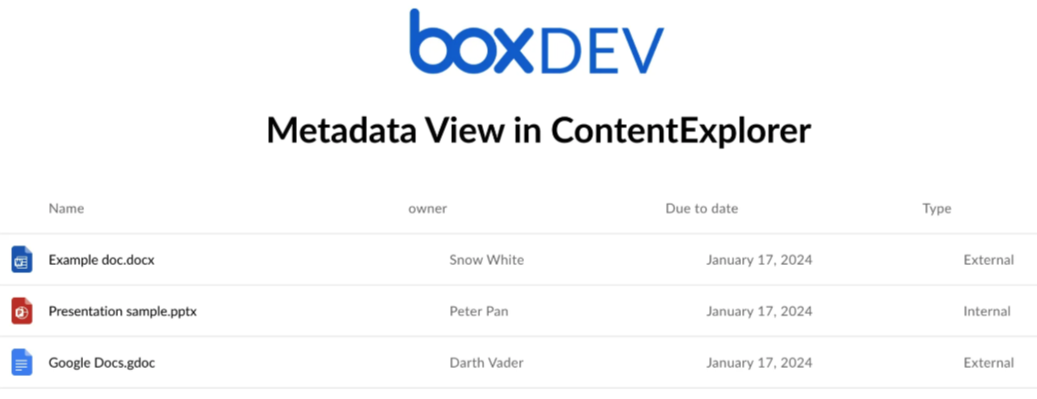
Prerequisites
- Read the guide.
- Check the .
- Check the information on .
Create and configure an app
- .
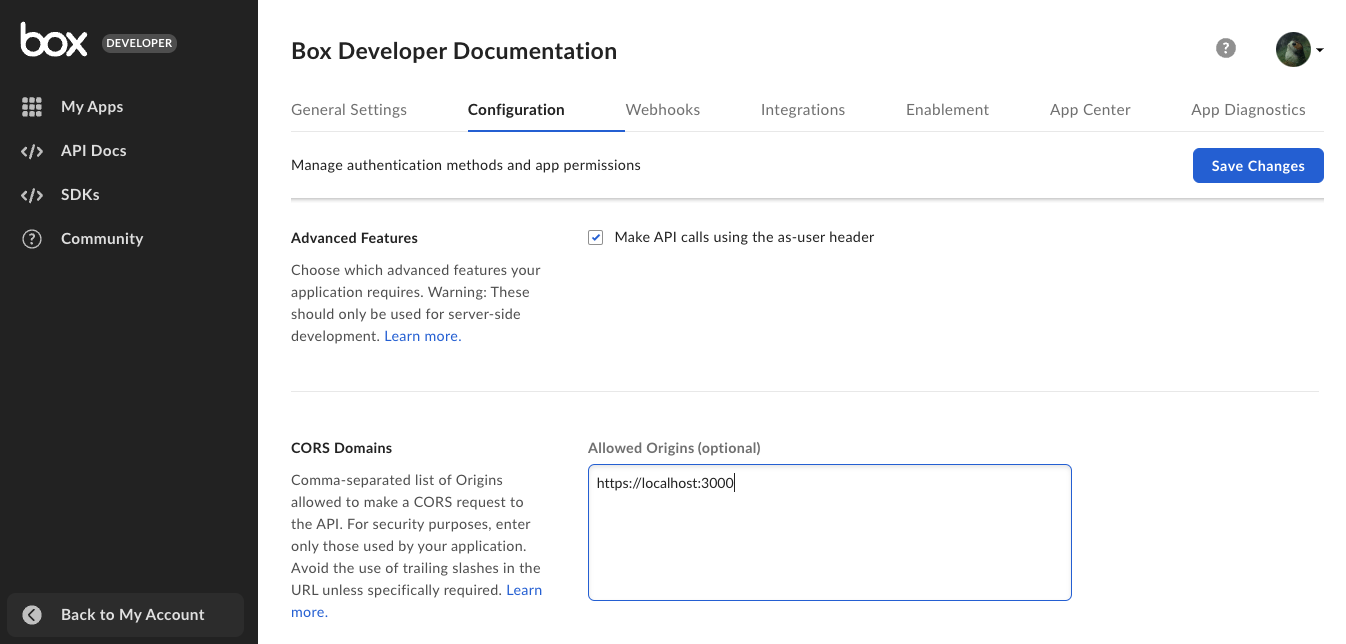
- Add the local development address in the CORS Domains:
- Generate a .
Create a metadata template
The next step is to create a metadata template.- Use or Admin Console to create the template.
- Apply an already created template to a Box folder. Make sure you enable the cascade policy. For detailed instructions, see instructions on customizing and applying templates.
You can also apply a metadata template to a file.
Display name and key parameters
- The
displayNameparameter is the display name of the template visible in the Admin Console. - The
templateKeyparameter is a unique identifier of the template. It needs to be unique across the enterprise for which you create the metadata template. If you don’t provide thetemplateKeyparameter, the API creates a unique one based on the value indisplayName. - The
[fields].displayNameparameter is the display name of the field as it is shown to the user in the web and mobile apps. - The
[fields].keyparameter is a unique identifier for a specific field in the template. The identifier must be unique within the template to which it belongs.
Display metadata view
Proceed to fill in the necessary properties passed to the Content Explorer. To make things easier, you can use a sample project based on a basic React app to launch metadata view.- Clone the metadata sample project.
-
Update the placeholders in
App.jswith actual values:TheParameter Description DEVELOPER_TOKENgenerated in the Developer Console. ENTERPRISE_IDEnterprise ID copied from the General Settings tab of your Box application. METADATA_TEMPLATE_NAMEtemplateKeyof your already created metadata template. Note: To make sure you provided the proper name, use the to retrieve the name, or copy it from the URL in the Admin Console.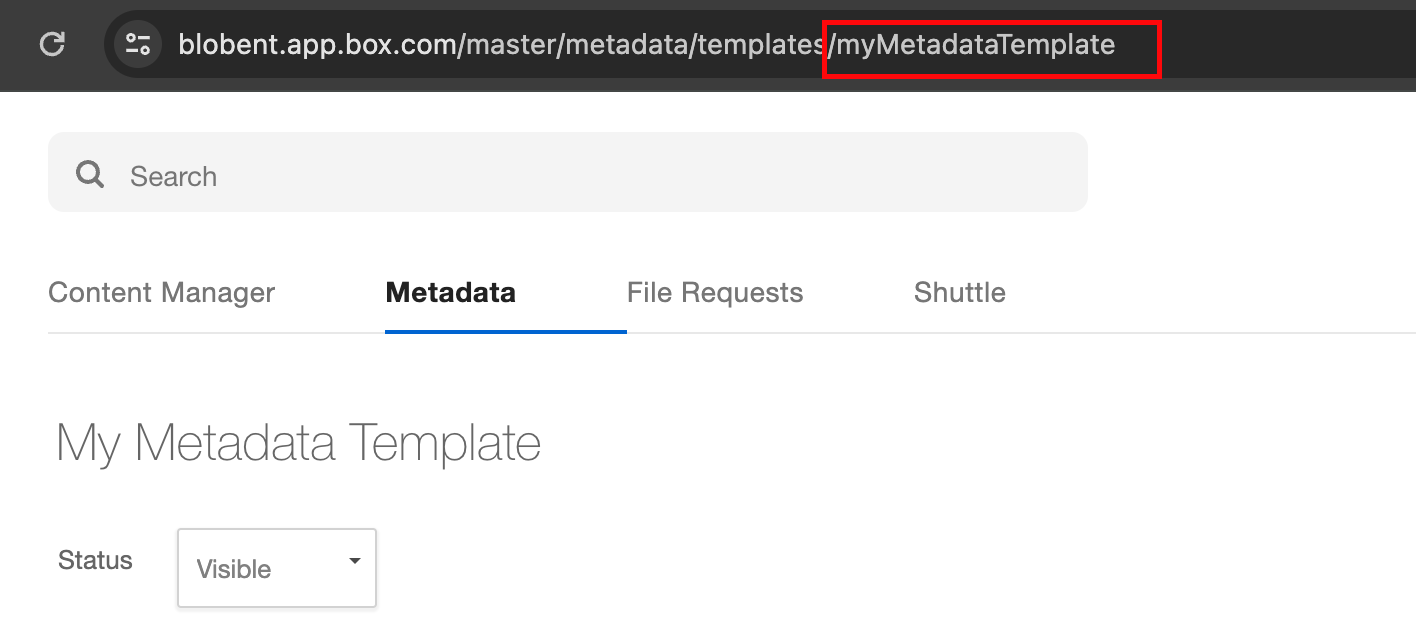
METADATA_SOURCESource of your . It’s a string that combines the scope, enterprise ID, and metadata key. ROOTFOLDER_IDID of a Box folder to which you want to apply the metadata query and display filtered files. defaultView,fieldsToShow, andmetadataQueryparameters are already defined in the sample project. Examples of these parameters are available in the sample project. - Pass the required parameters to the Content Explorer component.
Metadata keys
To decide which fields to show, the Content Explorer uses metadata , not the . You can see the display names in the Admin Console and user view, but you can obtain the field keys through the API. The field keys are not changing, even if you change the metadata display name. This ensures that the functionality works properly, despite any changes to the metadata in UI view.Metadata keys sanitization
are restricted to alphanumeric characters only:- No hyphens
-or underscores_are permitted. - Only letters (
a-z, A-Z) and numbers (0-9) are allowed.
fieldfor the first occurrencefield1,field2, and so on for subsequent occurrences
TIP: For a detailed flow, see Metadata view blog post.