

- cURL
- Node
- Python
- .NET
- Swift
- Java
Choose a document type
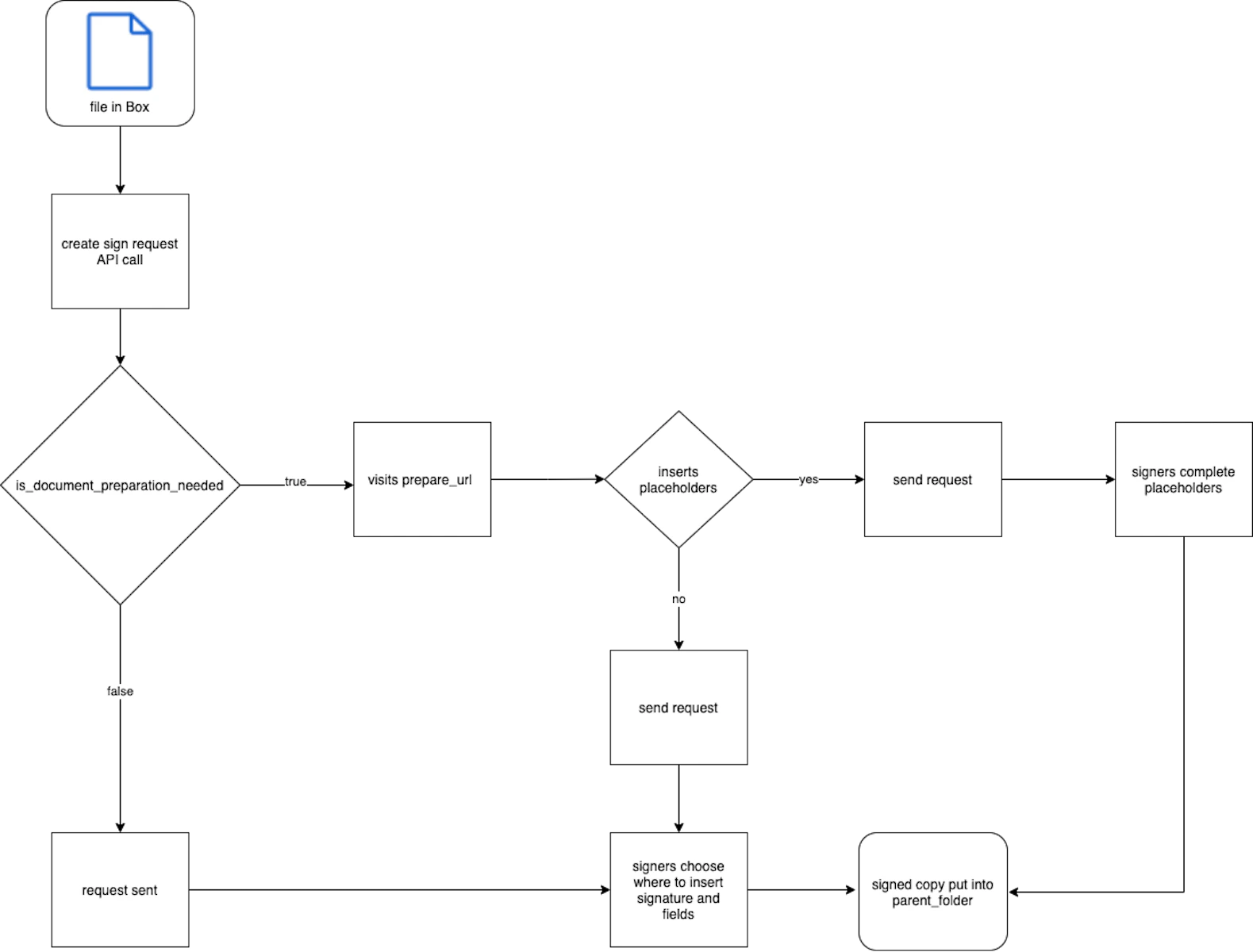
How you create the request depends on whether Box Sign already knows where to place signatures and other fields.- Unstructured document: The file has no tags or templates. Set
is_document_preparation_neededtotrueso the sender can place fields before anyone signs. See Signing unstructured documents. - Structured document: The file already contains document tags. You can skip preparation. See Signing structured documents.
- Template: Pass
template_idinstead of, or in addition to,source_files. See Templates.
Files
Each Box Sign request begins with a file that needs to be signed. If the file does not already exist in Box, it must be uploaded in a separate API call, before you create the request. Multiple files can be signed in one request. The file ID of the first file in a request is specified in thesource_files body parameter.
Supported file types include:
- All documents
- All presentations
- Images:
png,jpg,jpeg,tiff - Text-based files:
.csv,.txt
.pdf for the signature process. This converted
document is stored in the parent_folder after the request is sent. The final
signed document is always a .pdf, regardless of the original file type. As
each signer completes the request, Box Sign adds a new file version.
File size limits are determined by your account type. See the uploads guide for more information.
Parent folder
The folder ID specified in theparent_folder body parameter determines the
destination of the final signed document and signing log. This folder
cannot be the All Files or root level, which is represented by folder ID 0.
Document preparation
Preparing a document before you send a Box Sign request lets you add date, text, checkbox, and signature placeholders for signers. You can do this in the prepare UI or with tags in the document. If you skip preparation, signers receive an unprepared document and can place signatures and fields themselves. You can still turn unprepared document features on or off in the request. Setis_document_preparation_needed to true to get a prepare_url in the response. Open that URL in a browser to place fields and send the request.
Until someone visits prepare_url, the request stays in the created status. Once someone visits prepare_url, the request status changes to sent.
For unstructured files, always set is_document_preparation_needed to true
so the requester can place fields before the signer receives the request. Structured
documents and templates already define field placement, so you can skip the preparation
step.
Signers
Each signer must have a role (signer, approver, or final_copy_reader)
and can have a signing order. For what each role can do, how ordering works,
and a multi-signer example, see
Multiple signers and signing order.
Signers do not need a Box account. Invite them by email address, not by Box’s
user_id.
Signer verification
To require a CAC/PIV smart card, SMS, Box login, or a password before a signer can sign, see Verify signer identity.Signer language
Setlanguage on a signer to force emails and the signing page to that
language, regardless of the signer’s Box account or browser. If you omit
language, Box Sign uses the signer’s Box account language when they are
logged in, or English when they are not.
Use a supported code from the language codes page, for example en, nl, fr, de, es, or ja. An unsupported code returns a 400 Bad Request error. If the signer has an account, they can change their language in their account settings.
In-person signatures
To collect a signature on the requester’s device, setis_in_person to true
and see In-person signing.
Signature properties and prefill tags
Signature properties are the fields a signer can interact with. Useprefill_tags with document_tag_id to populate signature properties when you
create the request. Signers can still change prefilled values they own. For more information, see Pre-populate the signature attributes.
When you use a template, keep signer order in the POST body the same as the order on the template so the correct person gets each field.
Redirects
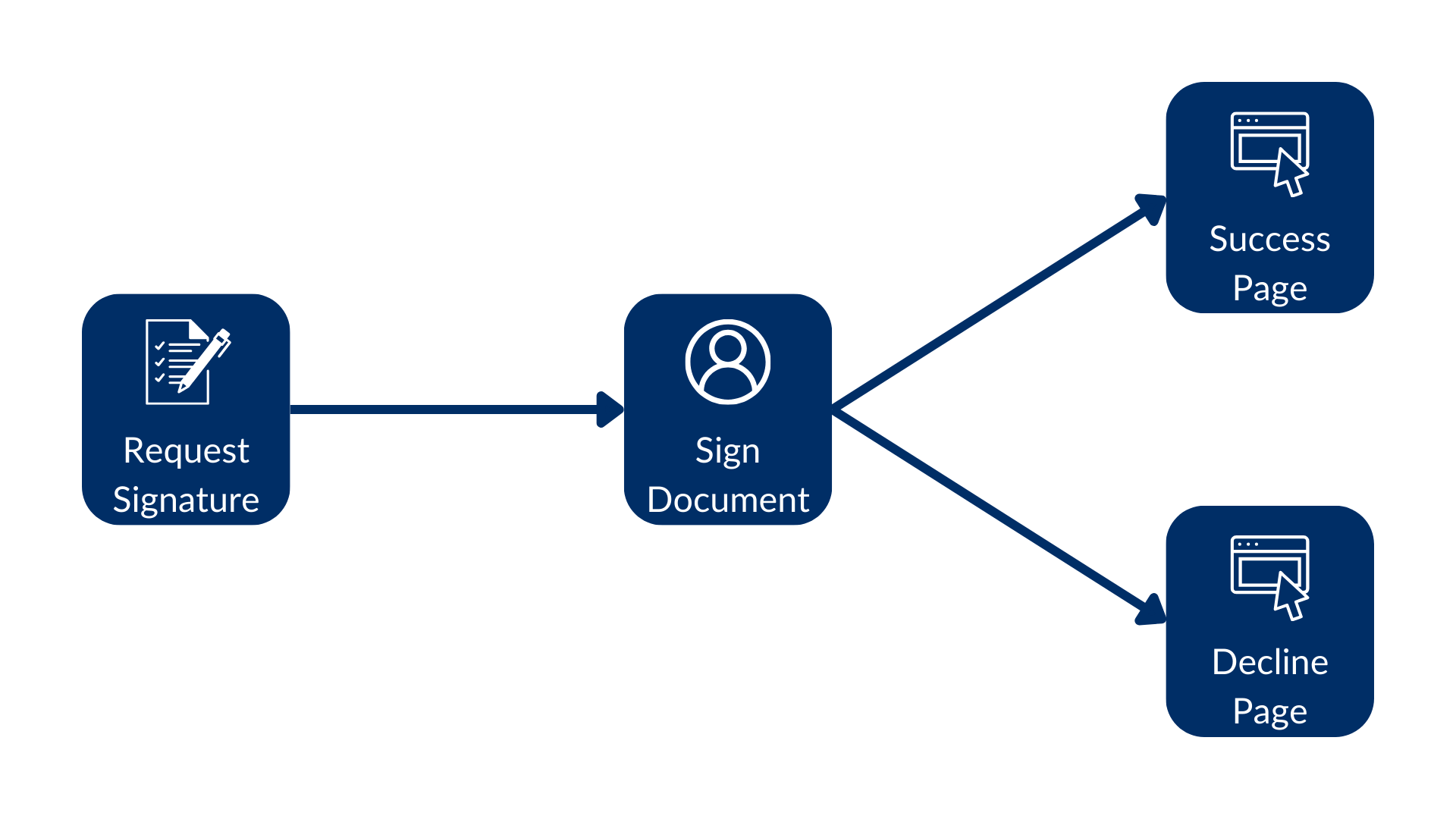
Setredirect_url and declined_redirect_url to send signers to a custom
page after they sign or decline. You can set these URLs on the request for each signer, and override them on individual signers. If you omit both, Box Sign uses the default completion page.
Email and notifications
To customize Box Sign email, send the signing link yourself, or embed the client, see How signers get the request.Request expiration
Setdays_valid to expire the request after that many days. After expiration,
the request status is expired and remaining signers cannot complete it.
Request flow
Setrequest_flow to cfr11 for a 21 CFR Part 11 (GxP) request, or standard
for the default flow. See 21 CFR Part 11 requests.
Request status
Creating a request is asynchronous, so the response returns astatus that
changes as the file converts, signers are notified, and the document is
completed. For what each value means and which actions each one allows, see
Box Sign request status.